
When you’re editing long-form footage, manually marking each cut can drain time and attention. Auto scene detection streamlines this process by identifying transitions with AI, allowing editors to focus on creative decisions rather than administrative tasks.
Below we examine the five leading scene‑detection tools available in 2026, highlighting their core capabilities, pricing, and ideal use cases. Whether you’re a hobbyist or a professional, this guide helps you match a software solution to your workflow and budget.
Understanding Auto Scene Detection
Advanced editors often rely on built‑in AI to dissect a video into discrete scenes. The underlying algorithms compare visual cues—such as lighting, color palette, and motion patterns—to spot cuts and transitions. Some tools also leverage metadata and frame‑by‑frame analysis for finer granularity. Because detection accuracy varies with algorithm quality and video complexity, evaluating multiple solutions is essential.
1. Filmora
Filmora offers a streamlined, user‑friendly interface for auto scene detection. Its AI engine quickly segments footage, making it ideal for beginners and intermediate editors who need rapid results without a steep learning curve.
Key Features
- Automatic detection of cuts and transitions.
- Object tracking and effect layering.
- Keyframed animations for custom motion.
- Background removal and creation tools.
- Color matching across diverse clips.
Strengths
- Intuitive UI suitable for newcomers.
- High detection accuracy with flexible cut editing.
- Competitive pricing compared to professional suites.
Limitations
- Limited advanced editing options.
- Performance may lag on very large projects.
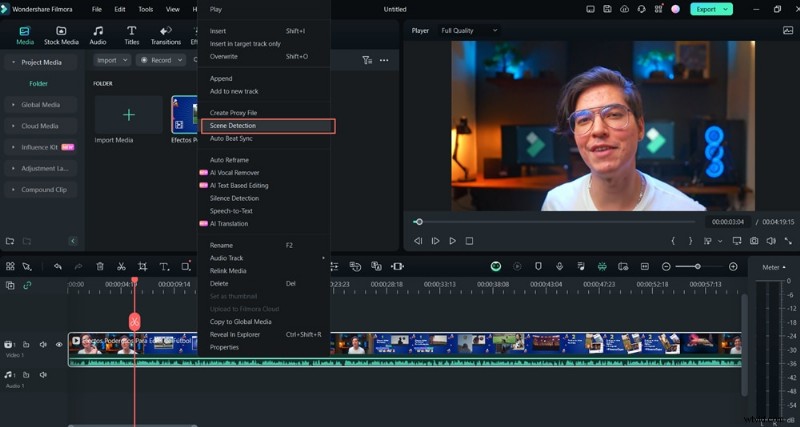
How to Use Filmora’s Scene Detection
- Import your footage into Filmora via the media panel.
- Right‑click the clip in the library and select Scene Detection, or choose the option from the top Tools menu.
- A dialog opens and automatically analyses the clip for transitions.
- Review each detected segment; if satisfied, click Add to Timeline to insert all scenes for editing.
2. Adobe Premiere Pro
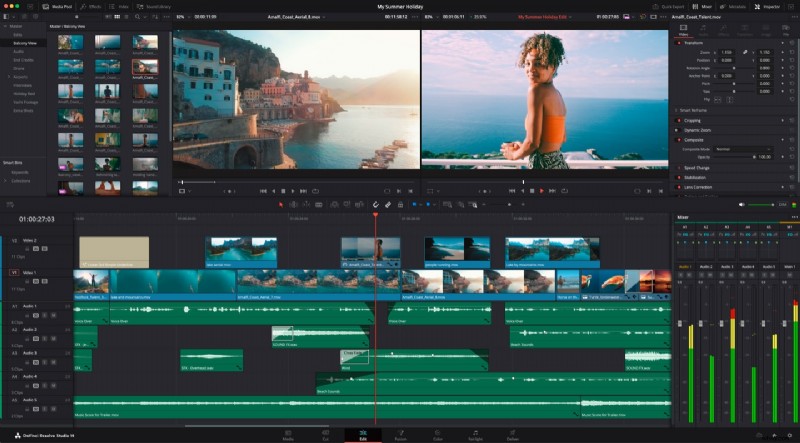
Premiere Pro’s integration of Adobe Sensei AI delivers precise scene detection, ideal for professionals who require meticulous control and integration with the broader Creative Cloud ecosystem.
Key Features
- Sensei‑powered instant scene change identification.
- Multi‑camera editing capabilities.
- Advanced audio editing tools.
- Support for VR and immersive formats.
- Seamless workflow with After Effects for motion graphics.
Strengths
- Industry‑standard AI for high‑accuracy detection.
- Comprehensive toolset for end‑to‑end production.
- Robust integration across Adobe apps.
Limitations
- Steep learning curve for newcomers.
- Subscription model can be costly.
Pricing
Adobe Creative Cloud subscription: $22.99 /month (includes Premiere Pro).
3. DaVinci Resolve
DaVinci Resolve combines professional color grading with a powerful auto‑cut feature. Its all‑in‑one architecture—editing, grading, audio, and VFX—makes it a compelling choice for complex productions.
Key Features
- Automatic scene segmentation for large files.
- Industry‑leading color grading tools.
- Advanced motion graphics and visual effects.
- Fairlight audio suite for post‑production.
- Multi‑user collaboration within a single project.
Strengths
- Superior visual effects and grading capabilities.
- Free version offers many premium features.
- Unified workflow across all creative disciplines.
Limitations
- Complex interface may overwhelm novices.
- High hardware demands for maximum performance.
Pricing
Free version: DaVinci Resolve 18 (scene detection included). Studio version: $295 (one‑time purchase).
4. Final Cut Pro
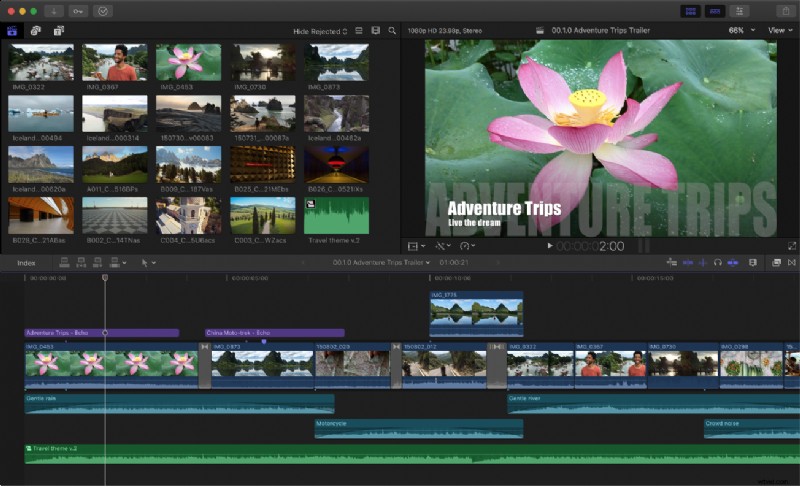
Final Cut Pro leverages Apple’s hardware optimization to deliver rapid scene detection and rendering, especially on macOS. Its magnetic timeline and VR support make it a favorite among professional Mac users.
Key Features
- Auto scene detection for quick segmentation.
- Magnetic Timeline for collision‑free editing.
- Hardware‑accelerated performance on Apple devices.
- 360° VR editing capabilities.
- Integrated sound design tools.
Strengths
- Fast, optimized performance on macOS.
- Intuitive timeline layout.
- Rich set of professional tools.
Limitations
- macOS exclusivity.
- Higher upfront cost relative to some alternatives.
Pricing
One‑time purchase: $299.99 for macOS.
5. Shotcut
Shotcut offers a free, open‑source solution with basic scene detection, making it suitable for budget‑conscious creators and those new to video editing.
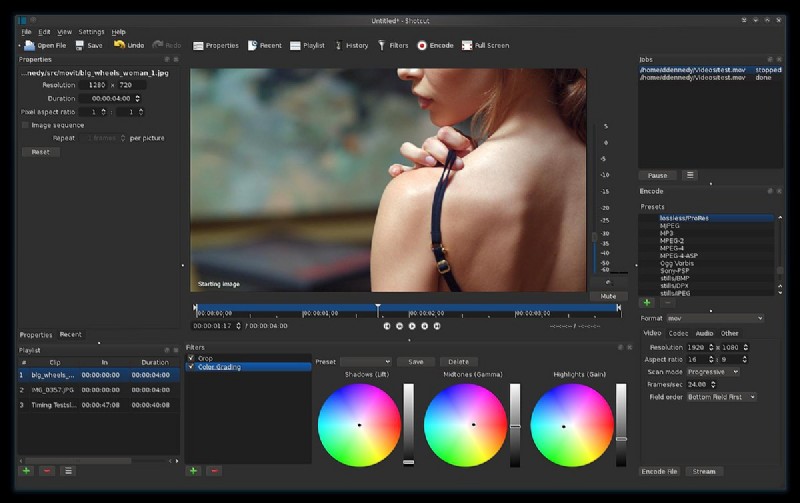
Key Features
- Simple scene detection for quick splits.
- Cross‑platform support (Windows, macOS, Linux).
- Wide format and codec compatibility.
- Community‑driven updates and support.
- Standard editing tools: filters, transitions, keyframing.
Strengths
- No cost, no watermarking.
- Open‑source flexibility and community backing.
- Extensive format support.
Limitations
- Scene detection less sophisticated than paid rivals.
- UI can feel dated to some users.
Pricing
Free and open source.
Comparison Table
| Software | Accuracy | Ease of Use | Customization Options | Integration with Other Tools | Pricing |
| Filmora | High | Very easy with intuitive UI | Moderate | Integrates with standard video editing tools like transitions and effects | $29.99/year or lifetime license at $49.99 |
| Adobe Premiere Pro | Excellent, industry-standard | Moderate learning curve | Extensive customization | Integrates seamlessly with Adobe Creative Cloud tools (Photoshop, After Effects) | $22.99/month (subscription) |
| DaVinci Resolve | High | Moderate complexity | Very high, with professional-grade options | Works well with external plugins and hardware panels | Free version available, $295 for Studio version |
| Final Cut Pro | High | Easy for Apple users | Advanced options | Integrates well with the macOS ecosystem, including Motion and Compressor | $299.99 (one-time purchase) |
| Shotcut | Moderate | User-friendly | Basic to moderate customization options | Limited integration compared to premium tools but supports essential formats. | Free (open-source) |
Choosing the Right Auto Scene Detection Software
Selecting the ideal tool depends on several factors:
- Budget – Free solutions exist, while premium options may require a subscription or one‑time purchase.
- Project Complexity – Large, multi‑camera productions often benefit from DaVinci Resolve or Premiere Pro.
- Skill Level – Filmora and Shotcut serve beginners; Adobe and Final Cut Pro target advanced users.
- Workflow Integration – Consider how the software meshes with other apps you use.
- Community & Support – Reviews, tutorials, and forums can influence long‑term satisfaction.
- Additional Features – Look for AI enhancements, batch processing, and advanced transition libraries.
Conclusion
The five auto scene detection tools reviewed—Filmora, Adobe Premiere Pro, DaVinci Resolve, Final Cut Pro, and Shotcut—each offer distinct strengths. Align your choice with budget, technical needs, and expertise to streamline your editing workflow and elevate the quality of your final product.