
Ever wondered why your fast-moving clips look too sharp or unnatural in your edits? The Final Cut Pro motion tools can help fix that by adding motion blur that recreates how cameras capture real movement.
Motion blur in Final Cut Pro adds a natural sense of speed and realism to your shots. It can help make every transition and pan feel smoother and more cinematic. Without it, even steady footage can look flat.
This guide reviews Final Cut Pro motion blur tools, useful plugins, and an easier alternative you can try. Let's jump right in!
Part 1. How to Handle Motion Blur in Final Cut Pro
The Final Cut Pro motion blur feature is still quite limited compared to other editors. It doesn't include a dedicated motion blur control, but you can mimic the effect using a few methods inside the editor.
Common ways to simulate motion blur in Final Cut Pro:
- Trails Effect: Adds soft streaks to moving objects, useful for subtle motion trails but can look uneven during sudden speed changes.
- Directional Blur: Lets you control the blur angle and intensity. But, it requires manual keyframing to stay consistent with motion.
- Compound Clips: Helps apply effects to multiple clips at once and keeps motion blur consistent across transitions.
While these tools help soften fast movements, they require extra tweaking and don't always react to motion changes automatically. You can achieve decent results with practice, but they remain less flexible than dedicated motion blur plugins or external editors.
Part 2. Plugins and Third-Party Tools for Motion Blur in Final Cut Pro
When the built-in tools fall short, using third-party plugins becomes the best way to achieve realistic Final Cut motion blur. These tools automate blur intensity based on motion, saving you time from manual keyframing and adjustments.
Recommended Final Cut Pro Motion Blur Plugins and Tools:
ReelSmart Motion Blur (RSMB)
This is one of the most reliable motion-vector based blur plugins available. It tracks motion between frames and applies blur accordingly. It supports Final Cut Pro (as well as Motion) and offers both a regular and a Pro version.

Smart Blur by FxFactory
FxFactory's Smart Blur plugin works in Final Cut Pro, Motion, and other hosts. It offers blur modes driven by its internal algorithms. It's not purely a "motion vector blur" tool, but it can be useful as an effect in your toolkit.

FCPX Motion Blur by Pixel Film Studios
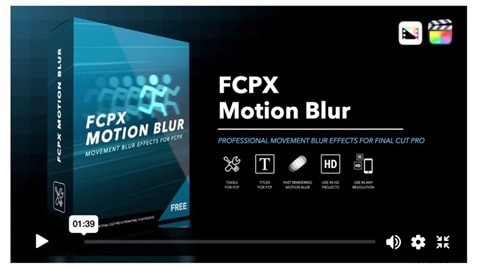
FCPX Motion Blur is a free tool with two parts: "Motion Blur" for animated elements and "Frame Blend" for footage. It lets you set shutter angle and sample count to mimic more natural blur.
Part 3. How to Add Motion Blur in Final Cut Pro
If you're wondering how to add motion blur in Final Cut Pro, there are two main ways to do it. You can use built-in tools that need some manual setup, or install a plugin for faster, more precise results.
Method 1. No-Plugin Workaround Inside Final Cut Pro
If you don't have a plugin, you can still simulate motion blur in Final Cut Pro using the Trails effect and compound clips. Follow the steps below to learn how to do that:
Step 1
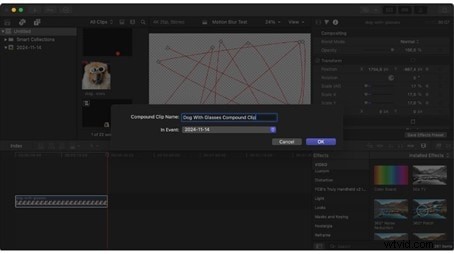
Create a Compound Clip
Select the clip or animated element you want to blur. Right-click and choose New Compound Clip. This helps apply the blur consistently without affecting other layers.
Step 2
Add the Trails Effect
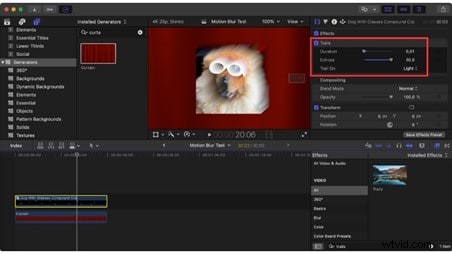
Go to Effects > Stylize > Trails and drag it onto your compound clip. Set Duration to around 0.01 seconds for a balanced result. Increasing it to 0.02 can add more blur but may cause smearing.
Raise the Echoes value to 30 to create smoother streaks. Higher values improve blur quality but increase render time.
Step 4
Keep Trail On as Light
The Light setting gives a softer look that blends better with most footage.
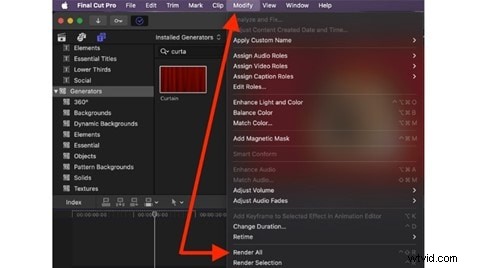
Go to Modify > Render All before playback. The effect can be heavy, so rendering helps preview the motion blur accurately.
Method 2. Using a Plugin
For editors who want faster and more realistic motion blur effects in Final Cut Pro, using a plugin provides better results. These tools work well for speed ramp transitions and fast camera moves.
Here's a simple way to add motion blur using the plugin:
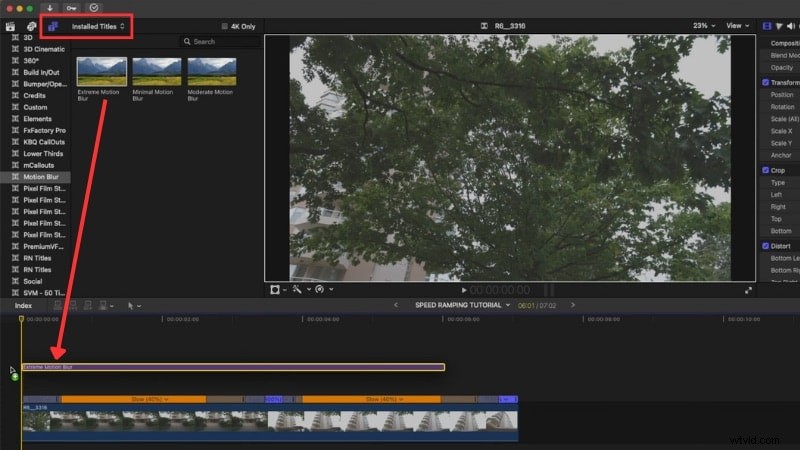
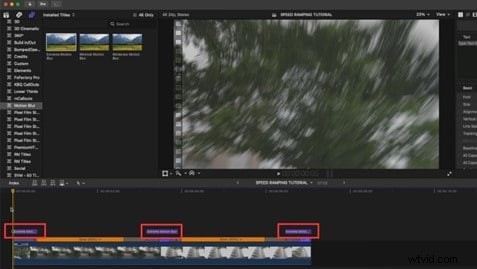
Follow the plugin's setup instructions, then restart Final Cut Pro. You'll find it under Titles > Installed Titles (or its dedicated category).
Step 2
Add Your Clip and Adjust Speed
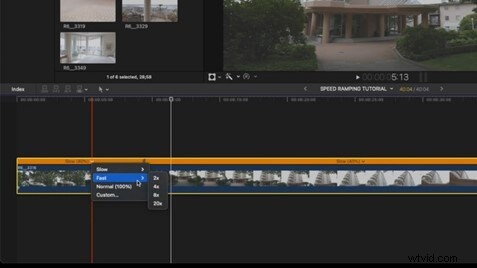
Import your footage and cut it where speed ramps should start and stop. Use Shift + B to mark points, then drag the speed handles to control how fast each section moves.
Step 3
Apply the Motion Blur Plugin
Drag the motion blur plugin above your clip, and adjust the length to match the visuals.
Step 4
Render Before Playback
Final Cut Pro can slow down when the motion blur effect is active. Go to Modify > Render All before previewing to avoid lag or crashes. After rendering, the motion blur adds a soft streak to each frame, making fast movements or transitions look smoother — especially when combined with speed ramping.
Bonus. Create Motion Blur Effects Without Final Cut Pro: Alternative Editor
If the Final Cut Pro motion blur process feels too complex or plugin-heavy, you can try a simpler option like Wondershare Filmora. Unlike Final Cut Pro, Filmora already includes a built-in motion blur effect that works on both video and animated text.
 Secure Download
Here's how to add motion blur in Filmora:
Step 1
Find the Motion Blur Effect
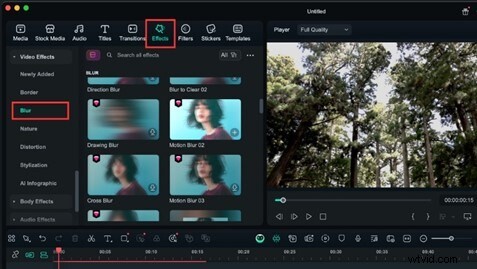
After importing your clip to the timeline, go to Effects > Video Effects > Blur, and scroll down to find Motion Blur effects.
Secure Download
Step 2
Apply the Motion Blur Effect to the Clip
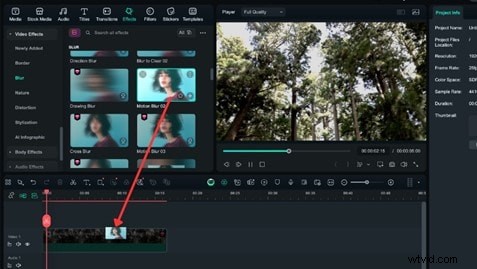
Hover the cursor over each effect to preview how it looks, then tap the Download button to save the effect. Drag the effect onto your clip or text layer.
Step 3
Adjust the Settings
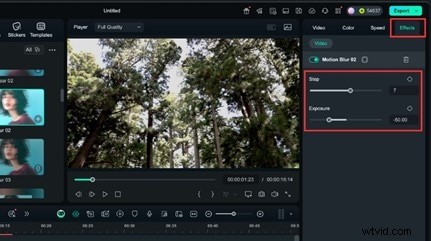
Select the clip in the timeline and go to the Effect > Video panel on the right. Adjust the Step and Intensity to control how strong or subtle the blur appears.
Play the clip in real time to check the motion blur. Make small adjustments until it matches the motion of your footage.
Conclusion
The Final Cut Pro motion tools can help improve fast scenes, but they still leave room for more advanced control. Built-in effects like Trails or Directional Blur work for light adjustments, yet more demanding edits often need plugins for better results.
Using plugins can push the motion blur Final Cut Pro workflow further, especially when handling action shots, transitions, or speed ramps.
For users who prefer a faster workflow, Filmora offers built-in blur controls that simplify the process. Try it for your next video and see the difference.

Filmora
AI Video Editing App & Software
Best tool for making videos anywhere for all creators!
Simplify all your steps in video editing, from the pre-processing to finalizing, Filmora AI stays tuned.
Frequently Asked Questions
-
Does using motion blur in Final Cut Pro slow down rendering times?
Yes, applying motion blur can increase render time. The editor needs to calculate frame blending for each movement. To speed up previews, render sections in smaller parts, or use proxy media.
-
Are there any free motion blur plugins available for FCPX?
Yes. The FCPX Motion Blur plugin by Pixel Film Studios and a community version from creator Ryan Angle on YouTube are both free options. They work well for basic blur needs, though heavier scenes may still need paid tools.
-
Is motion blur mainly used for transitions, or can it enhance entire clips?
Motion blur works in both cases. Many editors use it to smooth out fast transitions or speed ramps, but it also helps full-length clips feel more natural. It reduces stutter in panning shots and adds flow to high-action scenes.