
If you’re a social‑media creator looking to produce polished videos on the go without the complexity of desktop software, the InShot video editor is a popular choice. With a clean interface and instant editing tools, InShot lets you trim, crop, add text, and apply effects with just a few taps. This review walks you through every key feature, the pros and cons, pricing options, and a strong alternative for users who need more advanced tools.
The article offers a thorough walkthrough of the app’s functionality, a user guide for beginners, and an overview of a powerful competitor for those who want deeper editing capabilities.
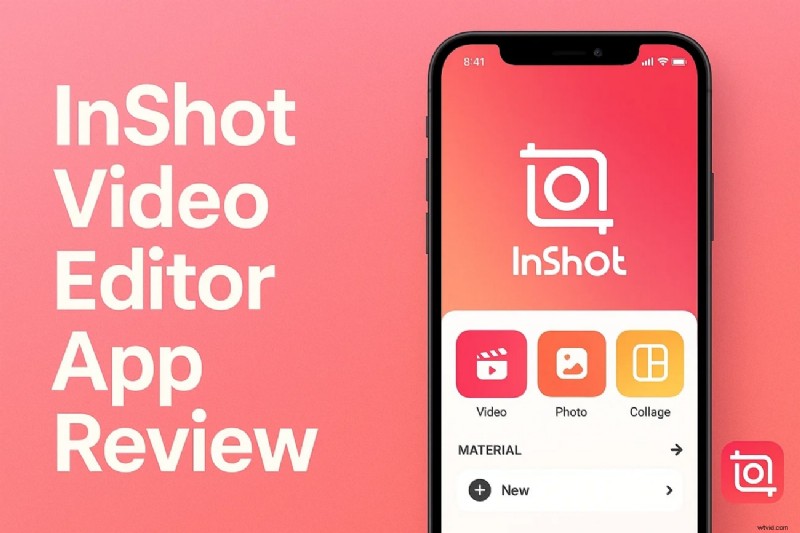
Part 1: What Is InShot and Who Is It For?
InShot is a cross‑platform mobile app available on iOS and Android that enables creators to edit photos and videos directly from their smartphones. Designed for social‑media enthusiasts, it bundles essential tools—trimming, cropping, text overlays, and a library of stickers—into an intuitive workflow that doesn’t require prior editing experience.
Its lightweight design and comprehensive feature set make it ideal for quick video creation, especially for users who need results fast and with minimal learning curve.
Part 2: Core Features & Workflow
The app’s streamlined interface means you can produce a polished clip in minutes. Below are the core functionalities you’ll find:
- Reverse Video: Flip footage in reverse with a single tap, preserving quality for a dramatic rewind effect.
- Speed Control: Fine‑tune playback speed, from slow‑motion to hyper‑fast, and apply a one‑click “Smooth” filter for professional results.
- HD Enhance: One‑tap AI upgrade that instantly boosts visual clarity and color fidelity, with real‑time preview.
- AI Cut: Automatic background removal or subject isolation powered by machine learning, eliminating manual masking time.
- Voice Effects: Add playful voice filters to match the tone and mood of your video.
Part 3: Pros & Cons
After exploring the features, let’s evaluate InShot’s strengths and weaknesses.
- Pros:
- Multiple aspect‑ratio presets to fit any platform.
- Background options—solid colors, blur, gradient—to enhance visual storytelling.
- One‑tap mute for quick audio removal.
- Cons:
- Free version includes intrusive ads during editing.
- Complex projects may trigger glitches or crashes.
- Photo‑editing capabilities lag behind dedicated apps.
Part 4: Pricing, Ratings & Plans
The free tier unlocks core editing tools—trimming, speed control, text, stickers, and music—while the Pro subscription removes ads and adds premium features.
Pricing Plans
| Plan | Pricing |
| InShot Pro Monthly | $4.99 |
| InShot Pro Yearly | $19.99 |
| InShot Pro Lifetime | $49.99 (one‑time purchase) |
User Ratings
- iOS: 4.7/5
- Android: 4.5/5
Part 5: A Beginner‑Friendly Alternative—Filmora App
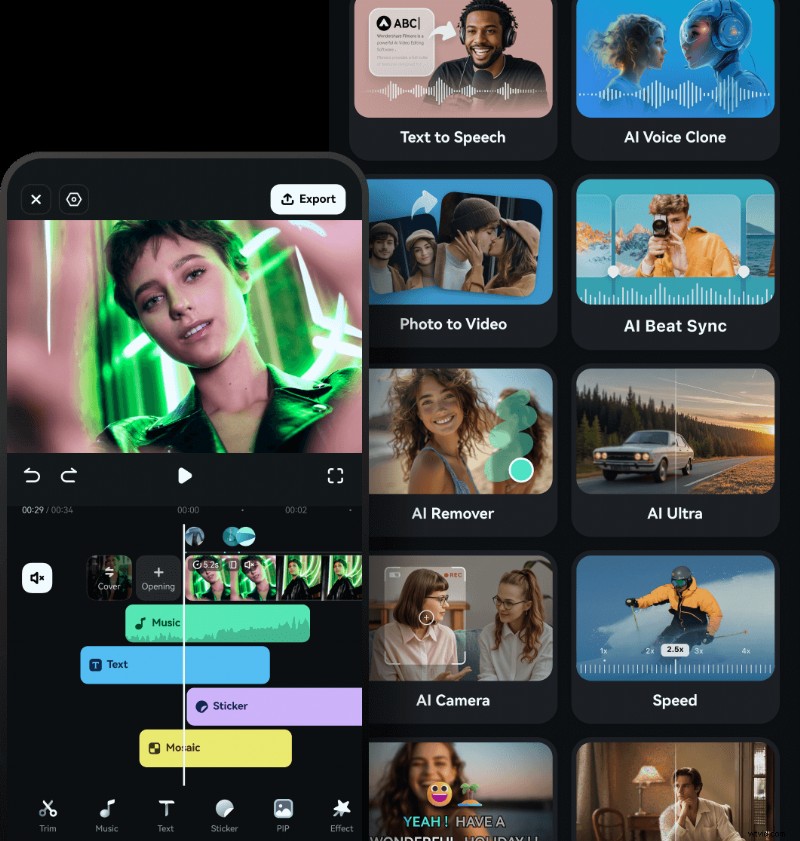
If you need more advanced editing while still staying beginner‑friendly, the Filmora App (iOS/Android) offers a robust feature set that includes AI‑powered tools, multi‑layer editing, and automated captions.
 Secure Download
Key capabilities: motion tracking for dynamic replacements, keyframing for precise effect timing, and a comprehensive library of templates and filters.
Coherent Features Offered by Filmora
AI‑Powered Tools
Turn text prompts into videos, convert images into dynamic clips, auto‑create social‑ready reels, and sync cuts to music beats—all with AI.
Multi‑Layer Editing
Remove objects, customize speed curves, enhance audio, and apply creative templates—all within a single project.
Pros & Cons
- Pros:
- Picture‑in‑Picture for layered media.
- Unlink feature lets you edit elements independently.
- Intuitive drag‑to‑trim.
- Cons:
- Free version places a watermark on exports.
Pricing details are available on the official purchase page.
Ratings
- iOS: 4.7/5
- Android: 4.5/5
Part 6: Workflow Comparison: InShot vs. Filmora
Below is a side‑by‑side workflow guide to help you decide which app aligns with your editing style.
| Feature | InShot | Filmora App |
| Import Footage |
|
|
| Trim & Arrange |
|
|
| Enhance Videos |
|
|
| Add Text & Graphics |
|
|
| AI Tools |
|
|
| Audio Editing |
|
|
| Effects & Transitions |
|
|
| Export & Share |
|
|
| Platforms |
|
|

Conclusion
In summary, InShot delivers a solid set of tools for quick, mobile video editing with a focus on simplicity and speed. If you require a deeper feature set—advanced AI tools, multi‑layer editing, and desktop support—the Filmora App is an excellent next step. Both apps maintain strong user ratings and provide a clear upgrade path for users who grow beyond the free tier.