
Are you a content creator or marketer who needs to engage your audience and grab their attention through quick emotions and animations? For your ease, the best MOV to GIF converter is available in the market. Say goodbye to the time-consuming process of loading large video files because Wondershare Filmora is here to provide a lossless MOV to GIF conversion.
This article is a comprehensive guide on converting MOV to GIFs effortlessly, highlighting the powerful features of Filmora and helping you create visually appealing and standout content.
Part 1. Is It Possible to Convert MOV to GIF High Quality?
For the visual content creators, conversion of MOV to GIFs is necessary to show their products on platforms that natively do not support large video files. You can easily convert your MOV to GIFs if you use the right settings and tools. However, there are some limitations to consider when producing high-definition GIFs through MOV:
- Color Limitation: GIFs naturally support 256 colors per frame, which limits their usage for smooth gradient images.
- Compression Level: This applies LZW lossless compression control, preserving image data without quality loss during compression. However, large or complex animations can result in sizable files.
- High Frame Rates Increase File Size: When creating MOV to GIF high quality with frame rates up to 60 fps/HD, it utilizes more data and storage capacity.
- HD Resolution leads to Larger Files: GIFs with high resolution increase the volume of data files that impact loading time and performance.
Part 2. Wondershare Filmora: The Best Choice to Convert MOV to GIF Mac & Windows
As a content creator, you might need to quickly convert your videos into a GIF for social media, but built-in Mac or Windows do not natively support this feature.
For this purpose, Wondershare Filmora is the best option because it is easy to use, has adjustable frame rates, and simple trimming and cropping options to create high-quality GIFs quickly. This all-in-one multimedia editor allows users to create high-quality content effortlessly.
 Secure Download
Coherent Features Offered by Filmora
Filmora provides a comprehensive toolkit that goes beyond basic editing, offering creators both technical optimization and artistic flexibility. Its features can be broadly categorized into two areas: conversion optimization and creative enhancement.
Conversion Optimization Features
Filmora goes beyond basic editing by offering powerful creative tools that help transform raw recordings into compelling, platform-ready content. Whether you're working with gameplay footage or creating GIF-based content for social media, these features offer the control and flair creators need.
Auto Reframe for Aspect Ratio Conversion
Filmora automatically adjusts aspect ratios (e.g., from landscape to square or portrait) while converting formats like MOV into GIFs. It intelligently keeps the subject centered, making it ideal for
repurposing videosacross platforms like TikTok, Instagram, and YouTube.
Smart Scene Cut for Quick Highlight Extraction
This AI-driven feature detects scene changes in longer videos and segments them into short, impactful clips. It's especially useful for creating highlight reels or GIF memes from gameplay, reaction videos, or vlogs.
Bitrate Adjustment Control
Users can manually control the video bitrate to balance between file size and playback quality. This is particularly beneficial for online sharing, uploading to platforms with size restrictions, or exporting lightweight versions without sacrificing clarity.
Speed Ramping with AI Frame Interpolation
Creators can fine-tune playback speed using preset or custom speed curves. Combined with AI frame interpolation, this ensures smoother transitions and refined visual quality—perfect for slow-motion effects or dynamic cuts in short-form videos.
Creative Enhancement Features
Filmora offers creative tools that help turn raw footage into polished, engaging content—ideal for gameplay videos, social posts, and marketing GIFs.
Custom GIF Export Settings
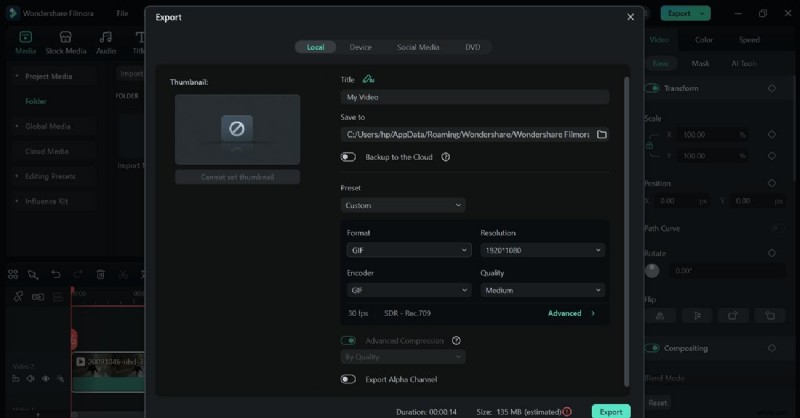
Customize GIF resolution, frame rate, file size, and loop duration to suit different platforms and campaign needs.
AI Sticker Generation
Automatically add fun, animated stickers to MOV-to-GIF conversions—perfect for memes and attention-grabbing content.
AI Thumbnail Creator
Generate professional-looking thumbnails for GIFs to boost engagement on social media.
Built-in Recording & Editing Tools
Record gameplay with mic and webcam, add facecam via PiP, and enhance videos with effects, transitions, and AI audio tools like denoise and ducking.
Pros & Cons
- The compound clip feature lets users arrange multiple clips and transitions into a single video, which is helpful in creating animated GIFs.
- Filmora MOV to GIF converter provides various audio enhancement features along with visual editing.
- The free version of Filmora gives watermarks on all exported GIFs.
Pricing Plans
For more details, please visit the purchase page where various pricing plans are available.
Part 3. How to Convert MOV to GIF with Filmora: Step-by-Step Guide
The step-by-step guideline is given in the following section about how to convert MOV to GIF using Filmora:
Step 1
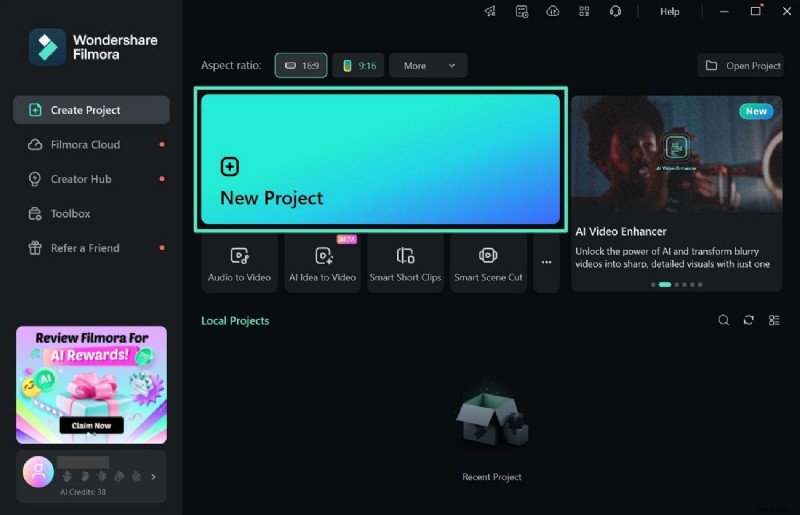
Open the Tool and Start a New Project
- Create a new project by clicking the "New Project" tab.
- Start converting your MOV into GIF.
Secure Download
Step 2
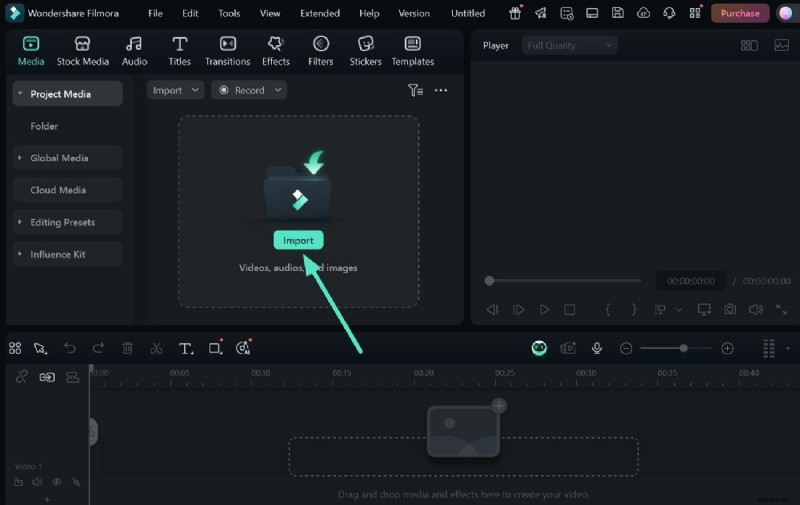
Import the File and Add to Timeline
- Click the "Import" icon in the "Media" section to add your video.
- Drag the imported video to the editing timeline.
Step 3
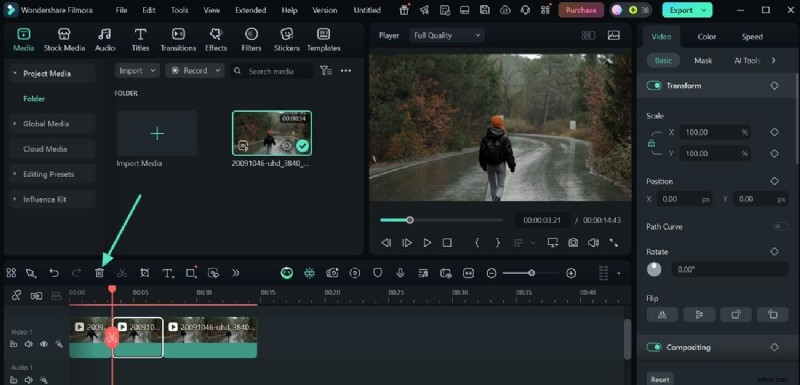
Remove Unwanted Parts
- Drag the playhead to the point you want to cut and click "Split".
- Click the "Delete" icon to remove unwanted sections.
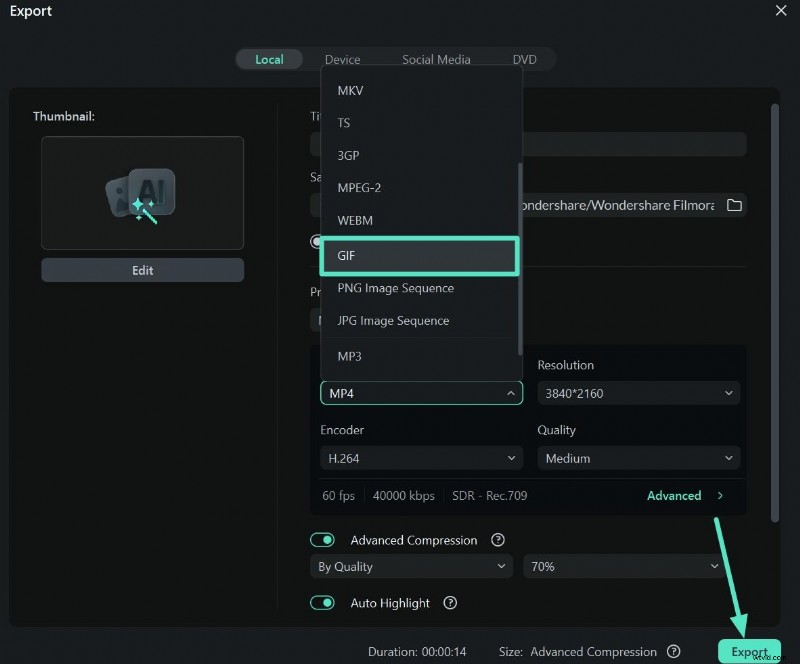
- Click "Export" and open the "Format" drop-down menu.
- Select "GIF" as the export format and save to your device.
Part 4. MOV to GIF High Quality Conversion: How Filmora Can Enhance the Process
Creating high-definition GIFs from your videos is not just a simple phenomenon. It is a whole process of giving a creative look to your GIFs by using different AI features that are offered by Filmora while converting MOV to GIF in high quality.
Text, Filters, and Overlays
Filmora helps you create high-quality GIFs by adding enhanced filters, cinematic texts, and smart overlays to your MOV. These advanced features are essential for brand quality and give a smart touch to your content.
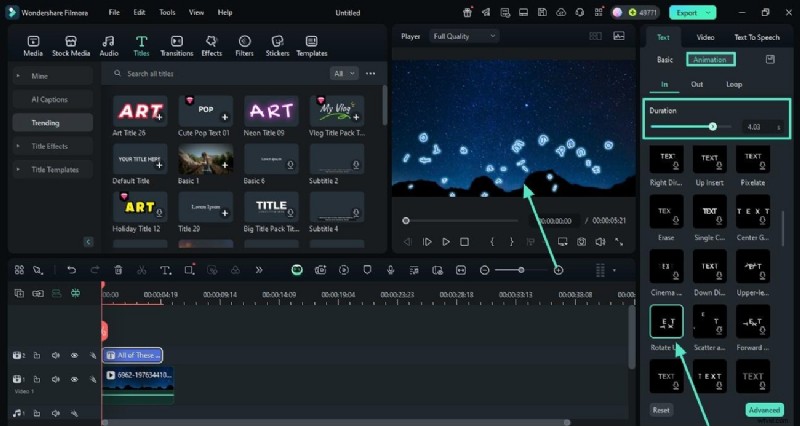
Frame Extraction
This feature lets the creators give a refined look to their extracted GIFs from the MOV. The scenes that are not relevant and support your idea while creating GIF memes can easily be isolated through frame extraction.
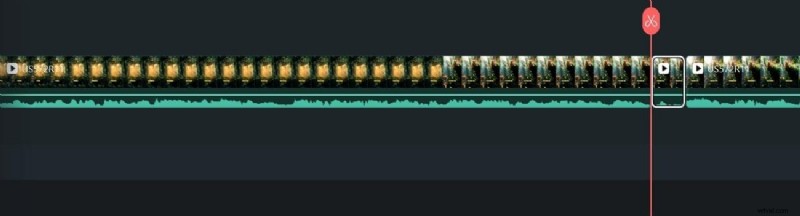
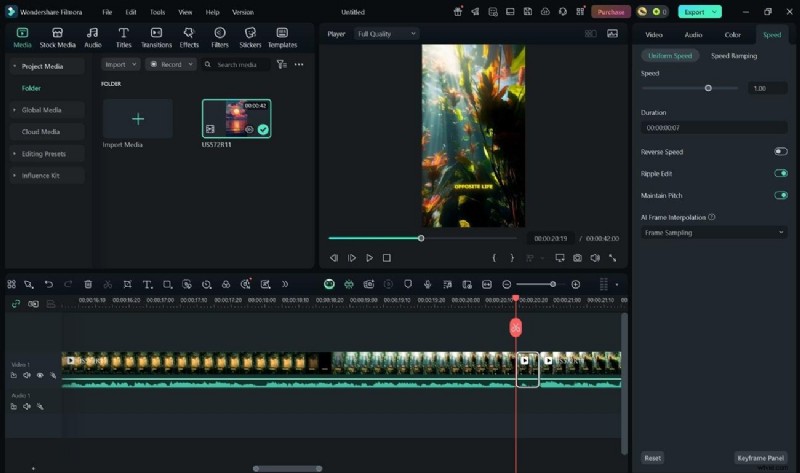
Speed Adjustment
Speed adjustment control can be applied to slow down specific parts of your video, which is worth engaging in and connecting with the audience on a specific emotional level. This feature is helpful for marketers looking for a humorous approach while creating GIFs.
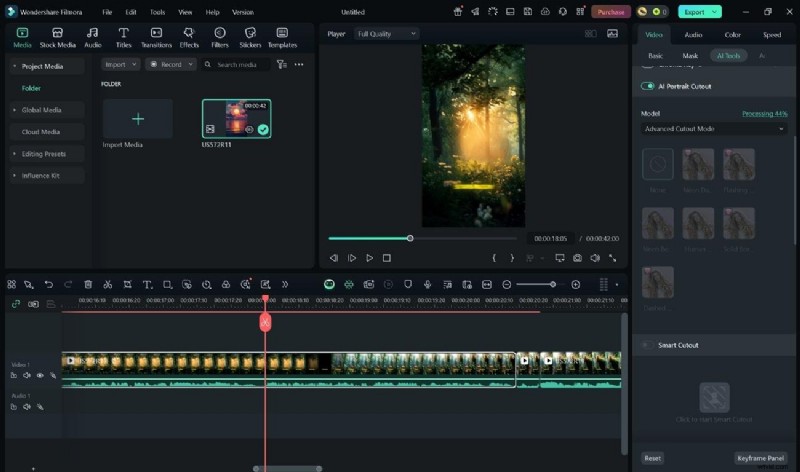
AI Portrait and Effects
The AI portrait feature gives an aesthetic and visual effect to the GIFs by removing the background and focusing on the subject. When you convert MOV to GIF on Mac, it produces a creative effect that perfectly matches the overall vibe of your content.
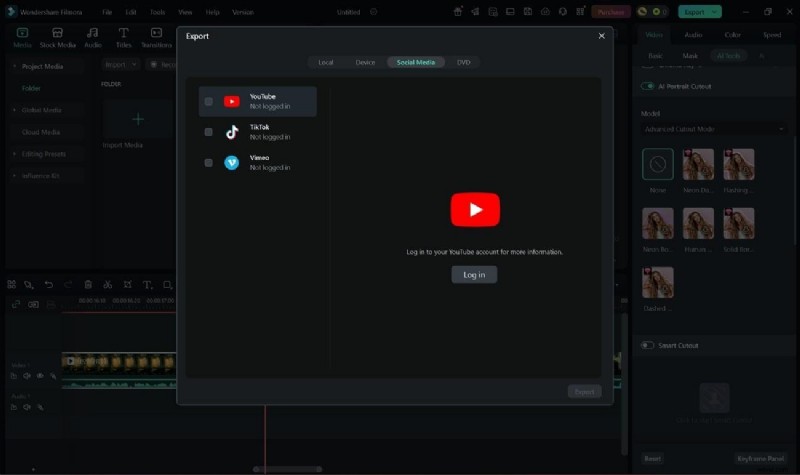
Direct Social Media Export
Social media creators are utilizing this tool to directly share their created GIFs on various social media platforms, including Facebook, Instagram, and Twitter. It has eliminated the hassle of downloading and saving on your device.

Filmora
AI Video Editing App & Software
Best tool for making videos anywhere for all creators!
Your Best Choice to Convert MOV to GIF Mac & Windows
Part 5. [Quick Alternatives] Some Online MOV to GIF Converters for A Quick Conversion
If you're looking for a convenient, hassle-free tool, here are some online tools that give an easy solution for MOV to GIF conversion:
1. CloudConvert
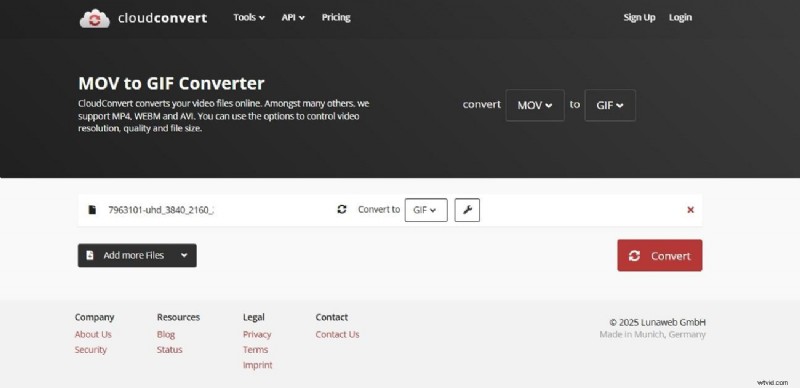
This is an essential tool for easy conversion of MOV to GIFs and supports over 200 formats. It has cloud-based automation control, allowing regular users to create GIFs systematically. Although it is a flexible MOV to GIF converter, it doesn't have AI features like Filmora for creative controls and in-depth editing.
Pros & Cons
- Conversion files can be stored on platforms like Dropbox or Google Drive with proper privacy controls.
- It offers API batching and high-conversion support for large files.
- Stable internet is required as large files take time while downloading/uploading.
- No real-time preview option is available for created GIFs.
Brief Reviews
- "An amazing tool for all occasions" - Egor B.
- "Takes ages to do what can be done quickly…" -Lloyd
Official Ratings
G2 Ratings: 4.7/5
Pricing Plans
- Package: Starting from $17
- Subscription: $9/month
2. Ezgif.com
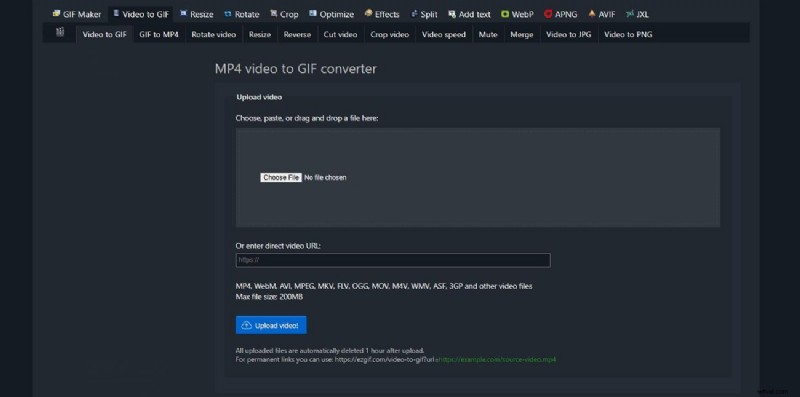
With this tool, users can manually extract the unwanted parts or rearrange the frames of their GIFs. It has an advanced feature of reversing the playback direction of GIFs, offering creative engagement that is not available in basic online tools. The frame-by-frame feature is helpful for easy selection of specific portions that creators wanted to put in the GIF.
Pros & Cons
- It is a completely free application that has all editing options with zero charges.
- Ezgif.com has no watermark on the edited GIFs and zero advertisement.
- The maximum size of the file to be uploaded is 100 MB, which restricts the conversion of longer MOV files.
- It does not support batch-saving options and lets users perform tasks in a single session.
Brief Reviews
- "Very easy to create .GIF files.." - ekkier
- "...the site wouldn't upload the video.." - Steve
Official Ratings
Trustpilot Ratings: 4.4/5
Pricing Plans
Free
Part 6. Comparison Table Between MOV to GIF Converter
Having discussed the MOV to GIF converters in detail, let us have a look at the comparison table between them. This tabular comparison will give you a better insight into the tools:
| Wondershare Filmora | CloudConvert | Ezgif.com | MConverter | |
| Conversion Quality | High-quality output with control over format, resolution, and frame rate. | Good conversion quality | Average converted GIF quality | Decent quality, but no HD optimization |
| Speed Adjustment Controls | Offer complete control over speed with automated speed ramping. | No speed adjustment options | Yes | No |
| AI-powered Video Editing | Extensive AI-powered multimedia editing features | No AI-powered features | No AI features | No AI-powered features |
| Direct Social Media Sharing | Yes | No | No | Yes |
| Batch Processing | Yes | Yes | No | Yes |
Conclusion
In conclusion, the tools discussed above have many advantages for converting MOV to GIF, but they have certain limitations online. Therefore, to cater to this need, many creators choose Filmora for MOV to GIF converter because of its built-in AI features, GIF-export support, customized editing, and speed-control option. The article explains how Filmora stands out among other online tools by providing the best all-in-one solution for large MOV files into creative GIFs.