
Key Takeaways
- Digital Audio Workstations (DAWs) can only record multiple tracks when host and guests share a single room.
- Remote multitrack recorders allow each participant to be captured independently over the internet.
- Zoom offers separate audio tracks for each participant, while Riverside records both audio and video tracks separately.
Multitrack recording produces individual audio and video streams for every speaker, simplifying post‑production and giving editors granular control.
Choosing the right tool can be confusing—should you go with a traditional DAW or a dedicated remote recorder? Below we evaluate the top options so you can select the best fit for your workflow.
Why Use Multitrack Recording?
Capturing separate tracks during a session means you can adjust each speaker’s volume, remove mistakes, or edit out crosstalk without disturbing the rest of the mix. This level of flexibility is invaluable for podcasts, interviews, and live streams.
5 Best Multitrack Recording Software for All Devices
Riverside
Pricing: Free; Pro – $24/month; Live – $34/month; Webinar – $79/month
Compatibility: Browser on Windows & Mac; Mobile app for Android & iOS
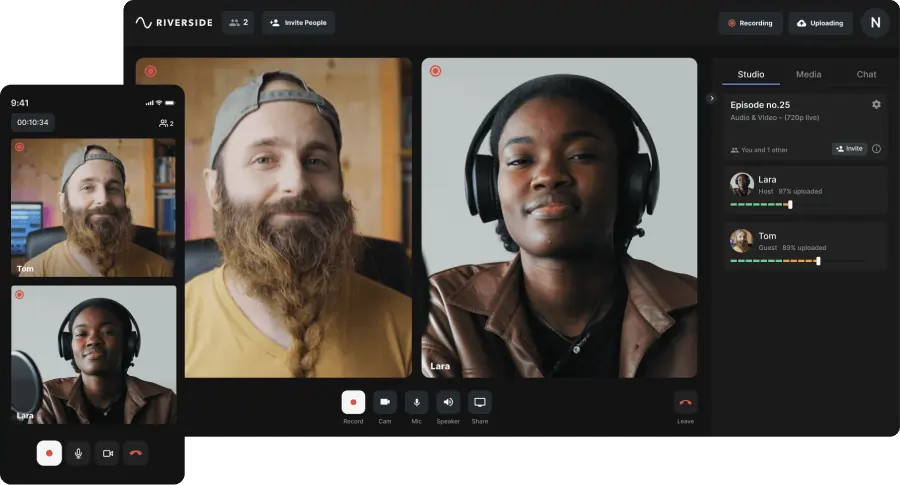
Riverside is a leading choice for podcasters and livestreamers. It records locally in up to 4K video and 48 kHz audio, ensuring quality even with unstable internet. Recordings are then uploaded to the cloud automatically.
Support up to 10 remote guests or 2 in‑person guests, plus a mobile app for on‑the‑go recording. The integrated editor lets you trim, remove filler words, style video, and generate shareable clips with AI‑powered tools.
Key Features
- Local recording for reliable quality during network hiccups
- 4K video and 48 kHz 16‑bit audio output
- Separate audio, video, and screen tracks for up to 10 guests
- Live video call‑ins captured on distinct tracks
- Multistreaming to Facebook, Twitch, YouTube, Twitter, and more
- Chat‑based editor for quick, AI‑assisted post‑production
- Instant one‑click shareable clips
- Live Media Board for real‑time effects and soundtracks
- Dedicated mobile app for field recording
Start recording on Riverside today.
Zoom
Pricing: Free (100 participants, 40‑minute limit); Pro – $13.33/month; Business – $18.33/month (annual)
Compatibility: Windows, Mac, Android, iOS, Linux
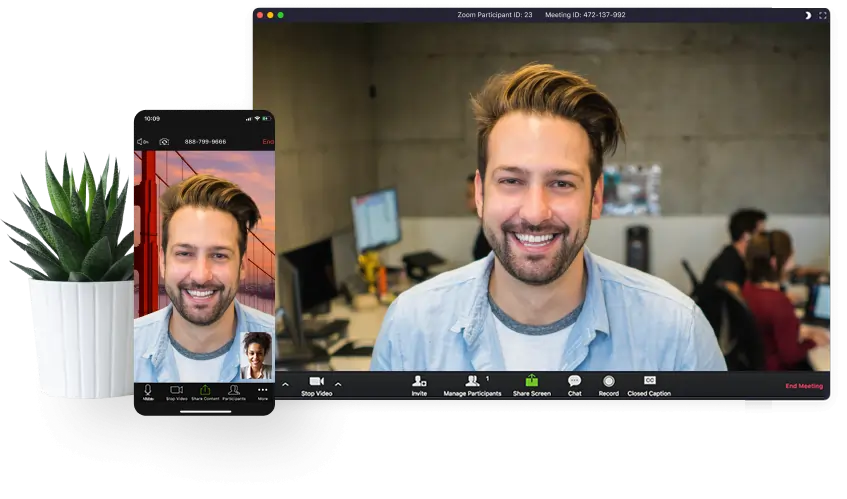
Zoom is widely used for meetings, webinars, and livestreams. It supports up to 1,000 participants on premium plans.
To capture separate audio files:
- Navigate to Settings → Recording
- Enable Record a separate audio file for each participant
Only audio tracks are available; video remains a single stream. Quality depends on network stability.
Key Features
- 1080p video recording (single stream)
- 48 kHz audio capture
- Up to 1,000 participants on paid plans
- Intuitive interface
- Remote multitrack audio recording
Limitations
- No 4K video
- No separate video tracks
- Audio quality can degrade with poor internet
Read more: How to record separate tracks in Zoom
BandLab
Pricing: Free; optional Membership – $70/year
Compatibility: iOS, Android, Web
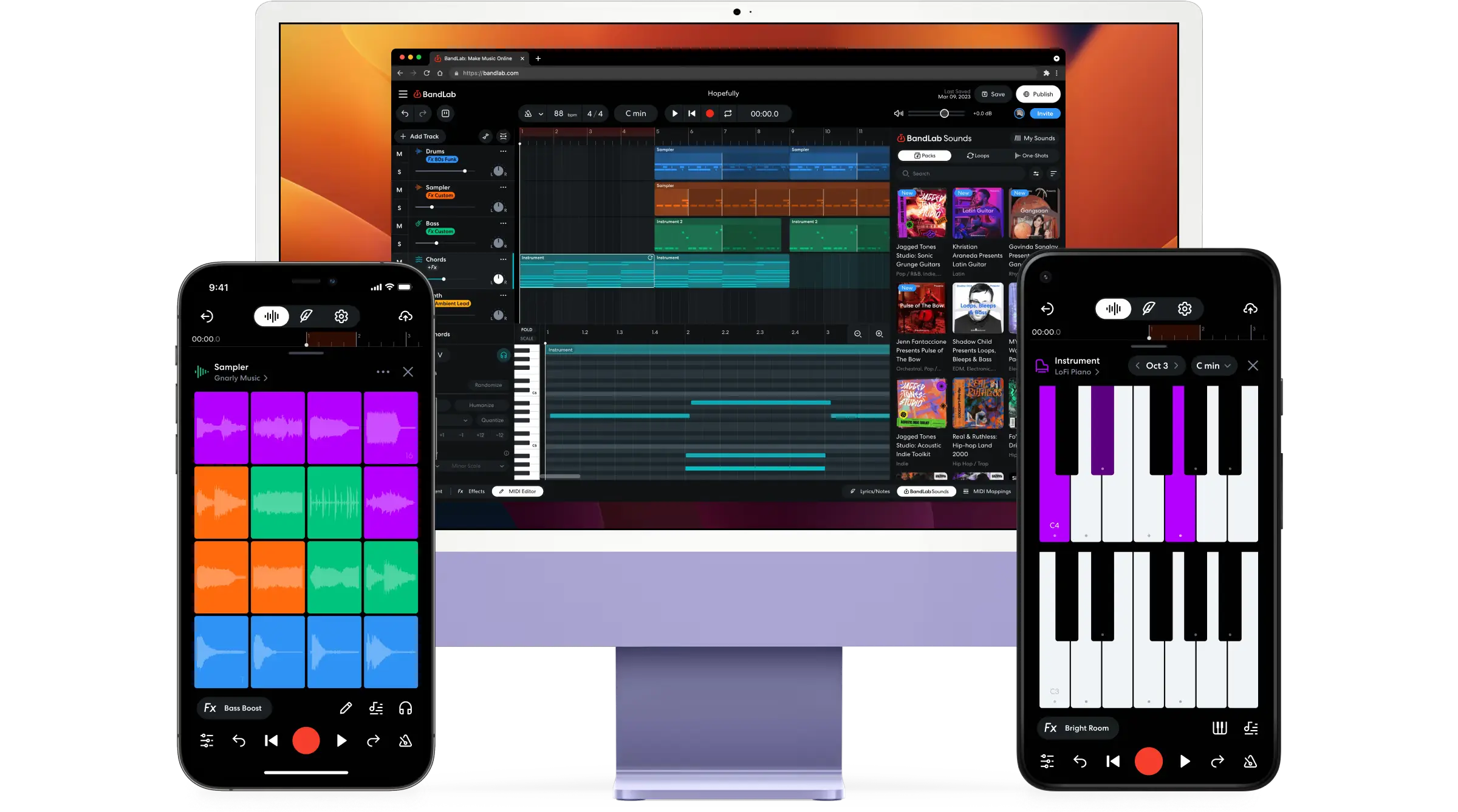
BandLab turns any smartphone or tablet into a full‑featured cloud studio. Its standout feature is real‑time collaboration—invite others to add tracks from their own devices and mix together in the browser.
Built‑in post‑production tools include vocal tuning, mastering presets, loops, and virtual instruments.
Key Features
- Effects, instrument presets, drum machine, royalty‑free loops, vocals, and samples
- Cross‑platform mix editor (mobile & desktop)
- Unlimited storage and projects
- Real‑time collaborative editing
- Up to 16 tracks (32 in paid plans)
Limitations
- Free plan capped at 15‑minute projects
- Interface geared toward musicians, not podcasters
- Cloud processing may be slow on low‑bandwidth devices
Audacity
Pricing: Free
Compatibility: Windows, Mac, Linux
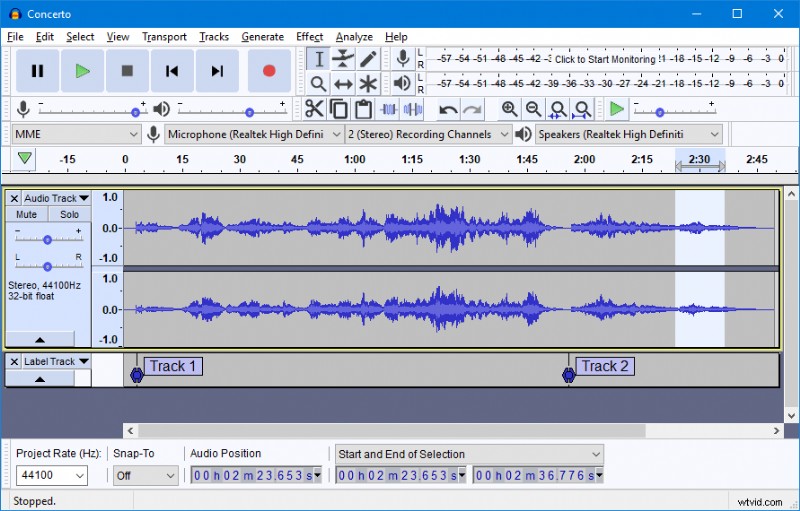
Audacity is a free, open‑source audio editor that also supports multitrack recording—provided all participants are in the same room and connected to a mixer or audio interface.
After recording, you can trim, add effects, merge tracks, and export to multiple formats.
Key Features
- Formats: MP3, Ogg Vorbis, FLAC, AIFF, MP2
- Support for 16‑bit, 24‑bit, and 32‑bit audio
- Built‑in compressor, EQ, normalizer, noise reduction, fades, etc.
- Plugin support: Nyquist, VST, LADSPA, LV2
- In‑person multitrack recording
- Audio‑only livestream support
Limitations
- No remote multitrack recording
- Requires external hardware for multitrack capture
Cleanfeed
Pricing: Free; Pro – $29/month
Compatibility: Browser on Windows, Mac, Linux; Browser on iOS & Android
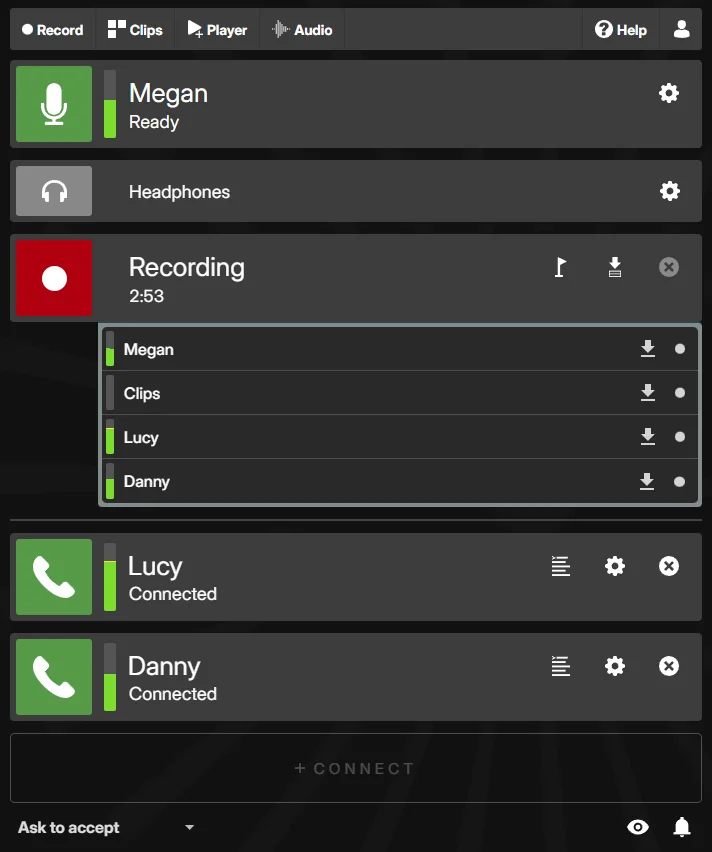
Cleanfeed is a straightforward remote recording tool that supports up to four participants in person, delivering 256 kbps mono or 320 kbps stereo audio.
Unlike Riverside, Cleanfeed records only audio and relies on the internet, so quality can fluctuate with connection changes.
Key Features
- Insert intros, idents, beds, and jingles directly into the mix
- Repair audio for guests without headphones
- Local and remote multitrack recording options
Limitations
- No local recording option
- No video capture
- No built‑in editor or transcription
How to Record with Riverside’s Multitrack Software
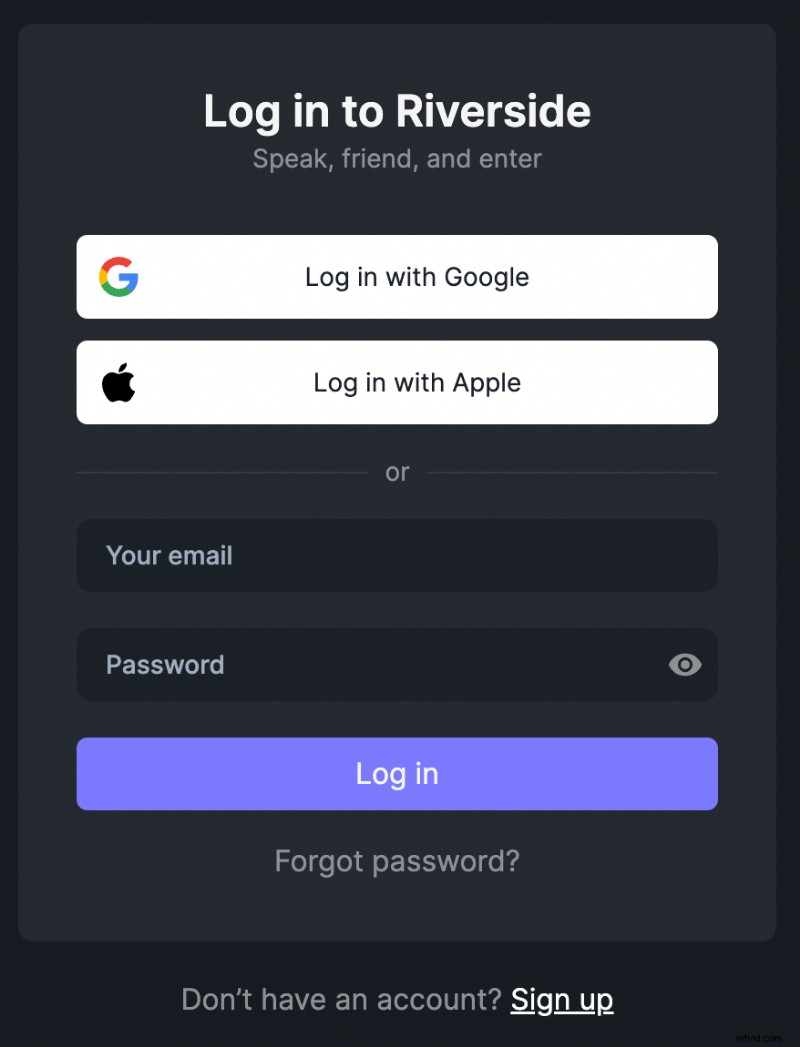
1. Log in to Riverside
Riverside runs in your browser—compatible with Windows and Mac—and has a mobile app for on‑the‑go sessions.
2. Create Your Recording Studio
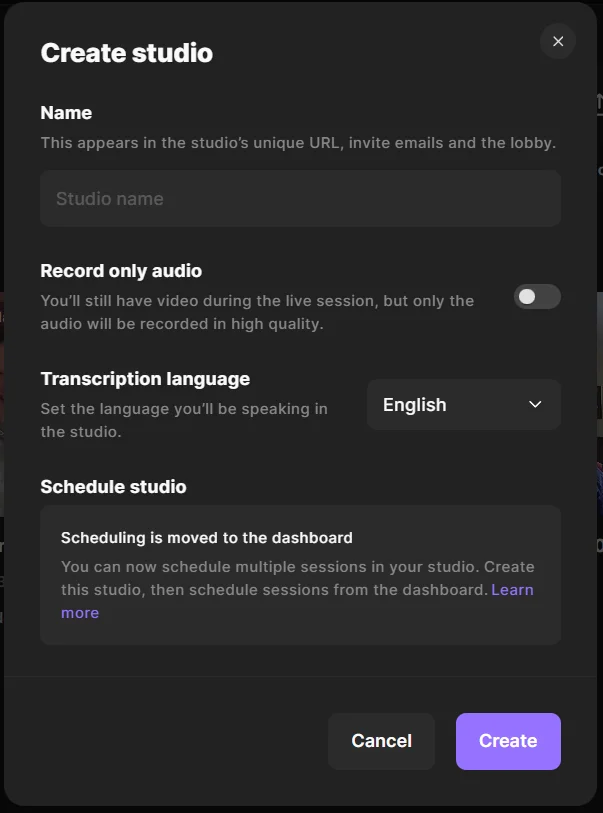
From the dashboard, set up a new studio, name it, and choose your recording type—instant or scheduled.
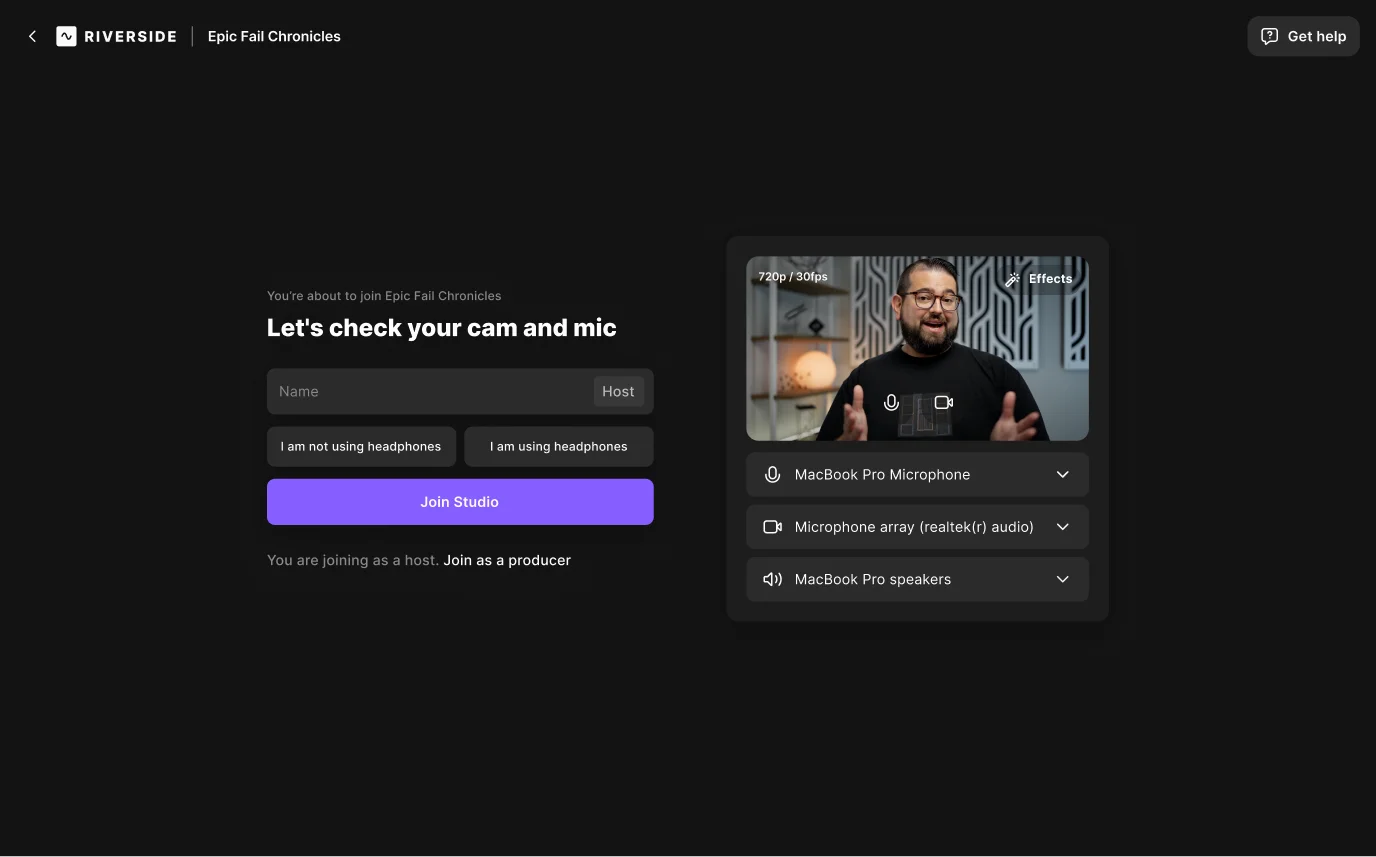
In the lobby, test your equipment—select your audio interface or mic, and confirm headphone use before joining the studio.
4. Add Multiple Microphones (Optional)
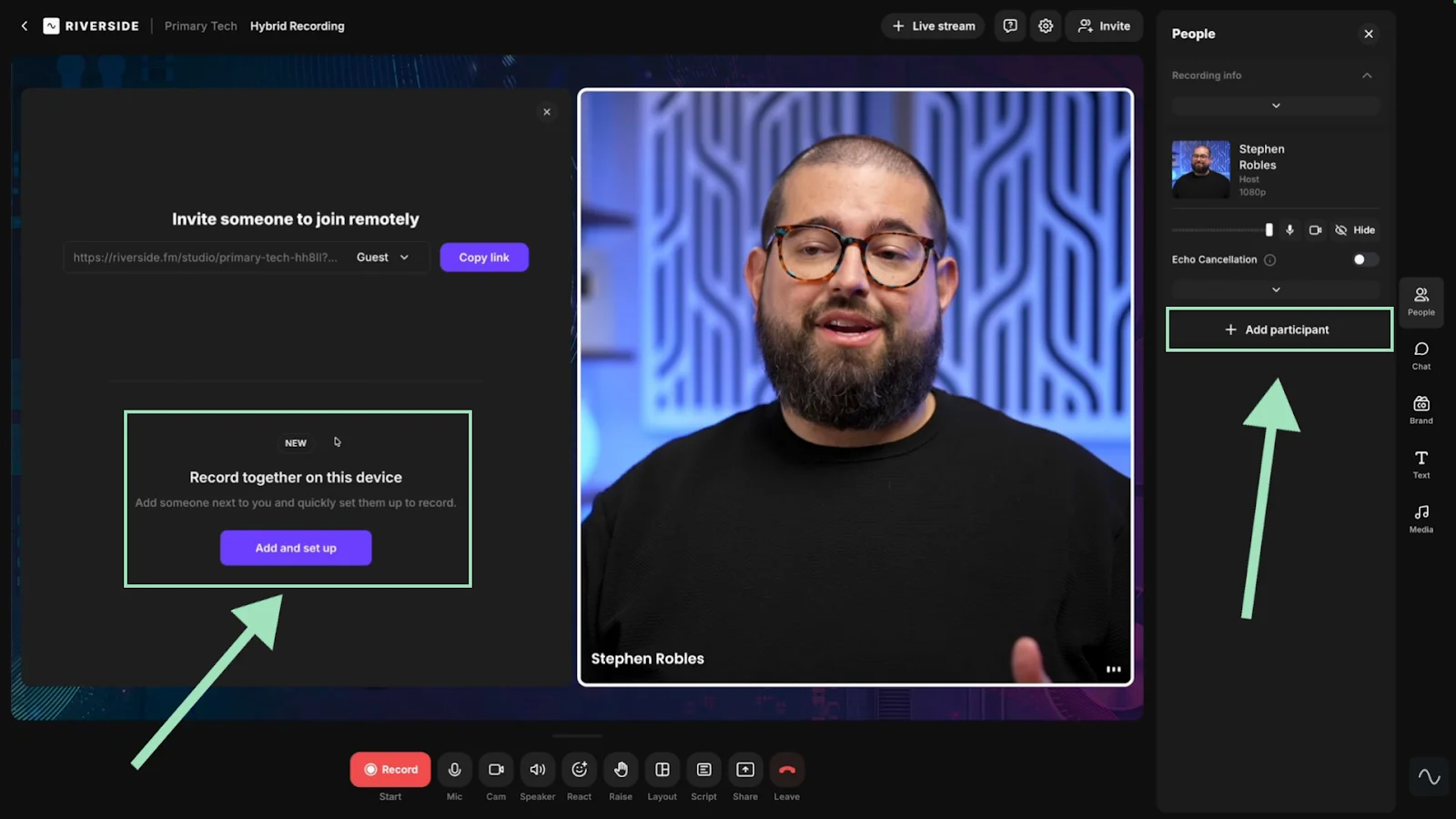
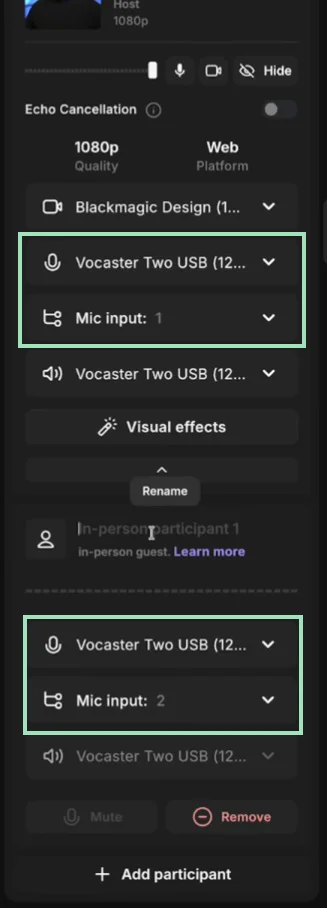
For in‑person guests, click + Add participant → In‑person guest, then assign a dedicated mic channel.
Alternatively, map separate input channels on your audio interface (e.g., Input 1, Input 2).
5. Start Recording!
When everyone is ready, press the large red record button. Use the Media Board to add live effects or share your screen.

6. Download Separate Tracks
After recording, click View recordings and select High quality to save individual tracks. You can also edit them directly in Riverside’s native editor.

Troubleshooting Common Multitrack Recording Issues
Tracks Aren’t Syncing Correctly
Unstable internet can cause misalignment. Use a local‑recording platform like Riverside to keep each track independent.
Tracks Drift Over Time
Sample‑rate mismatches (e.g., 44.1 kHz interface vs. 48 kHz project) lead to drift. Verify that your hardware and software sample rates match before recording.
Crackling or “Popping” Sounds
CPU overload often causes these artifacts. Increase your buffer size (e.g., 256 samples) and close background applications to free resources.
FAQs on Multitrack Recording Software
What is the easiest multitrack recorder for beginners?
Riverside is designed for simplicity. Its local recording eliminates internet‑related quality drops, and the mobile app allows on‑the‑go sessions.
How do I multitrack record on my PC?
For in‑person sessions, use Audacity with a mixer or audio interface. For remote work, Riverside offers high‑quality audio and 4K video with minimal setup.
Is Audacity a multitrack recorder?
Yes, but only for participants in the same room—remote recording isn’t supported.
Can I use multitrack recording software for live streaming?
Advanced platforms like Riverside can capture separate audio and video tracks while live‑streaming. Simpler tools like Zoom only record separate audio files, and output quality depends on your connection.