

Jan 06, 2026 • Proven Solutions
Mac users often face a daunting choice when searching for free video editing software. Whether you’re preserving memories or crafting polished presentations, the right tool can make all the difference. This comprehensive review compares the best free video editors for macOS, detailing supported formats, key features, and pros/cons to help you choose the perfect fit for your needs. If you’re missing a favorite editor from the list, let us know via Facebook, Twitter, or email.
We’ve evaluated each editor on video format support, usability, and performance. Below you’ll find a quick comparison table, followed by in‑depth reviews and a FAQ section to address common concerns.
- Part 1: Quick Comparison Table of Free Mac Video Editors
- Part 2: Beginner‑Friendly Choice – Wondershare Filmora
- Part 3: Top 10 Free Editors for Beginners, Semi‑Pros, and Professionals
- Part 4: Frequently Asked Questions
Part 1: Quick Comparison Table of Free Mac Video Editors
Below is a concise snapshot of each editor’s core attributes. Use it to match your skill level and project requirements.
| Skill Level | Editor | Supported Input Formats | Supported Output Formats | Key Advantages | Notable Limitations |
|---|---|---|---|---|---|
| Beginners | Apple iMovie | DV, HDV, AVCHD, Apple Intermediate Codec, Motion JPEG, MP4, MOV, and more | MPEG‑4, MOV, AVI, DV, and others | Seamless Apple ecosystem integration; pre‑installed on macOS; intuitive drag‑and‑drop workflow | Limited advanced editing tools; fewer templates |
| Wondershare Filmora | AVCHD, AVI, DV, HDV, MP4, MPEG‑1, MPEG‑2, MXF, MOV, WMV, and more | AVI, QuickTime, OpenEXR, MP4, Image Sequence, and others | AI‑powered editing, extensive effects library, multi‑track timeline, 4K support | Some plugins unsupported; free version adds watermark | |
| Avidemux | 3GP, ASF, AVI, FLV, H263, JPEG, MKV, MP4, MPEG, MPEG‑4, MPG, OGM | AVI, FLV, M1V, M2V, MKV, MP4, MPEG, MPG, OGM, TS | Open‑source, automatic color correction, batch processing | Export speed can be slow; limited visual effects | |
| OpenShot | WebM, AVCHD, and others | MP4, AVI, MPEG, and more | Free built‑in effects, 3D titles, multi‑language support | Occasional crashes; rendering can lag | |
| ZS4 Video Editor | AVI, WAV, image files | AVI, WMV, WAV, JPG, PNG | 120+ built‑in effects; unlimited tracks | User interface less intuitive; basic editing workflow | |
| HyperEngine‑AV | AVI, BMP, Cubic VR, DLS, DV, FLC, and more | AIFF, AVI, BMP, DV Stream, FLC, MPEG‑4, and others | 12 studio‑quality effects; slide‑show creation | No recent updates; limited feature set | |
| Semi‑Pros | Kdenlive | AVI, MP4, FFmpeg, and more | QuickTime, AVI, WMV, MPEG, and others | Robust multi‑track editing; open‑source flexibility | Learning curve; updates can be slow |
| Blender | STL, ABC, FBX, and other 3D formats | FBX, DAE, ABC, and more | Full 3D creation suite; powerful compositing | Layer management complex; steep learning curve | |
| Professionals | Lightworks | MPEG‑2, AVC, RED R3D, DPX, Apple ProRes, and more | MPEG‑4 | Lightweight, 4K proxy support, royalty‑free assets | Limited effects library in free version |
| HitFilm Express | AVCHD, QuickTime, AVI, M2T, M2TS, MTS, MXF, and more | Apple ProRes, AVI, and others | High‑level visual effects, 420+ effects, color grading tools | No built‑in motion graphics; some effects unintuitive |
While the table offers a quick glance, each editor’s unique strengths may align differently with your project goals. For instance, Filmora’s AI features make it a strong candidate for both novices and those seeking advanced effects without a steep learning curve.
Part 2: Beginner‑Friendly Choice – Wondershare Filmora
Wondershare Filmora for Mac blends an intuitive interface with a rich set of AI‑powered tools, making it an excellent starting point for new editors and a powerful option for seasoned creators. Below is a snapshot of its standout features.
Try Filmora for free.
Supported on macOS 10.15 and later (64‑bit).

- Universal format support – MP4, AVI, MOV, AVCHD, MKV, and more.
- AI Copilot editing to auto‑generate cuts and transitions.
- Text‑based editing: narrate edits in natural language.
- AI thumbnail and music generators for quick project polishing.
- Classic editing tools: crop, trim, split, combine.
- Extensive template library tailored for social media formats.
- Export to any popular format or mobile‑optimized resolution.
Below is a concise, step‑by‑step workflow to get you started.
How to Edit Videos with Filmora for Mac
1. Create or Open a Project
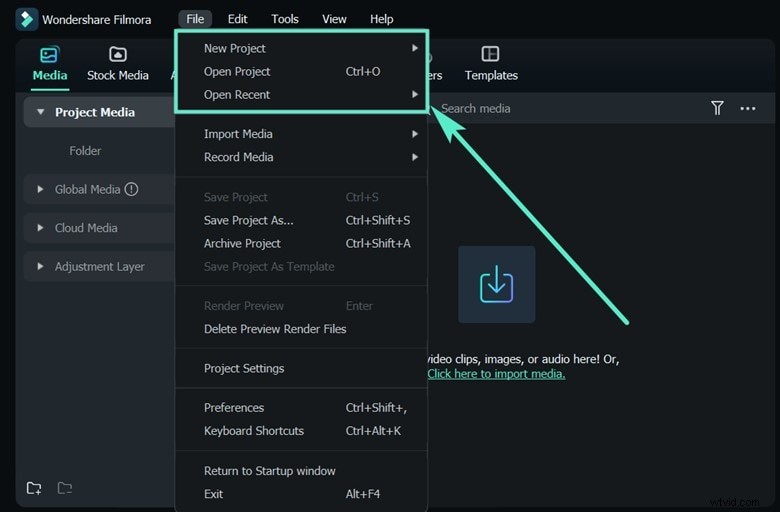
Click New Project from the main screen or use File > New Project in the menu. To open an existing file, select Open Project or choose a recent project.
2. Import Media
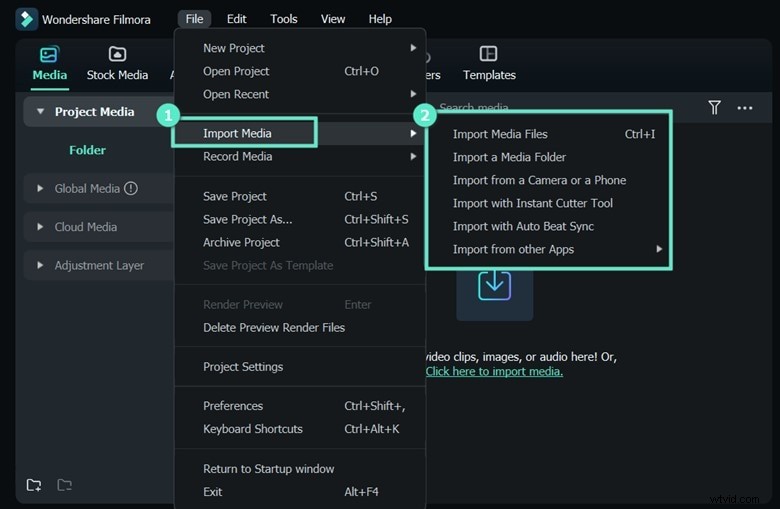
Drag files into the media library or click the + icon to browse locally.
3. Arrange on the Timeline
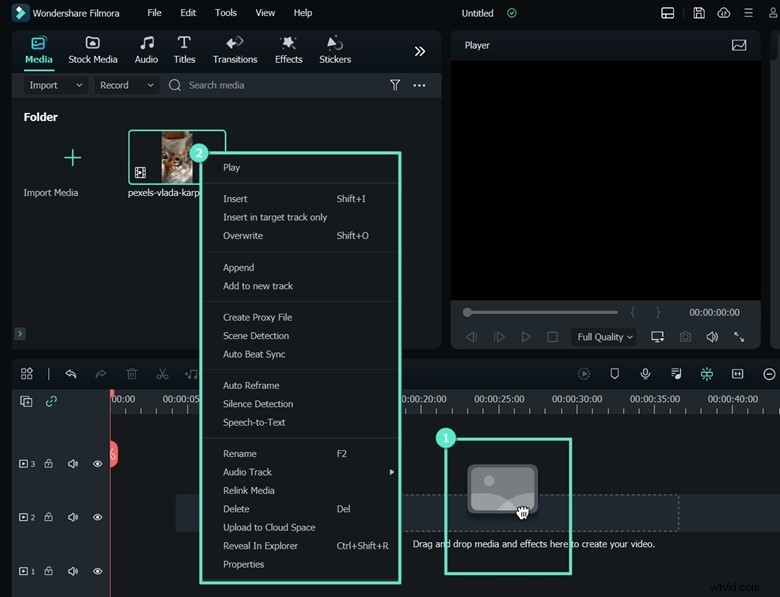
Drag clips into the timeline. Right‑click for additional actions such as Insert, Append, or Add to New Track.
4. Enhance with Effects
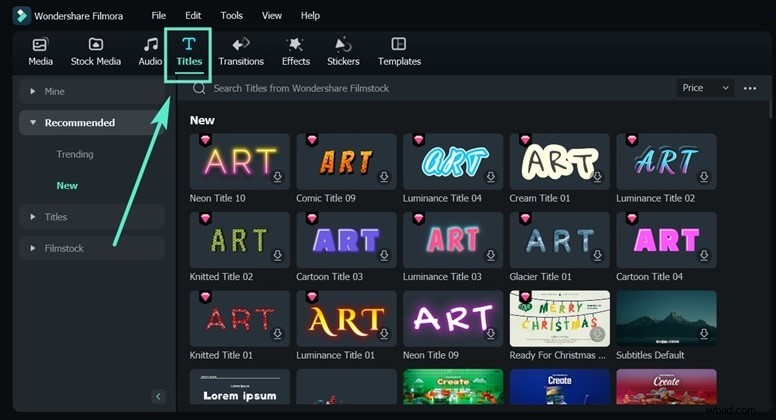
Choose titles, filters, masks, and music from the built‑in library and customize them.
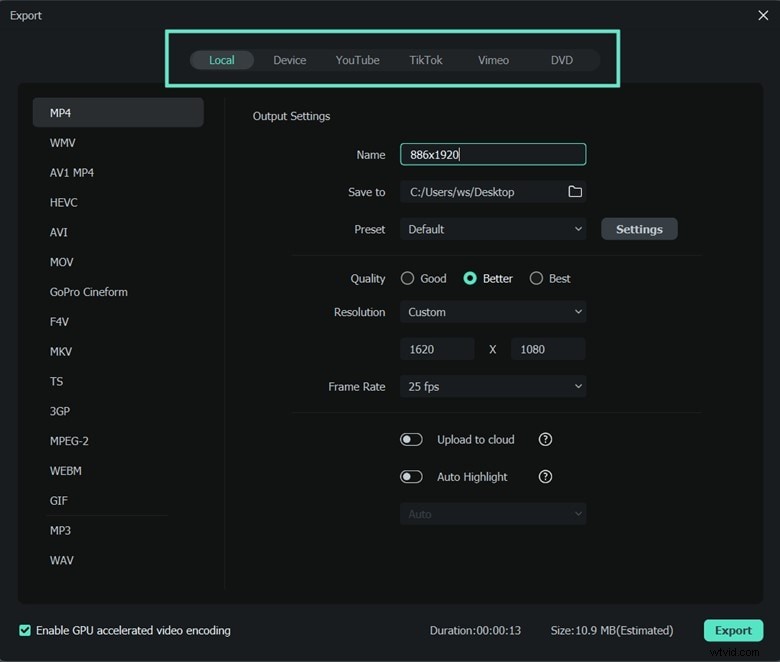
5. Export and Share
Export to a file or upload directly to YouTube. Filmora also supports DVD burning.
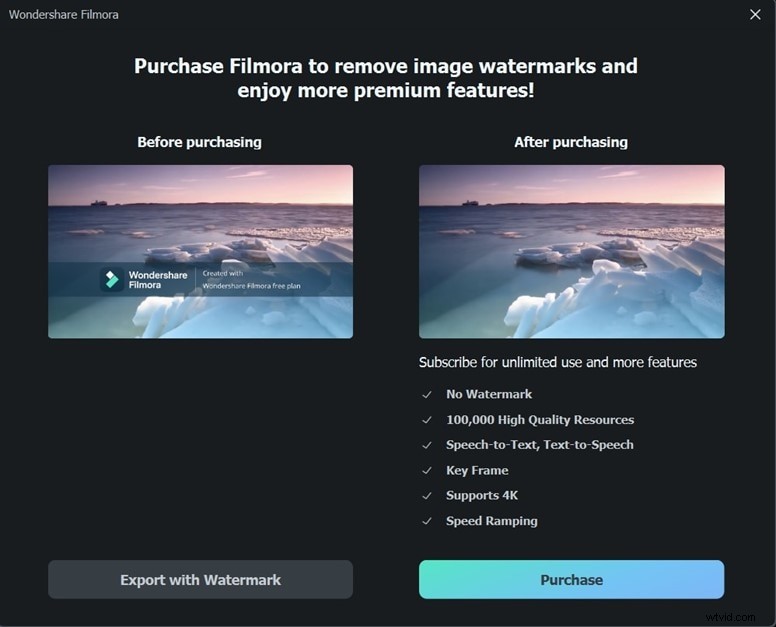
6. Remove Watermark
The free version adds a watermark. Upgrade to any paid plan to remove it.
Try Filmora free today and experience how AI can streamline your editing workflow.
Part 3: Top 10 Free Mac Video Editors for All Skill Levels
Below, we break down the editors into three categories—Beginners, Semi‑Pros, and Professionals—to help you choose based on your experience and project scope.
Beginners
1. Apple iMovie
Pre‑installed on every Mac, iMovie offers a straightforward interface, 4K support, and direct YouTube publishing.
- Magic Movie for auto‑editing.
- 20 storyboard templates.
- Split, trim, and more editing tools.
- Social media sharing.
- Split‑screen and picture‑in‑picture effects.
Pros: Rich sound library, 4K support. Cons: Limited advanced tools.
2. Wondershare Filmora
See Part 2 for a full review. Its AI features make it ideal for both beginners and experienced editors.
3. Avidemux
Ideal for simple cuts and format conversions. It supports a wide range of media formats and offers basic filters.
- Splicing and cutting.
- Audio and subtitle addition.
- Filter application (denoise, delogo).
- Batch processing.
Pros: Open‑source, cross‑platform. Cons: Limited effects, beginner‑unfriendly docs.
4. OpenShot
Open‑source, easy to use, and supports 4K export without watermarks.
- Basic editing tools.
- Drag‑and‑drop workflow.
- Multiple transitions.
- 70+ language support.
Pros: Free, user‑friendly. Cons: Rendering speed, occasional crashes.
5. ZS4 Video Editor
All‑in‑one editor with over 120 effects and unlimited tracks.
- Photo, video, and audio editing.
- Simple interface.
Pros: Extensive effects library. Cons: UI not polished.
6. HyperEngine‑AV
Provides basic editing, slide‑show creation, and 12 studio‑quality effects.
Pros: Studio‑grade effects. Cons: No recent updates.
Semi‑Pros
1. Kdenlive
Open‑source, multi‑track editing, and proxy support for large files.
- Multi‑track timeline.
- Customizable shortcuts.
- Keyframed effects.
Pros: Open‑source, montage capabilities. Cons: Interface can be confusing.
2. Blender
Full 3D suite that doubles as a robust video editor. It excels in compositing and visual effects.
- CPU and GPU rendering.
- Extensive sculpting tools.
Pros: Free, powerful. Cons: Layer system complex.
Professionals
1. Lightworks
Professional‑grade editor with 4K proxy support and a lightweight interface.
- Multi‑cam editing.
- Royalty‑free media.
- Export to YouTube.
Pros: Lightweight, rich tools. Cons: Limited free export options.
2. HitFilm Express
Advanced compositing and visual effects, comparable to industry software.
- 420+ effects.
- Color grading tools.
- Mask and layer support.
Pros: Powerful effects, free version robust. Cons: Motion graphics limited.
Part 4: Frequently Asked Questions
1. Does Apple Provide Video Editing Software?
Yes. iMovie is free and pre‑installed on macOS, offering basic editing tools. For advanced features, Apple’s Final Cut Pro is available for $299.99.
2. Is Adobe Premiere Pro Compatible with macOS?
Adobe Premiere Pro runs on macOS 10.13 or later, requiring an Intel® 6th Gen or newer CPU, 8 GB RAM, 2 GB VRAM, and ample storage.
3. How to Obtain Final Cut Pro X?
Final Cut Pro X offers a 90‑day free trial. Afterward, purchase the full version for $299.99. Minimum system: macOS 10.14.6+, 4 GB RAM (8 GB recommended for 4K), Metal‑capable GPU, 1 GB VRAM, and 3.8 GB free disk space.
4. Which Free Video Editor Is Best for Mac?
iMovie is a solid entry point. For more advanced needs, Filmora provides a feature‑rich experience.
Below is a quick tutorial on using Filmora’s AI capabilities.
Try Filmora free today.
Conclusion
Mac users have a wide array of free video editors, from beginner‑friendly iMovie to professional‑grade Lightworks and HitFilm Express. For most users, Filmora offers the best blend of usability and power, thanks to its AI tools and extensive effect library. Download Filmora now to elevate your video projects with confidence.
Ollie Mattison
Ollie Mattison is a writer and a lover of all things video.
Follow @Ollie Mattison