
If you want to merge as many videos on Windows 10 as you would want to. This post provides video merge tools that work extensively with just a few clicks which should further make it a truly formidable solution ever.
Are you looking to merge the video clips on Windows 10? In case you have several video clips of smaller size and are looking to join them together, there are a few great ways to help you merge videos in Windows 10. Let us explore the three best options for the perfect video joiner on Windows 10.
Method 1. Combine Videos in Windows 10 Using a Comprehensive Video Editor
FilmForth is one of the professional Windows Media video clip joiner tools that you can put to great use and opt for a full-fledged experience in combining videos on Windows 10. One of the best video joiners, it is incredibly lightweight and reasonably practical.
Apart from letting you join your videos together, the software also offers a wide range of options by letting you create special effects, fade-in or fade-out options, and even wonderful transitions to your videos.
The features
- Multiple media support that includes JPG, JPEG, BMP, GIF, WebP, MP4, WMW, AVI, WebM, TS, 3GP, 3GPP, M4V, MOV, MKV, MTS, M2TS, WMV, WAV, M4A, and MP3.
- You do not need to have any specific skills in editing your videos
- No watermark on your edited videos if you are willing to go Pro
- No complicated timelines or tracks.
Now, let’s explore how to use FilmForth to join videos.
Step 1. Create a project on FimForth
Assuming that you have installed FilmForth, open it and create a new project.

Create A New Project in FilmForth
Step 2. Import video clips into the tool
You can use either the intuitive drag-and-drop feature to add the video clips or decide to use the traditional ADD VIDEO/PHOTO CLIPS button to add files to the tool. You will find them lined up in the timeline.

Import Two Videos
Step 3. Edit the video clips
Edit the video clips that you have added to the timeline. Please note that this is an optional step and does not necessarily belong to the steps in how to merge videos in Windows 10. You can apply the video editing options as per your individual preferences.
Step 4. Combine the videos into one
Videos that you have added to the timeline will automatically be merged together. They will be merged and saved as soon as you export them. Click on Save Video and follow the instructions.
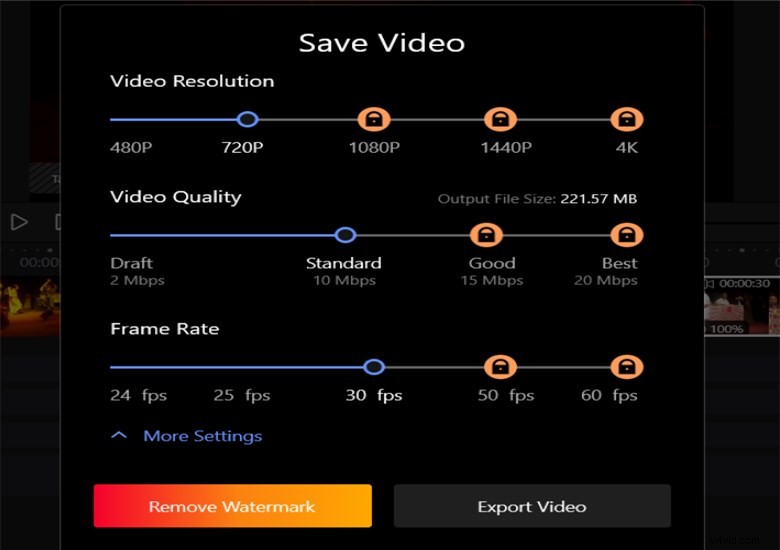
Exported the Merged Video
Method 2. Merge MP4 Files on Windows 10 by Using the Built-In Photos App
The Photos app on Windows is yet another best Windows media video clip joiner tool that you can use for merging videos in Windows 10. The perfect video joiner functionality that you gain with the Photos app can be a great choice. If you want a video joiner that performs quickly and you are looking for a tool that requires no further steps, the Photos app should be the right one to go with.
The features
- Free and easy-to-use tool
- Support for a massive range of video formats to choose from
- You can add text, music, and video to your files
- It comes pre-installed on Windows devices
Let’s move into how to use the Photos app to merge MP4 files.
Step 1. Open the Photos app and import videos
Launch the Photos app and add the video files that you want to merge. You need to click on New Video Project to add new video files to the project.
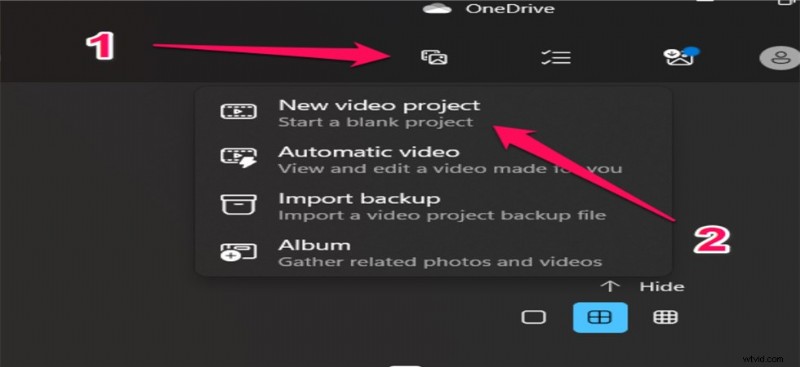
Import the Video to the Photos App
Step 2. Arrange the sequence of the files that you want to add
Arrange the files in the order of preferences that you would want to merge them together. You can even use the enhance tool to fine-tune your videos if required.
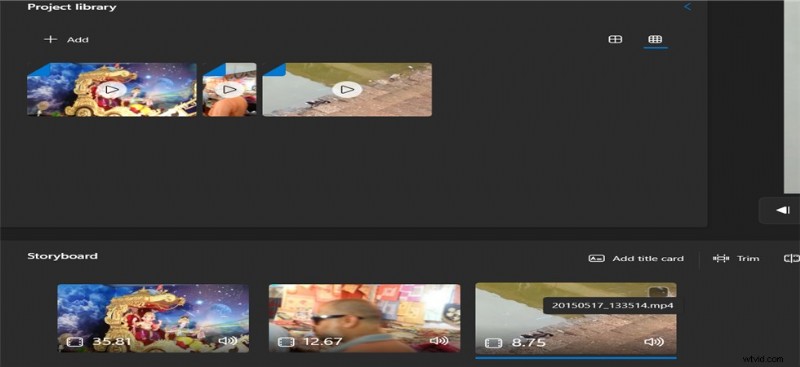
Reorder the Two Video
Step 3. Finish and export your files
Once you are happy with the videos and their proper sequence of merging, click on the options to export them. Click on Finish Video and then on Export. You can configure the options to choose your preferred quality as well.
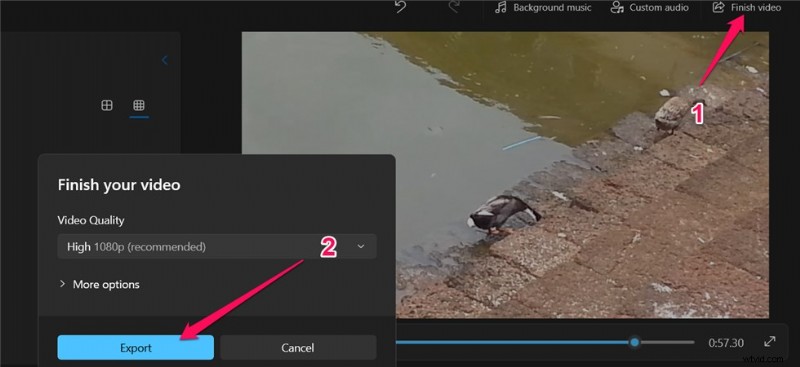
Export the Combined Video in Photos
Method 3. Merge Video Clips in Windows 10 with VLC
VLC Media Player is one of the most used video players on Windows. The open-source media player is known for supporting multiple video editing options. It has been regarded as a powerful option for converting and collating videos. It can also be one of the unique options to help you how to add two video files and even add more short files.
The features
- It is a powerful media player cum video editor
- Can merge your videos in a matter of a few minutes
- A host of video editing features
- Support for a host of file formats that include MP4, AVI, MOV, and many others.
There are detailed steps about how to use VLC to merge videos.
Step 1. Download and install VLC
Download and install the VLC media player. The device is supported on almost all Windows devices.

Download and Install VLC
Step 2. Add multiple files to VLC
Open the option for Multiple Files, and select the files that you want to merge.
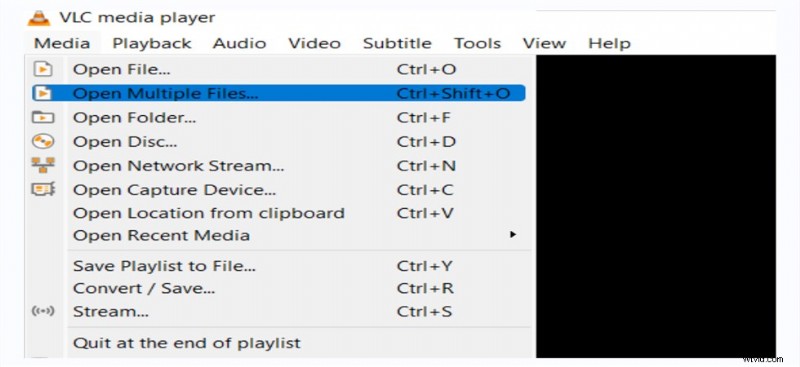
Add Multiple Video Files
Step 3. Merge the files
Go to the Convert option when you have added the files. Once the file is saved, you will find them merged together.
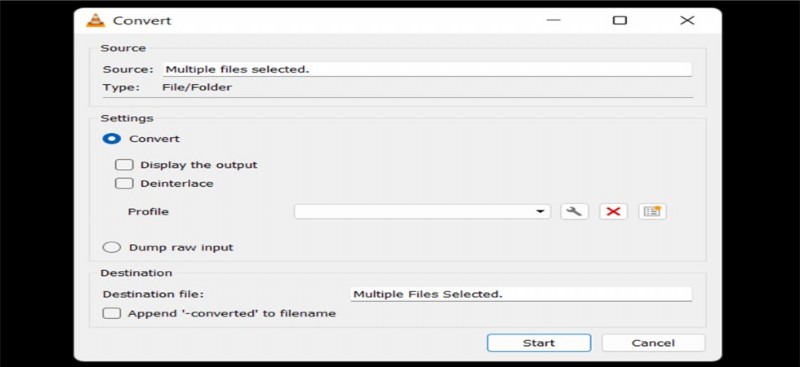
Merge the Videos in VLC
The Closing Thoughts
Merging multiple Windows on Windows 10 can be quite simple and easy to follow. As long as you have opted for the right solutions for the purpose, you will be able to achieve the best performance in how to merge videos in Windows 10 for the best video joiners.
All three methods outlined in this compilation should help you arrive at the best solutions in every way possible. Check out the right tools that ideally meet your individual needs and pick the one that best meets your expectations.