
Learn how to pin someone or someone’s conversations in the Snapchat app on mobile phones such as iPhones, Android phones, Samsung phones, etc. The information in this post is for the newest update.
The pinning feature on Snapchat allows you to stick a friend or a conversation to the top of a list on Snapchat, it’s a practical feature when you’re determining the priority of your working schedule, making your top mission top positioned.
In the following paragraphs, you’ll learn from the detailed tutorials on how to pin someone or a conversation in the Snapchat app, the method is fitting for various mobile devices such as Android phones, iPhones, and Samsung.
It’s actually quite an easy process, so let’s get started right away!
How to Pin Someone on Snapchat on iOS: Step by Step
Step 1. Open Snapchat App
Find and open your Snapchat app on your iPhone. You need the latest version of the Snapchat app installed on your iPhone, that’s for sure.

Launch the Snapchat App on iPhone
Step 2. Open Snapchat Chat List
Now you are on Snapchat’s home screen, tap on the chat tab from the lower panel to enter Snapchat’s chat list.

Open the Snapchat Chat List
Step 3. Long Press Contact
Long press on the contact who you want to pin to the top of the list, until the conversation ettings window for the contact pops up, then hit the Chat Settings option from the window.

Long Press on the Desired Contact
Step 4. Pin a Person or Conversation on Snapchat
From the Chat Settings, hit the Pin Conversation button to Pin the selected conversation to the top of the chat list.
After that, the selected conversation will have a pin icon to the right and it will always be shown from the top of the chat list, even when you get new Chats or Snaps from other friends or groups unless you manually unpin the conversation.

Pin the Conversation or Person on Snapchat
How to Unpin Someone on Snapchat
As mentioned, a pinned friend or conversation will always be displayed at the top of the chat list in your Snapchat app, until you manually unpin it.
So in this part of content, you’ll learn how to unpin someone on Snapchat.
The steps are similar upinning someone or conversations on Snapchat as your originally pining them.
Related Post: 12 Best Face Swap Apps to Add Some Fun to Your Photos
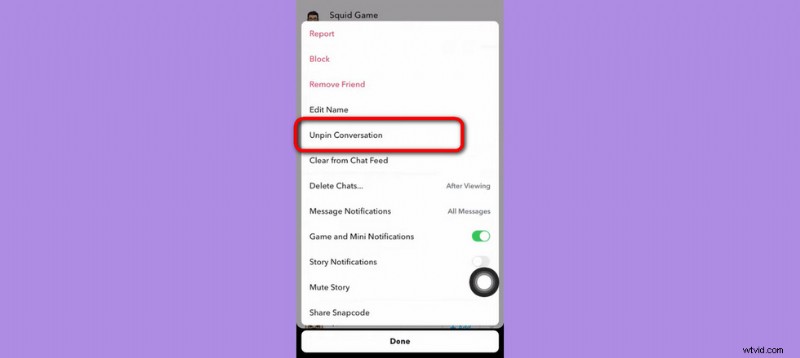
Unpin Conversation or Person on Snapchat
Step 1. Launch the Snapchat app on your device, and enter the chat screen.
Step 2. Find the pinned friends or conversations from the top of Snapchat’s chat list.
Step 3. Long press on the friend or conversation that you want to unpin.
Step 4. From the pop-up Conversation settings window, hit More and select Unpin Conversation to unpin the pinned conversation.
How to Customize the Snapchat Pin Icon
The emojis in the Snapchat app are available for you to customize at well, and that includes the pin icon. You can use your favored icon instead of the default pin, to designate a pinned person or conversation.
So in the following tutorial, you’ll learn how to change the Snapchat pin icon to your favored icon, emoticon, or emoji.

Change the Pin Icon on Snapchat
Step 1. Launch Snapchat, and open your profile by hitting your avatar from the upper-left side of Snapchat’s home screen.
Step 2. From your profile screen, hit the cog icon from the upper-right side to enter Snapchat settings.
Step 3. Scroll down to additional services and tap Manage.
Step 4. In the Manage window, tap on Friend Emojis.
Step 5. Then tap Pinned Conversation.
Step 6. Then you’ll see a whole lot of icons to be used to replace the original pin icon, select one that you prefer.
How to Pin Someone on Snapchat App on Android?
Unfortunately, the Snapchat pin feature is not supported on the Snapchat app on Android devices.
And why Android phones don’t have the pin feature? The reason is that the Snapchat app was originally developed for iOS devices, and the pin feature doesn’t function properly on Android mobile phones.
For the time being, you can only pin someone or someone’s conversation on the Snapchat app installed on Android devices.
But don’t be frustrated, according to Snapchat officials, pinning someone or someone’s conversations on Snapchat Android is only unsupported for now, but it may be possible in future updates.
How to Pin on SnapChat: Frequently Asked Questions
How many people can I pin in the Snapchat app?
There’s a limitation on the number of users you pin to the top of the app, so you can not pin as many people as you want. In the Snapchat app, you can pin a maximum of 3 users to the top.
Why don’t I have the pin option for a Snapchat conversation?
If you don’t have the Pin option for a Snapchat conversation, it’s you using Snapchat on an Android device, running an older version of Snapchat, or you’ve already pinned the people. In some cases, wait for the roll-out phases.
How to pin someone on Snapchat on Google Pixel?
Unfortunately, it’s not possible to pin someone on Snapchat on Google Pixel since Google Pixel uses the Android operating system and the Pin feature in Snapchat Android has yet to be released.
The Summary
So, that’ll be all about pining someone or someone’s conversation on Snapchat on iPhone or Android. To sum up, you can pin a person on Snapchat on iPhone by long pressing the contact in the chat list, and it’s not possible yet to pin people on Snapchat on Android.
If we find an alternative method to pin people on Snapchat on Android, we’ll add it to this guide immediately.