
Preparation
Before you start, gather the following:
- A Windows or macOS computer
- Your raw video footage (the shot you want to appear airborne)
- Filmora video editor (free trial available)
Step 1: Install and launch Filmora
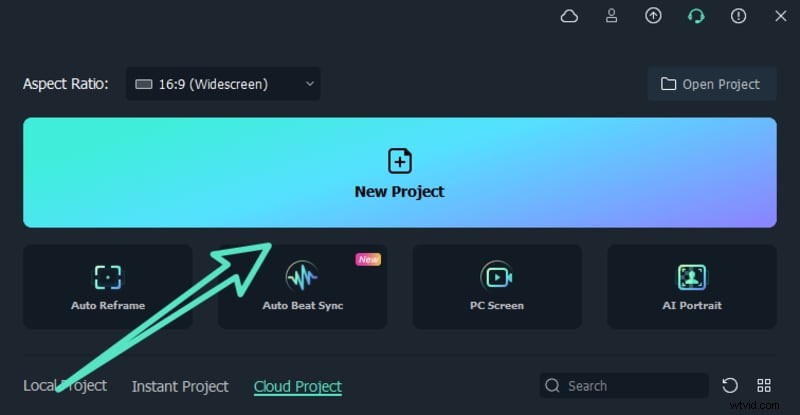
Download Filmora from the official website, install it, and open the program. From the home screen, click New Project to begin.
Step 2: Import your media
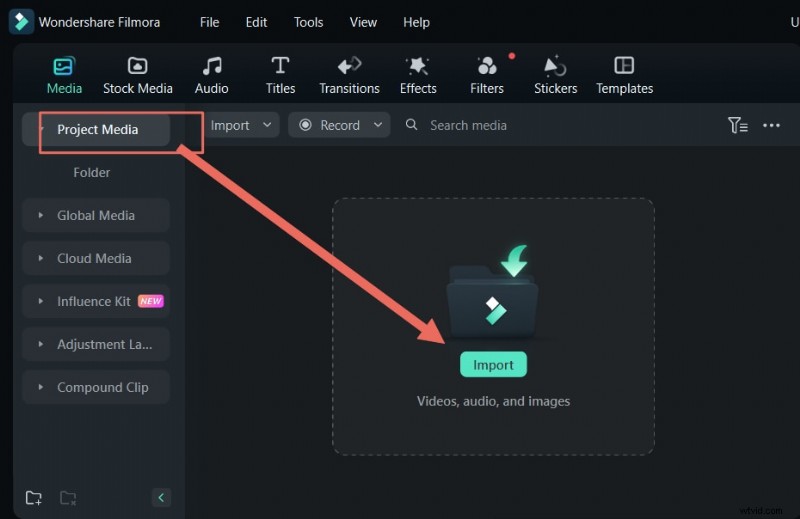
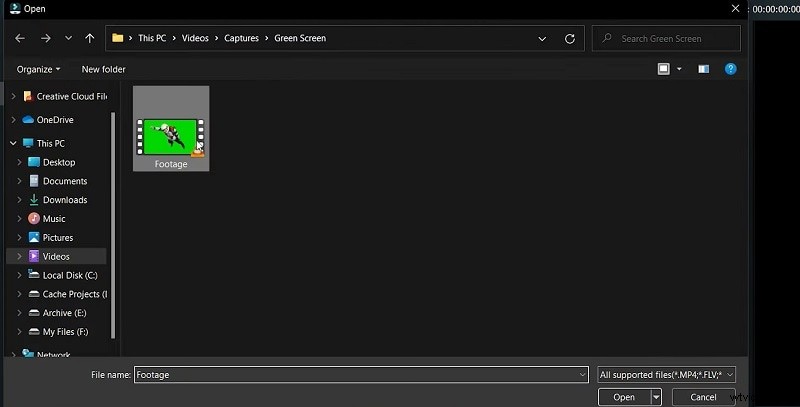
Import the footage you wish to edit and the green‑screen clip into the Media Library. Drag the base footage onto the main track, then place the green‑screen clip on the track above it.
Step 3: Position the clips
Arrange the two clips in the timeline so the green‑screen layer sits on top. Ensure the background video is below the green‑screen clip.
Step 4: Apply the sky background
Select the top clip, go to the Stocks Media tab, and search for a sky video. Use the color picker to match the green screen shade, then adjust the strength slider until the background is fully revealed.

Step 5: Fine‑tune the chroma key
Double‑click the green‑screen clip to open the editing panel. Choose Chroma Key and refine the settings (tolerance, edge blur, etc.) to ensure a clean cut‑out.

Step 6: Export your finished video
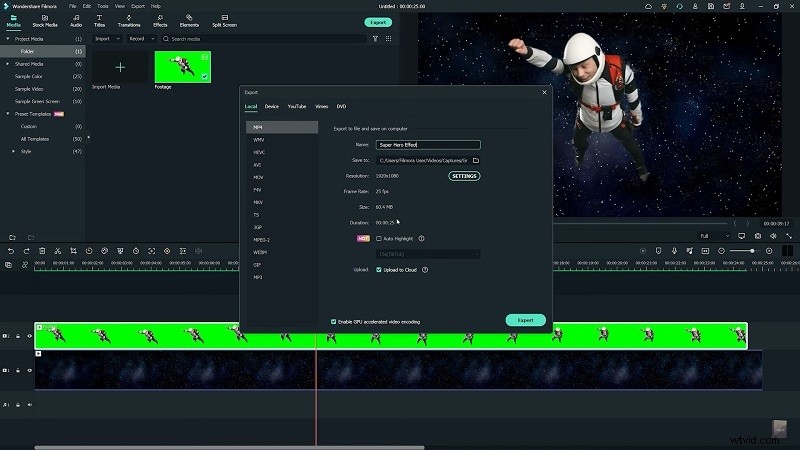
When you’re satisfied, click Export. Choose your desired resolution and format, then select a destination folder. Filmora also offers direct uploads to YouTube, Google Drive, or OneDrive.
Summary
Key takeaways:
- Green‑screen editing lets you replace any background with a realistic sky.
- Smooth transitions enhance the visual flow.
- Filmora provides a library of themed backgrounds, including social, business, and sports scenes.