
If you’re a video creator, you’ve likely faced the frustration of a quiet recording that forces you to start over. Rather than discarding your footage, you can boost the audio after the fact with reliable tools. This guide covers the best solutions for Windows, macOS, Android, iOS, and online platforms, ensuring your videos sound clear without the need for re‑recording.
1. Amplify Audio on a Computer
Windows and Mac users can rely on a robust video editor that includes a built‑in audio enhancer. Wondershare Filmora is a leading choice among professionals, offering intuitive controls for volume, pitch, equalization, and fade effects.
Follow these steps to boost your video’s sound:
Step 1: Download and install Filmora from the official website, selecting the version that matches your operating system.
Step 2: Open Filmora and create a new project.
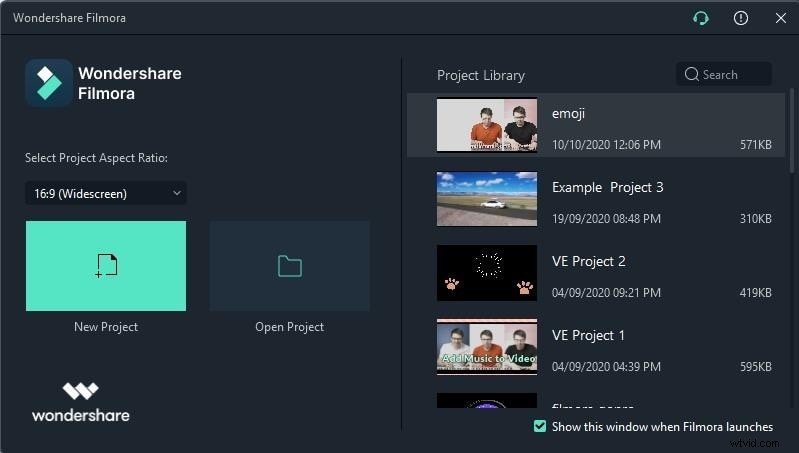
Step 3: Import your footage via File > Import Media > Import Media Files, then locate the video you want to enhance.
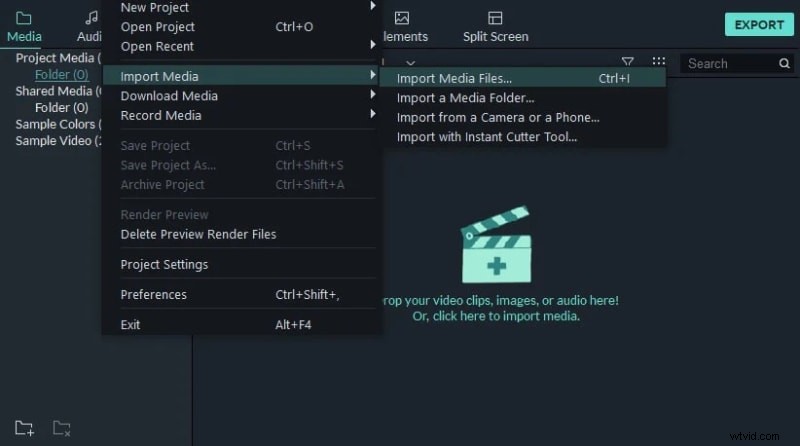
Step 4: Drag the video onto the timeline for editing.
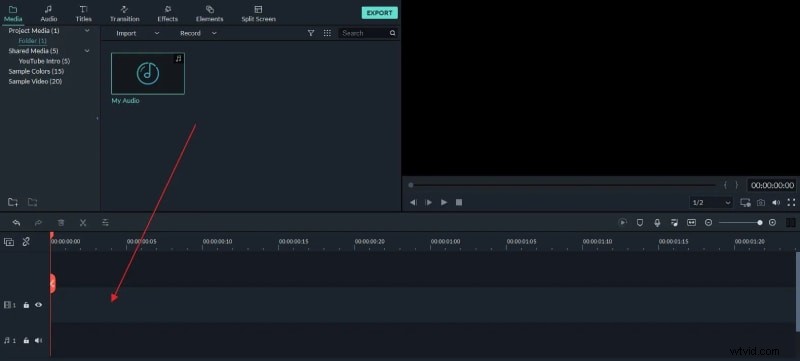
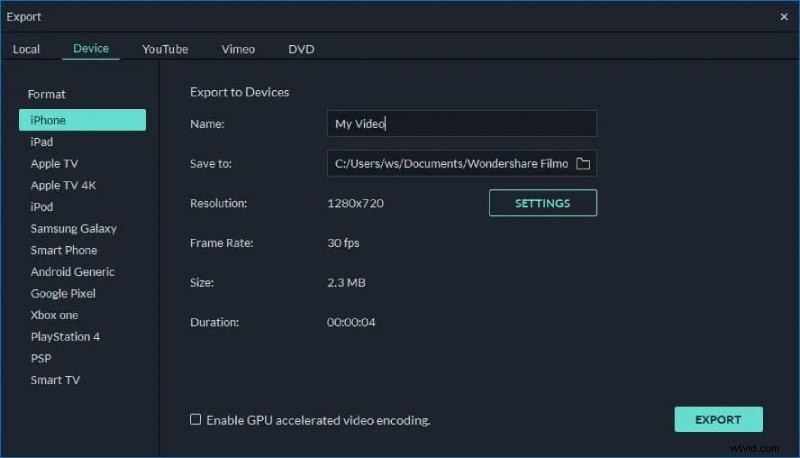
Step 5: Double‑click the clip on the timeline and open the Audio tab in the Editing Panel. Adjust the volume slider and other audio settings until the level feels right, then click OK.
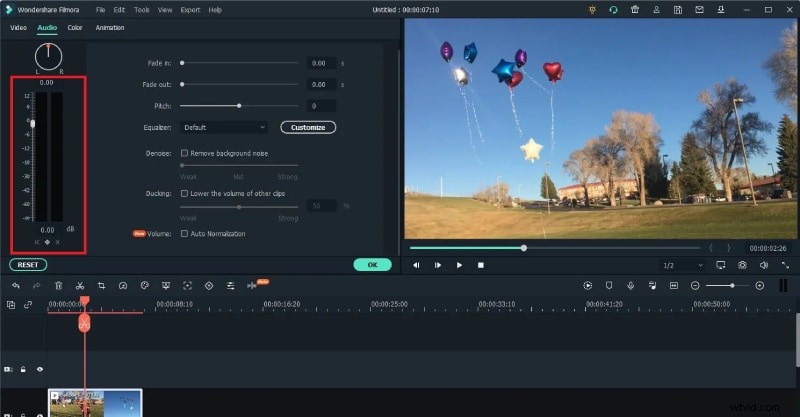
Step 6: Preview the changes to confirm the desired loudness, then export the finished video to your hard drive.
2. Boost Audio on Smartphones
For on‑the‑go editing, Video Volume Booster by Firisoft offers a simple interface for both Android and iOS. After installation, you can upload a video, adjust its volume with a slider, and save the enhanced file for sharing.
Step 1: Install Video Volume Booster from Google Play or the App Store.
Step 2: Launch the app and tap the upload icon to select a video from your device.
Step 3: Use the slider to boost the audio to your preference, then tap Apply.
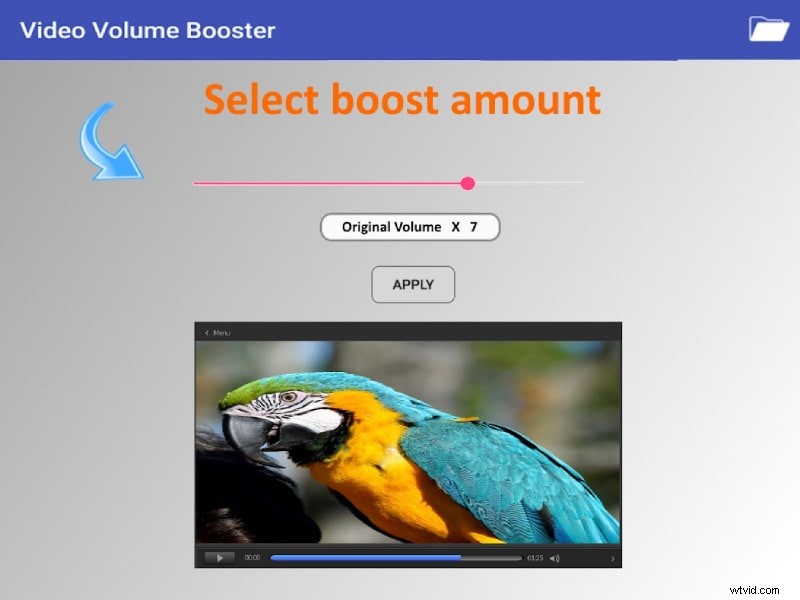
Processing may take a few moments. Once complete, preview the video, then save or share it directly to social media.
3. Increase Video Audio Online
If you prefer a web‑based solution, Online Video Cutter’s Volume Booster tool lets you adjust audio levels without installing software. It supports drag‑and‑drop uploads, cloud file retrieval, and even YouTube links.
Key features:
- Drag and drop video files instantly.
- Import from Google Drive and Dropbox.
- Paste YouTube URLs to edit directly.
- Increase or decrease volume.
- Compatible with all common video formats.
- Adjust speed, resolution, and stabilize footage.
To use the tool:
Step 1: Visit online-video-cutter.com/volume in your browser.
Step 2: Upload the video you wish to enhance.
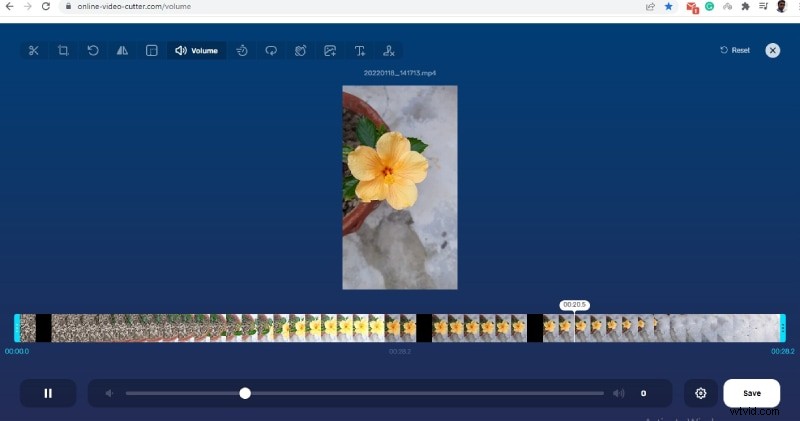
Step 3: Click the Volume option and slide to the desired level.
Step 4: Save the modified video to your device.
Conclusion
Whether you’re editing on a desktop, mobile device, or through a browser, the right tool can dramatically improve your video’s audio quality. For desktop editing, Filmora remains the industry standard. On mobile, Firisoft’s Video Volume Booster offers quick fixes, while the Online Video Cutter Volume Booster provides a no‑installation, browser‑based alternative. Boosting audio now means fewer retakes and a smoother post‑production workflow.