
After being blown away by the camera on the iPhone 6 I’ve been trying to capture more photos with it. This guide will show you how to shoot long exposure photos with and iPhone.
What You’ll Need
- Any iPhone (I’ll be using an iPhone 6)
- SlowShutter App ($0.99)
- Smartphone tripod mount for your iPhone (Universal Smartphone Tripod Mount, see article for more products)
- Tripod for your smartphone (GorillaPod, see article for more products)
- Somewhere with motion to shoot (creeks, highways, etc)
Getting Started
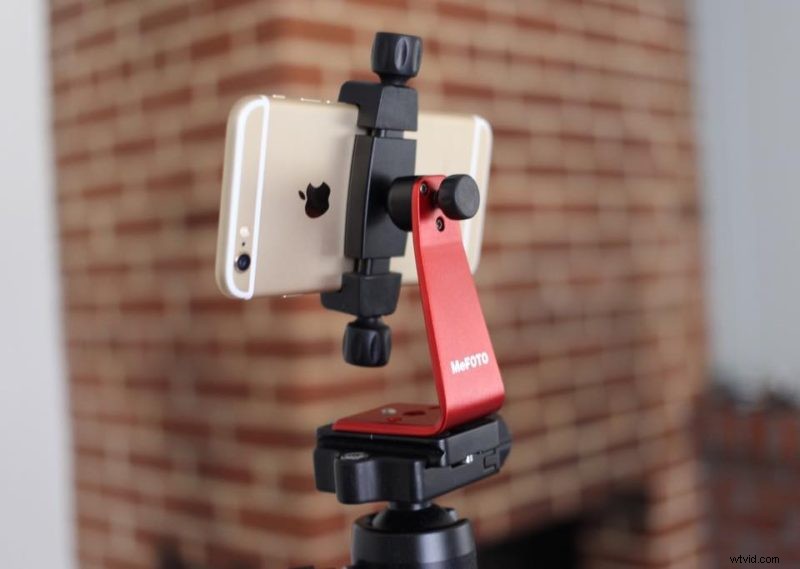
The most important part about long exposure photography is keeping the camera steady. You’ll need a tripod and tripod mount for your iPhone for the best results.
Let’s talk about tripods and mounts, if you want a simple solution pick up a Joby GripTight GorillaPod (which includes a tripod and mount). If you already own a tripod all you’ll need is a mount for it (Universal Smartphone Tripod Mount). I’ll be using a more expensive setup with the Mefoto smartphone holder on a Mefoto GlobeTrotter carbon fiber travel tripod. Note: You do not need expensive gear to get good results since the iPhone is lightweight.
The SlowShutter app is going to do the majority of the work for us but I recommend some initial settings. I add a 1 second self timer just to reduce vibration from when I tap the shutter (an alternative to this is to use a remote or your headphones to start your capture). For some reason initially the Picture Quality is extremely low so bump it up to your phone’s max.
Note: changing this setting will affect your capture’s FPS so if it’s a fast moving object it will appear dotted/exposure stacked
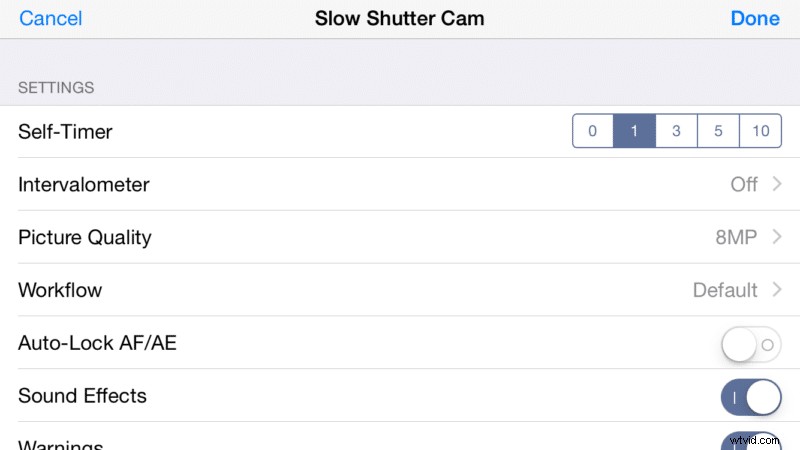
SlowShutter Settings
If you tap the shutter icon near the shutter release in SlowShutter you’ll have a few options. You’ll most likely want to be using “Light Trail” capture mode with “Light Sensitivity” set pretty high (1/8 through full).
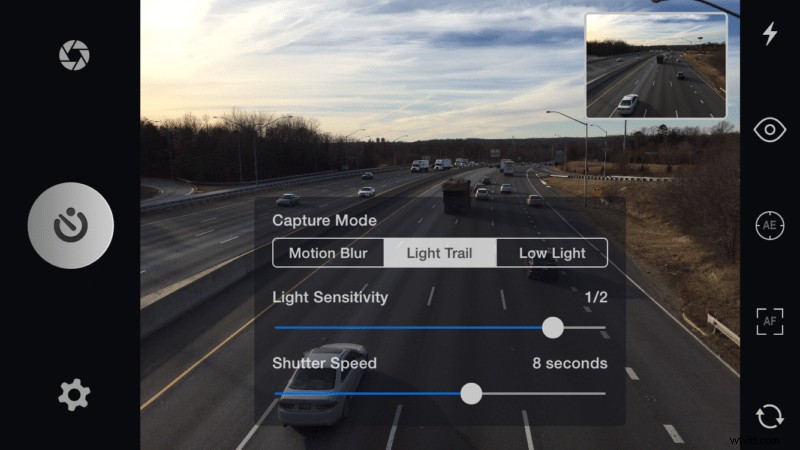
The “Shutter Speed” option will set how long you’ll want to capture. This is helpful to reduce camera shake since setting it to “bulb” will require you to hit the button again to stop your exposure.
Results
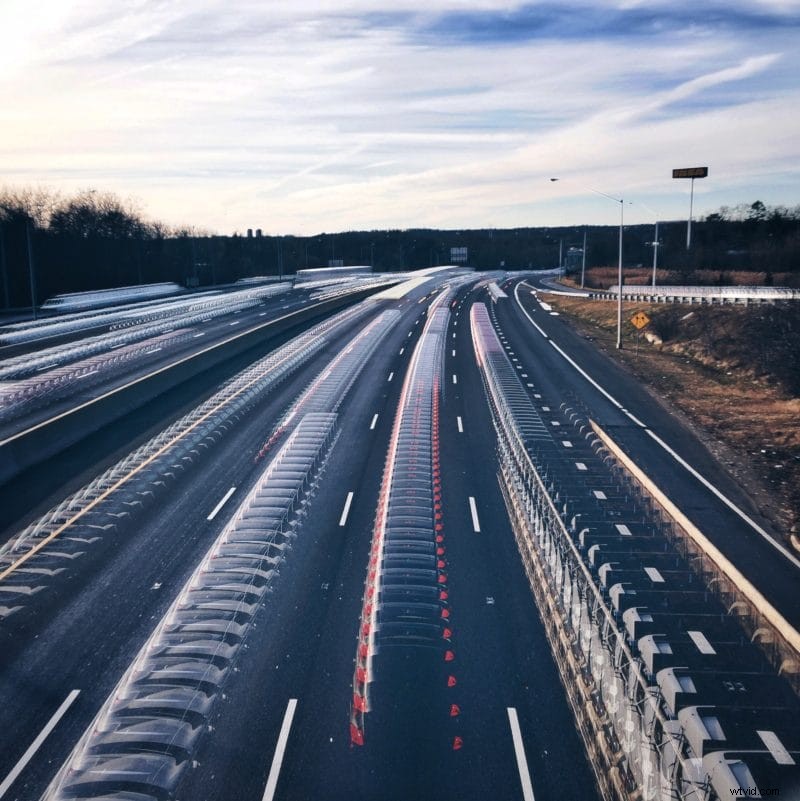
Below are some results after editing my long exposure with VSCOcam and Snapseed.
Keep up with my latest photography on instagram.