
With the help of modern technologies, adding subtitles has become easy as ABC. You can do it even on your mobile device with just several taps. The first thing you need to do is choose the video you want to edit and have it ready on your iPhone before starting the subtitle process.
How to add text to a video on iPhone
Adding subtitles to your videos isn’t hard anymore and doesn’t require special software. You can even use your iPhone to add captions to your video clips. This article explains two easy-to-use tools that work directly in your browser, so you don’t need to download or install anything. It also covers the iPhone's default video editor, iMovie, if you prefer an app that can work offline. We will guide you step-by-step on how to create captions for your videos on iPhone quickly and easily with each of them.
Table of contents
- Introduction to video subtitling
- How to add text to a video on iPhone
- How to add text in Clideo Video Editor
- How to add subtitles in the Add Subtitles tool
- How to add subtitles in iMovie on iPhone
- Frequently asked questions
- Conclusion
Introduction to video subtitling
Video subtitling is the process of adding subtitles or captions to your video (basically, those lines of text that pop up on screen), making it much easier for your viewers to follow along with everything that's happening audio-wise: dialogue, music, sound effects, you name it. Subtitles are essentially a written version of what's being said or heard in the video, whether that's translating foreign language content or simply transcribing the audio. Adding subtitles proves especially useful for viewers who find themselves watching without sound (think public transport, office environments, etc.), are stuck in noisy places, or have hearing impairments.
Here’s another important thing about captions: they can be either closed or open. Closed captions are the ones you can turn on or off whenever you want (you most likely have seen those on YouTube). They’re like subtitles that hang out in the background until you tap to show them. Open captions are a bit different — they’re baked right into the video, so they’re always there and can’t be hidden. If you want everyone to see the text no matter what device they’re using, open captions are the way to go. It’s all about what works best for your viewers and how you share your videos.
There are several ways to add subtitles to your video content, and the good news is that whether you're working with your iPhone, Mac, or iPad, the process has become quite "user-friendly" these days. Tools like iMovie and browser-based editors such as Clideo make creating captions and subtitles pretty straightforward (you can either type them manually if you're feeling hands-on, or let automatic speech recognition do the heavy lifting).
How to add text to a video on iPhone
Subtitles have become, if not a "must have", then at least a trait of modern digital etiquette. There are more and more situations when one can’t turn on the audio, not to mention that not everybody is comfortable with voiceovers.
On iPhone, you can enable system-wide closed captions in Settings > Accessibility > Subtitles & Captioning for supported video content on iPhone.
If you want to post your own 15-second-long videos with subtitles, you’d better make sure you add them yourself in advance, to make sure they are always seen. You will most likely notice improved accessibility and engagement when subtitles are present in your videos.
There are various ways to add subtitles to videos, depending on your device type, operating system, budget, editing proficiency level, and other factors. When it comes to Clideo, it has two tools that allow you to add text to a video on an iPhone or any other device. Both of them are platform-agnostic and can be tested for free, but still, each serves its precise aim.
How to add text in Clideo Video Editor
Clideo's all-in-one ultimate video editor is a perfect way to create a video project from scratch.
The service allows manual text adding, editing, and elaborate customization. You can choose a text preset or select your preferred option and customize your captions as you need. Follow these steps to manually insert captions and adjust their style:
Upload your video file
Open Video Editor in any browser and tap the "Get started" button.
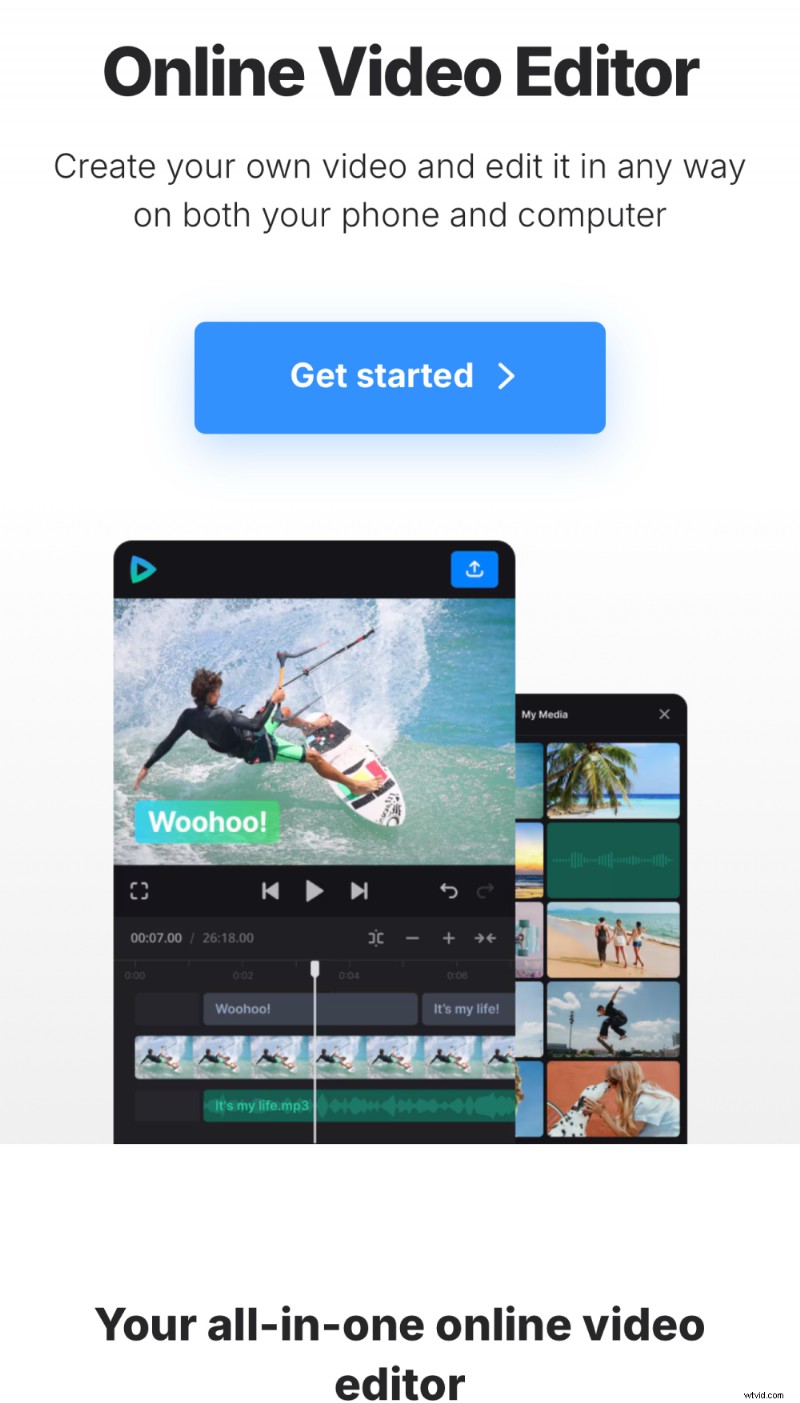
You can upload your video from local or cloud storage, pick it up from an inbuilt stock library, or record it right in the editor. Add as many other elements as you need.
Add captions to your video
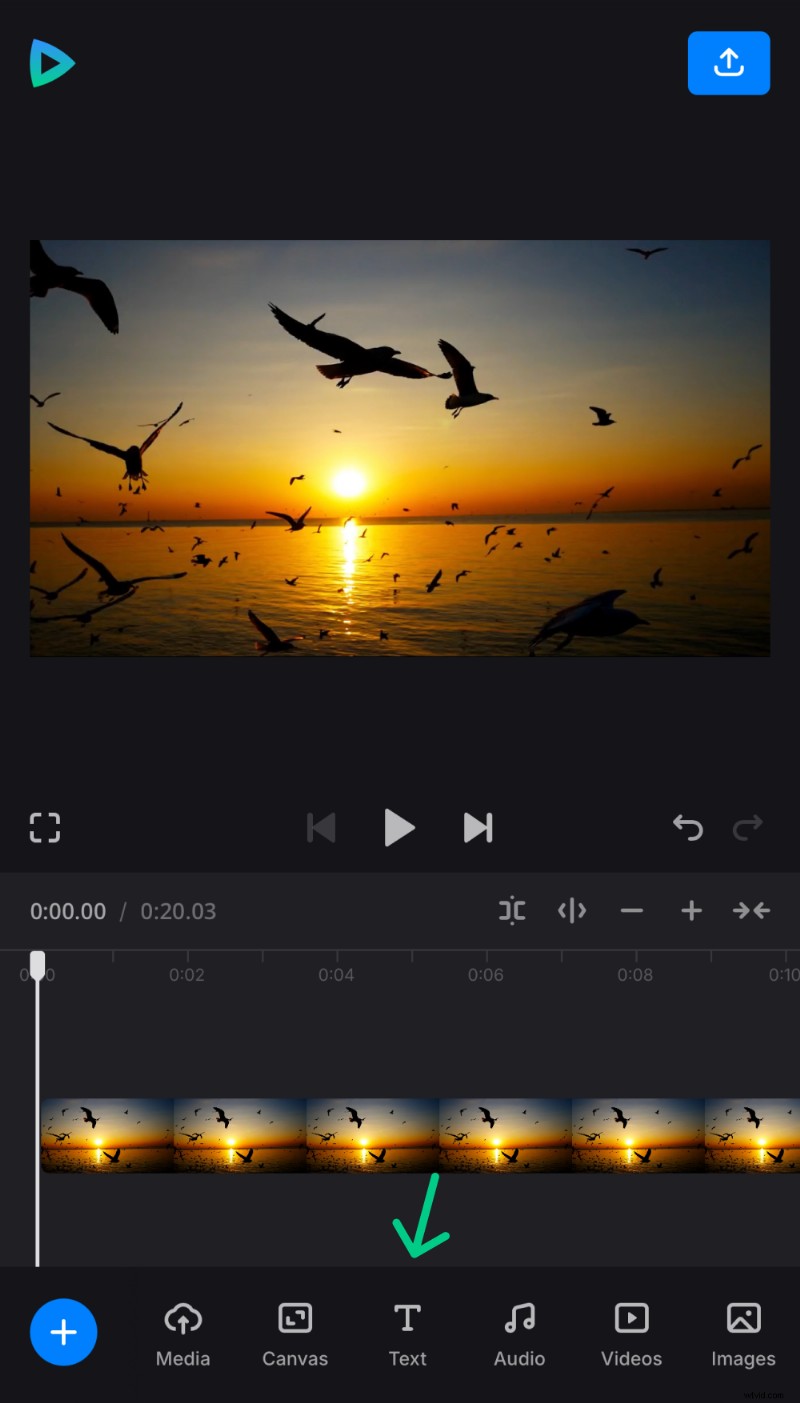
When all the elements are there, tap the "Text" tab at the bottom.
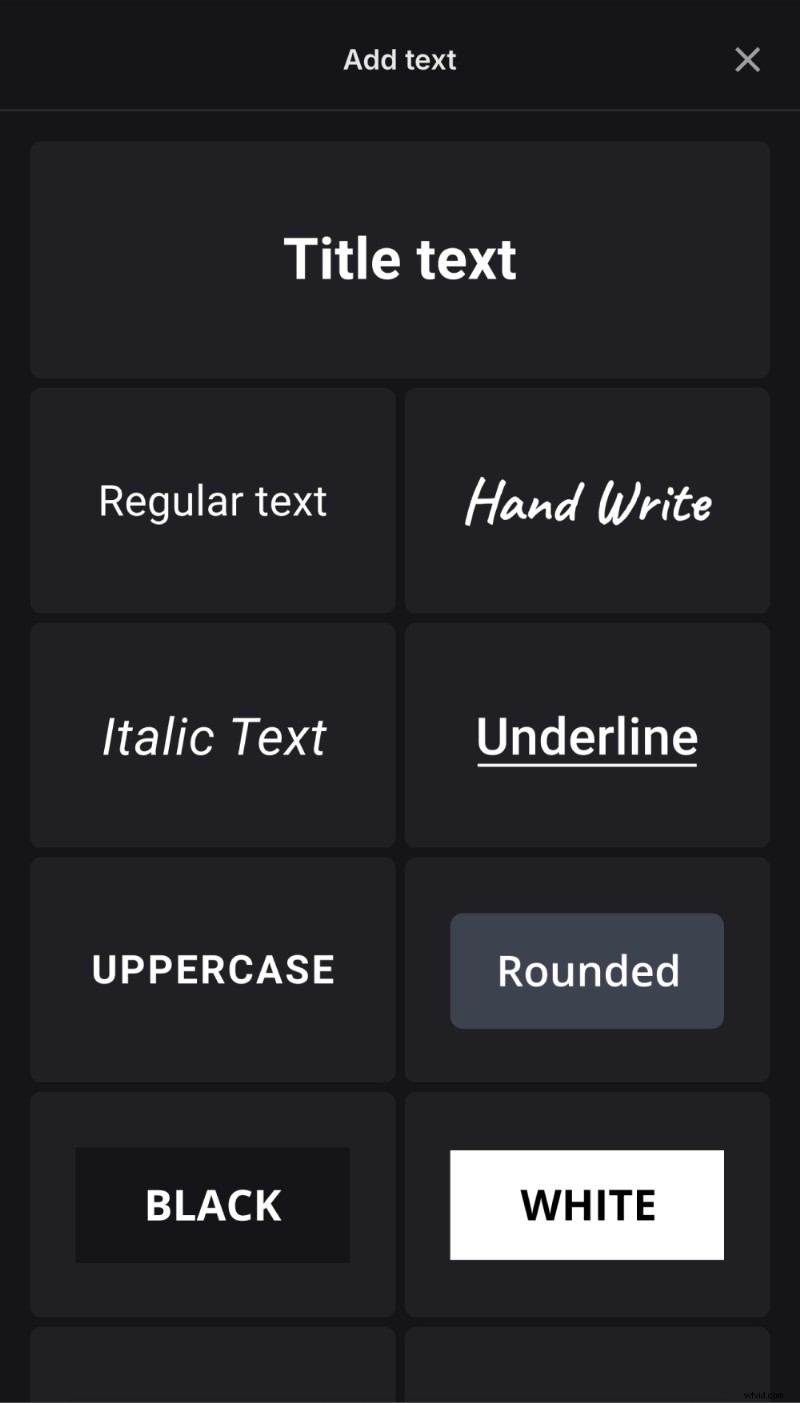
You will see a screen with various text presets. Choose any you like, as you will be able to adjust all the settings later.
Edit text
Then tap the subtitle track on the timeline to open its settings. Hit "Edit" to start entering and editing the text.
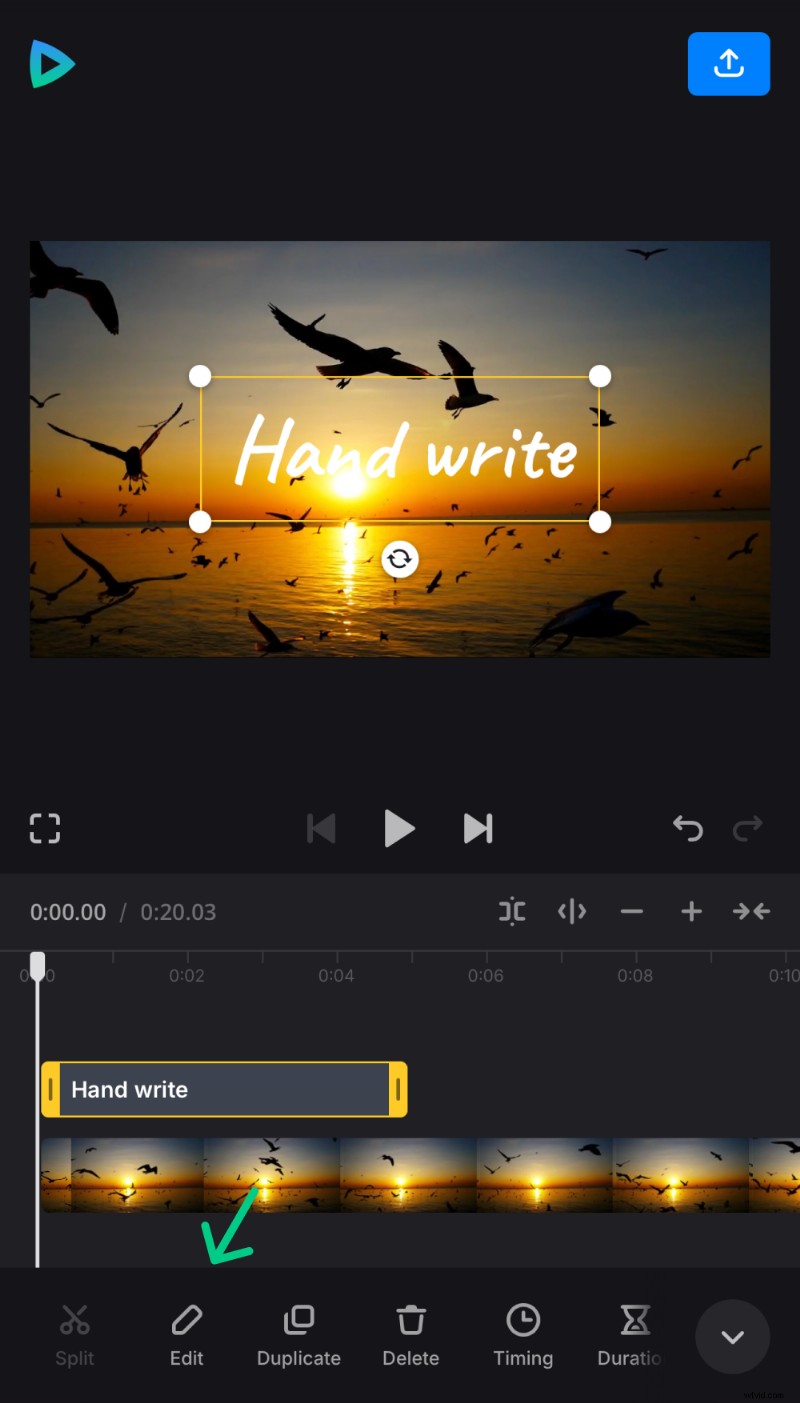
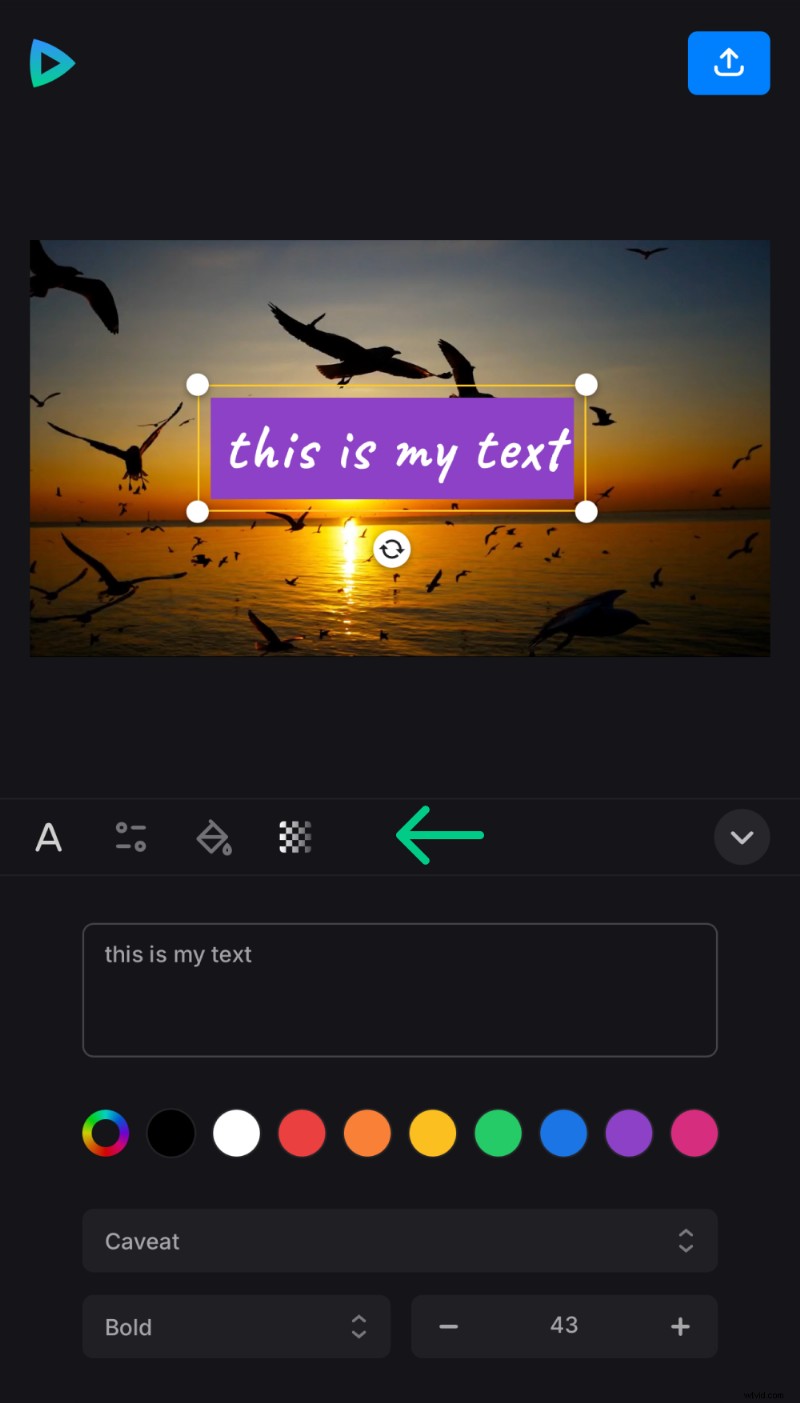
All options are customizable, and you can set up the font, color, alignment, add text background, and modify many other parameters. Match the captions with the video length and place them wherever you need on the canvas
Save the subtitled video
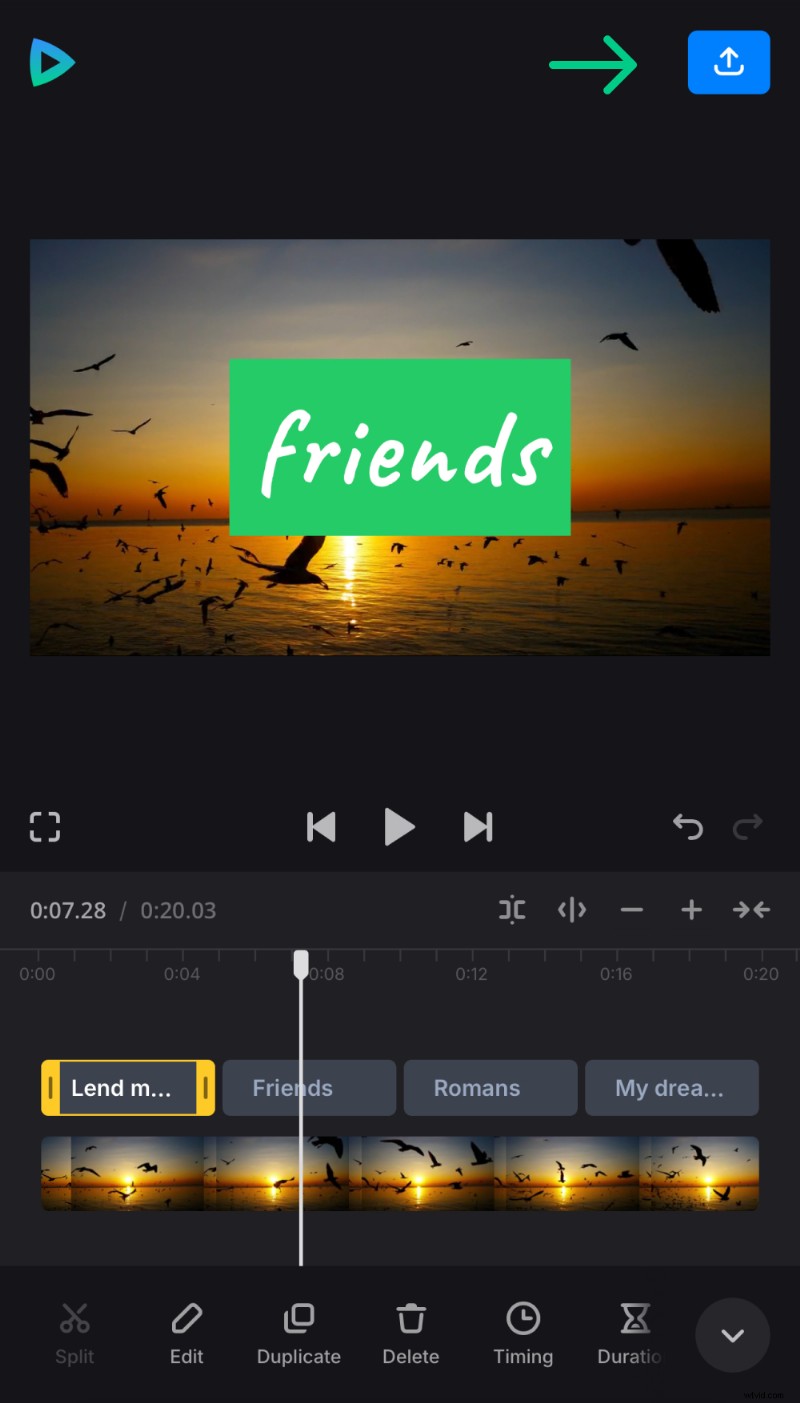
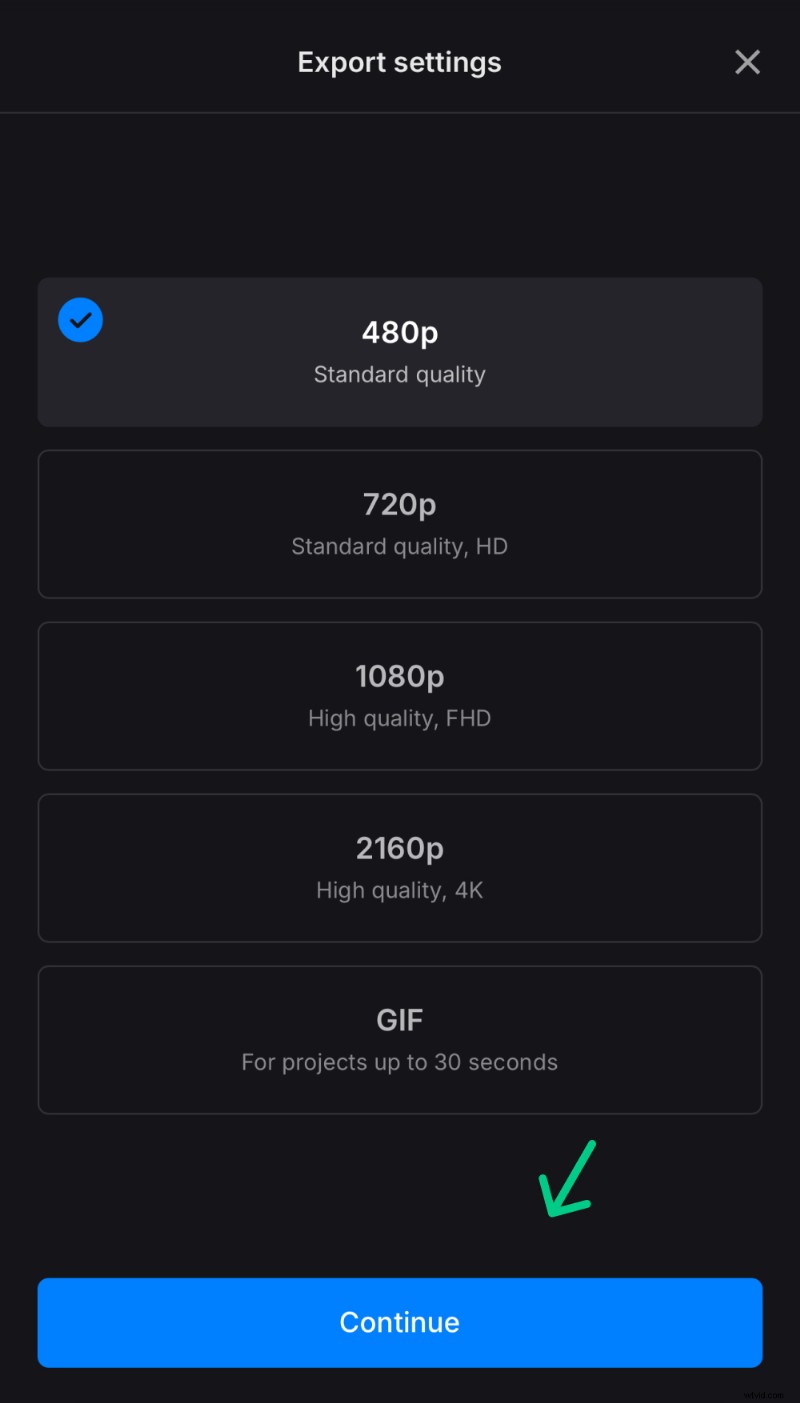
As soon as you are ready, hit the "Export" icon at the top right and choose the output resolution.
If your video doesn’t exceed 30 seconds, you can also loop it into an endless GIF.
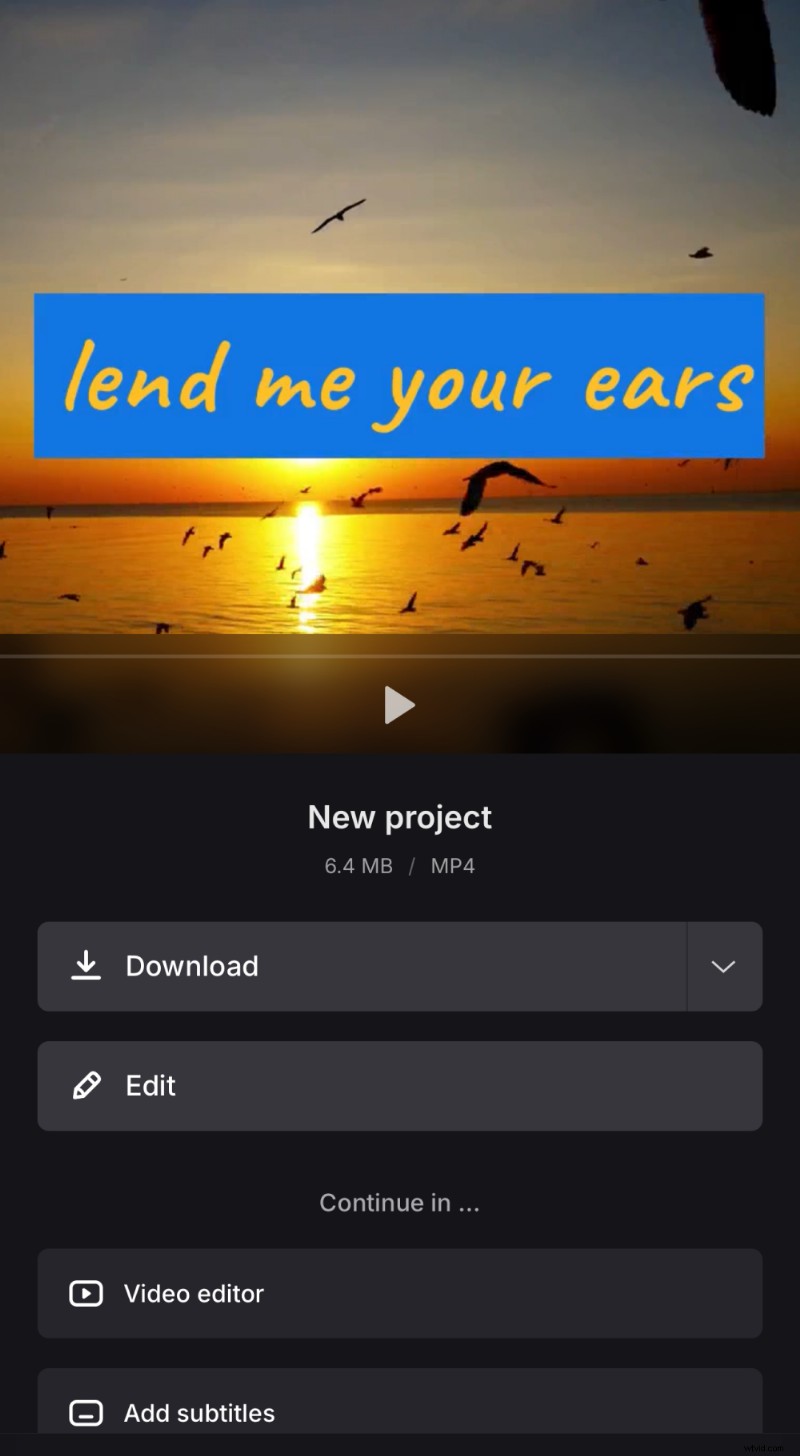
When the processing is over, either save your project to the chosen location or return to the editing pane.
By the way, you can also check out our iOS Clideo Video Editor app, which also allows you to add text to your video even without Internet access. Moreover, your projects are synchronized with the web version of Clideo's Video Editor, so you can create a project on your phone and continue editing on your computer.
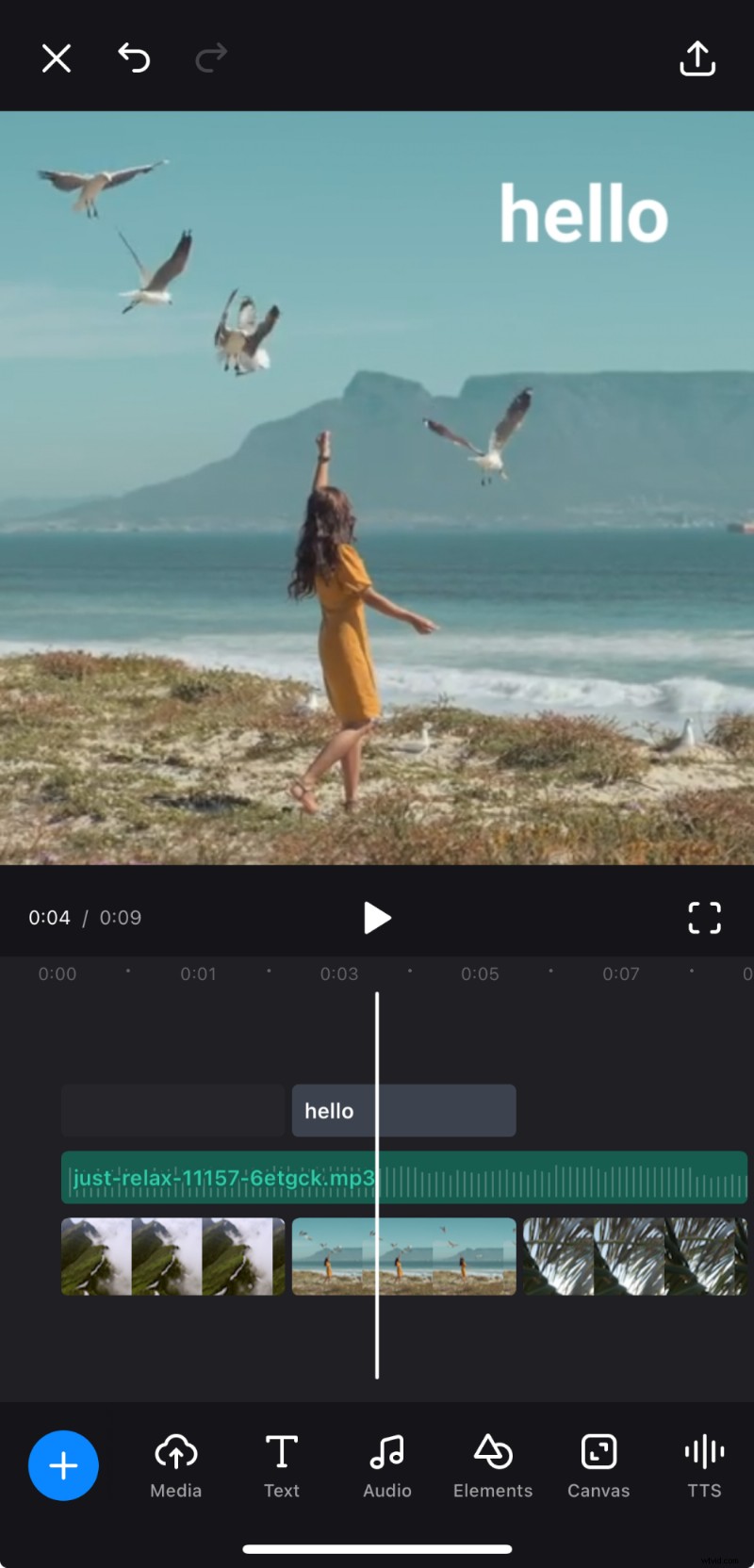
Edit your video
Combine video and text effortlessly for polished results.
The Clideo's Add Subtitles tool is more specific, so this service is not capable of other editing actions, but it can generate text automatically, recognizing it from speech (if you choose to buy a Clideo Pro plan). This way, this second service is a better match for subtitling long videos. Follow these steps to automatically generate captions from you video and customize them:
Upload a video
Open the Add Subtitles tool and tap the "Choose file" button to import a recording from your iPhone’s roll. Alternatively, call the drop-down menu and pick up a file from a cloud storage account.
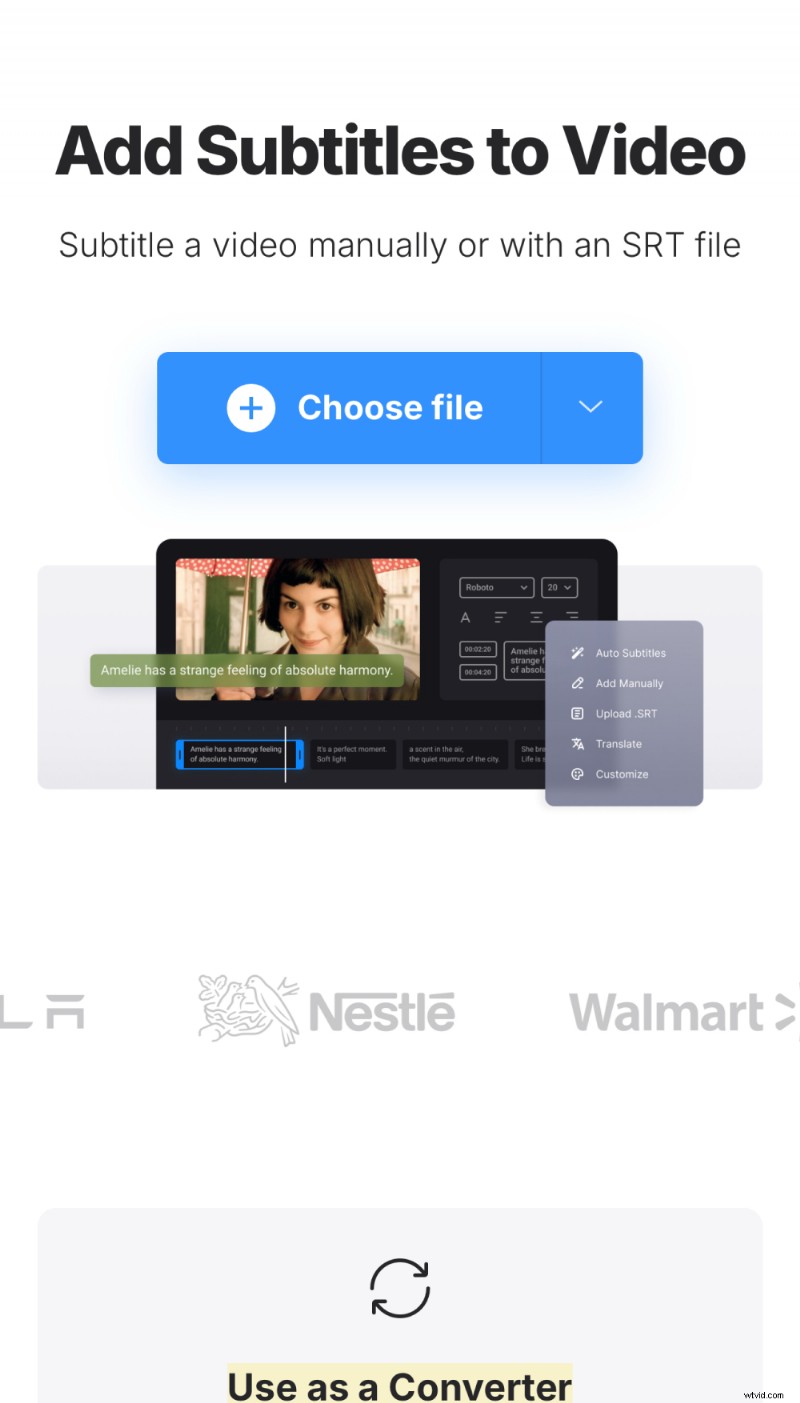
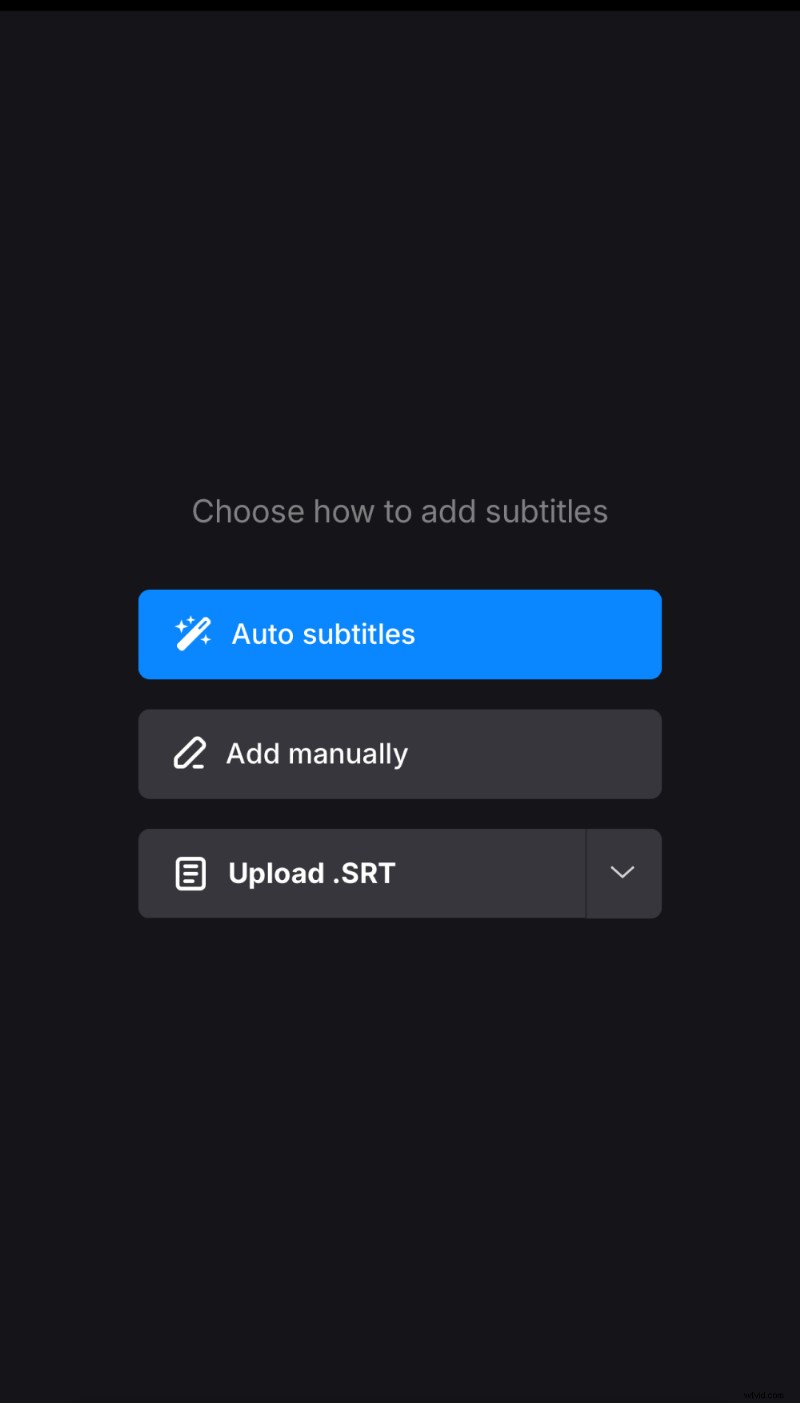
Generate subtitles
On the next screen, you can choose whether to generate subtitles automatically or insert them manually.
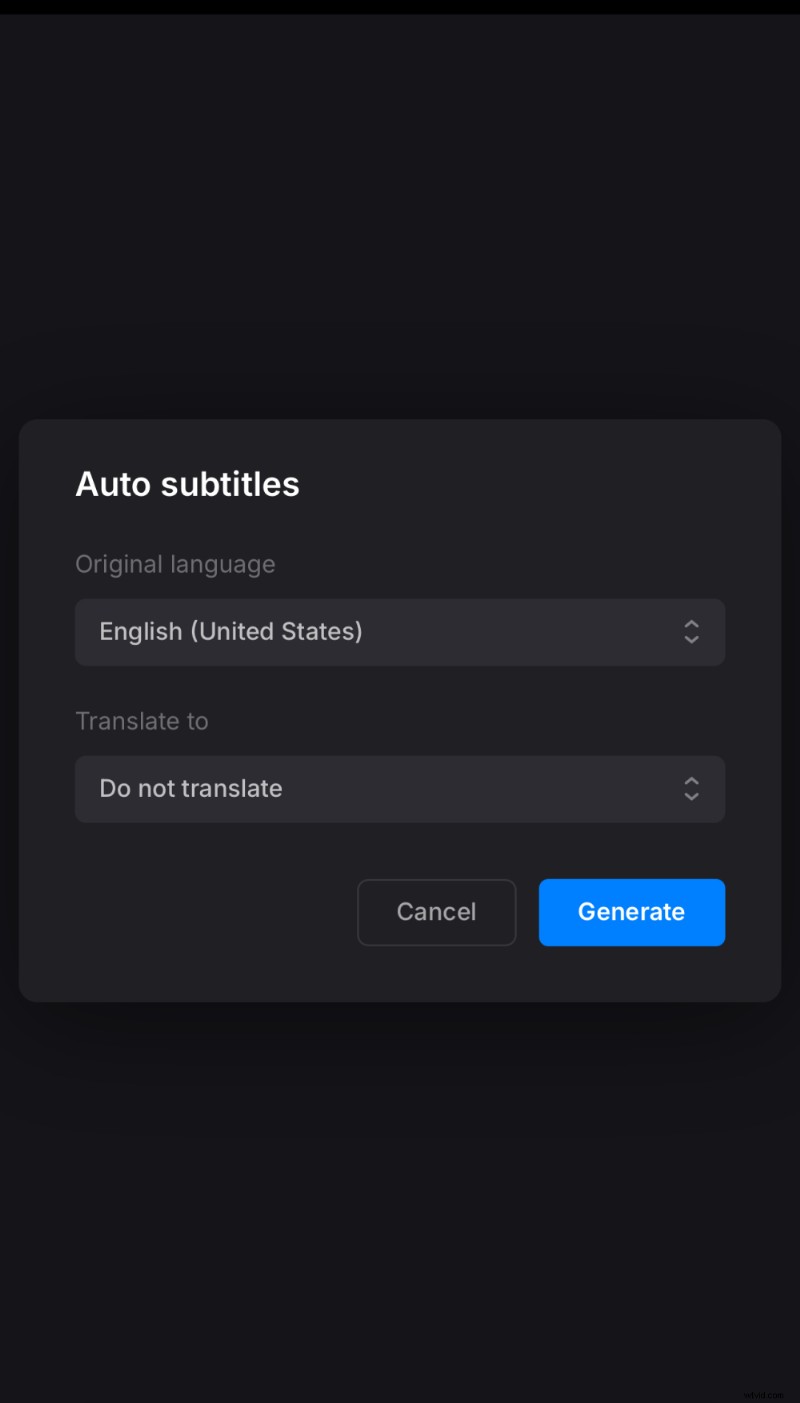
If you choose to generate subtitles, select the language used in your video. Make sure you pick the correct variation to improve recognition accuracy.
Customize the subtitles
Then you will see the editor where you can edit the subtitles one by one, if necessary.
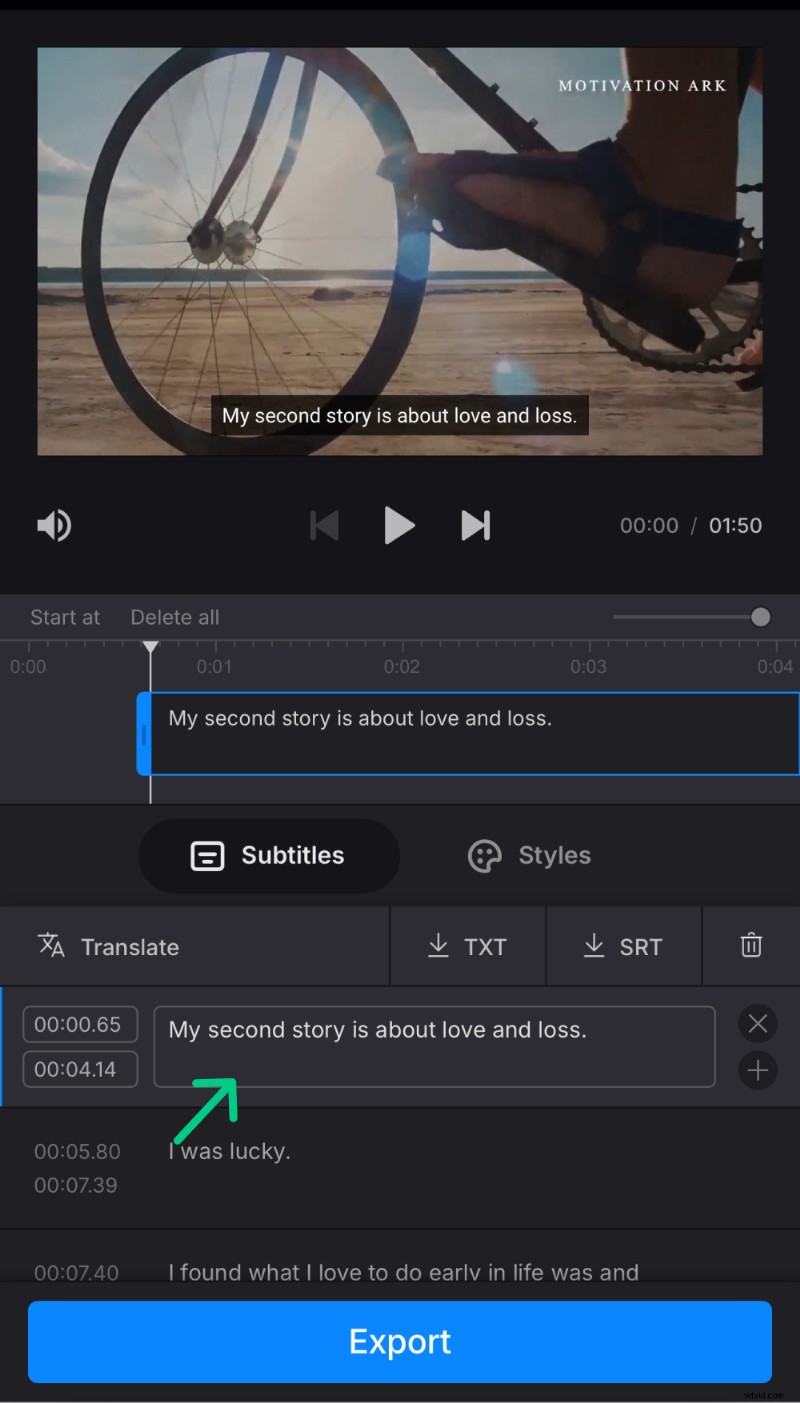
If you create them from scratch or need to add a new subtitle, tap the "Add subtitle" command at the bottom, enter the text, adjust the timing, and repeat as many times as required.
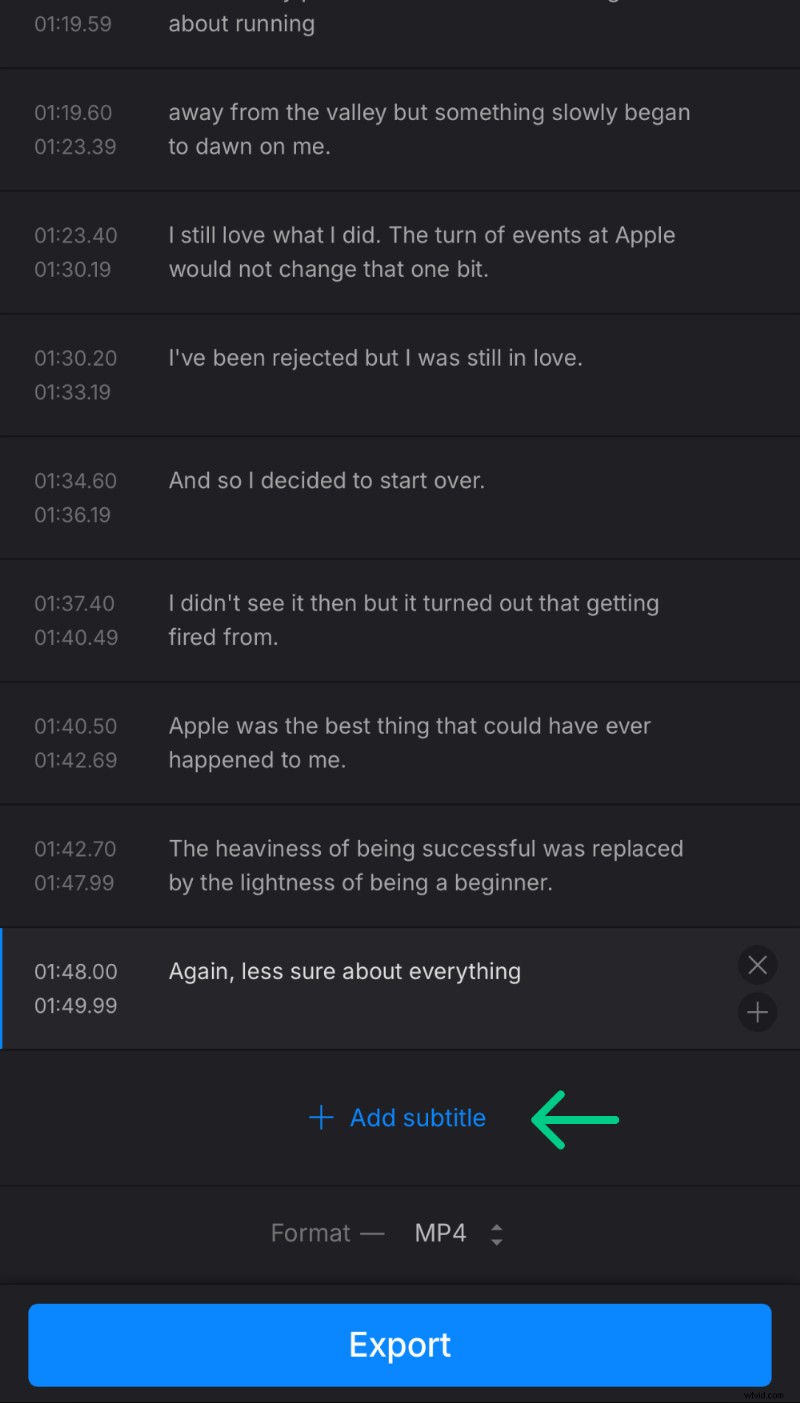
After that, in the "Styles" tab, change the font, size, and color, select the background color, position, etc. Mind that these settings will be applied to all captions.
Save video with subtitles
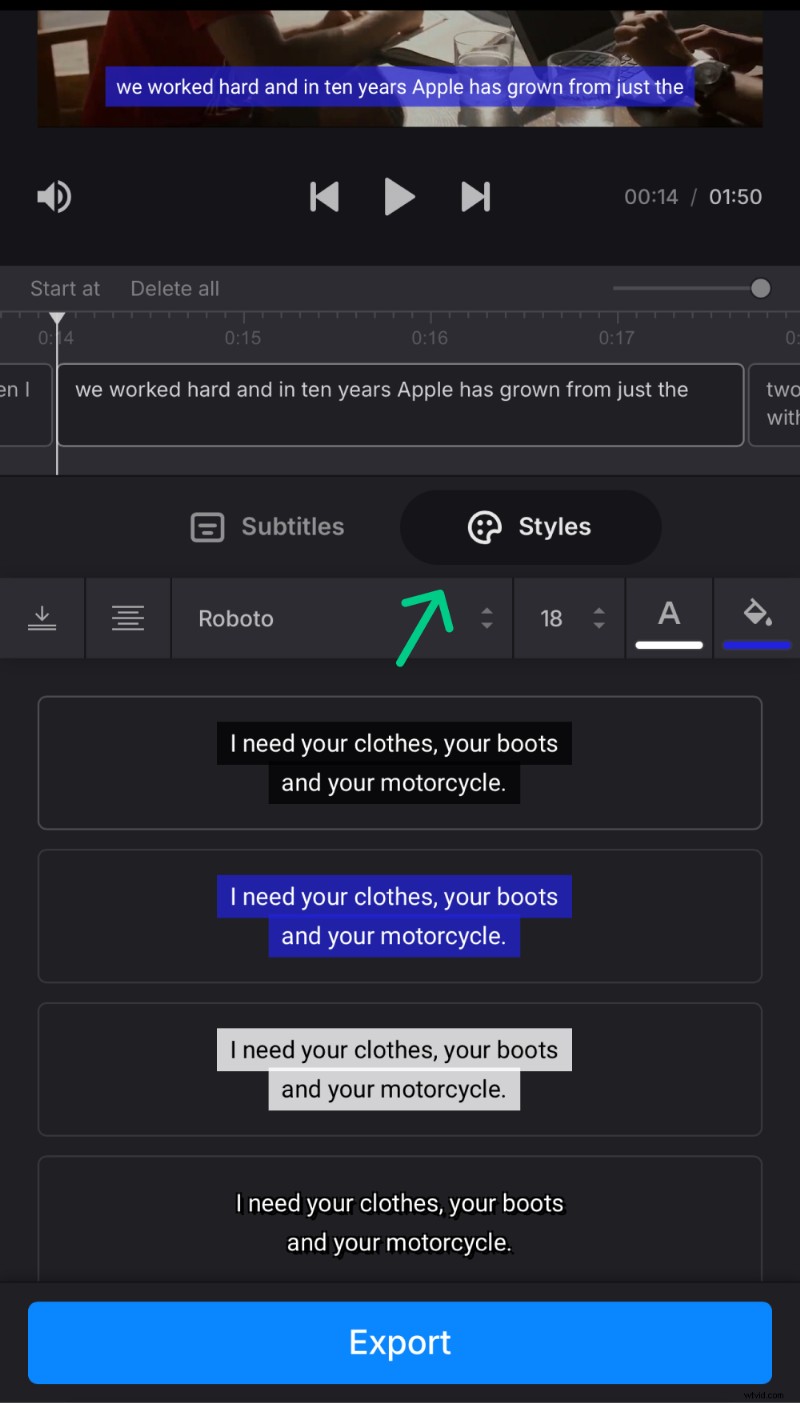
If you need subtitles as text, you can save them separately as a TXT or an SRT file. Otherwise, specify the output format at the bottom and export your project.
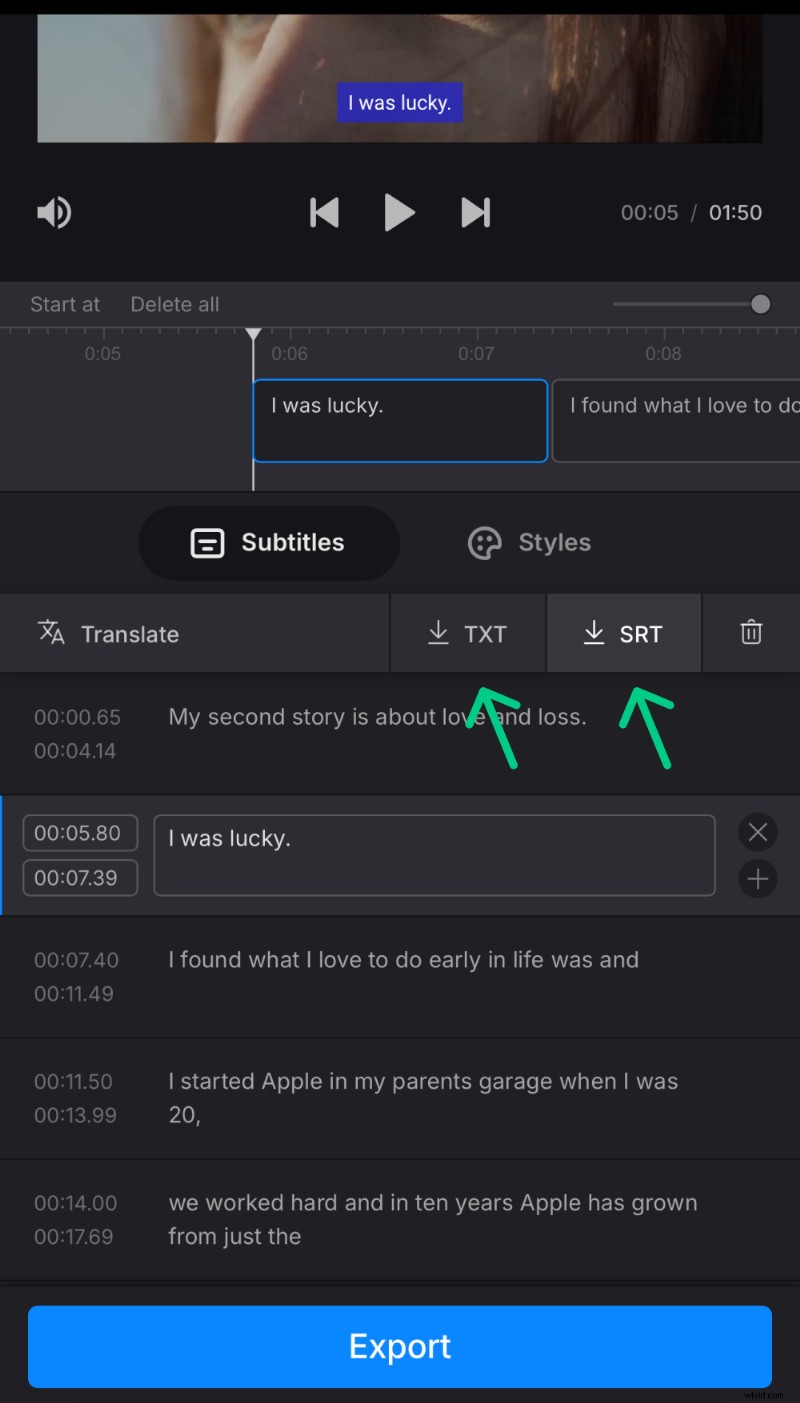
In the end, you will get a video with open (embedded) captions.
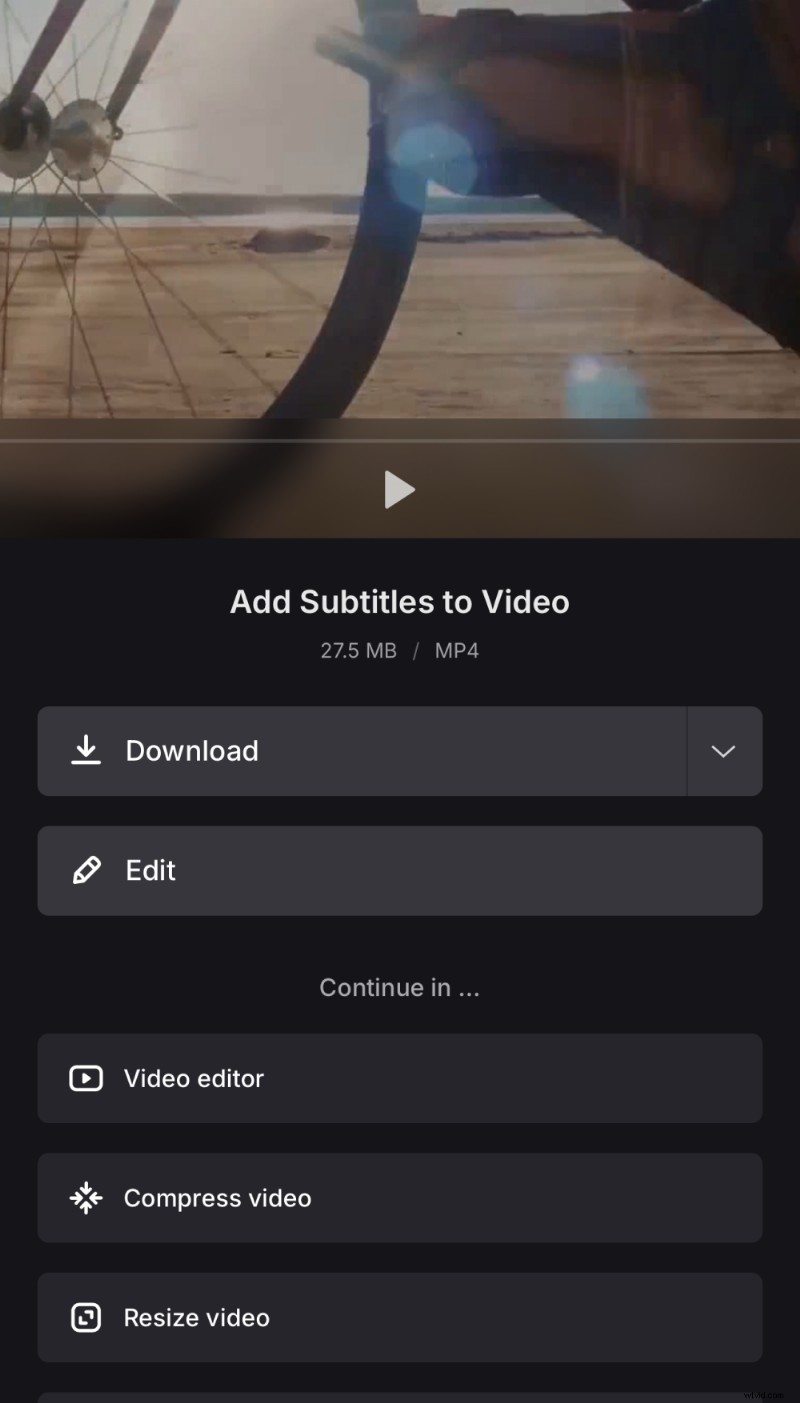
Subtitles made simple
A fast and flexible way to caption your videos.
Visit our Help Center for the most recent details about all our tools.
How to add subtitles in iMovie on iPhone
Adding subtitles to your videos using iMovie on your iPhone is not as straightforward as in Clideo, as the app doesn’t automatically generate subtitles, and you will need to use the "Titles" tool to create text overlays. Follow these steps to manually add captions and customize their appearance:
-
Download and open iMovie
If you don’t already have iMovie installed, download it for free from the App Store. Once installed, open the app on your iPhone.
-
Start a new project
Tap the “+” icon or “Create Project” button, then select “Movie” to create a new video project. Browse your media library and select the video clip you want to add subtitles to. Tap “Create Movie” at the bottom of the screen to import it into the timeline.
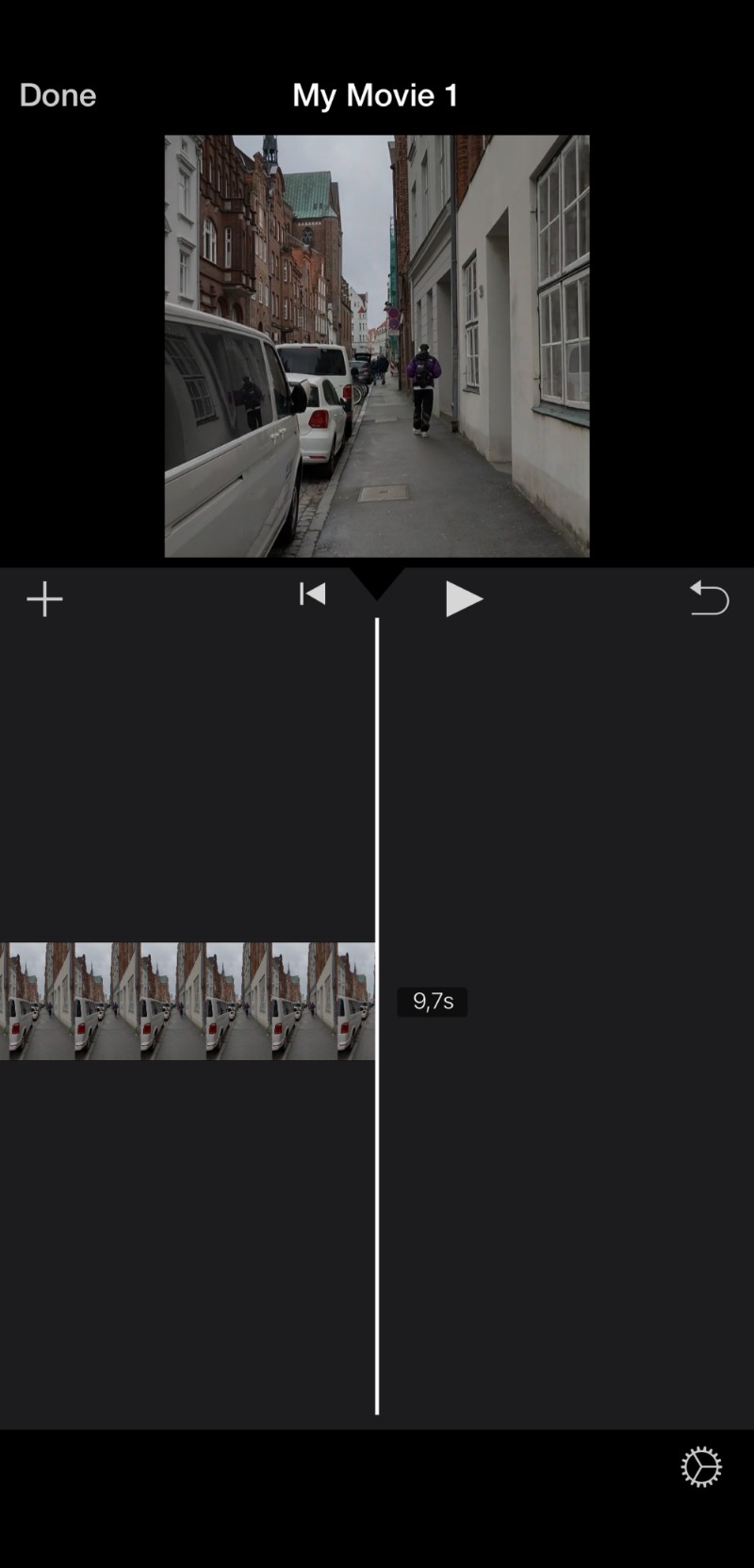
Use the Title feature
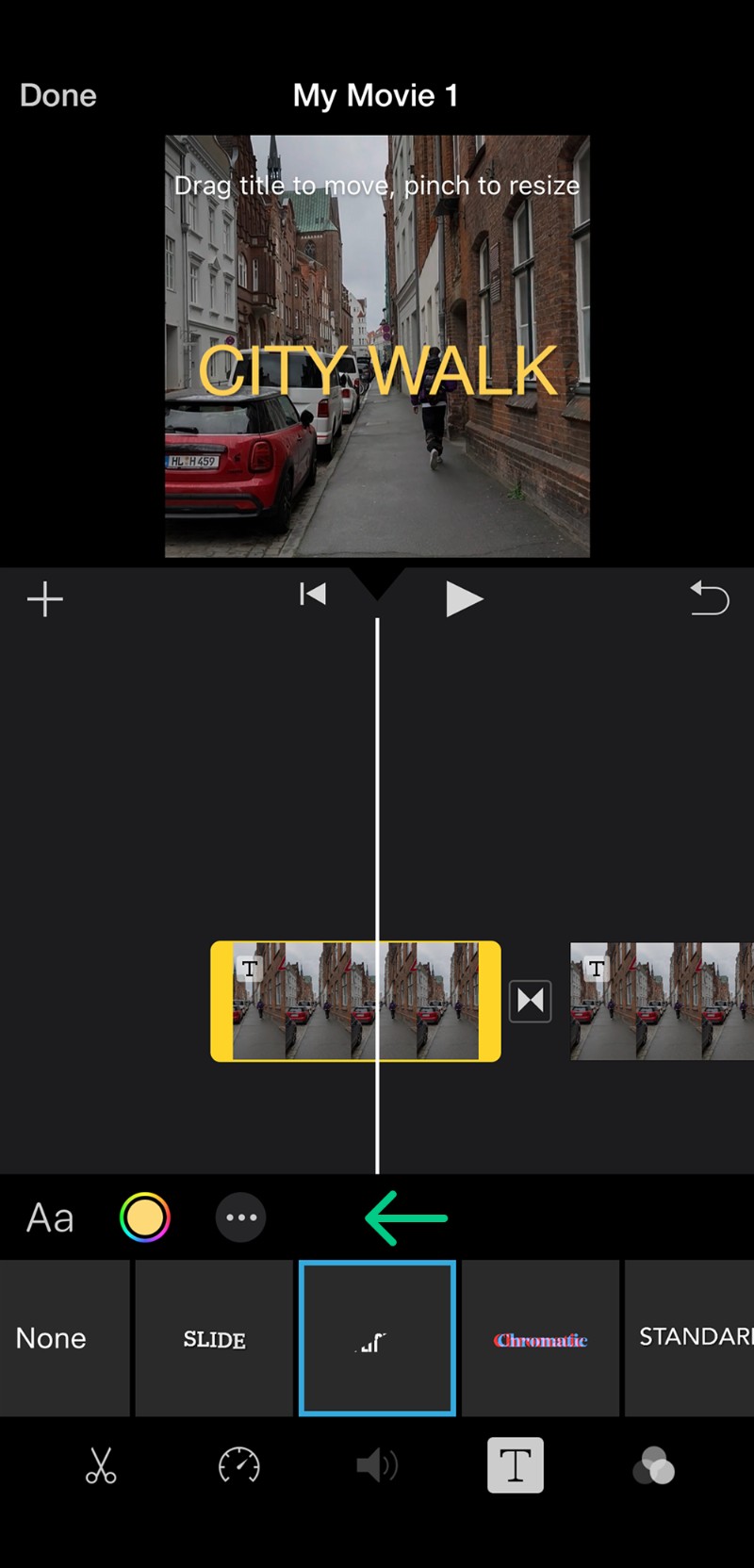
Tap the video clip in the timeline to select it. Then tap the “T” icon (Title) at the bottom of the screen to open the available subtitle styles.
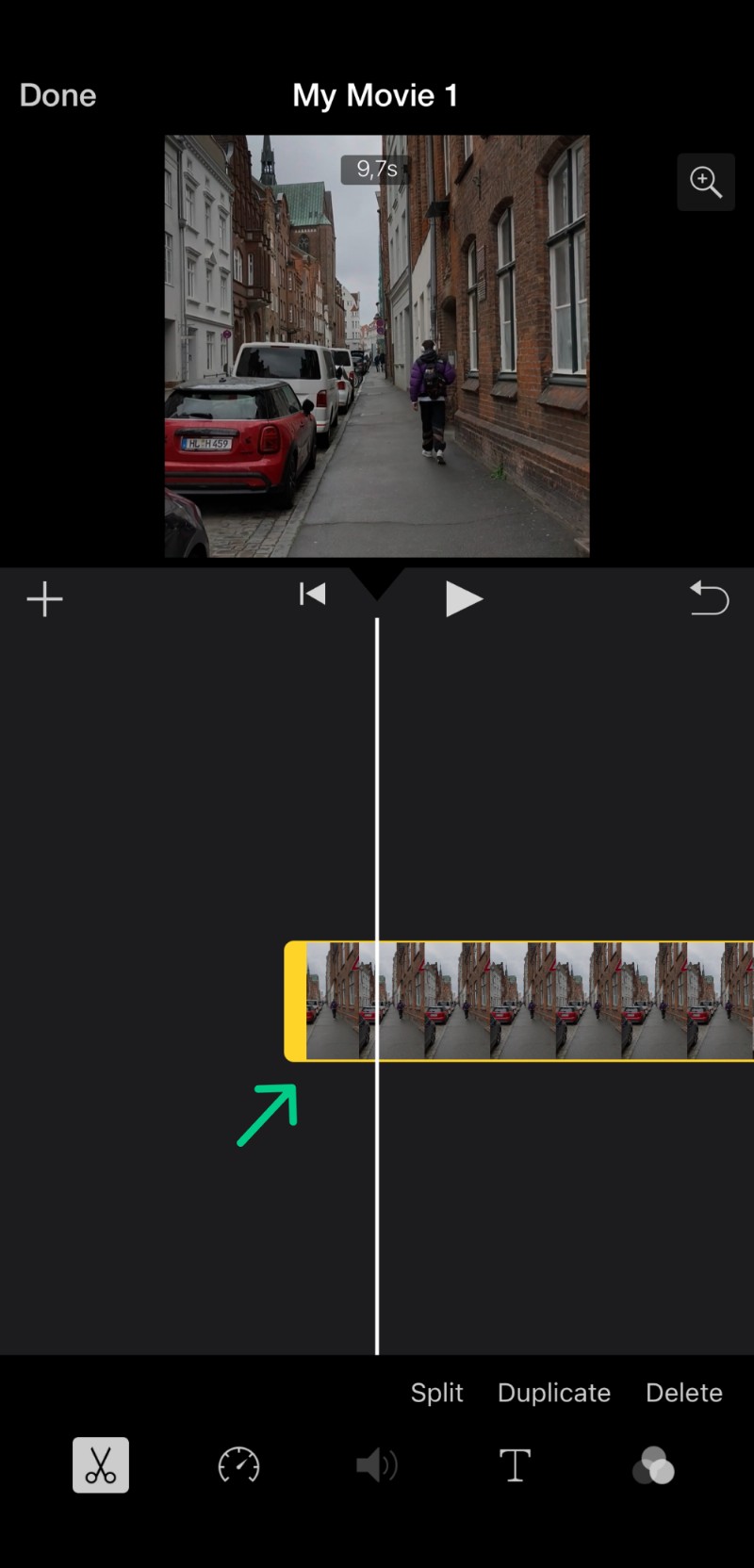
Choose a subtitle style
Scroll through the list of title styles and tap the one that best suits your video’s tone and style. The subtitle text box will appear on your video preview.
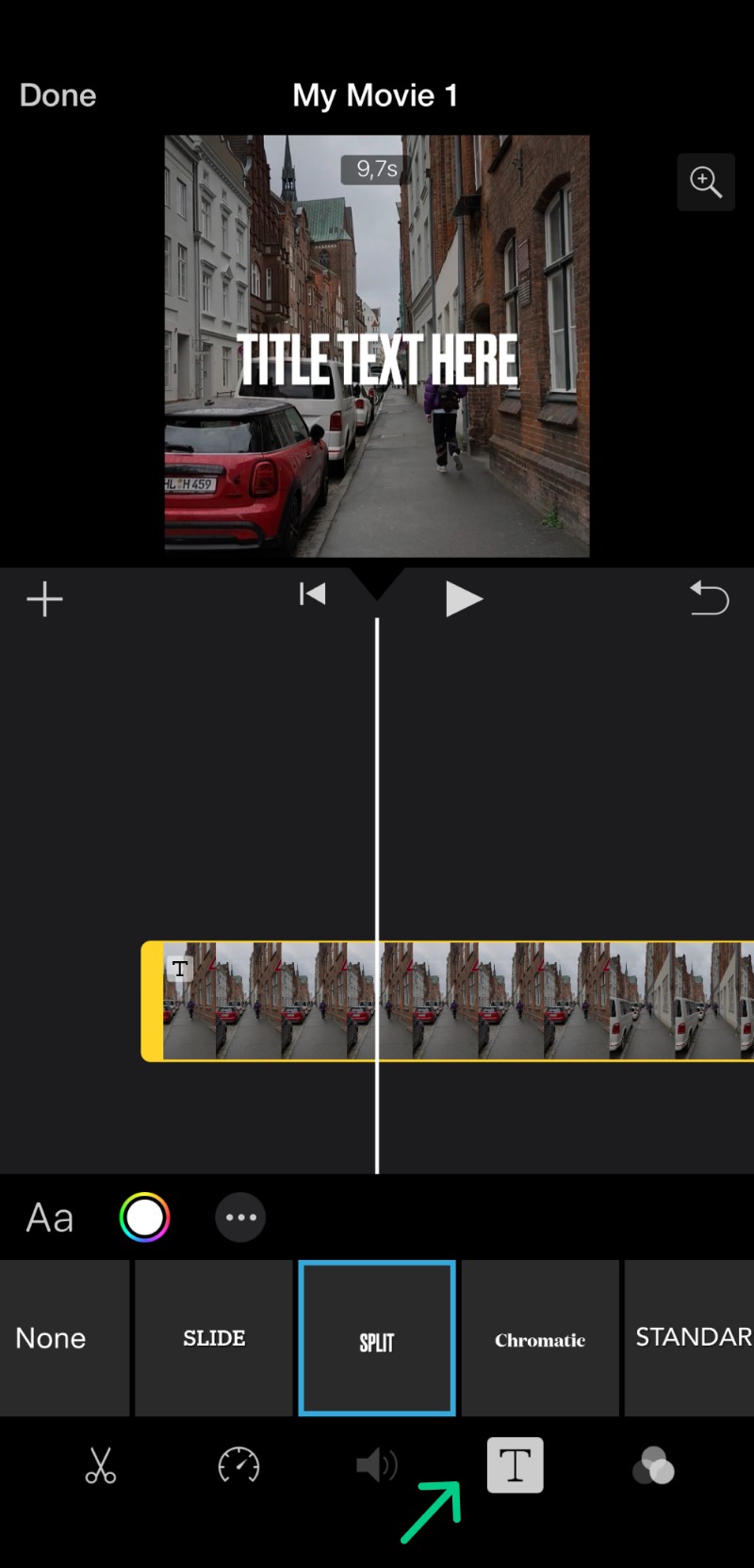
Enter and adjust your subtitle text
Tap the placeholder text in the preview window above, then tap "Edit" to type your subtitle. You can pinch the text to resize it or drag it to move it to a specific spot on the screen. To add a second subtitle later in the same clip, tap the clip, move the playhead to the new start point, tap the scissors icon and and select "Split". You can then apply a new title to the second half. Repeat it as many time as needed.
-
Customize subtitle appearance
Select any title clip and tap the "Aa" button to change the font style, size, alignment, and color. Customize the appearance to make your subtitles clear and visually appealing.
-
Save and export
Tap the "Play" button to watch your video with subtitles displayed. Make sure the text is synchronized and easy to read. When you’re satisfied, tap "Done" to exit the editor. Then tap the "Share" button (square with an arrow) and save your video.
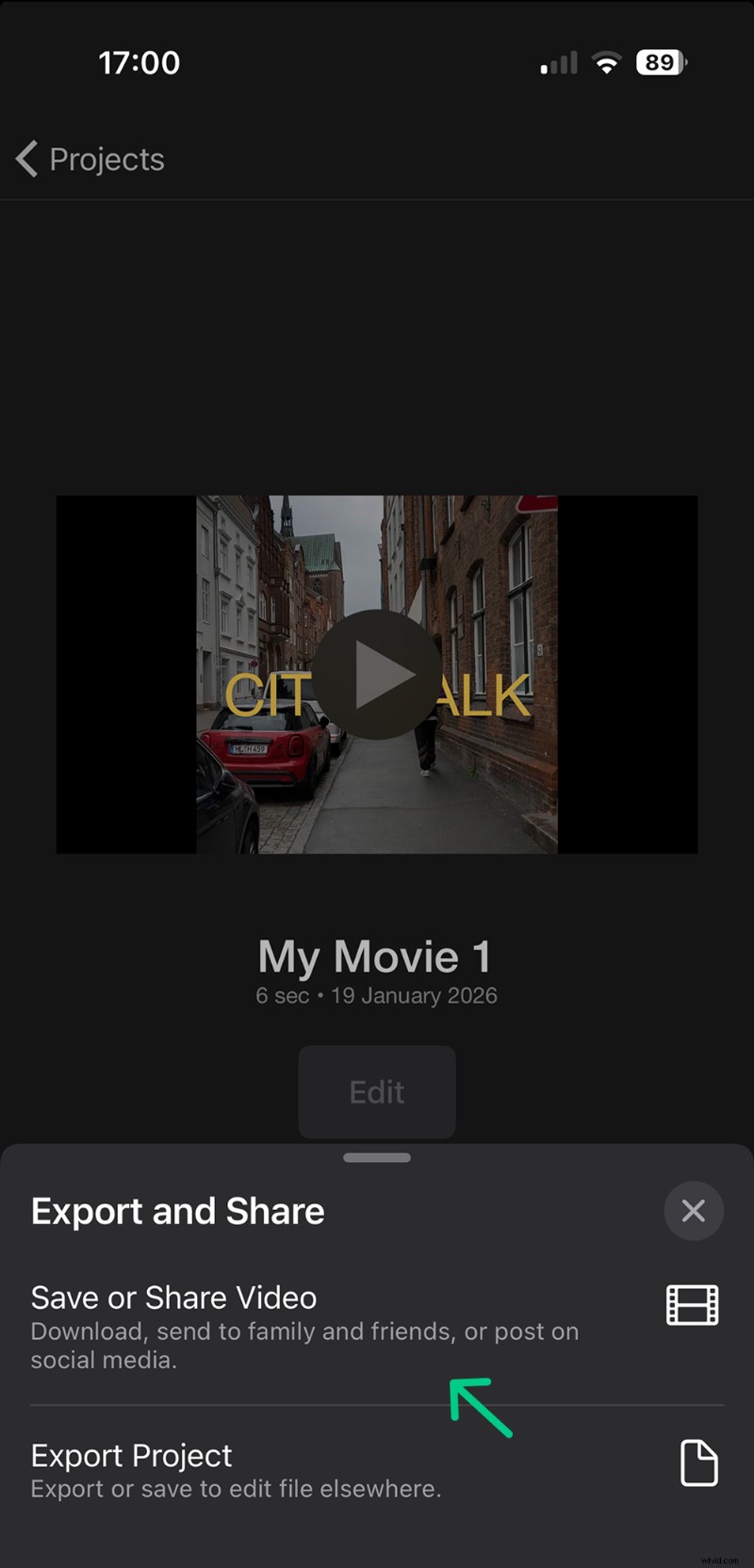
Subtitles created in iMovie are open captions as well, which means they are embedded directly into the video file and cannot be turned off by the viewer.
Frequently asked questions
How do I add subtitles to a video on iPhone using Clideo?
You can add subtitles by uploading your video to Clideo’s Video Editor or Add Subtitles tool, then manually type or automatically generate captions, customize their style, and export the video with embedded subtitles.
Can I edit the style of subtitles on my iPhone?
Yes, Clideo allows you to customize font, size, color, background, alignment, and position of subtitles to create polished videos that fit your style.
Is it possible to generate subtitles automatically for long videos?
Yes, Clideo’s Add Subtitles tool can automatically recognize speech and generate subtitles for longer videos, which you can then edit for accuracy.
Can I save subtitles as a separate file?
Yes, you can export subtitles as TXT or SRT files from Clideo's Add Subtitles tool if you want to use them separately from the video file.
Do I need to install any software to add subtitles on my iPhone?
No, Clideo is an online platform accessible through your mobile browser, so you don’t need to install complex software to add subtitles.
Conclusion
Adding subtitles to your videos on iPhone is easy. Whether you want to type captions yourself or let the tool create subtitles automatically for longer videos, Clideo can help. It works smoothly across your phone and computer, so you can start on one device and finish on another without any trouble.