
Summary: Curious about the trending "Which Disney Character Are You" filter on Instagram? This guide explains how to locate, use, and share the filter across platforms.
The Instagram effect, created by user Arno Partissimo, has gone viral and can now be found on TikTok, Facebook, and Snapchat as well.
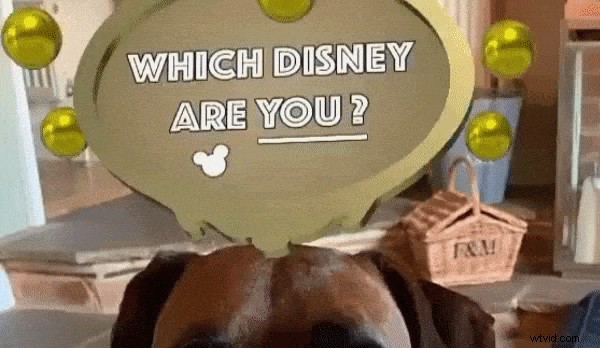
Which Disney Are You
Not yet on your feed? Follow these steps to add the filter to your Instagram camera.
How to Get the Filter on Instagram
If you’ve been searching directly within Instagram’s camera and hit a dead end, remember the filter is a third‑party effect and isn’t pre‑installed.
Three Ways to Find the "Which Disney Character Are You" Filter
Below are three reliable methods to locate the effect:
Method 1: Browse Effects
1️⃣ Open the Instagram camera and tap the sparkly magnifying glass icon for Browse Effects.
2️⃣ In the Effect Gallery, use the search bar at the top right to type Which Disney.
3️⃣ The filter by @arnopartissimo will appear. Tap the story preview, then Try It or tap the downward arrow to add it to your camera.
Method 2: Directly from the Creator
1️⃣ Visit @arnopartissimo's profile on Instagram.
2️⃣ Switch to the Effects tab, indicated by a sparkling smiley face.
3️⃣ Select the Which Disney Character Are You? filter and hit Try It or Save Effect for future use.
Method 3: From a Friend’s Story
1️⃣ Open a friend’s story that features the filter.
2️⃣ Tap the filter title under the username.
3️⃣ Choose Try It to launch the camera or Save Effect to keep it.
Tips for Using the Filter Effectively
- Make sure your camera is set to selfie mode before starting.
- Look directly at the lens; the effect uses facial recognition.
- If the filter doesn’t activate, tap the icon again.
- After recording, you can share on Instagram or download to share on other platforms.
Resize Your Instagram Video for Other Platforms
To fit your video to TikTok, YouTube, or Facebook, use an online editor like FlexClip. It supports multiple aspect ratios (1:1, 4:5, 16:9, 9:16, 21:9).
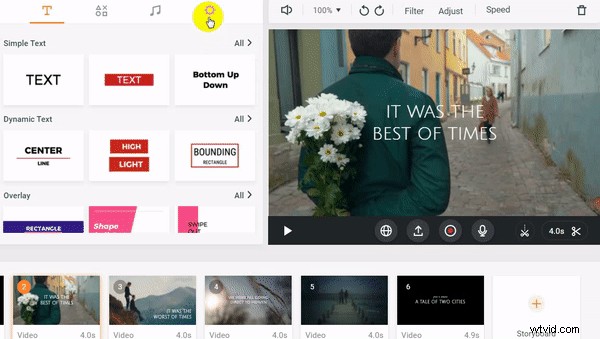
How to resize:
- Open FlexClip’s online editor or click the Edit Video button below.
- Upload your clip by clicking the + icon and selecting Add Local Media.
- Choose your desired aspect ratio under Settings and adjust the frame if needed.
Additional edits include adding text, transitions, filters, watermarks, overlays, voice‑overs, trimming, and rotating.
Final Thoughts
Enjoy exploring your Disney persona with Instagram’s viral filter. Remember to share your results across platforms using FlexClip for perfect formatting.

Sandy / 
With years of professional photography experience, Sandy captures life's details and loves video production. She enjoys exploring tips and tricks to elevate storytelling.