
Learn how to create stunning space-themed titles with these free nebula assets, and make your next Sci-Fi project stand out.
There are plenty of things out there that computers just can’t replicate. So sometimes, you need to actually make something. Our friends at RocketStock used organic elements like evaporated milk, dyes, and water to create these trippy nebula effects that rival the look of photos taken by the Hubble Space Telescope. Just take a look.
Download 19 Free Space Background Video Elements
Make sure to download the free space video assets so you can follow along with this tutorial. These free video backgrounds are provided courtesy of RocketStock by Shutterstock, and you can use them in any project — personal or commercial.
By downloading, you agree not to resell or redistribute these free assets. Full licensing terms included with the download.
DOWNLOAD NOW
In this tutorial, we are going to show you how to put these assets to work by creating a stand-out title sequence using one of the free nebula space background videos.
Let’s get started!
Adjust the Color of the Nebula
After you have imported your assets and loaded a video into your timeline, you’ll want to adjust the color of the nebula. Some of these assets already have rich colors that you may want to preserve, but for this one, we’re going to make it a bit more purple and blue to achieve that galaxy look.
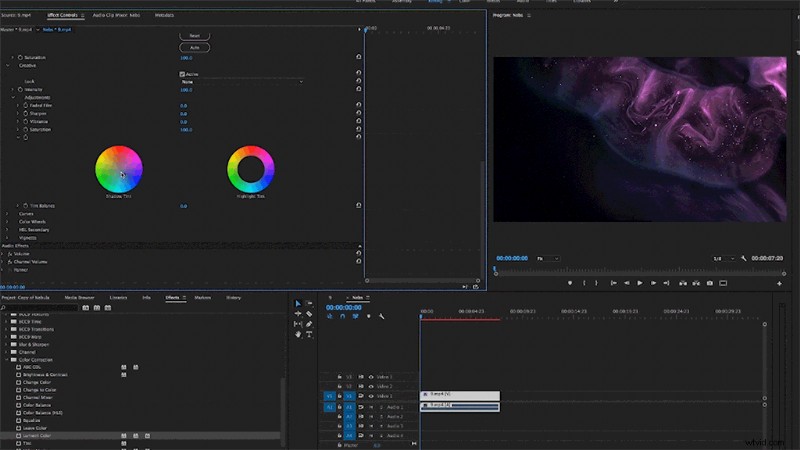
Go to your effects tab and drag the Lumetri Color effect onto your video. In the effect controls panel, go to the Tint parameter and shift far to the right. This will give you the purple tones you’re looking for. For an even deeper purple with hints of blue, click the Creative tab and select the Shadow Tones wheel. Move that over the blue to make your shadows complement the highlights.
Creating a Mask
To really highlight the text we will be adding later, we need a mask. To create a mask, go to the Opacity tool in Effect Controls. Select the Ellipse Selection Tool. Drag the mask to the window on the right however you would like to position it.
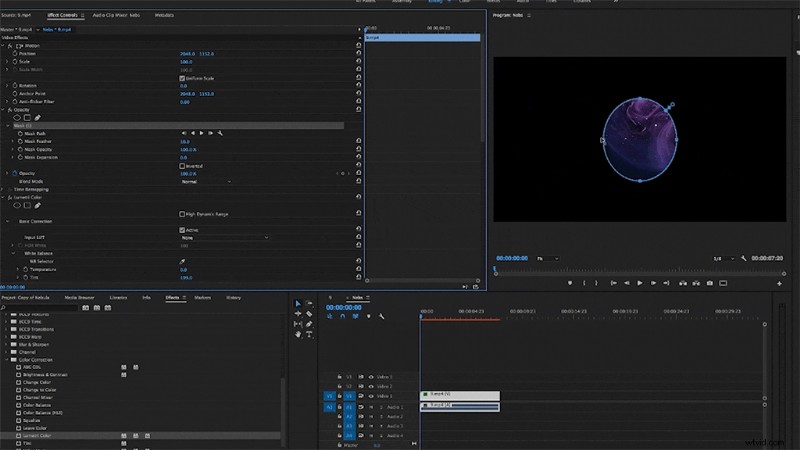
Once you’re satisfied, go to the Feather option under that mask’s options, and increase it to about 500. This will make your nebula mesh into the background — and make it look like it is expanding naturally through the frame.
Adding Motion
Adding just a touch of animation to this nebula will really make it look natural. To do this, select the Scale Keyframe Tool to the left of the scale option in effect controls.
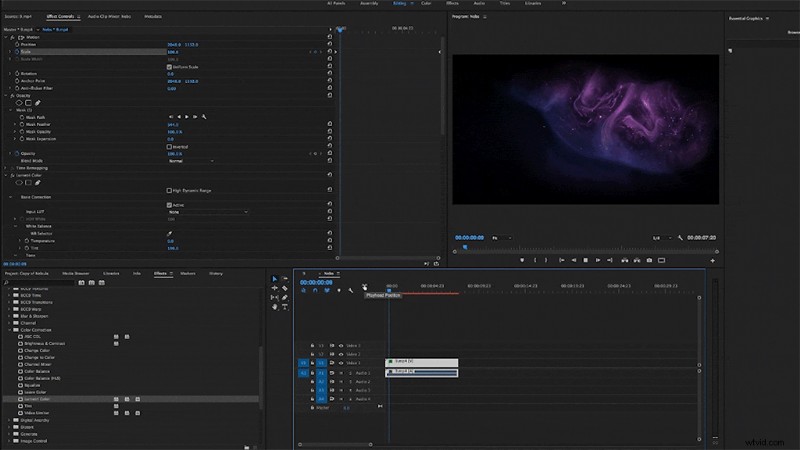
It will automatically create a keyframe at the beginning of the video as a reference point. Slide your playhead to the end of the video and change the scale size from 100 to 110. This will add some much-needed motion to the background of your title sequence.
Finishing with A Title
To finish off this title sequence, we obviously need some text. To create text, access your Essential Graphics toolbar by navigating to Windows > Essential Graphics. To create a new text layer, click the Page Icon, and select New Text Layer.
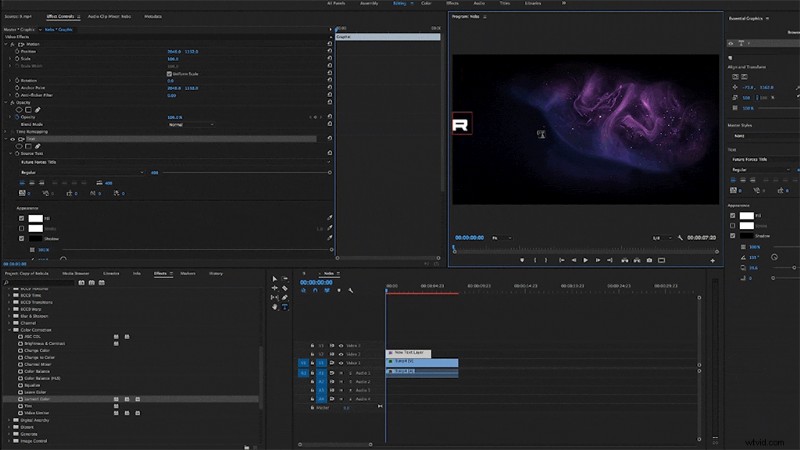
From there, you can move your text around on the preview window as you see fit. Change your font to a Futura-style, or download a font that has the look you want. If you want to add animation to your text, follow the same steps you did for adjusting the scale of the nebula.
And that’s it! It’s a simple, easy way to pull off a professional-looking title sequence in just a few minutes. Feel free to put your own touch on your sequence to make it personal. Enjoy, and happy editing!
Looking for more freebies? Don’t forget to check out 120 FREE Light Overlays for Photographers and Graphic Designers.