
Whether you’re a podcaster, content creator, or simply documenting personal moments, the clarity of your audio is pivotal. Poor sound can diminish engagement and undermine your message. Fortunately, modern audio enhancement has become accessible, thanks to sophisticated sound‑enhancement tools that deliver professional results with minimal effort.
Today’s market offers a diverse array of sound enhancers—each equipped with advanced features to address background noise, volume imbalances, and voice fidelity. By evaluating these options carefully, you can select the solution that best aligns with your workflow and creative goals. Numerous tutorials and industry‑approved reviews make the decision process straightforward.
This article outlines proven techniques for elevating voice recordings and provides a curated list of reputable tools to help you achieve studio‑grade audio.
Table of Contents
- Key Features
- Step‑by‑Step Guide
- Auphonic
- VEED.IO
- LANDR
Improving Voice Quality with Wondershare Filmora
Wondershare Filmora combines powerful video editing with an intuitive AI voice enhancement engine, making it a go‑to choice for creators who need fast, high‑quality audio processing. Below is a concise guide to leveraging Filmora’s features for optimal results.

Key Features
- AI Voice Enhancement: Auto‑detects and refines speech, producing clearer, more professional audio.
- Comprehensive Editing Toolkit: Supports cutting, fading, and layering for seamless video production.
- Template Library: Offers customizable templates to expedite project setup.
- Creative Asset Collection: Includes stock media, sound effects, and visual filters.
- AI‑Powered Extras: Text‑to‑speech, thumbnail creation, and automated subtitles enhance workflow.
- Export Flexibility: Supports MP4, MOV, AVI, MKV, GIF, MP3, and more formats.
Step‑by‑Step Guide
Follow these steps to refine your voice recordings using Filmora:
Step 1: Download and install Filmora from the official website.
Step 2: Open the program, click New Project, or open an existing session.
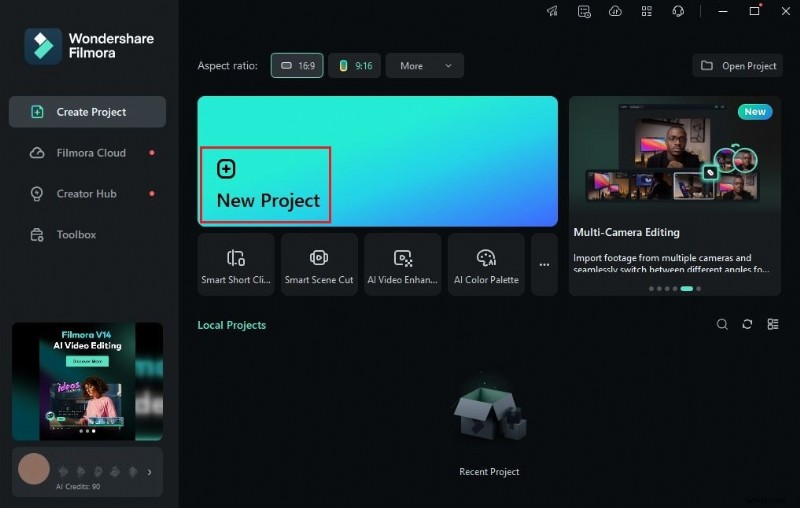
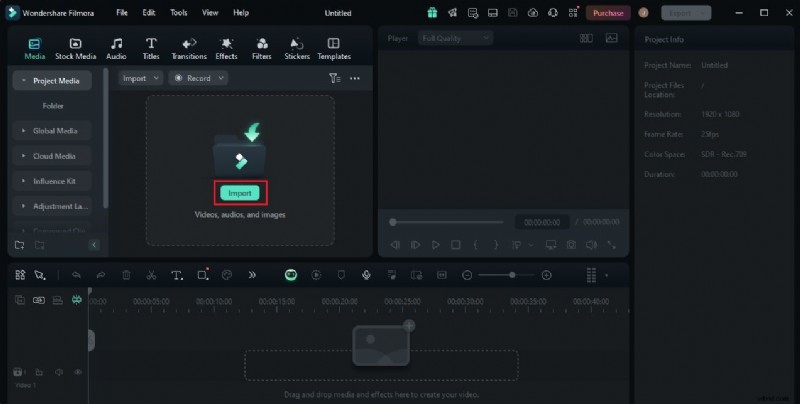
Step 3: Import your media files via the Media tab, then drag them onto the timeline.
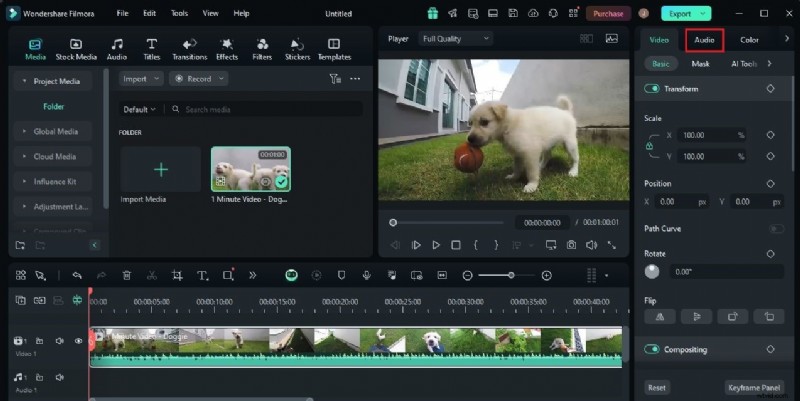
Step 4: Select the audio clip on the timeline; the right‑hand panel will display editing options.
Step 5: Enable AI Voice Enhancer under the Basic tab and toggle it on.
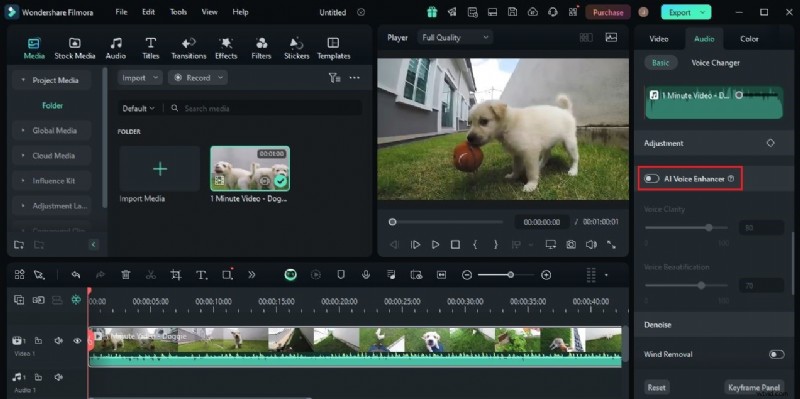
Step 6: Adjust Voice Clarity and Voice Beautification sliders to suit your desired level of polish.

Step 7: Preview the changes, then click Export to render the final video. Use the Revert button if you need to reset settings.
Practical Tips for Voice Recording Enhancement
Audio enhancement is now approachable for non‑experts, but mastering the fundamentals ensures consistent quality. Keep these reminders in mind:
- Use headphones during recording and editing to isolate the speaker and catch subtle nuances.
- Explore the full range of effects—noise reduction, equalization, and compression—to elevate your audio.
- Prioritize clarity; ensure every spoken word is intelligible before applying additional effects.
- Trim extraneous sections early to prevent unwanted artifacts during post‑processing.
- Experiment with each tool’s unique features to discover the most effective workflow for your project.
Top Tools for Voice Enhancement
Beyond Filmora, several other platforms excel at voice optimization. Below are three industry‑trusted options:
Auphonic
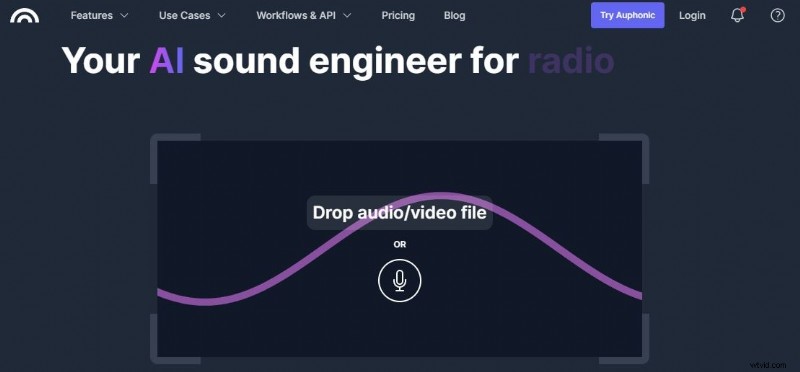
Auphonic offers automated audio mastering—normalizing volume, balancing frequencies, and eliminating background noise—all in one upload. Its automatic features make it ideal for batch processing.
Key Features:
- Noise & reverb suppression
- Auto‑cutter that removes pauses and fillers
- Multi‑track editing for complex projects
VEED.IO
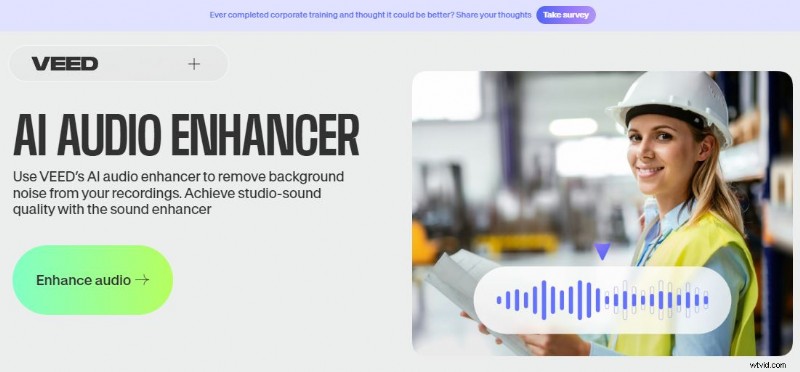
VEED.IO is a browser‑based editor with AI‑powered audio enhancement. Its user‑friendly interface makes it accessible for newcomers while still offering robust noise removal and speech‑clarity tools.
Key Features:
- Intuitive design for quick onboarding
- Advanced background‑noise removal
- Seamless integration of enhanced audio into video projects
LANDR

Primarily known for music mastering, LANDR also provides powerful AI‑driven audio refinement suitable for podcasts and spoken content. Its educational resources help users master the platform.
Key Features:
- AI‑powered mastering engine
- Comprehensive learning materials
- Customizable mastering presets for voice and music alike
Conclusion
Quality audio is a cornerstone of engaging content. While sophisticated recording gear is valuable, post‑production tools enable anyone to transform raw recordings into polished, professional audio. Whether you choose Wondershare Filmora, Auphonic, VEED.IO, or LANDR, these solutions empower creators to deliver clear, compelling voice content with confidence.