
Enhancing your audio from mono to stereo unlocks a richer, more immersive listening experience. Whether you’re polishing a cinematic score, producing corporate content, or crafting social‑media clips, mastering this conversion in Adobe Premiere Pro—and exploring reliable alternatives—will elevate the overall quality of your projects.
In this article
- Quick Guide to Converting Mono to Stereo in Premiere Pro
- Best Desktop Alternatives for Mono‑to‑Stereo Conversion
- Top Online Tools for Instant Stereo Conversion
Part 1: Quick Guide to Converting Mono to Stereo in Premiere Pro
Premiere Pro remains the industry standard for video and audio editing. Its robust audio tools make it straightforward to transform a mono track into a full‑band stereo mix.
Step‑by‑Step Process
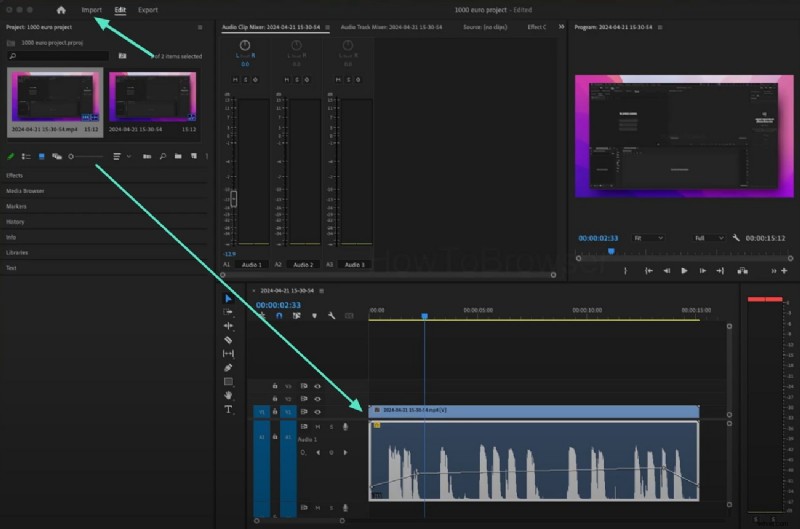
- 1. Import your media by selecting File → Import or dragging the file into the Project panel.
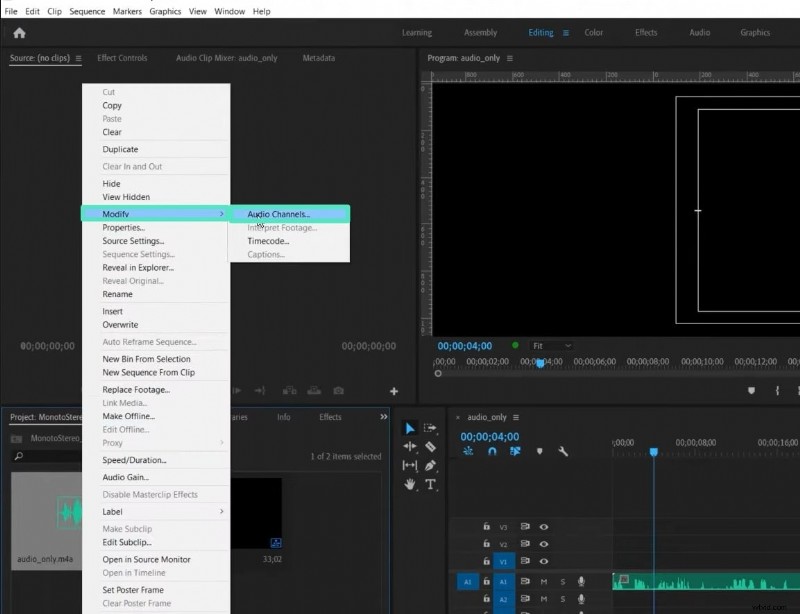
- 2. In the Project panel, right‑click the clip, choose Modify → Audio Channels.
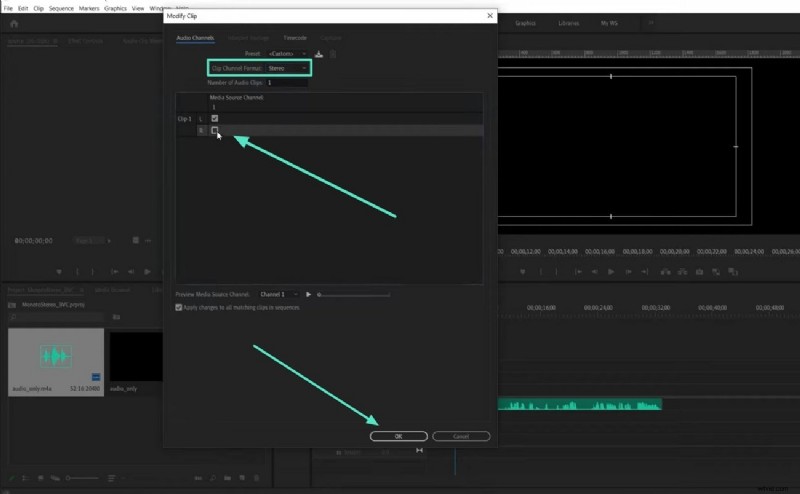
- 3. Set Clip Channel Format to Stereo, then tick both L and R boxes.
- 4. Confirm the dialog, then click OK to apply the change.
Part 2: Best Desktop Alternative – Wondershare Filmora
Filmora offers an intuitive workflow for users who prefer a more approachable interface without sacrificing quality. Its audio panel includes dedicated tools to create a convincing stereo field.
How to Convert Mono to Stereo in Filmora
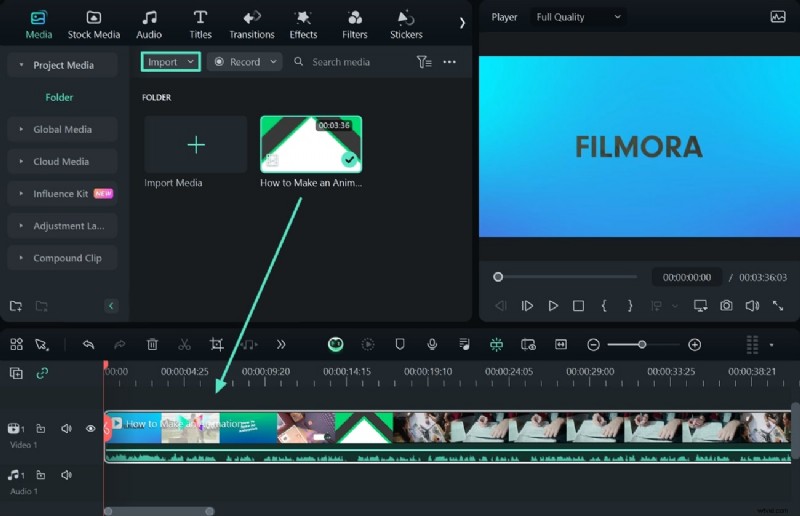
- 1. Launch Filmora and create a new project. Import your clip via the Import button or drag‑drop.
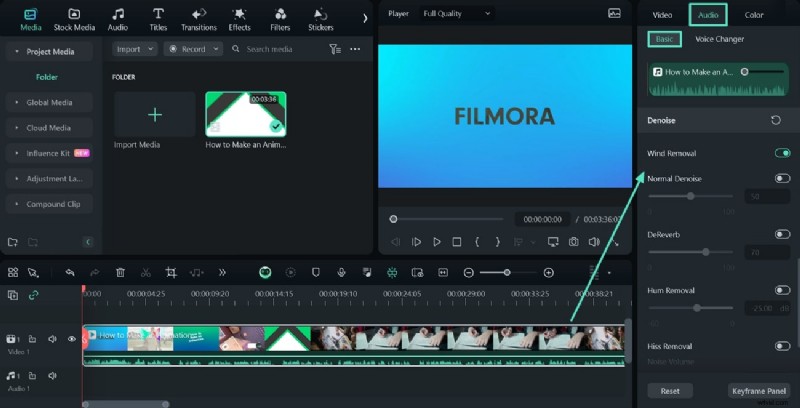
- 2. Drag the clip to the timeline and open the Audio panel (Basic tab).
- 3. Enable Denoise toggles to clean up hiss and hum.
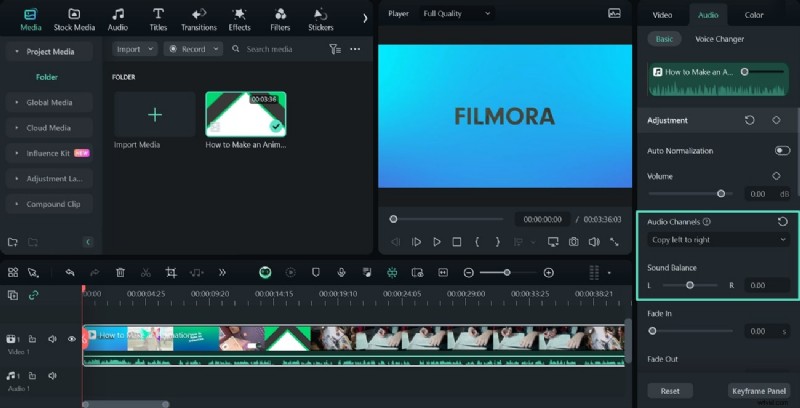
- 4. Click Audio Channels to choose a stereo configuration (Left‑Right, Flip, or Right‑Left) and adjust the balance slider.
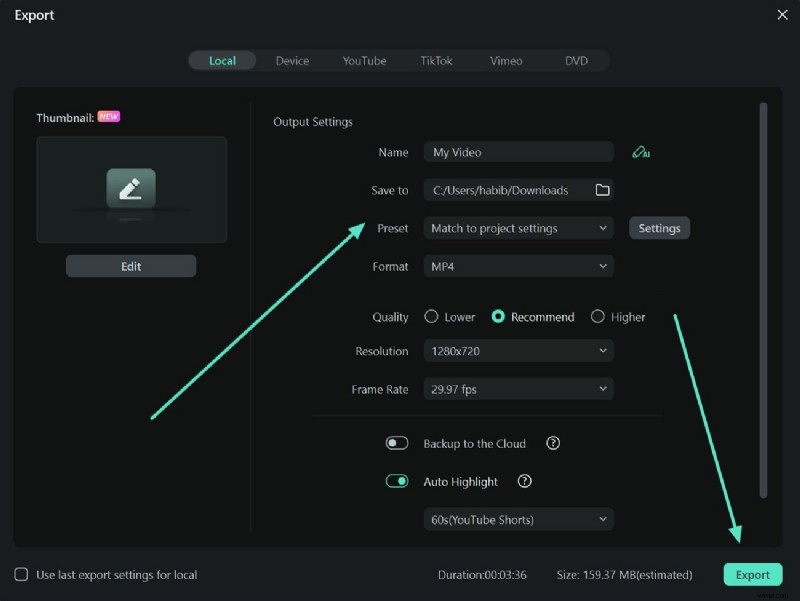
- 5. Export your final product by clicking Export and selecting your desired format.
Part 3: Top Online Tools for Instant Stereo Conversion
For quick, cloud‑based solutions, two reliable services stand out:
1. Convertio
Convertio supports over 300 audio formats (AAC, MP3, WAV, FLAC, etc.) and processes files entirely in the cloud, preserving local storage.
- 1. Open Convertio, click Choose Files, and upload your mono track.
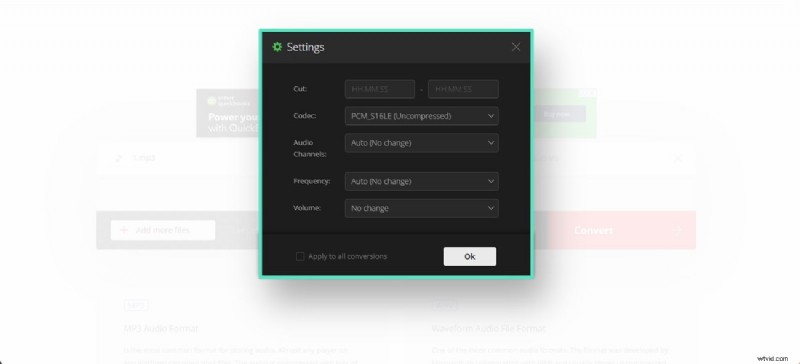
- 2. In the to dropdown, select your target format. Click the cogwheel for advanced settings: set Audio Channels to Stereo and adjust cut, volume, and frequency as needed.
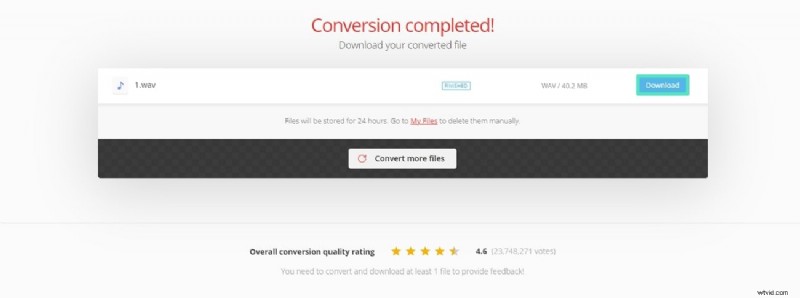
- 3. Click Convert. Once finished, download the stereo file.
2. Online Audio Converter
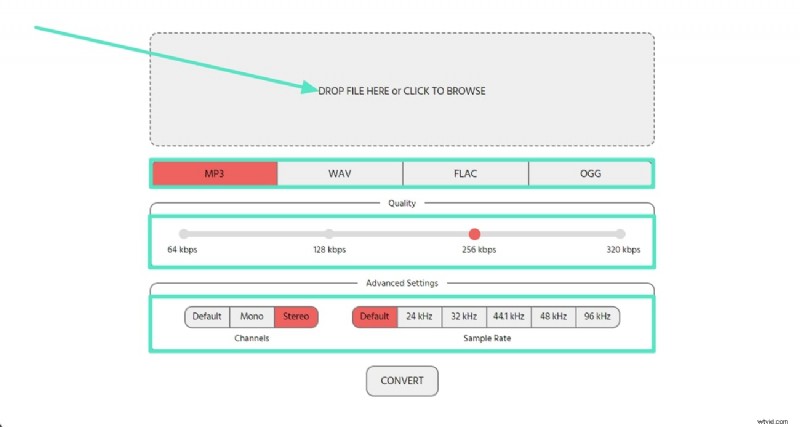
This tool allows batch conversion up to 1 GB, supporting formats such as MP3, WAV, FLAC, and OGG. Advanced settings let you tweak bitrate, sample rate, and channel count.
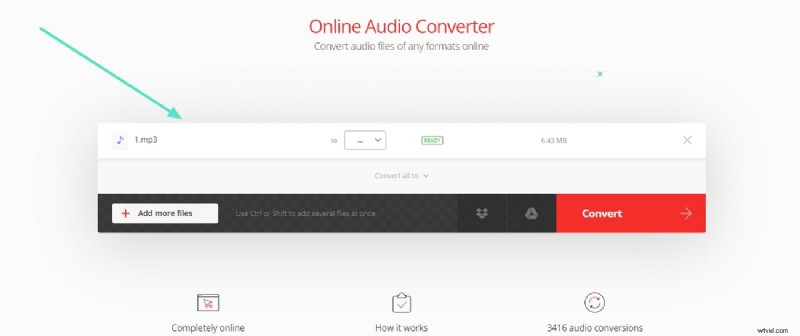
- 1. Drag your file onto the site or browse from your computer.
- 2. Choose the output format and set Channels to Stereo under Advanced Settings.
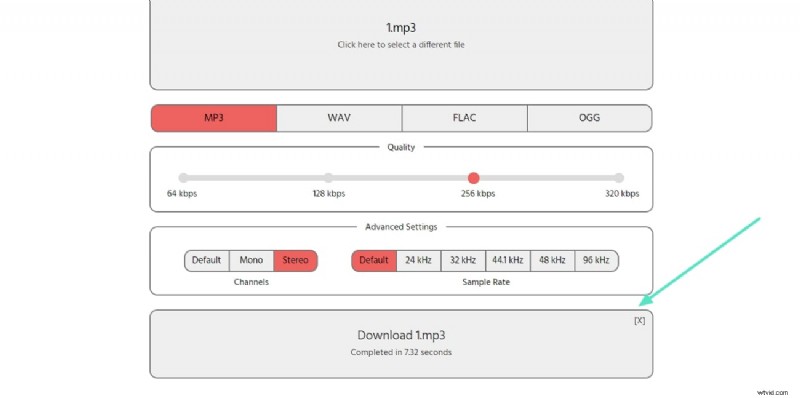
- 3. Click Convert, then Download the resulting stereo track.
Conclusion
Converting mono audio to stereo enhances clarity, depth, and listener engagement across all media types. With Adobe Premiere Pro, Wondershare Filmora, and powerful online converters like Convertio and Online Audio Converter, creators have versatile options to achieve professional‑grade sound.

Filmora
⭐⭐⭐⭐⭐
The Best AI‑powered Video Editing Software and App