
Whether you’ve captured an exciting moment on your iPhone and the background noise overshadows the visuals, or you’re looking to add a custom soundtrack, the first step is to remove or mute the existing audio before sharing.
This guide walks you through six reliable ways to eliminate audio from iPhone videos: a dedicated editing app, built‑in tools, social‑media editors, and an online solution.
1. Remove Audio with a Professional Mobile Editor – Filmora for Mobile
Filmora for Mobile delivers a full‑featured, beginner‑friendly interface while still offering advanced, AI‑powered options. With a single tap you can detach, delete, or replace the audio track, then re‑sync or add new music.
- Download Filmora for Mobile from the App Store and launch it.
- Tap the blue + icon or New Project and import your video.
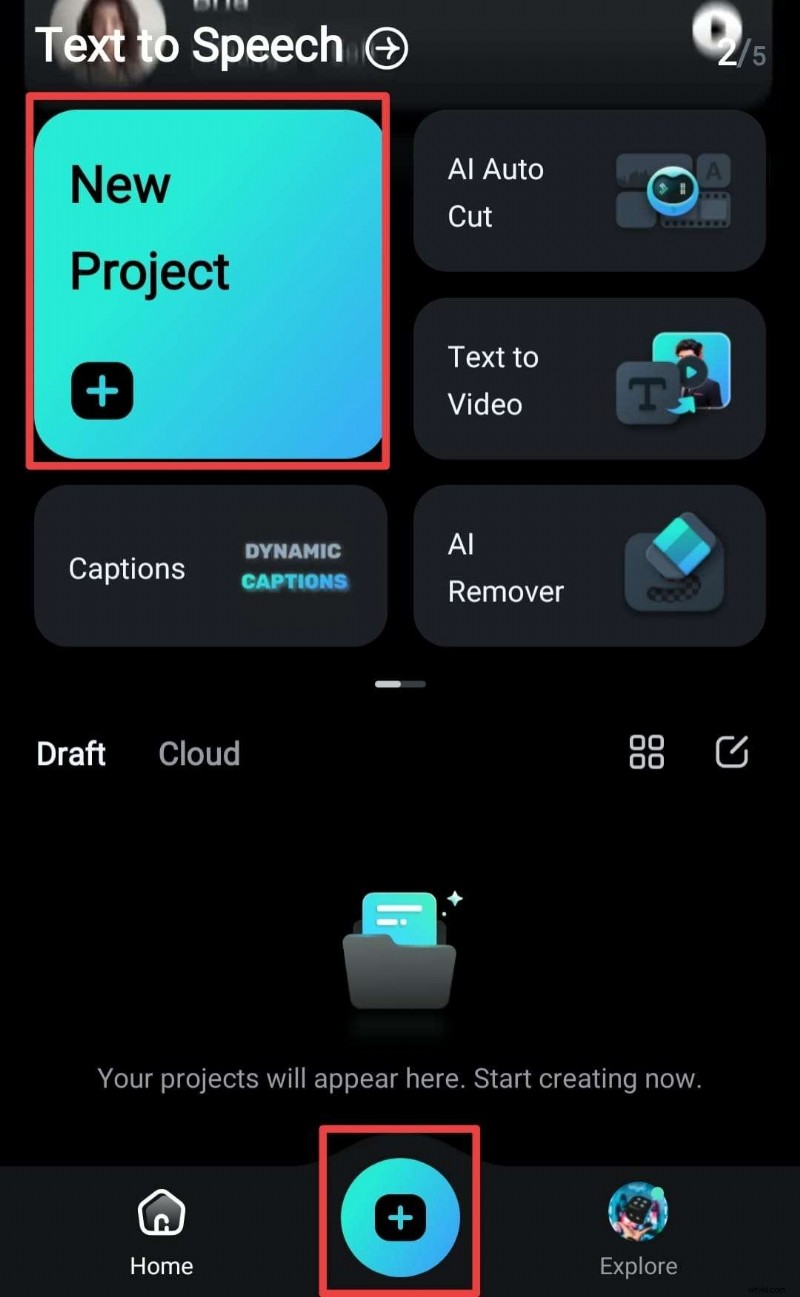
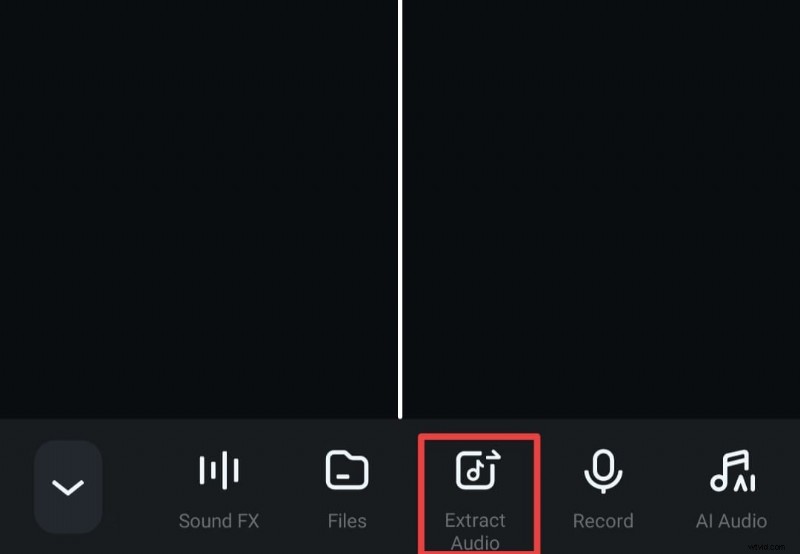
- Tap the video on the timeline, then select Extract Audio from the toolbar.
- Either delete the extracted track, replace it with background music, or use Filmora’s AI sound effects. When finished, export the muted video.
Filmora’s desktop counterpart, Wondershare Filmora, is also available for Mac and Windows with the same powerful features.
- One‑click audio removal
- AI voice enhancer for studio‑quality sound
- AI vocal remover to isolate vocals
- Intuitive, professional UI
- Cross‑platform: Mac, Windows, iOS, Android


2. Free Methods to Mute iPhone Videos
For users on a tight budget, several built‑in and downloadable apps offer basic audio removal, though they may lack the advanced capabilities of Filmora.
Method 1 – Photos App (iOS)
- Open Photos and select the video you wish to mute.
- Tap Edit (top‑right on older iOS, bottom‑right on iOS 18). Then tap the Sound icon in the toolbar; it will turn gray to indicate the clip is muted.
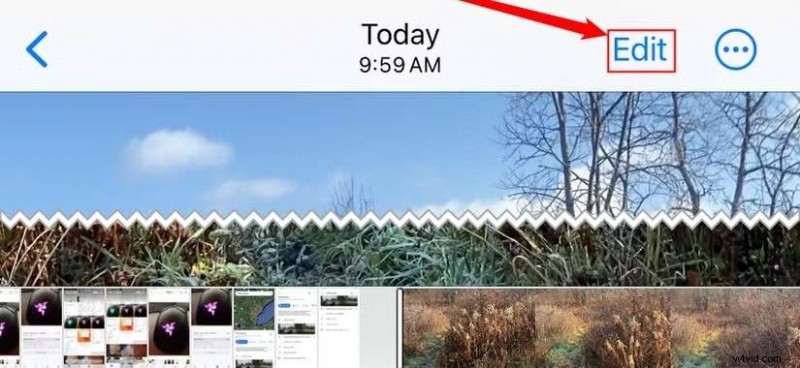
- Tap Done to save the changes.
The Photos app merely mutes the clip; you can restore the original audio by tapping the sound icon again.
Method 2 – iMovie
- Launch iMovie or download it from the App Store.
- Tap the + icon and choose Movie.
- Select the video, then tap Create Movie.
- Tap the clip in the timeline, then tap the Scissors icon and choose Detach to separate the audio track.

- Delete the detached audio track or leave it out of the export.
Method 3 – Facebook App
- Open Facebook and tap the + icon.
- Select Post, then choose the video you want to share.
- Tap Audio on the right side of the preview screen.
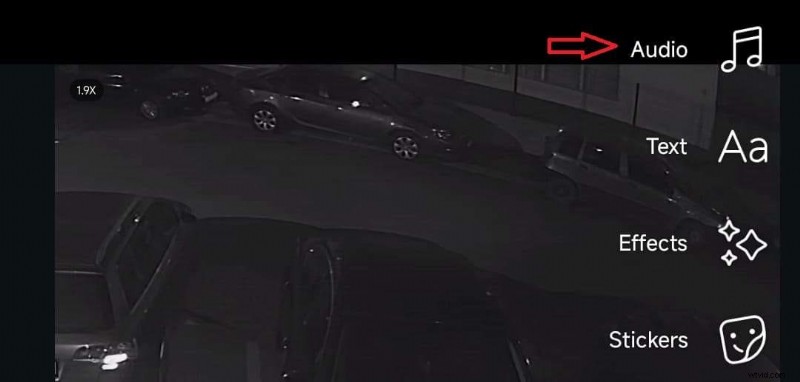
- Toggle Mute or slide the volume bar to zero.
- Tap Done and post the video.
Method 4 – Instagram App
- Open Instagram and tap the + icon to create a new post.
- Select the video, choose the format (Post, Story, Reel) and tap Next.
- Tap Edit in the bottom toolbar.

- Tap the Sound icon to mute the clip, then tap Done.
- Finish the posting process; the video will appear without sound.
3. Online Audio Remover
If you prefer not to install apps or need a quick solution, the free Audio Remover website lets you strip audio from MP4, AVI, WMV, and MOV files up to 500 MB.
- Visit the official Audio Remover site.
- Click Browse to upload your video.
- After the upload, the tool processes the file. Click Download File to save the muted video.
- Optionally click Delete file from server for privacy; files are auto‑deleted after a few hours.

Conclusion
Whether you choose a professional editor like Filmora, a free built‑in tool, a social‑media editor, or an online remover, you now have a clear roadmap to mute or eliminate audio from your iPhone videos. For creative flexibility, we recommend Filmora for its AI features and comprehensive editing suite.
FAQs
- How do you remove noise from an iPhone video? Use Filmora for Mobile’s Noise Reduction tool, which removes background hiss in a single tap.
- How to send a silent video via messaging apps? Most apps let you mute before sending: tap the Sound icon in the editor or under Edit → Sound.
- Can iMovie detach audio? Yes – the Detach function separates the track so you can delete or replace it.
- How to extract audio from a video? In Filmora, select the clip, tap Extract Audio, and the track will be saved separately.