
If you find yourself wanting to reuse a soundtrack or a short audio clip from an MOV file—whether it’s a jingle, a podcast snippet, or ambient sounds—extracting the audio gives you the flexibility to repurpose the clip in any project.
This guide walks you through reliable methods for extracting audio from MOV files on Windows, Mac, mobile devices, and even directly online. All steps are straightforward and can be completed in minutes.
Part 1: Extract Audio from MOV Files on PC Using Wondershare Filmora
Wondershare Filmora is a user‑friendly video editor that supports MOV, MP4, and many other formats. Its built‑in audio tools make it simple to detach, edit, and export audio tracks.


Key Features of Wondershare Filmora
- Audio Denoise – removes background hiss for clearer voiceovers.
- AI Voice Enhancer – automatically improves vocal clarity and richness.
- Record Voiceovers – record narration directly within the app on Windows 10/11.
- Advanced Editing – trim, adjust volume, and apply effects to polished audio.
- AI Music Generator – create royalty‑free background music for commercial use.
- Auto Subtitles – convert speech to text automatically and embed it in the video.
Step‑by‑Step Extraction
- Download and launch Filmora. Click New Project to start.
- Click Import and select the MOV file you wish to process.
- Drag the file onto the timeline below the preview window.
- Right‑click the clip on the timeline, choose Detach Audio, and the audio track will appear separately.
- Use the toolbar to trim, split, or apply effects to the audio if desired.
- When satisfied, click Export, choose the format (MP3 or WAV), and save.
With Filmora’s AI‑powered enhancements, you can also clean up background noise or boost vocal quality before exporting.
Part 2: Extract Audio from MOV Files on Mac Using QuickTime
QuickTime Player offers a native, no‑cost solution for Mac users.
- Open QuickTime Player from the Applications folder.
- Go to File > Open File… and load your MOV video.
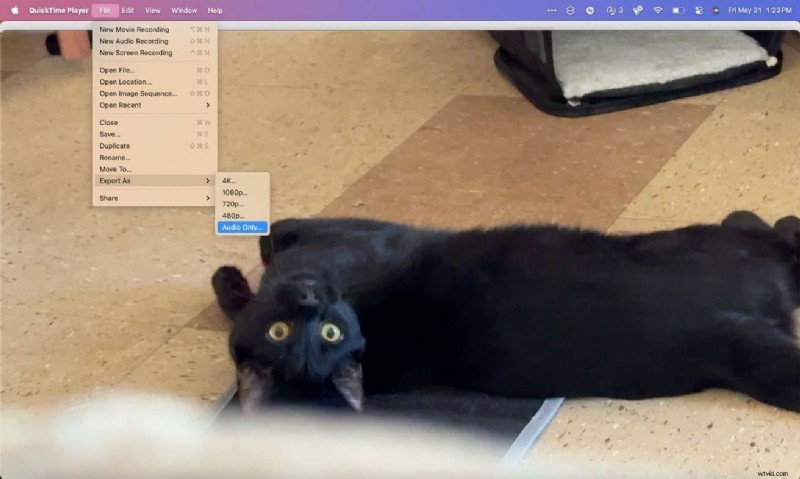
- Navigate to File > Export As > Audio Only.
- Choose a destination, name the file, and click Save.
Part 3: Extract Audio from MOV Files on Mobile
Filmora Mobile provides a quick way to pull audio from a video on iOS or Android.
- Install Filmora Mobile from the App Store or Google Play.
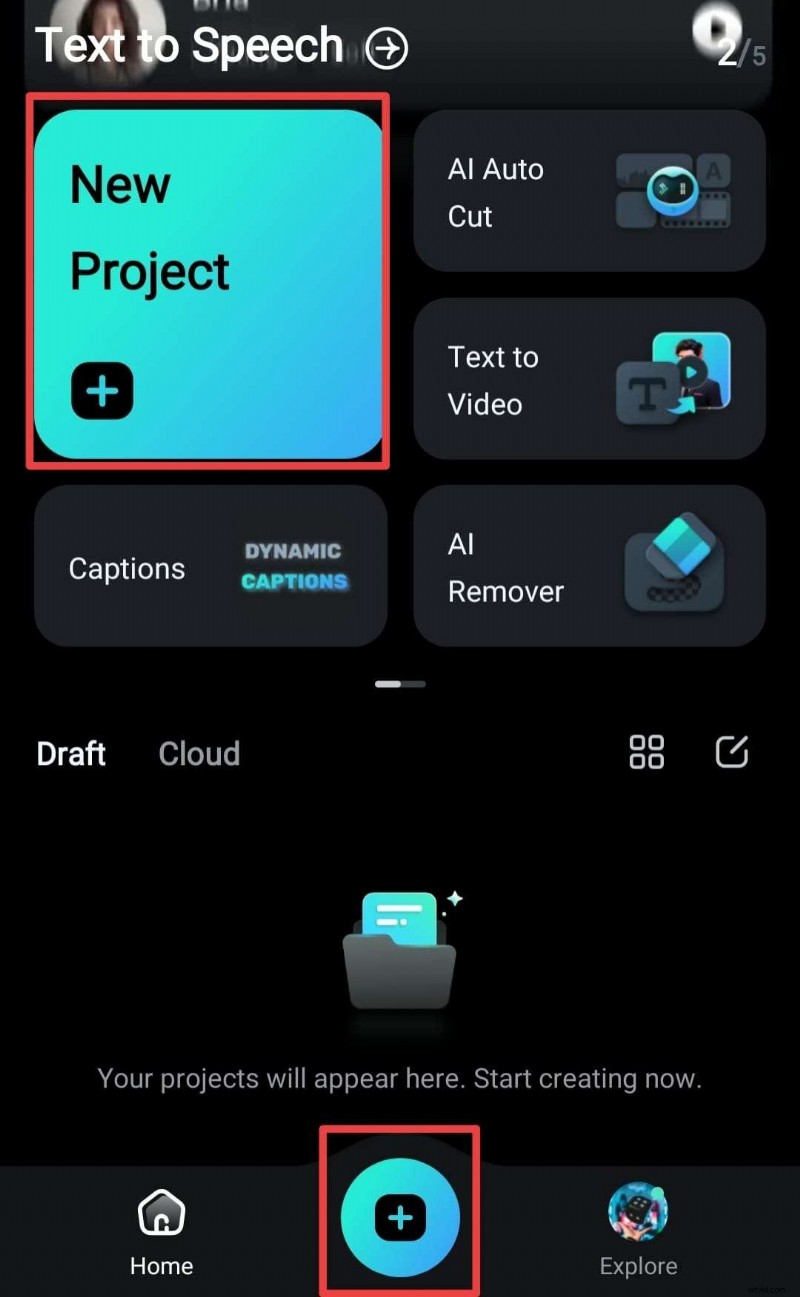
- Open the app and tap New Project.
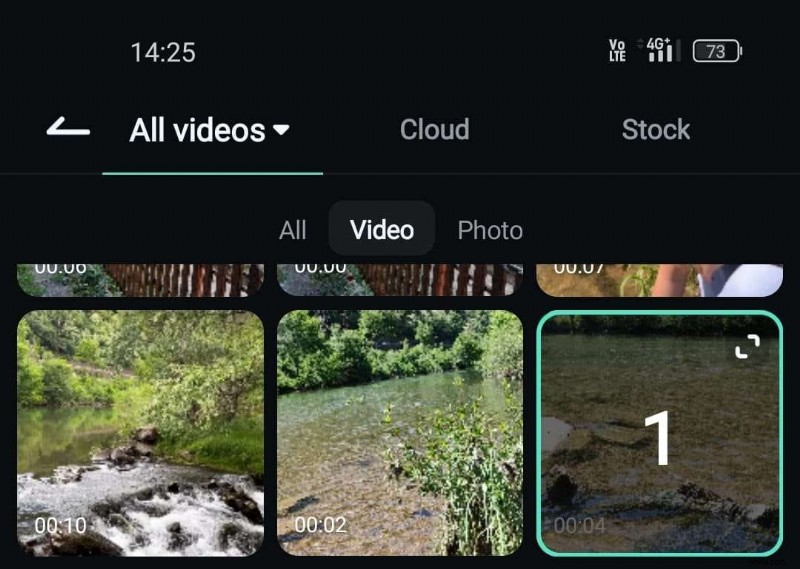
- Choose the MOV file from your library.
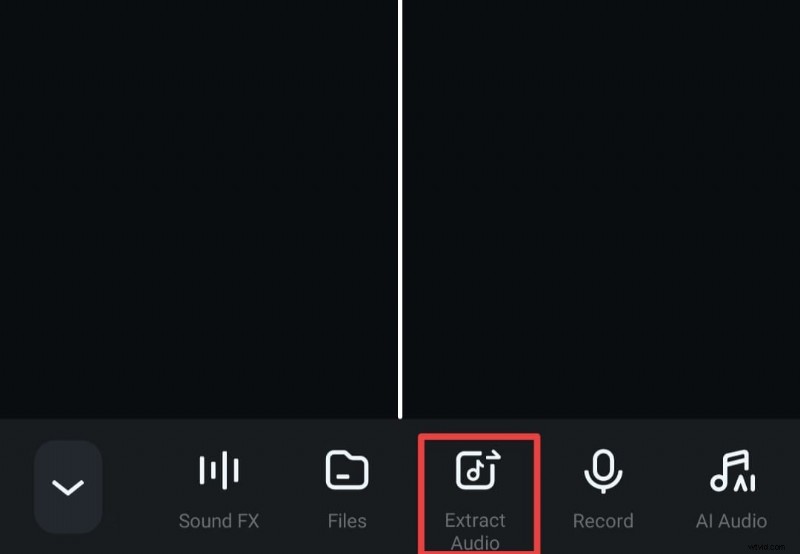
- In the timeline, tap the Extract Audio icon and confirm.
- Export the audio file to your device or share it directly.
Part 4: Extract Audio from MOV Files Online
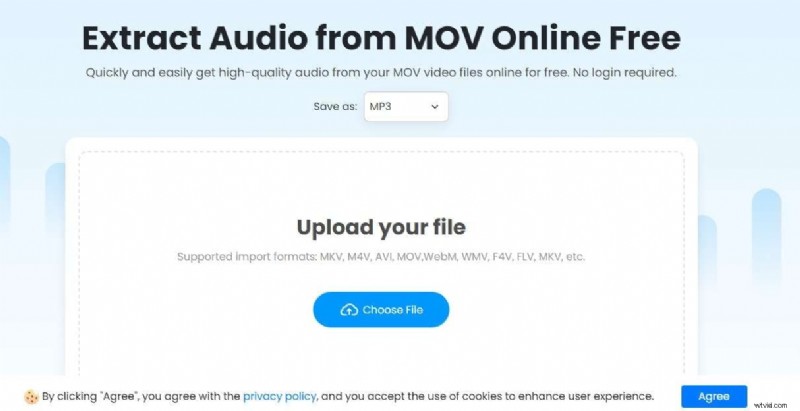
For instant results without installing software, the Fineshare audio extractor is a reliable choice.
- Navigate to the Fineshare audio extractor in your browser.
- Click Choose File and upload the MOV video.
- Select the desired output format (typically MP3) from the dropdown.
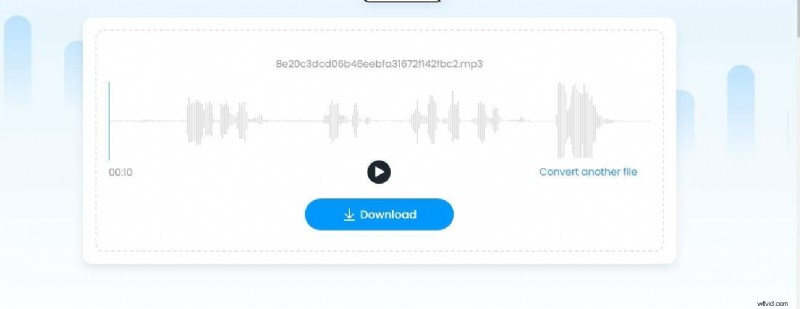
- Click Extract Audio and wait for the process to finish.
- Download the extracted audio to your computer.

Conclusion
Whether you’re on Windows, Mac, a mobile device, or simply need a quick online solution, extracting audio from MOV files is straightforward with the right tool. Wondershare Filmora remains the most versatile option for comprehensive editing, while QuickTime and Fineshare offer convenient alternatives for quick extractions.
FAQs
-
How can I extract audio from an MOV file on my PC?
Use Wondershare Filmora: import the video, detach the audio, then export it in your preferred format.
-
Is there a way to extract audio from MOV files on a Mac?
Yes, open the file in QuickTime Player, choose Export As > Audio Only, or use Filmora for more advanced editing.
-
Can I extract audio from MOV files using my mobile device?
Absolutely. Filmora Mobile allows you to extract and export audio directly from your smartphone.