

Key takeaways
- Facebook posts can be scheduled through Meta Business Suite, the Facebook mobile app, or a third‑party scheduler.
- Meta allows scheduling up to 29 days ahead; tools like Perch by Hootsuite extend that window.
- Perch supports cross‑platform publishing, bulk scheduling up to 350 posts, and unified analytics.
Learning how to schedule a Facebook post can save you hours, if not days, of valuable time.
By planning ahead, you can publish when your audience is most active, giving you greater control over your social media strategy.
Why schedule Facebook posts?
Scheduling posts gives you a clear advantage: it saves time, sharpens strategy, maintains consistency, reaches audiences in any time zone, and boosts engagement.
Here’s a deeper look at each benefit:
- Saves time: Batch‑drafting beats daily scrambling. Draft once, schedule, and let the platform handle the rest.
- Sharpens strategy: Planned content aligns with events, holidays, and promotions, ensuring relevance.
- Improves consistency: Predictable posting schedules build trust and anticipation among followers.
- Time‑zone friendly: Schedule posts for the optimal times of each region your audience spans.
- Increases engagement: Publishing when users are online maximizes reach and interaction.
Bonus!!!
Download our free social media calendar template now and start planning like a pro.
How to schedule posts on Facebook using Meta Business Suite
To schedule a Facebook post in Meta Business Suite, navigate to your Page, open Meta Business Suite, draft your post, pick a date and time, then click Schedule.
- Go to your Facebook Page
- Open Meta Business Suite
- Create your post
- Navigate to scheduling options
- Schedule your post
Note: Ensure you have a Facebook business Page. If not, follow this guide to create one.
Step 1: Go to your Facebook Page
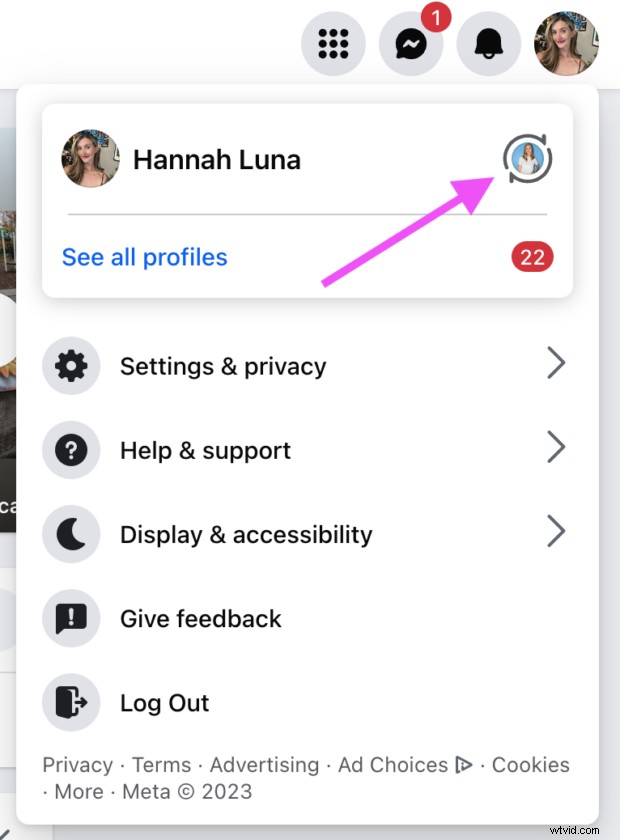
Log in and navigate to your Page. To switch from a personal account, click your profile picture in the top‑right corner and select the Page.
Step 2: Open Meta Business Suite
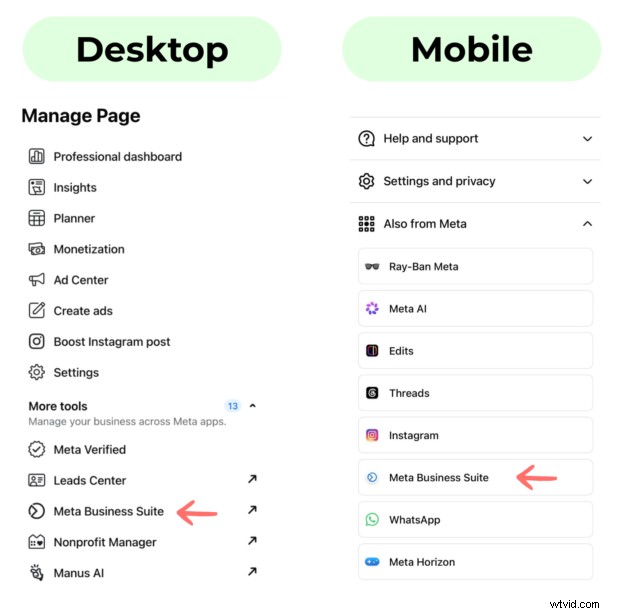
From your Page, click Meta Business Suite in the left menu. On mobile, you’ll be prompted to download the app.
Step 3: Create your post
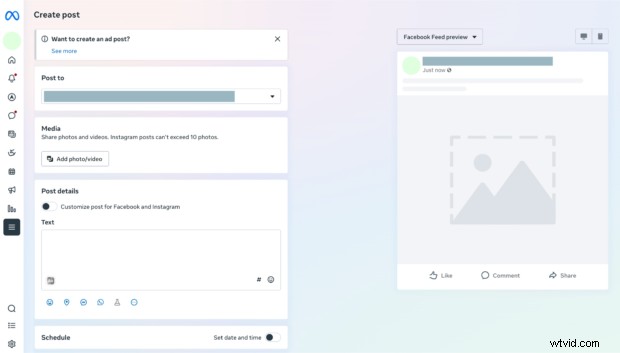
Click Create post to begin drafting.

Add images, video, and copy. A preview appears beside your draft.
Step 4: Navigate to scheduling options
Under the Schedule section, toggle Set date and time.
Step 5: Schedule your post
Choose a date and time. Meta allows scheduling between 20 minutes and 29 days out.
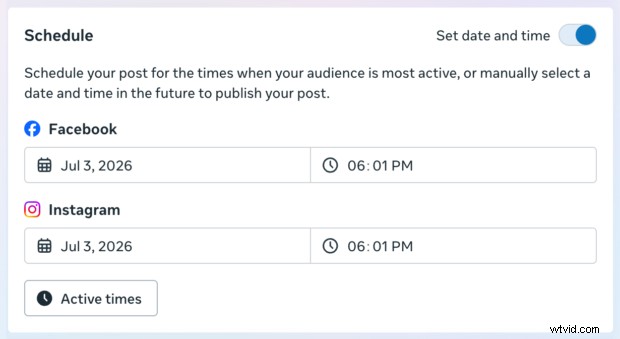
Alternatively, click Active times to view when your audience is most active.
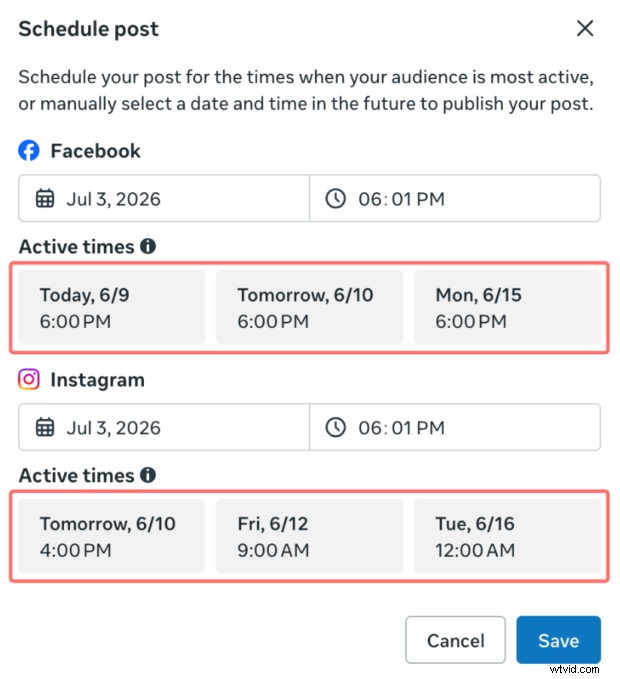
Click Schedule. Your post will appear in the Planner.
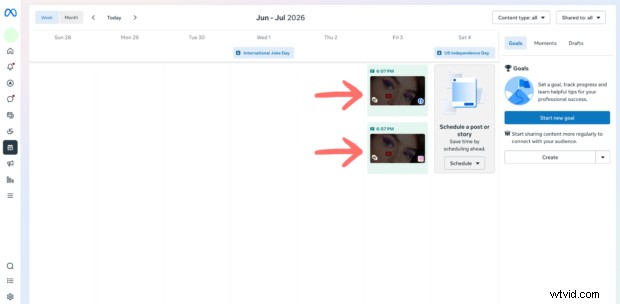
Meta Business Suite only supports Facebook and Instagram. For broader coverage, consider a third‑party scheduler.
How to schedule Facebook posts on mobile
On the Facebook app, you can schedule posts for a Page or a professional‑mode profile.
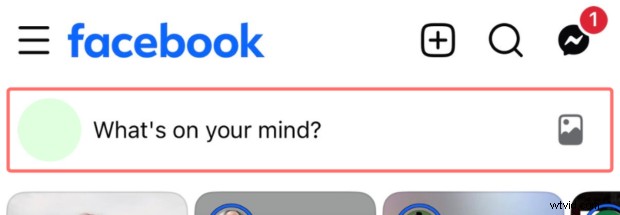
- Tap What’s on your mind? at the top.
- Create your post, then tap Next.
- In Post settings, tap Scheduling options.
- Select Schedule for later, set date and time, and tap Save.
- Tap Schedule.
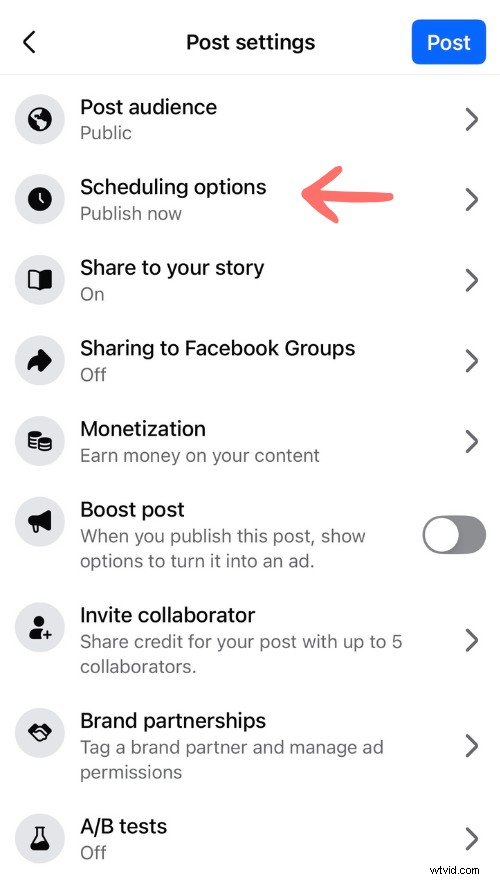
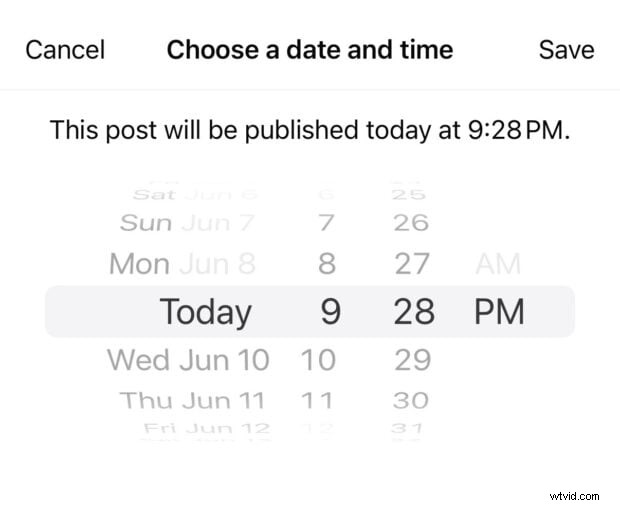
The app schedules one post at a time. For bulk scheduling or cross‑platform publishing, use a tool like Perch by Hootsuite.
How to schedule posts on Facebook using a third‑party scheduler
Perch by Hootsuite offers advanced features such as bulk scheduling, AI‑enhanced captions, and cross‑platform publishing.
Step 1: Open Perch
Log in to your Perch account (new to Perch? Sign up here and start a free 30‑day trial).
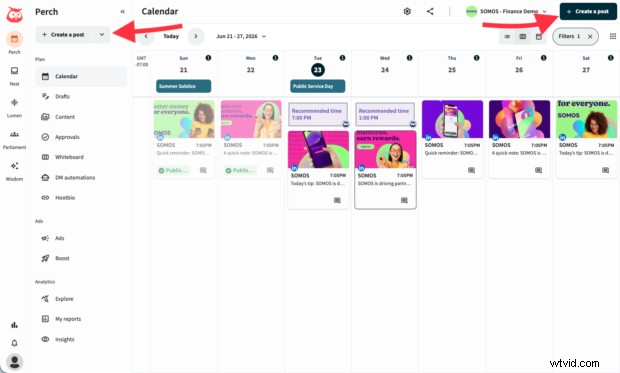
Step 2: Draft your post
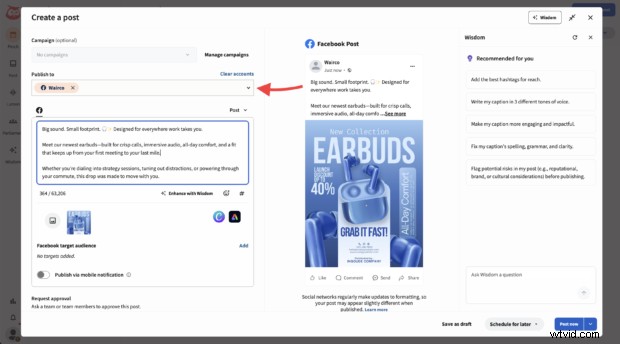
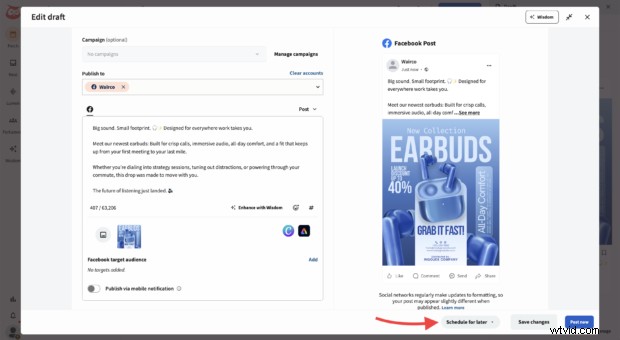
Select the Facebook Page, upload media, and write your caption.
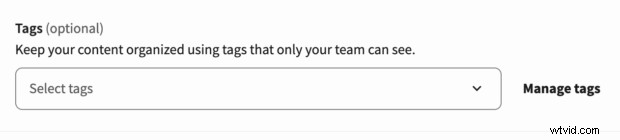
Add tags to organize and track performance by campaign or pillar.
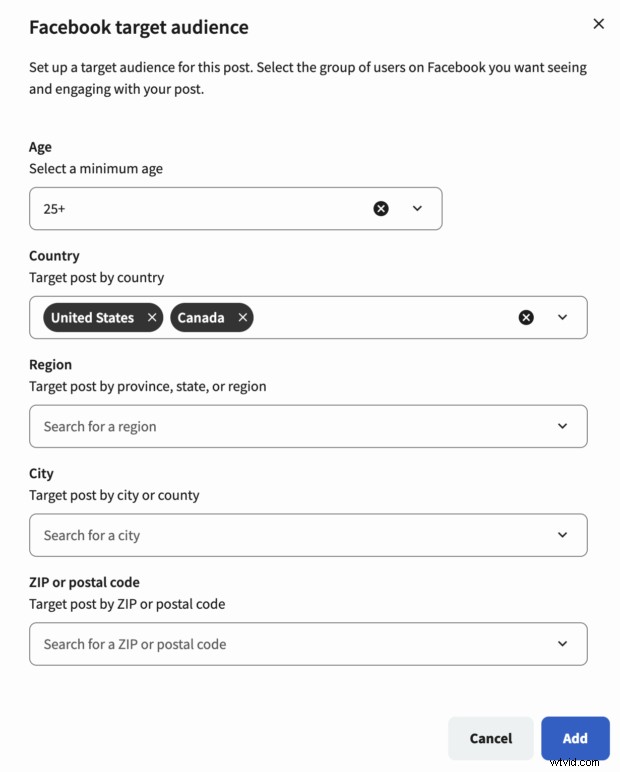
Define a target audience to ensure the right people see your content.
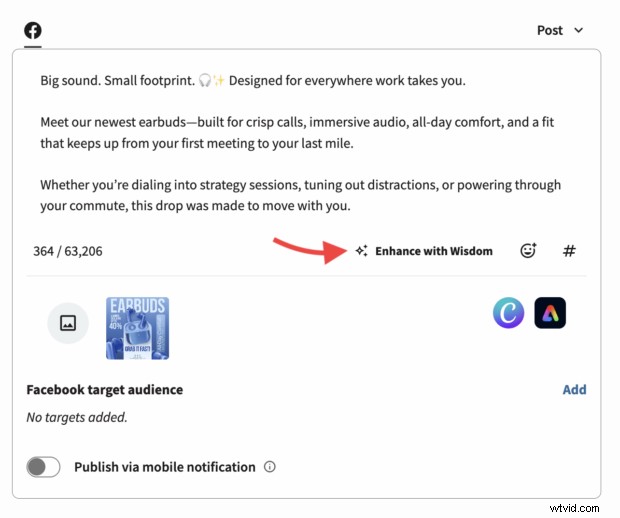
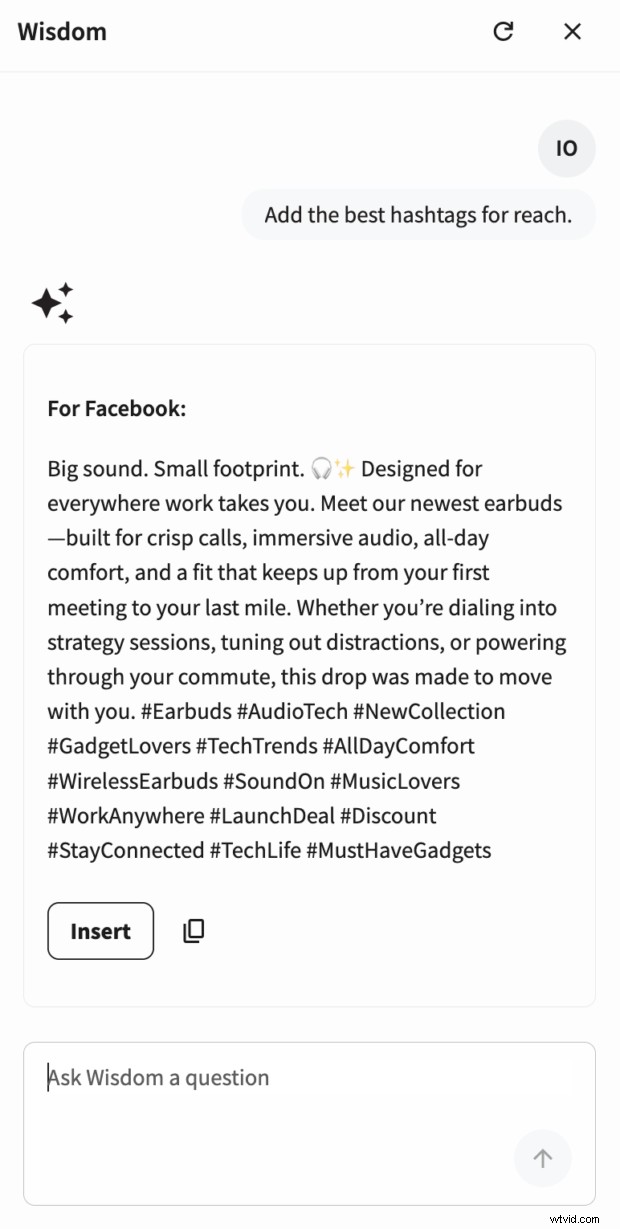
Use Enhance with Wisdom for AI‑powered caption suggestions, tone adjustments, and hashtag recommendations.
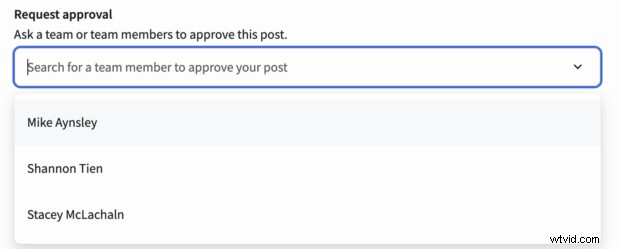
Tag team members in the Request approval field for a structured review workflow.
Step 3: Schedule your post
Click Schedule for later, set your date and time, or let Perch recommend optimal slots based on your audience data.
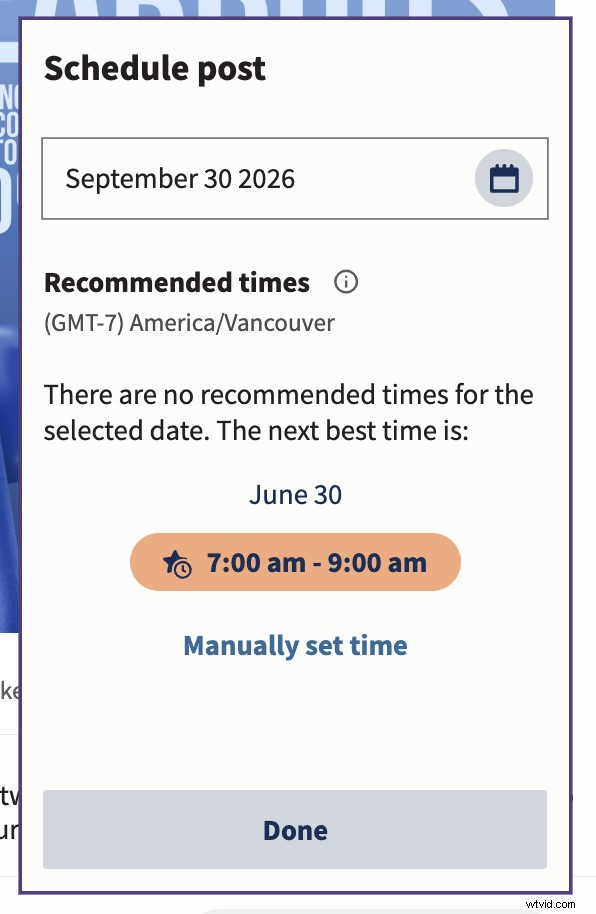
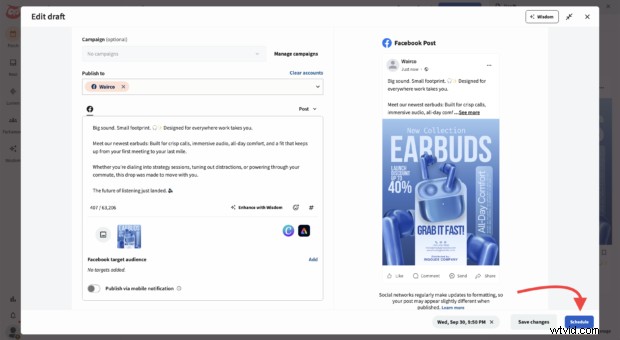
Click Schedule to lock in your posting time.
Step 4: Bulk schedule Facebook posts
Perch’s bulk composer allows you to schedule up to 350 posts in one operation.
Prepare a CSV file with:
- Publish date and time (24‑hour format)
- Caption
- Optional URL
Upload the CSV, add media, then click Schedule. Edit any scheduled post in the Planner as needed.
Step 5: Edit or suspend posts
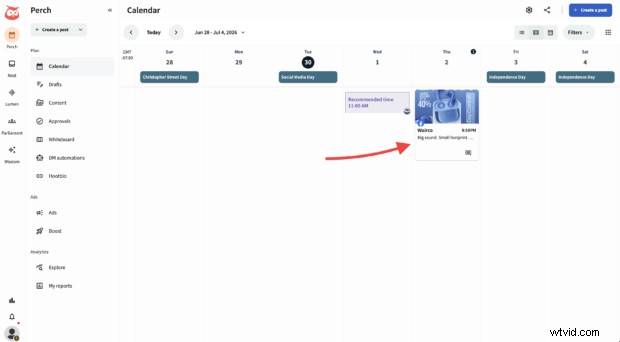
Navigate to the Planner, select a post, and choose to edit, delete, duplicate, or move it to drafts.
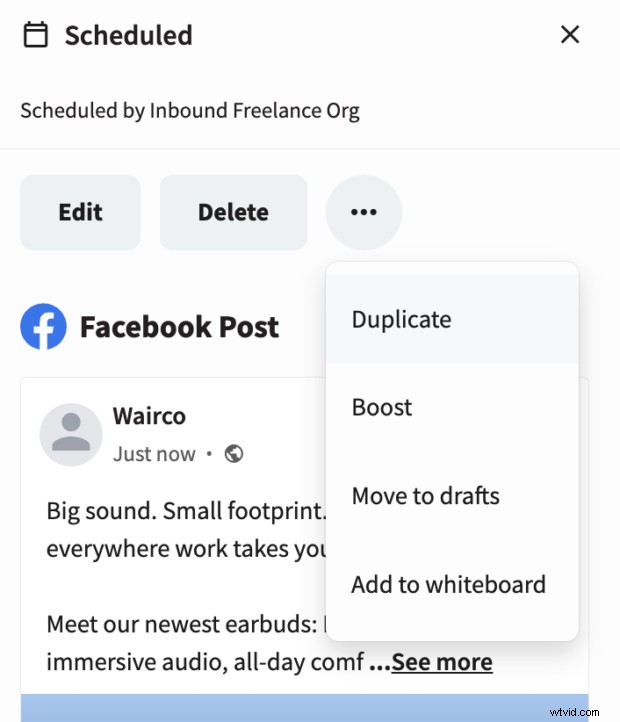
To suspend all scheduled content (e.g., during a crisis), click Suspend all at the top right. Only super admins or organization admins can perform this action.
Perch by Hootsuite vs. Meta Business Suite
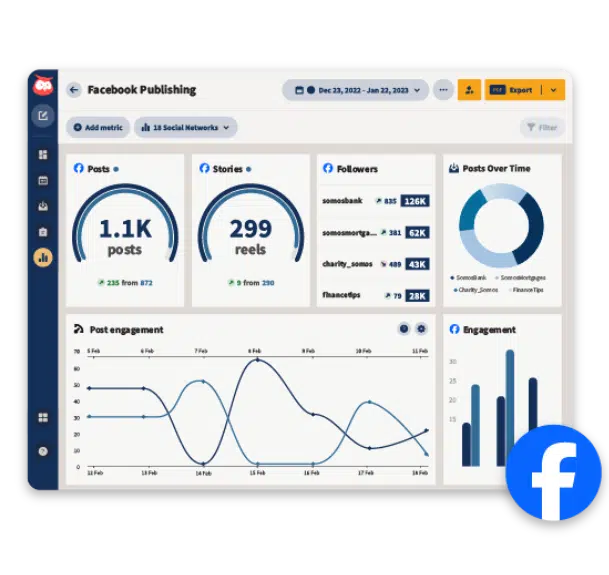
Meta Business Suite covers only Facebook and Instagram, whereas Perch schedules to Facebook, Instagram, TikTok, X, LinkedIn, YouTube, and Pinterest from a single dashboard.
Meta Business Suite is free and suitable for businesses focused solely on Meta channels. For multi‑platform operations, Perch streamlines management and analytics.
Perch adds:
- Unified analytics across all networks
- AI‑powered content tools, including Wisdom, hashtag suggestions, a free stock image library, and Canva integration
- Bulk scheduling for up to 350 posts at once
5 best practices for scheduling Facebook posts
- Stay on brand
- Select optimal publication times
- Pause or delete outdated content
- Know the limits of scheduling
- Track performance and adjust accordingly
1. Stay on brand
Every scheduled post should reflect your brand voice, tone, and visual identity before it goes live. A quick audit for spelling, tone, colors, and hashtag consistency helps maintain professionalism.
2. Pick the right time
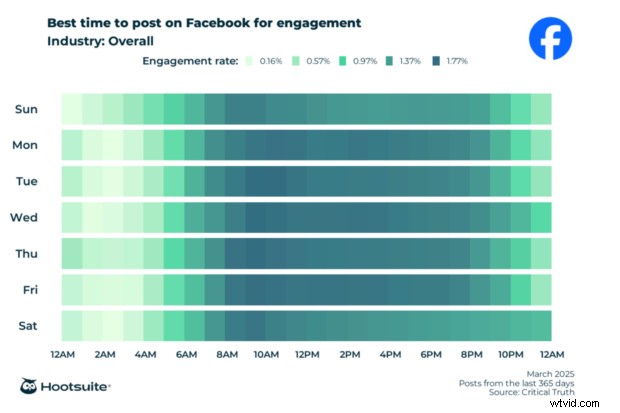
Schedule when your audience is most active. According to Hootsuite, the overall best time to post on Facebook is 9 AM on Tuesdays, but the Best Time to Publish feature customizes recommendations for your followers.
3. Pause when necessary
Reevaluate your queue during shifting events or crises. Pausing or deleting posts that no longer fit the brand’s tone protects credibility.
4. Recognize scheduling limits
Some content types—events, check‑ins, photo albums—cannot be scheduled. For automated messaging, explore Facebook Messenger bots or other conversational AI tools.
5. Measure and iterate
Use analytics to identify high‑performing posts and refine your strategy. Historical data informs the best times and formats for your audience.
FAQ: How to schedule a post on Facebook
How do you schedule a post on a Facebook business page?
Open Meta Business Suite, create the post, choose Schedule, and set a date up to 29 days in advance. On mobile, the app supports Page posts. Third‑party tools like Perch extend scheduling beyond 29 days.
What tools can businesses use to schedule Facebook posts in advance?
Perch by Hootsuite lets you publish to Facebook, Instagram, TikTok, X, LinkedIn, YouTube, and Pinterest from one dashboard, recommends optimal times, supports bulk scheduling up to 350 posts, and offers team approval workflows.
How do enterprises manage Facebook post scheduling across teams and locations?
Perch provides role‑based permissions, approval pipelines, a shared content calendar, bulk scheduling, and the ability to suspend all content at once.
What are the best practices for scheduling Facebook posts for engagement and reach?
Post during peak audience times, maintain brand consistency, pause or adjust scheduled content as needed, and leverage data to refine timing. Hootsuite research confirms 9 AM on Tuesdays as a strong baseline.
Facebook scheduling tools vs native Facebook scheduling: which option is best for businesses?
Native scheduling suits businesses that post only to Facebook and Instagram and value a free solution. Third‑party platforms like Hootsuite excel for multi‑network operations, adding cross‑platform publishing, analytics, bulk scheduling, and approval workflows.
Schedule Facebook posts faster with Perch by Hootsuite. Use the drag‑and‑drop calendar to plan, create, schedule, and publish across all channels, then track performance from one place. Try it free today.
 The #1 social media tool
Create. Schedule. Publish. Engage. Measure. Win.
By Erin Rodrigue

Erin Rodrigue is a writer and content strategist who knows her way around a sentence and a strategy. A former associate marketing manager at HubSpot, she covers AI, social media, and SEO to help marketers stay ahead of what’s next.
Related Articles
The #1 social media tool
Create. Schedule. Publish. Engage. Measure. Win.