

Shreshtra - July 9, 2025 - Leave your thoughts. 9 min read
ai animation, ai animation generator, ai animation maker, ai animation tools, ai for animation, ai in animation, ai text to animation, animaker ai, animated videos, animation ai, how to make animated videos using ai
Animated videos have emerged as a versatile solution across sectors—from employee training and student education to product promotion and complex concept simplification. Visual storytelling boosts retention by up to 65%, making animated content an effective medium for lasting impact.
With AI-driven tools, anyone can produce polished animated videos without any design or editing background. Today’s AI animation platforms streamline the entire workflow, from ideation to export, allowing creators to focus on the narrative rather than technical hurdles.
In this guide, we’ll walk through the process of making animated videos with Animaker, a leading AI animation generator.
What Is Animaker?
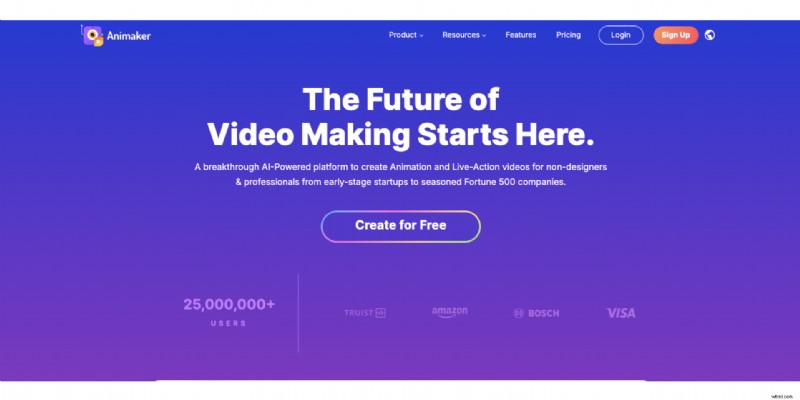
Animaker offers a robust library of over 150 million assets—including diverse characters, actions, 2D backgrounds, and royalty‑free music—paired with AI‑powered features such as Animaker Voice for realistic voiceovers and Animaker Subtitles for instant captions. These tools make animation fast, effortless, and accessible for beginners.
Let’s dive into creating an animated video with Animaker.
Step 1: Enter the Video Prompt
Start by selecting a video category. With more than 30 pre‑defined categories, Animaker tailors videos to your specific needs.
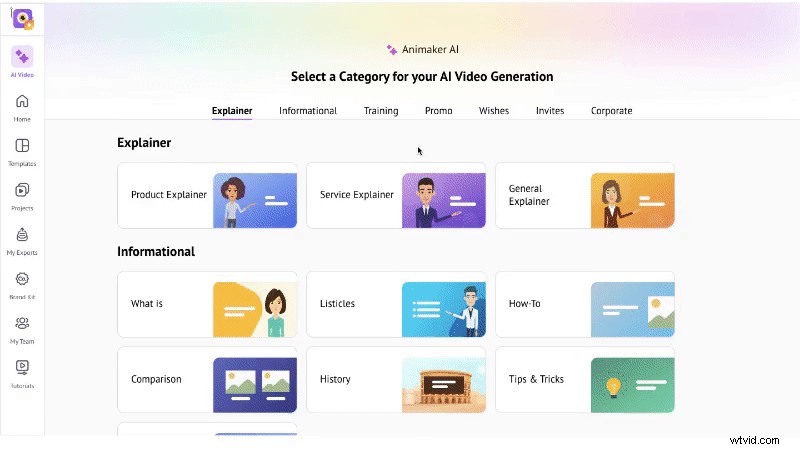
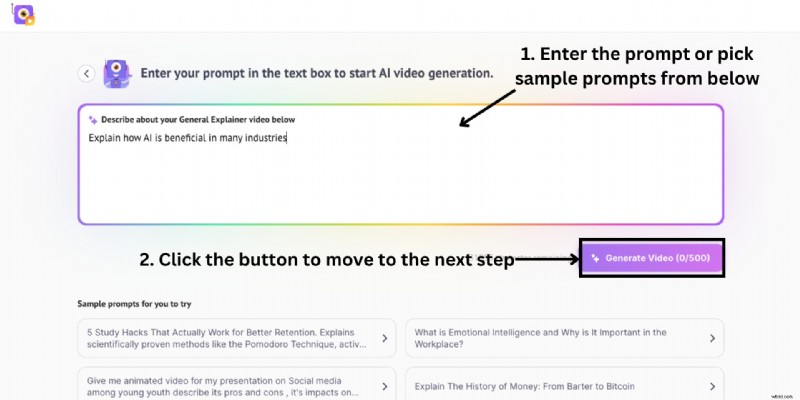
Choose a category such as "General Explainer" and then type your custom prompt or pick one from the suggested examples. Click Generate Video to proceed.
Step 2: Customize Video Settings
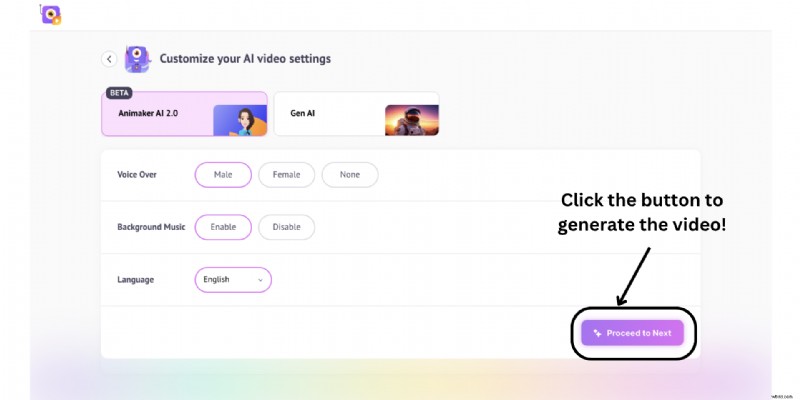
Set up your video by selecting between two AI styles: Animaker AI 2.0 (2D animated style with voiceover, background music, and language options) and Gen AI (generative style with extended controls like video style, duration, captions, and language).
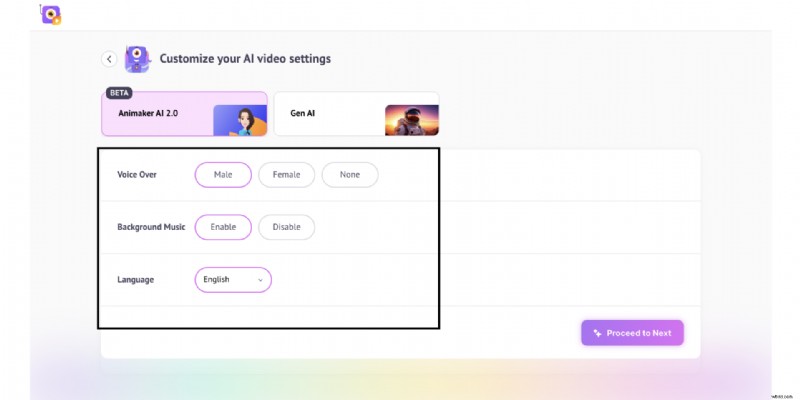
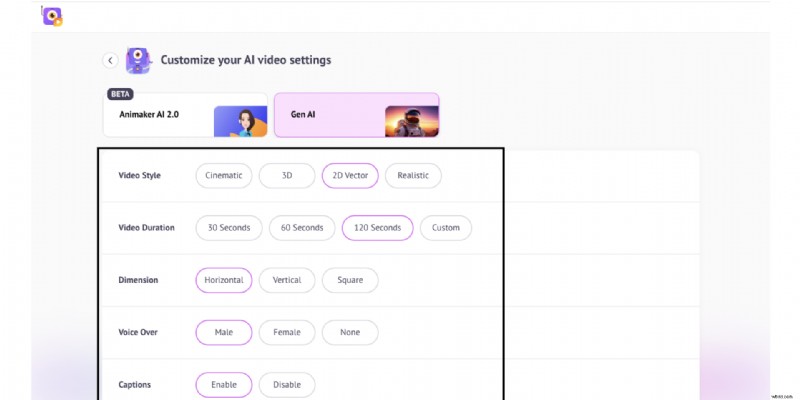
Adjust the settings to match your preferences and click Proceed to Next. In some categories, follow‑up questions help the AI refine the output.
Step 3: Generate & Edit
The AI will produce a fully polished video in just a minute. It includes 2D characters, voiceovers, animated text, and more—all automatically crafted.
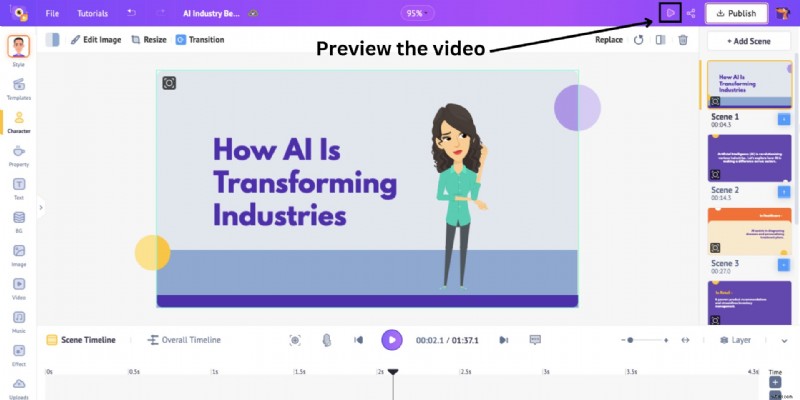
Click Play to preview. Once satisfied, you can download the video instantly. For further customization, click Advanced Edit to access the full editing suite.

The advanced editor opens a new project window with a workspace, library, scenes, timeline, and tools for fine‑tuning.
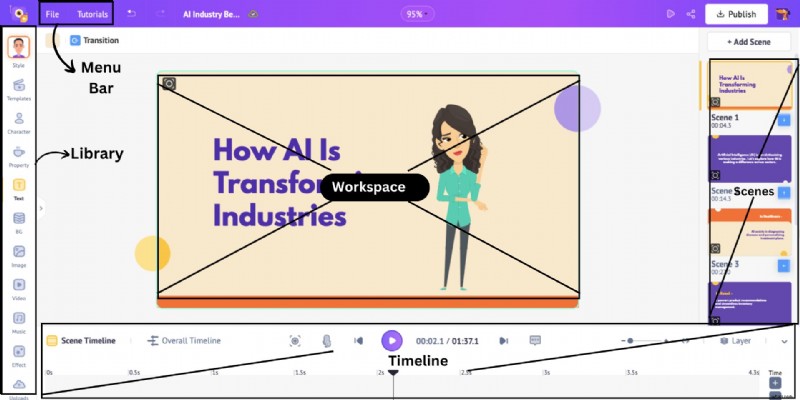
Key editing actions include:
- Add a character
- Add a property
- Add text
- Add background & images
- Add voiceover
1. Add a Character
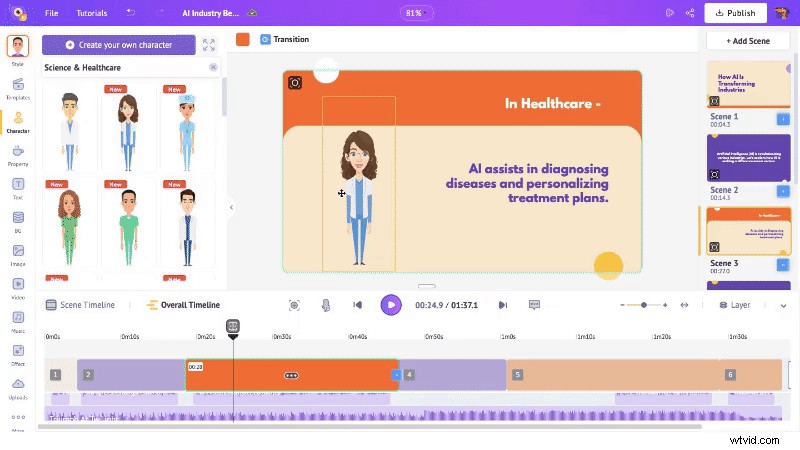
Click the Character library on the left to view 1,000+ options. Choose a pre‑built character or create a custom one.
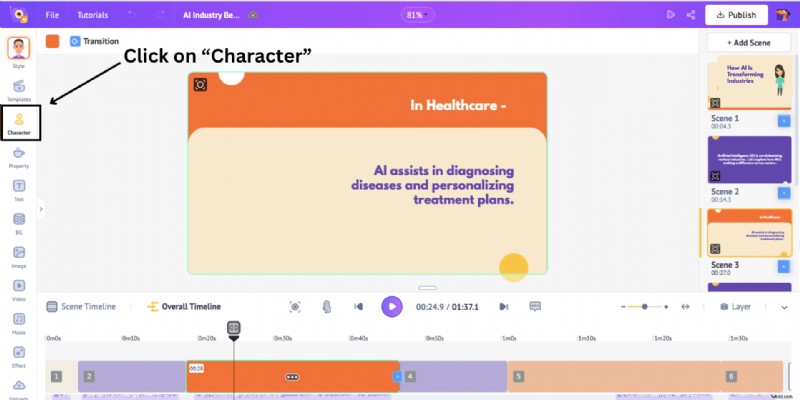
After adding a character, position and resize it. To add action, click the character to open the action panel, then select from thousands of actions or search.
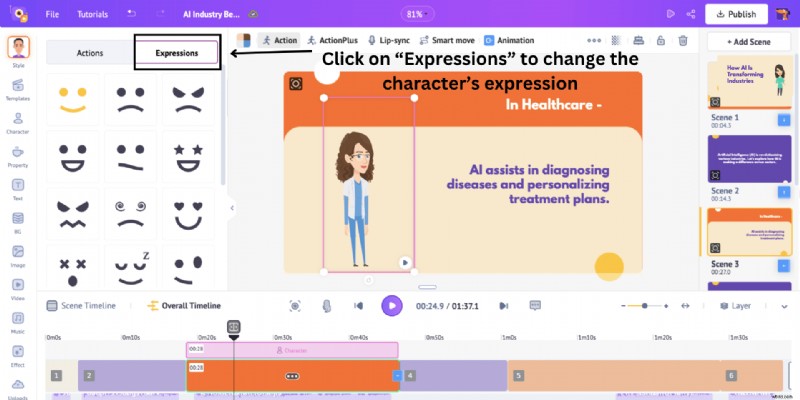
Expressions can be adjusted via the Expressions tab.
2. Add a Property
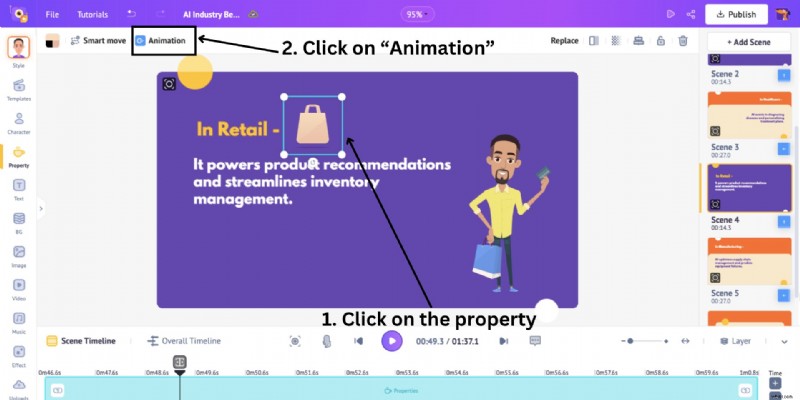
Navigate to Property in the library to access 100M+ items. Add and position the property, then adjust its duration on the timeline.

To animate, click Animation and choose entry/exit effects.
3. Add Text
Select Text from the library. Choose between plain or pre‑built text boxes, then edit font, size, color, and effects in the side panel.

Adjust text duration on the timeline and add animations as needed.
4. Add Background & Images
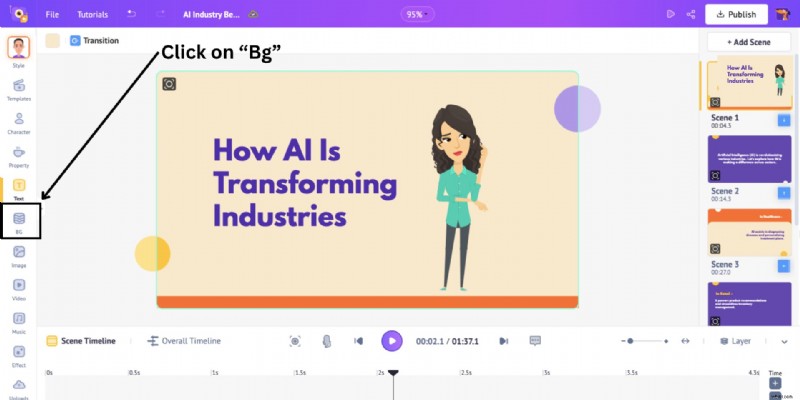
Choose a background from the Bg library or generate one using AI. For images, use the Image Library or AI image generation.
5. Add Voiceover
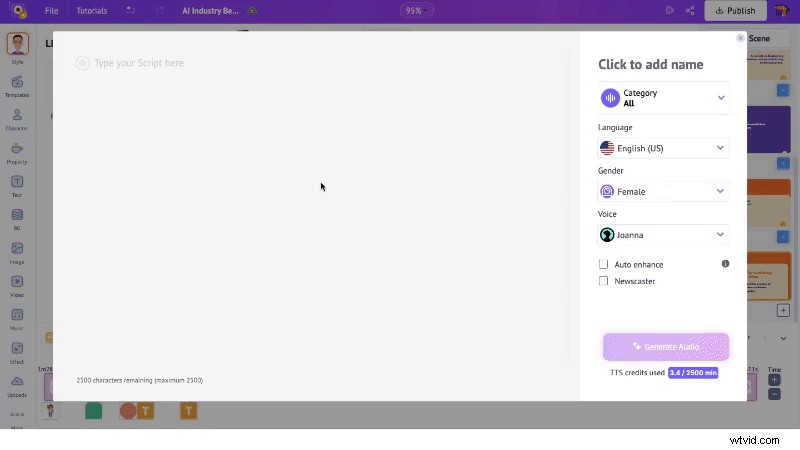
To add narration, delete any existing voiceover on the timeline, then click Lip‑sync on a character. Select Text to Speech, input your script, choose voice gender, language, and voice from the available options, and click Generate Audio. Add the audio to the timeline for seamless lip‑sync.
Step 4: Download the Video
Preview the final edit, then click Publish > Download Video and confirm the download. The file will appear on the exports page.
By harnessing AI animation, you can produce high‑quality videos that resonate with your audience—quickly and affordably.
Start creating your first animated video with Animaker AI today!

Shreshtra
Shreshtra is a Content Marketer at Animaker, where she’s helped creators and businesses bring stories to life with 2D animation for over three years. She has contributed easy‑to‑follow guides and SEO‑driven content, growing Animaker’s community from 18M to 30M+ users worldwide. Shreshtra covers AI‑powered voice tools, subtitle generators, and the latest in video creation technology, aiming to make animation simple, fun, and accessible for all.