
Have you ever looked at Microsoft Teams and thought, Wouldn’t it be great if I could use this familiar, convenient platform for my live events? If so, you’re not alone. A growing number of Microsoft Teams’ millions of daily users are using the popular enterprise video conferencing platform for virtual events and hybrid event production.
Of course, quality matters – which means it isn’t enough to simply stream the Microsoft Teams UI to your favorite content delivery network (CDN). Luckily, it’s possible to elevate your Teams-powered productions with branded layouts, live switching, dynamic titles and graphics, and other elements seen in professional broadcasts.
In this blog, we’ll show you three different ways to produce live events with Microsoft Teams.
1. Bring the Microsoft Teams UI into a production system
A common way to produce live events with Microsoft Teams involves using an encoder to capture Microsoft Teams audio and video from a host computer. It’s a serviceable approach, and not without its challenges.
A. With a local producer
Your exact workflow will depend on the encoder you’re using and its capabilities. We’ll use our Epiphan Pearl hardware encoder as an example. In this case, the setup and process would look like this:
- A computer hosts the Microsoft Teams video call with remote presenters.
- Through HDMI, the host computer sends audio and video to the encoder.
- Optionally, the encoder outputs the video program back into Teams through an HDMI-to-USB adapter (like the Epiphan AV.io 4K) to serve as a confidence monitor.
- On the encoder side, the event producer selects the host computer as a source, crops away the Microsoft Teams UI, and applies the participant screen grabs to one or more layouts.
- As the event unfolds, the producer switches between layouts (one-up, two-up, one-up with content, two-up with content, etc.).
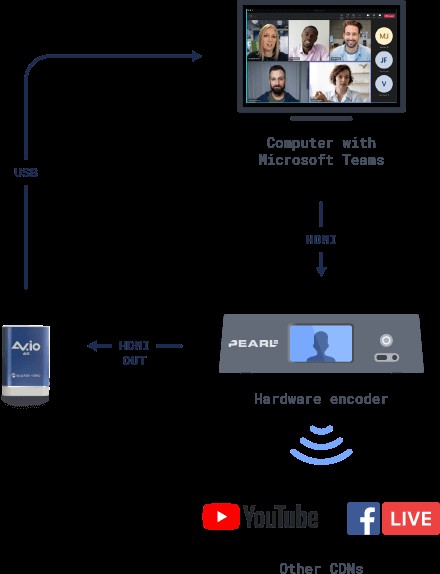
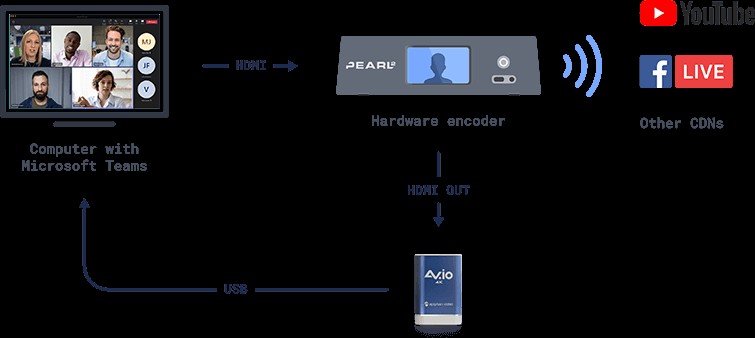
There’s a definite learning curve here, and a couple caveats. The big one: if your Microsoft Teams window moves at all, it’ll wreak havoc on your layouts. Plus, your capture will include every bit of audio in the meeting, which can cause issues if a presenter forgets to mute or unmute themselves.
Text-based group chats aren’t ideal during dynamic, high-stakes productions like a live event. To enable real-time communication between producers and participants, you can host a separate meeting to act as a backchannel.
B. With a remote producer
Especially these days, it’s possible your producer may not be on the same local network as your host computer and encoder. For example, you might prefer to leverage the enterprise-grade network on your company’s premises rather than the consumer-tier Internet your producer has at home.
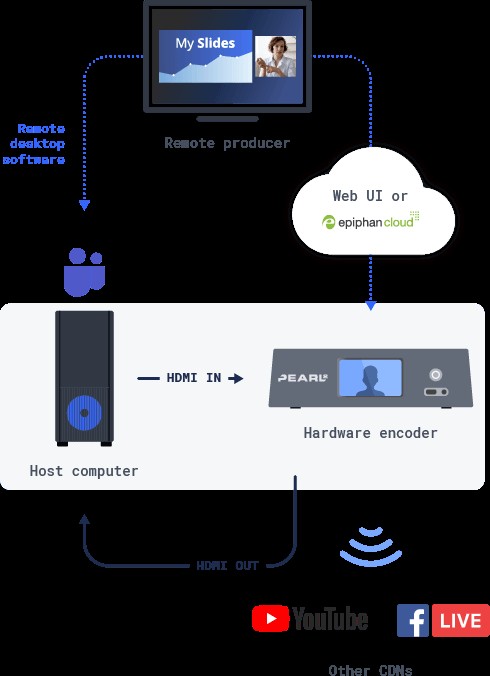
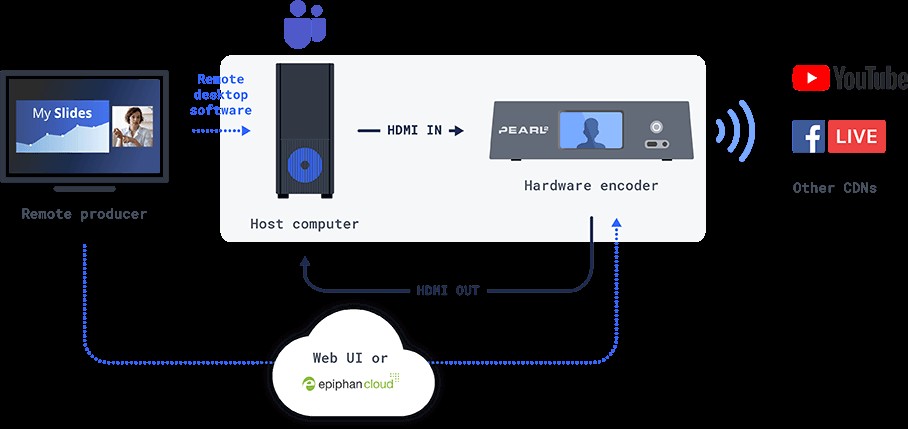
Remote producers can take control of your host computer using a remote desktop tool such as VNC or TeamViewer. Then the producer can start up and manage the Microsoft Teams meeting your encoder is pulling from. Of course, this does add another layer of complexity. And it’s possible you’ll run into reliability issues since this is more of a stopgap solution than one tailormade for the task.
If you’re using an Epiphan Pearl system, you can easily access and control your encoder through the intuitive Epiphan Cloud dashboard. This simplifies operation. However, you’d still need someone on site to work with the host computer running Microsoft Teams, or a separate remote access software tool to enable your producer to control that computer.
Bottom line
In a pinch, this setup is serviceable and will make your event look much better than a raw stream out of your Microsoft Teams meeting, UI and all. But there are certainly better, more efficient methods out there.
2. Leverage Microsoft Teams NDI integration
Microsoft Teams supports NewTek’s Network Device Interface (NDI). This offers a cleaner, more streamlined way of bringing Microsoft Teams sources into your live productions. To take advantage, you’ll need an NDI-capable encoder like an Epiphan Pearl-2 as well as a sufficiently powerful host computer to run your Microsoft Teams video meeting and output NDI.
NDI broadcasting isn’t enabled in Microsoft Teams by default. Your Microsoft Teams administrator will have to enable NDI in Microsoft Teams through the admin center. Next, you’ll need to enable NDI at the user level. To find out how to do that, see Microsoft’s instructions for broadcasting audio and video from Teams with NDI.
A. With a local producer
NDI is designed to work over local area networks. Given this, your NDI-capable encoder and the computer hosting your Microsoft Teams meeting will need to be on premises together. Ideally, your producer will be as well.
On the host computer, gather your event contributors into a Microsoft Teams meeting and select the option to start broadcasting over NDI. (For privacy reasons, the people in your meeting will see a prompt when this happens, since NDI enables anyone on the local network to tune into the feed.)
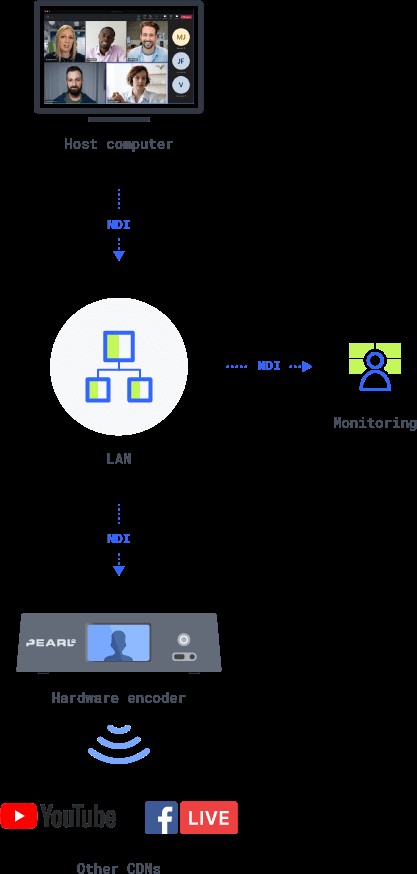
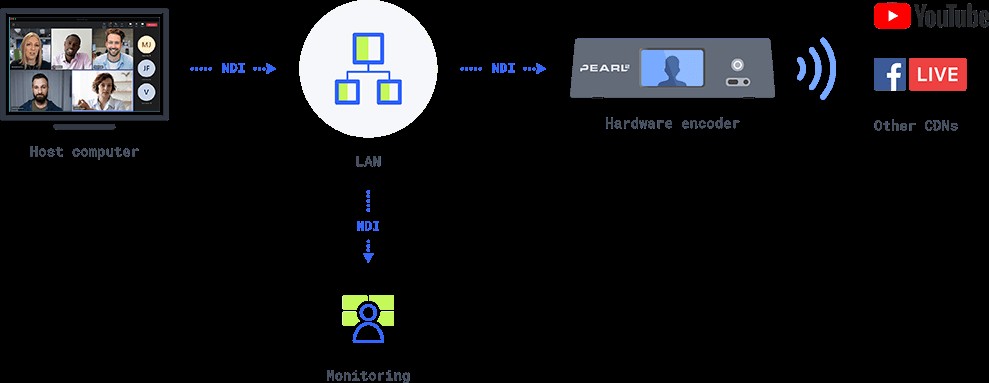
With your Teams meeting broadcasting over NDI, you can select individual participant feeds as NDI sources on your encoder. Then you can add those sources to one or more layouts, switch between those layouts live, and run titles over them.
B. With a remote producer
NDI is designed for video and audio transmission over local area networks. But it’s still possible to leverage NDI and Microsoft Teams with an off-site producer using remote desktop software or a virtual private network (VPN).
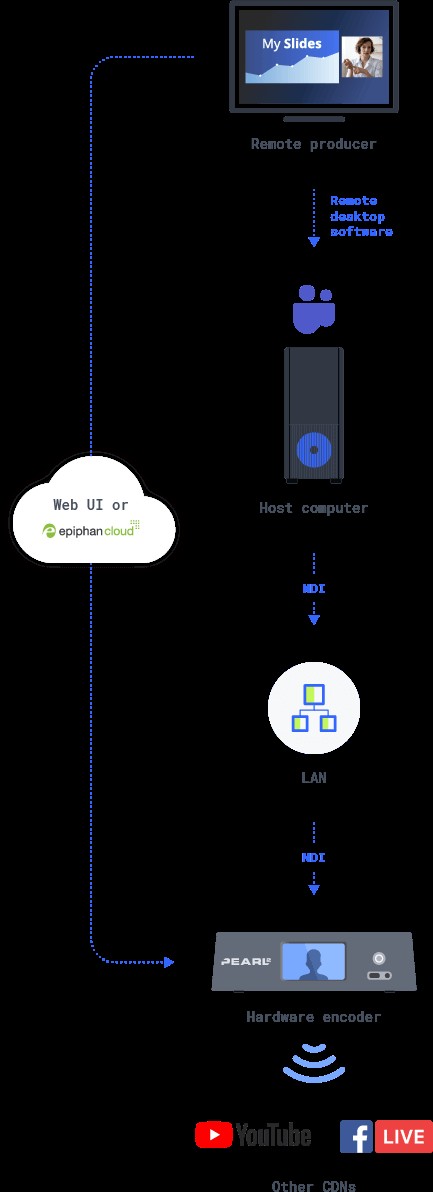
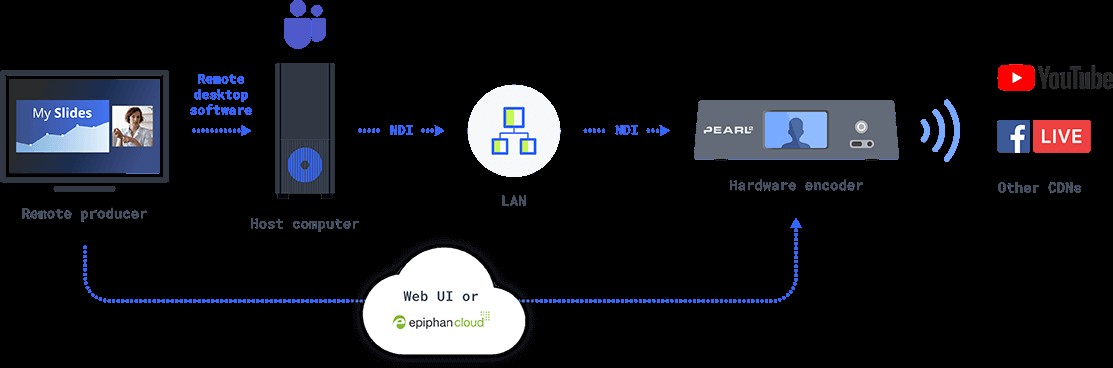
The downside is the extra complexity and points of failure that come with incorporating another tool into your workflow (in this case, remote desktop software).
Bottom line
Microsoft Teams’ NDI integration is a great way to elevate your Teams-powered broadcasts. Provided, of course, that you have an NDI-capable encoder and network, and a computer with enough processing power to output NDI.
3. Use Epiphan Connect to easily extract participant feeds
It’s not always possible to have a host computer and an encoder on the same network. Making both accessible remotely using remote desktop software, a VPN, or network tunnel works in a pinch, but does introduce complexity and uncertainty.
There’s another, better option – whether your producer happens to be local or is working remotely: Epiphan Connect.
Epiphan Connect can extract up to nine Microsoft Teams participant feeds and one screen-share and transport them into your productions in 1080p and with isolated audio. The tool is compatible with all Secure Reliable Transport (SRT) receivers – whether it’s a piece of hardware or a virtual platform like Epiphan Unify – making it easy to work into your existing workflows.
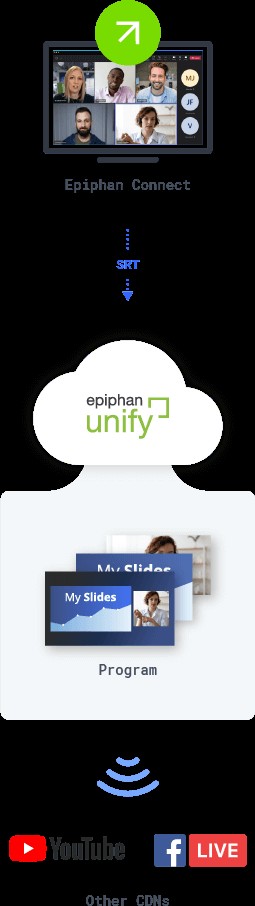
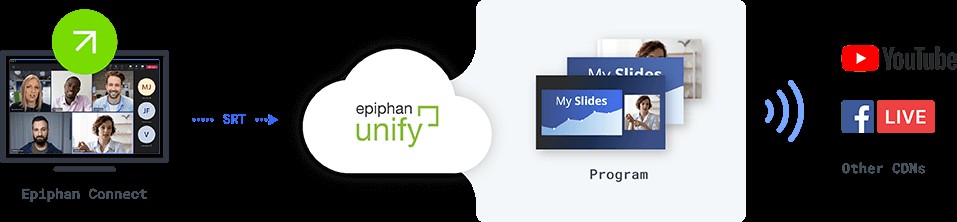
As a cloud-based tool, Epiphan Connect eliminates reliability issues that are significant in live event production and are the major downsides to the two other approaches we’ve outlined here:
- There’s no need for a host computer to run your Microsoft Teams video meeting. Meaning, there’s one less component that can possibly fail or otherwise interrupt your live event with unrelated pop-ups.
- Local processing limitations cease to matter. Epiphan Connect will scale to deliver the power you need when you need it.
- Epiphan Connect can isolate participant audio into separate tracks, giving you greater control over who your audience hears on the broadcast.
Bottom line
With its user-friendly interface, broad compatibility, and cloud-based architecture, Epiphan Connect is the most flexible, intuitive way to produce live events with Microsoft Teams.
Stay updated on Epiphan Connect
Epiphan Connect is planned for release in late summer 2022. Sign up for updates and to get notified as soon it’s available.