
Whether you need to shorten a meeting recording or extract a highlight for sharing, trimming a video on Windows is straightforward.
Windows PCs come with built‑in tools that handle basic cuts with ease, while dedicated editors deliver professional precision and advanced features.
This guide walks you through two reliable approaches: the native Photos app for quick edits, and the powerful Riverside editor for more sophisticated trimming. We also highlight other online tools that complement your workflow.
Can You Trim Videos Quickly on Windows?
With the right software, you can trim content efficiently for any purpose. The fastest route is the Photos app, ideal for short recordings. For longer footage or more granular control, a text‑based editor like Riverside simplifies the process—edit the transcript, and the matching video and audio disappear.
Trim Videos Using the Photos App
The Photos app, bundled with Windows 10 and later, offers a streamlined interface for novice editors.
Step 1: Open the App
Launch Photos and select the video from your device’s media library.
Step 2: Initiate Editing
Click Edit & Create in the upper‑right corner, then choose Trim from the dropdown.
Step 3: Define the Trim
Drag the two white circular pins at the bottom to mark the segment you want to keep. Use the blue pin to scrub and verify the exact start and end points.
Step 4: Save the Result
Select Save a copy to export the trimmed clip. The original file remains unchanged.
Trim Videos with an Online Trimmer
For users who need more than a simple cut—such as batch processing, format conversion, or advanced audio cleanup—online trimmers offer additional control.
Popular Online Trimmers for Windows
Riverside
Riverside is a studio‑grade recording and editing platform. Capture 4K local video or remote sessions, then use its AI‑powered editor to locate and remove unwanted segments via transcription. Features include background noise removal, silence trimming, audio normalization, and customizable captions. The Magic Clips tool automatically extracts key moments for short‑form content.
Online Video Cutter
This open‑source tool supports a wide range of formats, allows cropping and rotation, and handles files up to 4 GB. All uploads are deleted after a few hours for privacy.
Adobe Express
Adobe Express offers a free trim feature for videos up to one hour. Drag handles or enter exact times to cut, then download the result instantly.
Step‑by‑Step: Riverside Editor
Follow these steps to trim a recording with Riverside:
1. Log in and go to Studios.
2. Select a Studio and click View recordings (or create a new recording if needed).
3. Choose the recording you want to edit.
4. Open the Editor by clicking Go to Editor.
5. Set the aspect ratio that matches your output (e.g., 16:9, 9:16).
6. Trim the clip by dragging the purple timeline bar or using the text‑based editor. Deleting transcript text automatically removes the corresponding video segment.
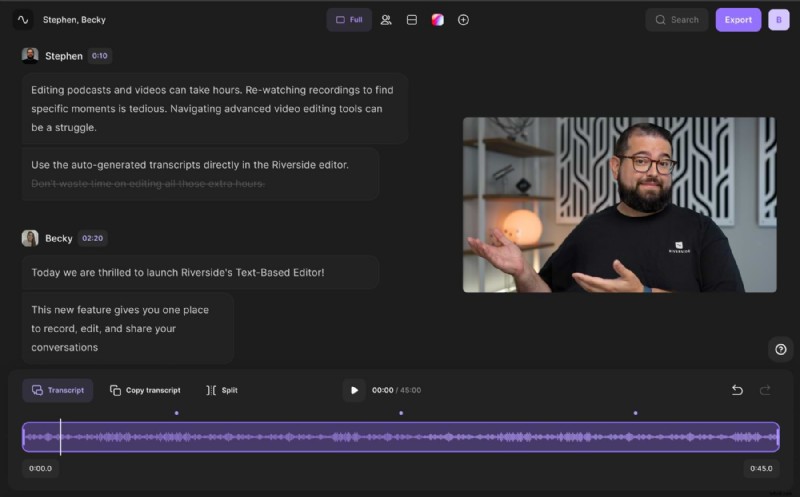
7. Export when satisfied—save and download the edited file.
Frequently Asked Questions
Can I Trim Video in Windows Media Player?
Windows Media Player can perform basic trims with a third‑party plugin like SolveigMM WMP Trimmer. After installing, launch WMP, enable the plugin, import your video, and use the trim controls.
What Are the Options for Trimming on a PC?
While the exact steps depend on your operating system and chosen software, the methods outlined above cover the most common and reliable tools for Windows PCs. Whether you prefer an offline app or an online editor, you’ll find a solution that matches your skill level and project needs.
Ready to elevate your video editing? Try Riverside today for professional‑grade trimming and more.