
Key takeaways:
- Benefits of overlays: Text overlays boost engagement, increase reach, and improve accessibility.
- Boost your brand: Strategic text placement and styling create brand consistency and improve content memorability.
- Make your text pop: Follow best practices for adding text to videos, such as adding contrasting colors, writing concise text, and choosing appropriate fonts.
Your video is fire. The content is perfect. The editing is crisp.
But here's the plot twist: won’t hear a single word of it.
Why? Because they’re scrolling through their feeds without sound.
That’s why adding text to videos is your best bet—from punchy headlines that instantly capture your attention to motion text that guides the eye.
Let’s learn how to add text to videos and the best practices for elevating your content with text.
5 reasons why you should add text to videos
Think about it: your viewers watch your videos on their daily commute, lunch breaks, and cozy bedtime scrolls.
But most of them will watch content on mute because silent scrolling is the new normal.
Adding text to videos can capture people’s attention, with or without sound. Here’s how.
Hook your viewers to boost engagement
Text overlays deliver a better viewer experience. These motion text boxes intrigue viewers and keep them glued to your content.
The proof? A Facebook study shows that captioned video ads increase view time by an average of 12%.
Add textual cues to:
- Emphasize key messages
- Highlight important points
- Break down complex insights
This visual reinforcement through text overlays ensures your message lands perfectly every single time.
Samuel Thompson, who runs an SEO agency, shared this comparison highlighting how captions measurably improve click-through rates:
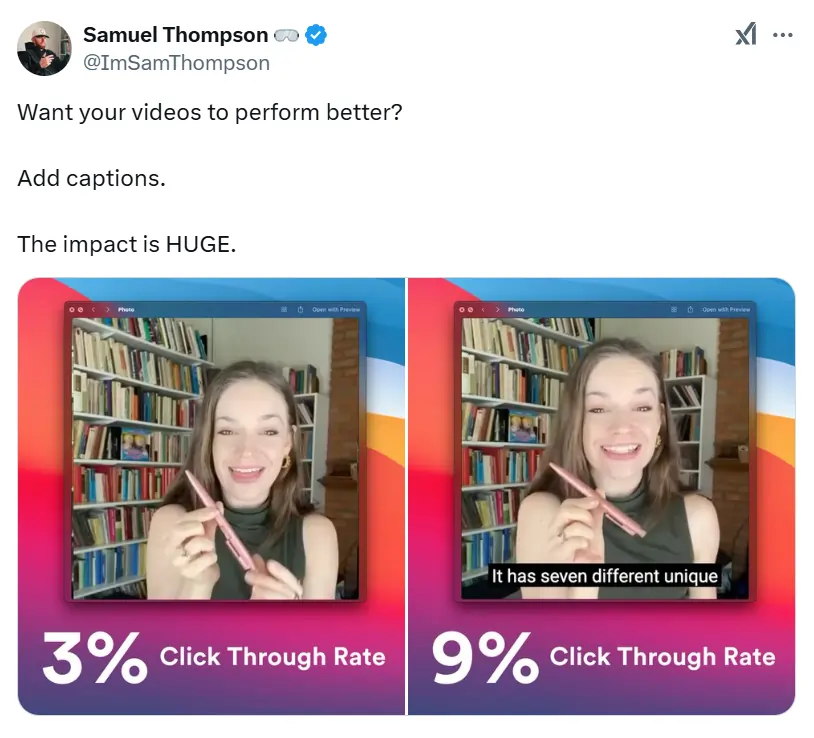
Reach more people with greater accessibility
Adding text to videos makes your content inclusive for viewers who are hard of hearing. As a result, you can target a bigger audience and maximize your reach.
This explains why 67% of content creators add captions to their videos to prioritize accessibility.
Text overlays can also make your content accessible to viewers across different demographics. By adding captions and text overlays in multiple languages, you can expand your reach to international audiences.
Convey your message with more clarity
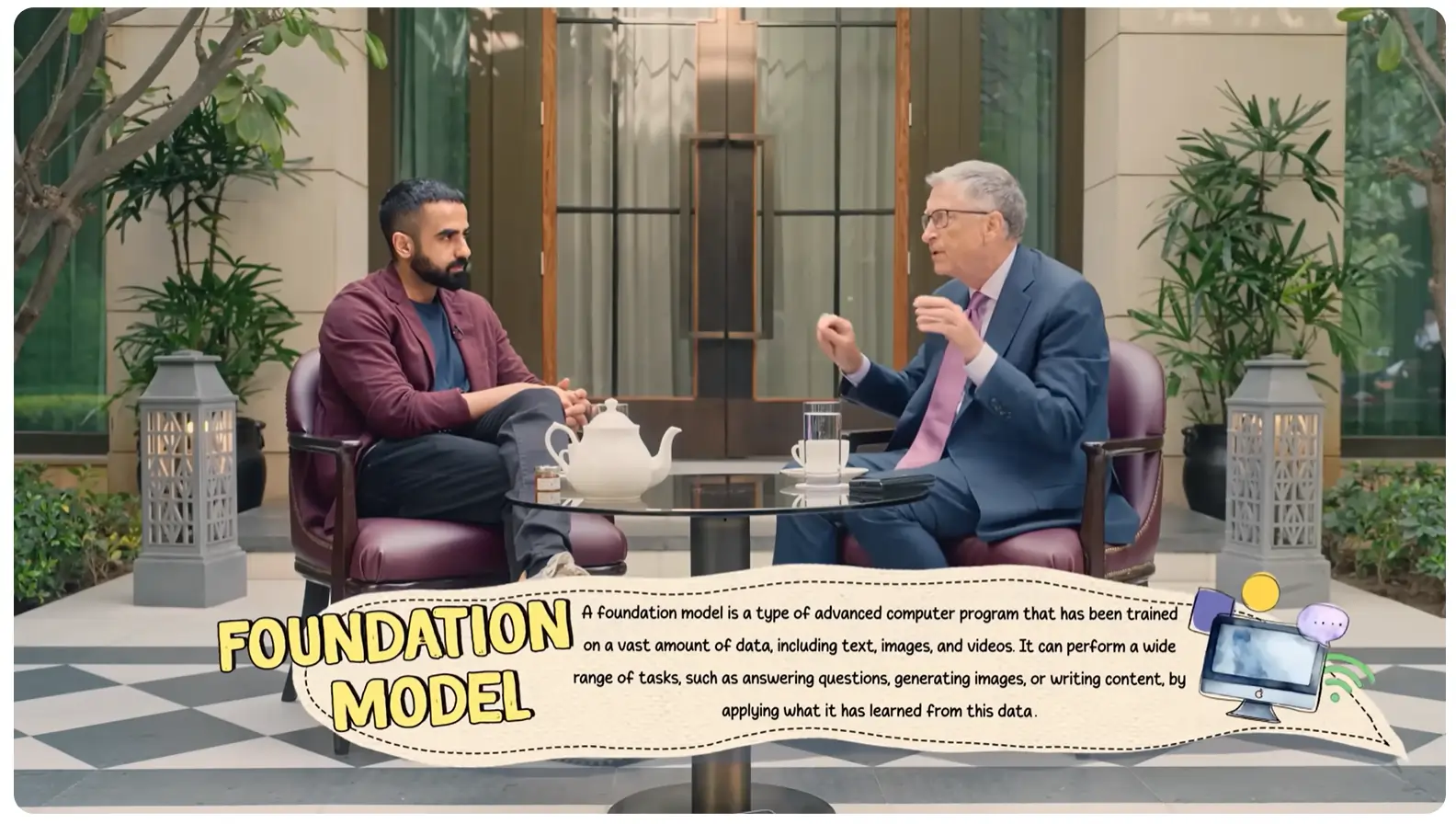
Text boxes act as visual aids to help viewers process information effectively.
Adding text to video essentially makes it easier for people to follow along your advice and grasp insights quickly.
Using a clear hierarchy of text—through headlines, bullet points, and callout boxes—helps viewers follow your content naturally. Here's an example:
Create a consistent, recognizable style
Use consistent styling to align your text overlays with your brand identity. Viewers who instantly recognize your content are more likely to stop and engage.
In addition to brand colors and fonts, you can create a consistent visual language for your text overlays. To make your content more memorable, follow a standard pattern of text placement, animations, and styles.
Here's how Chameleon, a product adoption tool, maintains consistent text styling in their podcast videos:

Optimize for search and discoverability
By adding text to videos, you help search engines read and understand your videos better. This allows them to index and show your content in relevant searches, often among the top results.
Well-designed text also facilitates sharing. Viewers can easily capture screenshots and share key moments from your videos across their networks.
How to add text to video using Riverside overlays
Ready to create scroll-stopping videos with text overlays?
Use Riverside to add big, bold text boxes to your videos. We’ll explore all the ways you can create and customize these overlays.
Step 1: Log into your Riverside account
Go to Riverside and log into your account. Or create a new account if you don’t have one already.
Step 2: Record or upload the video to edit
You can record a new video or upload an existing one where you want to add text.
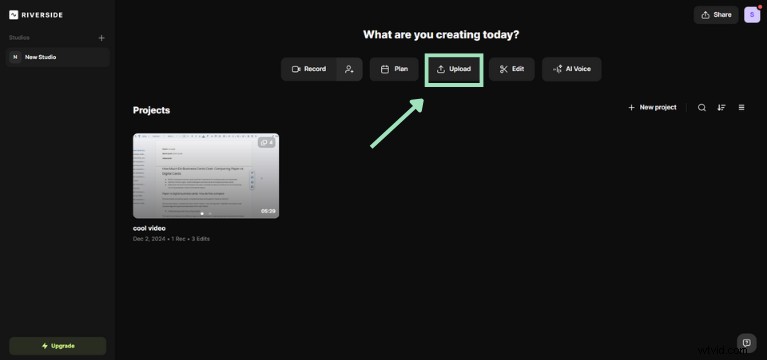
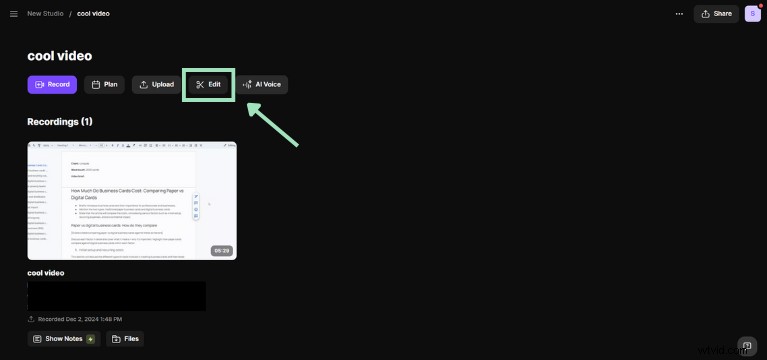
Once you’ve finished recording or the upload is complete, click “Edit” to enter editing mode.
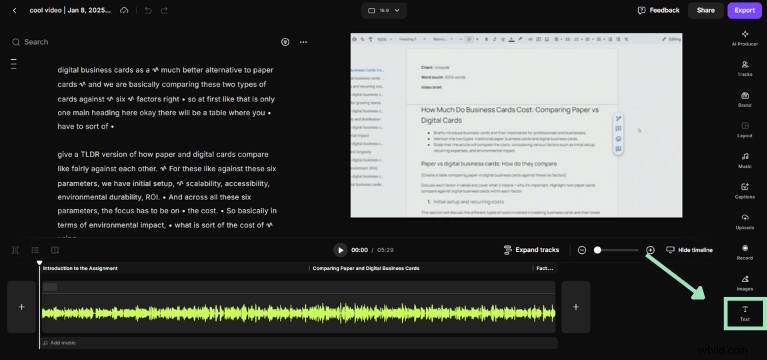
Step 3: Open the “Text” tab to create text overlays
Now, press the “Text” button on the editing panel on the right side of your screen.
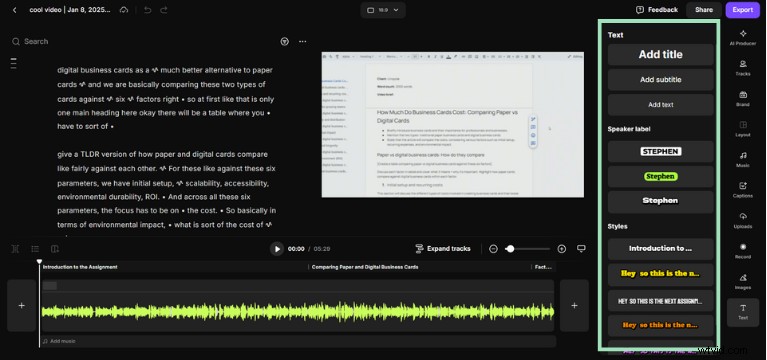
Step 4: Choose your preferred text style
This tab offers multiple options for pre-built text overlays. Each option includes a unique visual style and animation effect.
Hover over any of these options to see how the text will appear in your video.
Step 5: Edit and enhance the text overlay
When you choose any of these styles, Riverside will automatically display your captions in this effect.
You’ll also see tools to edit the text box.
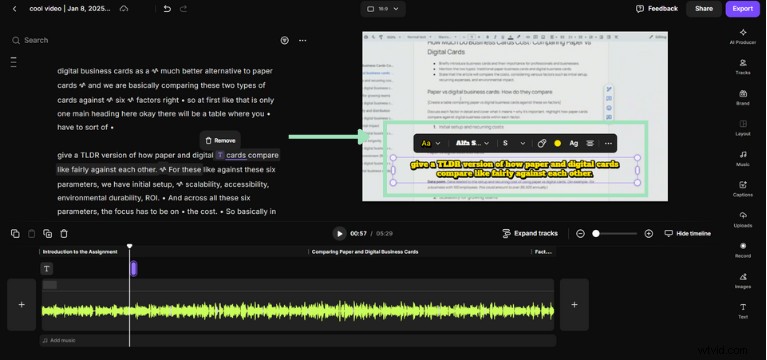
Customize this text box by changing the:
- Colors: Pick the colors for the text, shadows, and background.
- Font size: Choose the right size from XS to L options.
- Font style: Select from a variety of different font families.
- Animation: Add a motion effect from multiple styles.
- Alignment: Align your text to the left, right, or center.
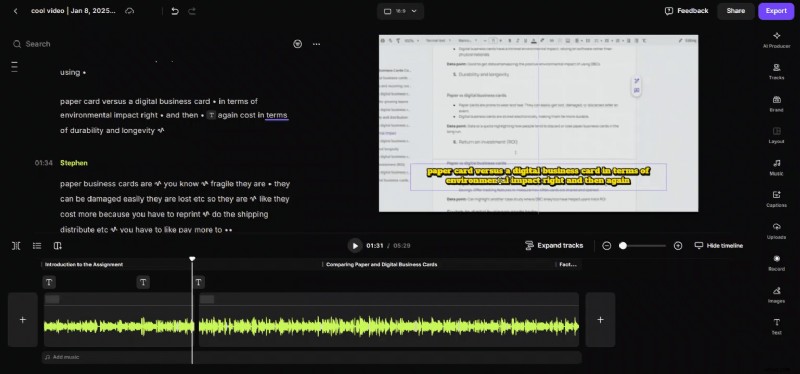
Here’s a preview of all the editing options for text overlays in Riverside.
Bonus: How to add images and music overlays to video with Riverside
Besides text boxes, you can also add images and soundtracks anywhere in your videos with Riverside.
Here are a few simple steps to create these media overlays once you’re inside the video editor.
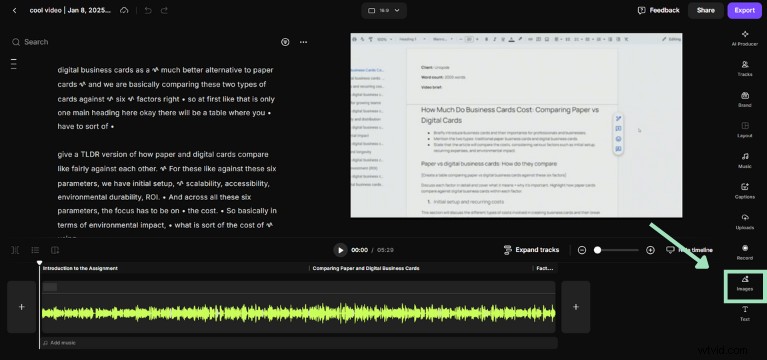
Step 1: Click the “Images” tab from the editing panel on the right.
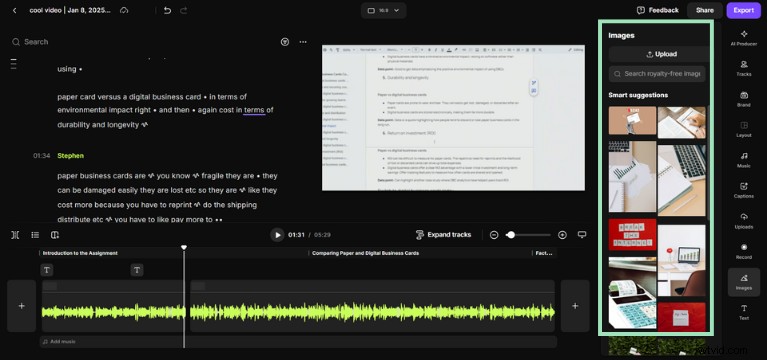
Step 2: Choose from Riverside’s built-in library of stock photos. Use keywords to search for relevant images or upload your own from your device.
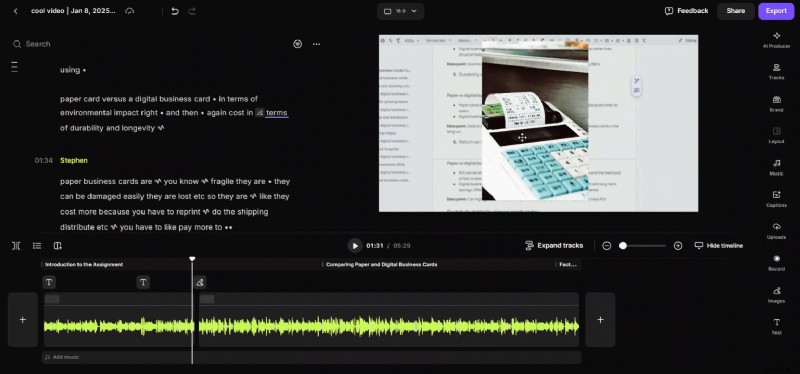
Step 3: Resize and position your chosen image(s) anywhere in your video. You can also edit its opacity and other details.
Here’s how you can repeat these steps for adding music overlays:
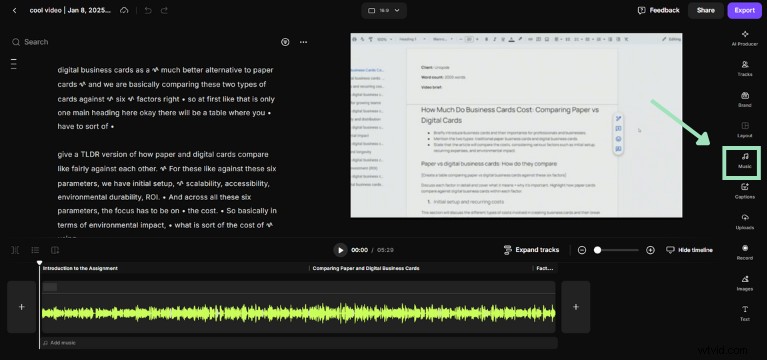
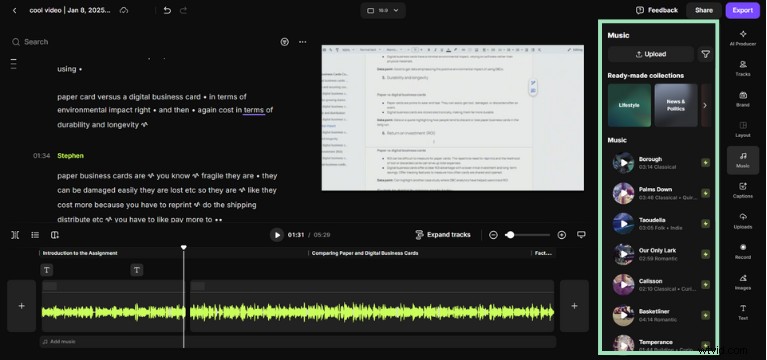
Step 1: Go to the “Music” tab from the editing panel.
Step 2: Pick the best tunes from a selection of royalty-free soundtracks and audio effects.
You’ll find these tracks across different collections like lifestyle, news, entertainment, and more.
6 best practices for adding text to video
When creating videos for social media, training, or marketing campaigns, follow these guidelines to ensure your message is clearly conveyed through text overlays.
Keep text concise and readable
Every text overlay on your videos should be easily and quickly readable.
Here’s a rule of thumb: choose the font, color, size, and placement to make your text easily readable at an arm’s distance.
Besides, brevity is your best friend when adding text to videos. Keep each text box short for an effortless reading experience.
For example, this coffee recipe video includes short steps with white text on a dark, contrasting background.
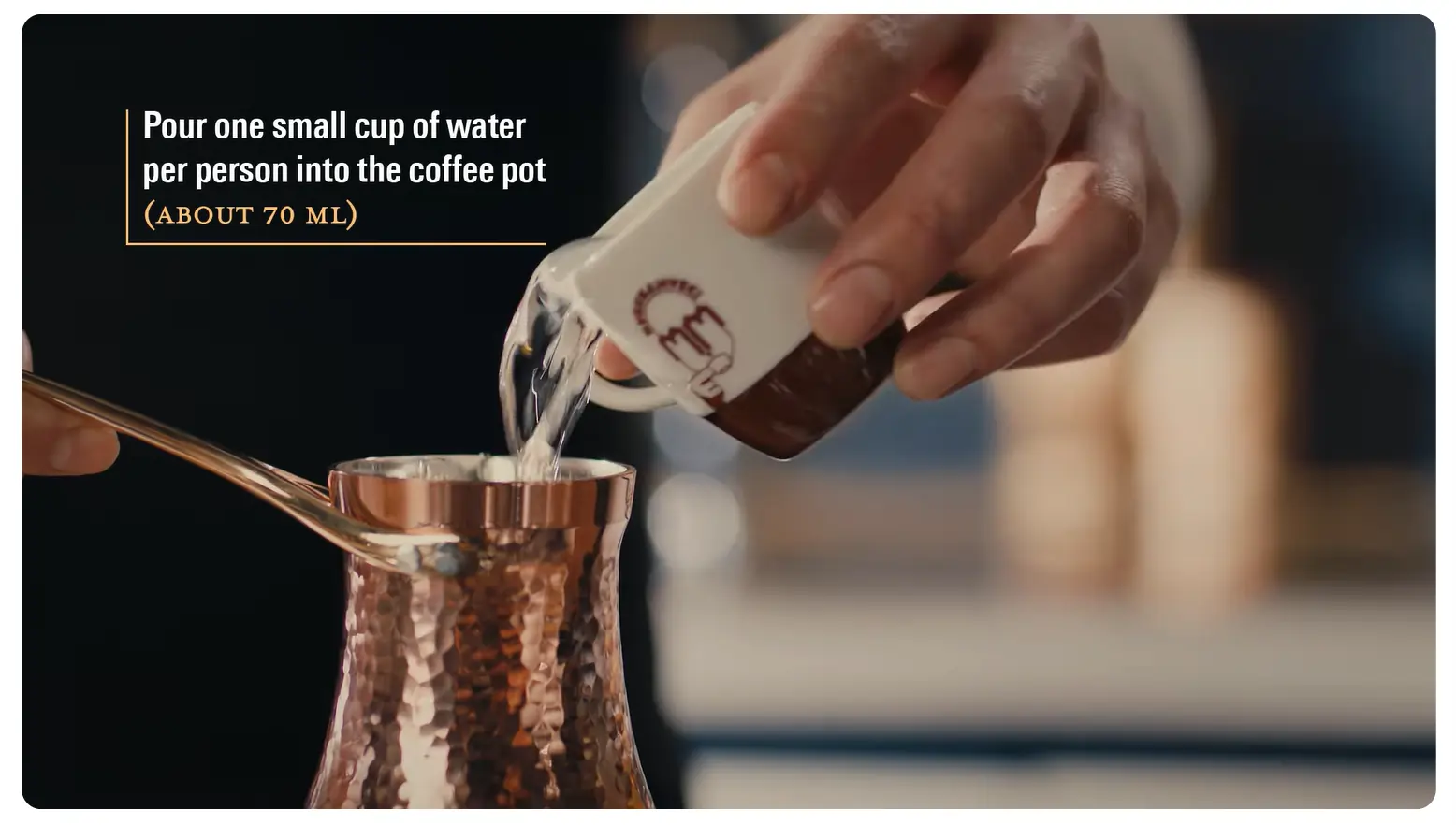
You should also consider the reading time when adding text to videos.
If your text disappears quickly before viewers finish reading, they will find it jarring. So, keep text boxes long enough for people to comfortably read the text once (or twice).
Use contrasting colors for visibility
Imagine having to squint your eyes just to read the text on a video because it’s not visible against the background. That’s counter-productive.
The easiest way to make your text visible is to create a strong contrast between the text box and the video background.
Here’s an example where the light-colored text overlay goes well with the dark-colored background:
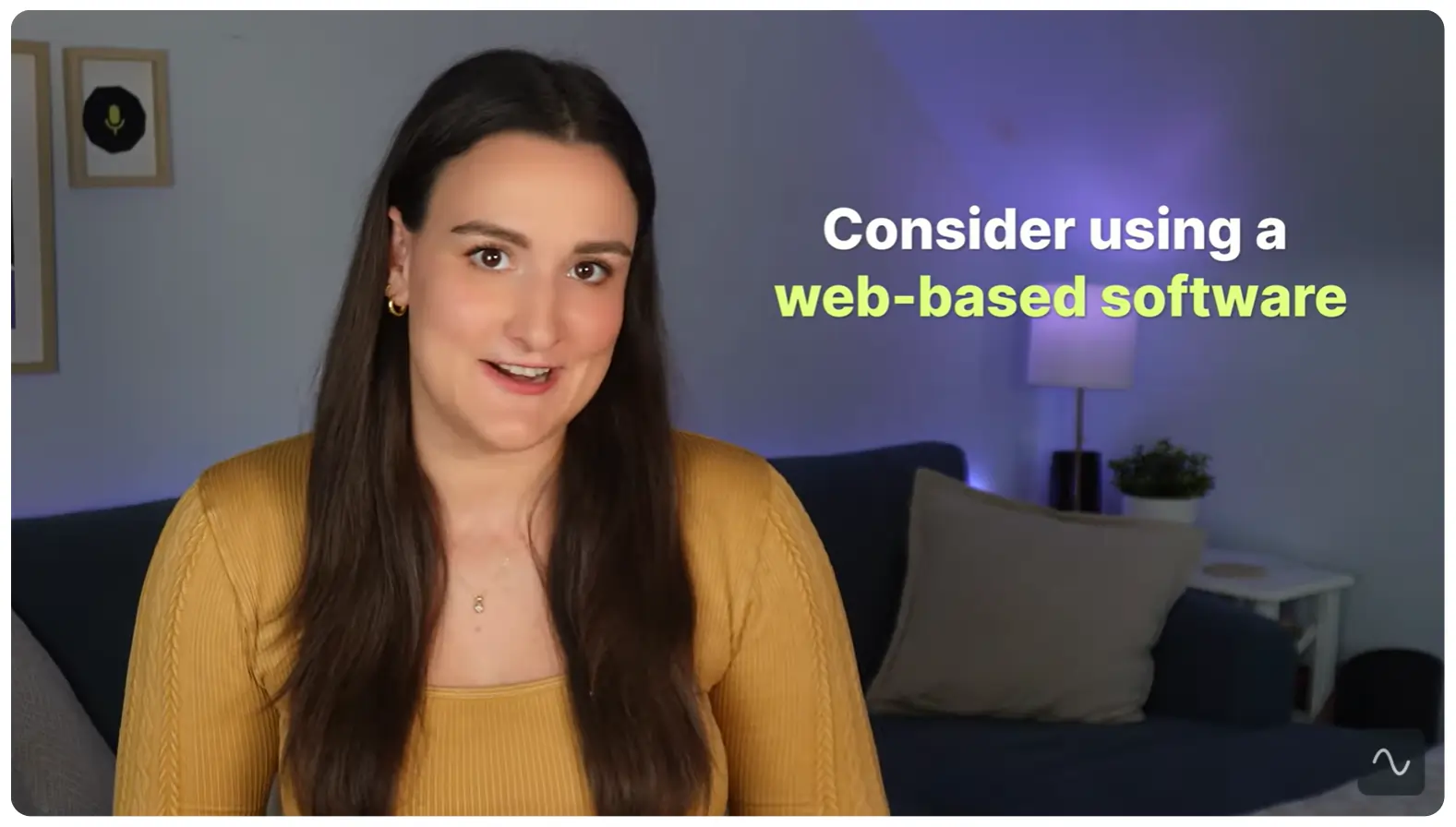
If your video has varying backgrounds, you can place your text in a box that contrasts with the background. This is particularly useful for vlog-style videos with constantly changing backgrounds.
Check out what this text box will look like:
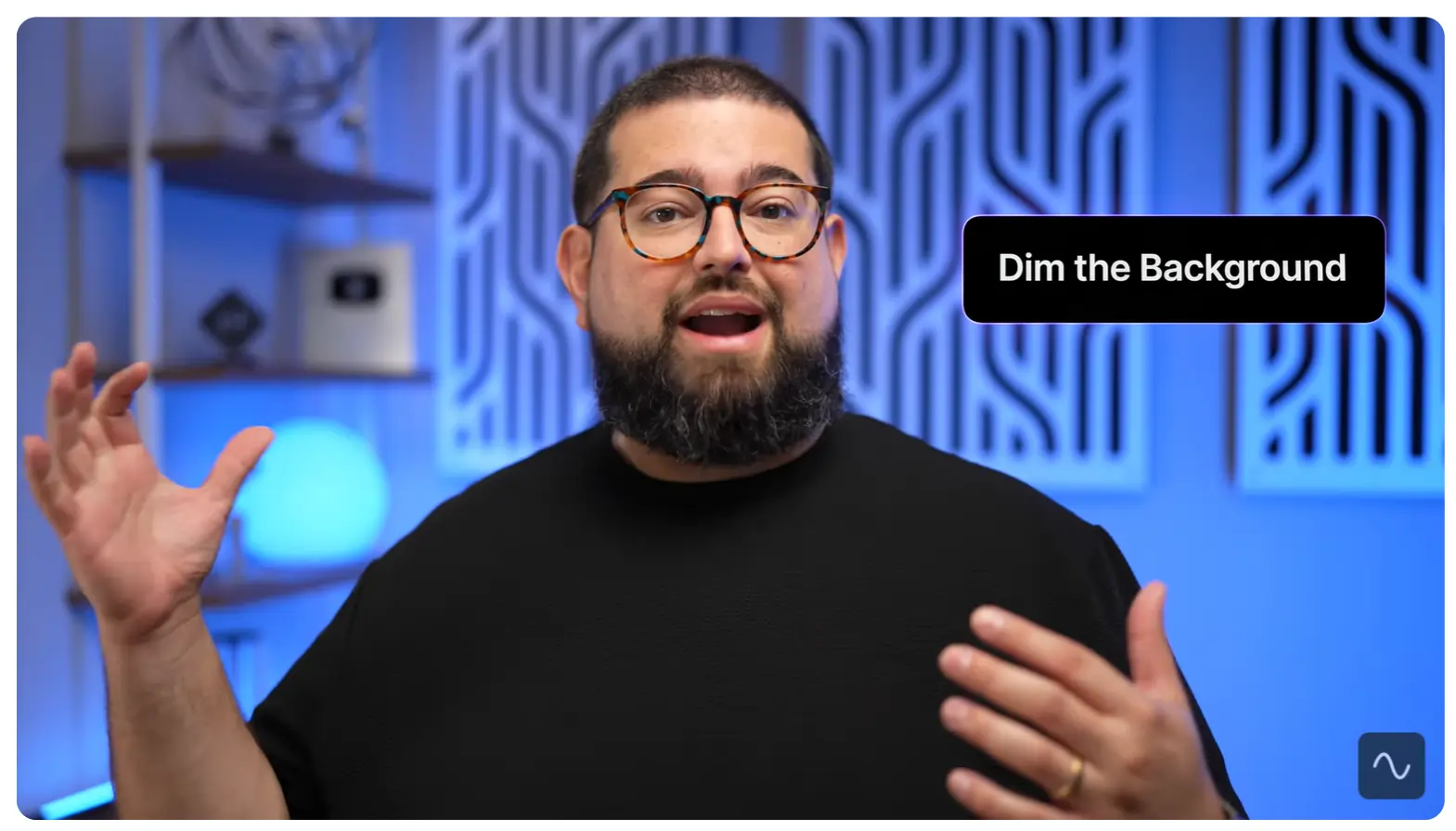
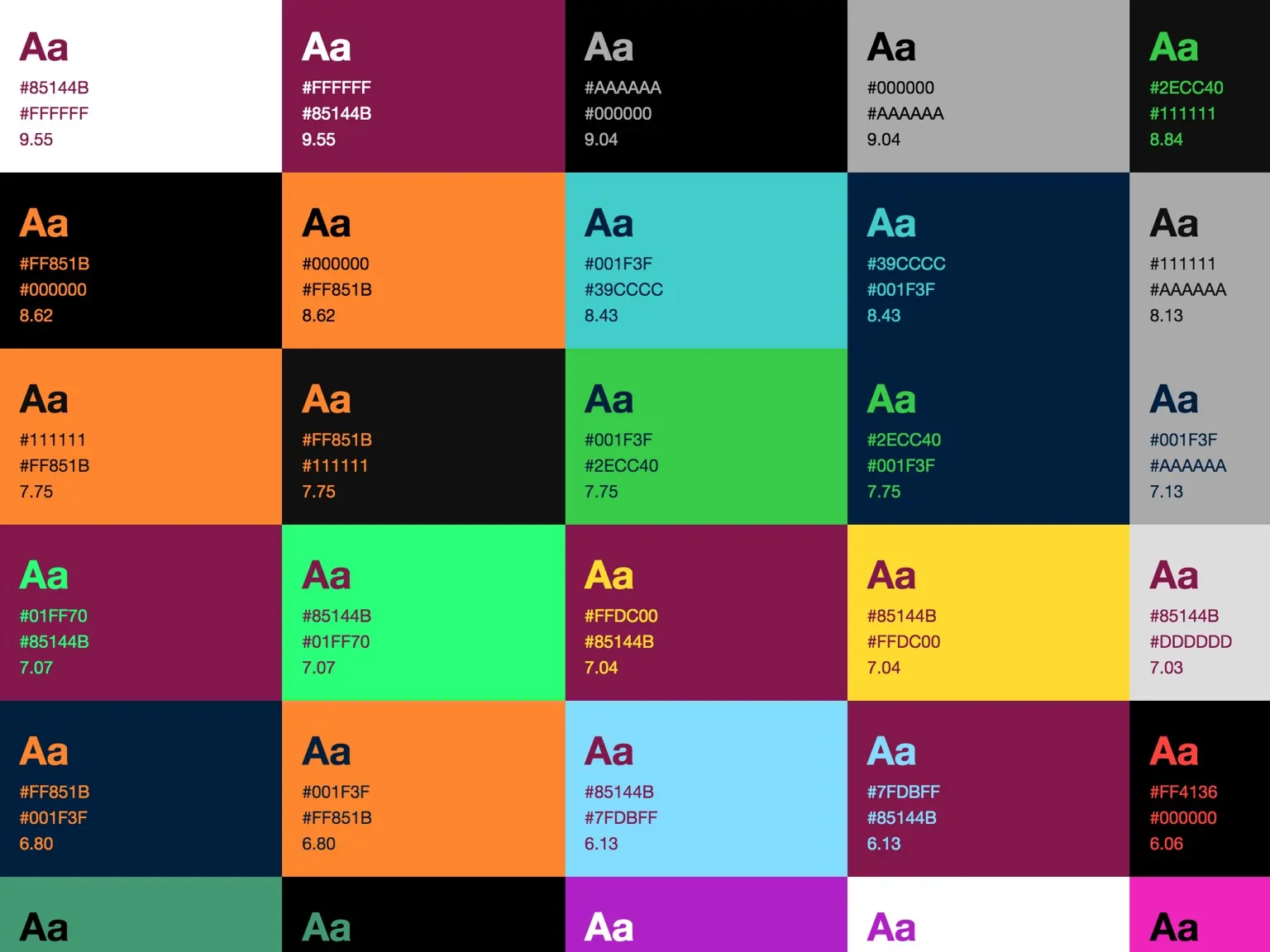
When choosing colors for your text overlays, remember to choose high-contrast combinations. Use a color contrast checker to ensure that your text and background complement each other.
Here are some combinations to choose from:
Strategically position text boxes
Nobody likes watching a video where the text cuts off at the edges. This can give people the idiomatic itch in their brains.
Place text where it remains completely visible and doesn't interfere with important visual elements.
Start by deciding where you want to position your text—upper half of the frame or lower thirds. Then, designate an area where the text box won’t interfere with visual cues, like hand gestures, screenshots, and more.
Customize these text positions for different platforms to create a seamless viewer experience.
Choose fonts to convey your videos’ vibe
Pick the right fonts that reflect your brand’s personality.
For example, Javy Coffee's videos use a playful font that matches its packaging. This creates instant brand recall for viewers across platforms.

Besides, your fonts should also align with the vibe of your videos.
Here are some examples of the types of fonts to use for different kinds of videos:
- Business: Use San-serif fonts like Helvetica to convey professionalism, authority, and clarity through your text.
- Journalism: For greater readability, use neutral fonts like Roboto and PT Serif. For a clear visual hierarchy in headlines, use strong weight variations of these fonts.
- Entertainment: Use a combination of display fonts (like Bebas Neue) and decorative ones (like Workhorse) to showcase your personality and create excitement.
As a best practice, stick to two font families instead of mixing too many different styles.
Animate your text and add transitions
Animation effects and transitions can add more life to your text overlays.
You don’t have to be a pro in video editing to create these motion effects. Add simple animation effects like fade-in or slide-out to make your text more interesting.
For example, let the video title smoothly breathe into the frame.
You can also add a live text effect, in which each word in your videos is highlighted in real time as the speaker says it.
The key is to avoid adding too many animated elements at once, as this can overwhelm viewers and become a distraction.
Optimize text overlays for different platforms
There’s no one-size-fits-all formula for adding text to videos.
You have to customize your text overlays for different platforms, screen sizes, and aspect ratios.
For example, this comparison shows that a YouTube video will have different text formatting and size than an Instagram reel.
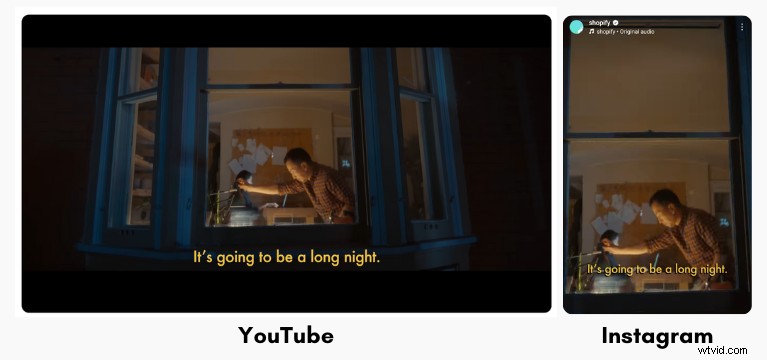
So, test your text visibility and placement when repurposing videos for several platforms. You must experiment with font sizes and text positions to ensure easy readability.
FAQs on how to add text in a video
Looking for more information? Check out these frequently asked questions.
How do I insert text into a video?
You can insert text to a video using tools like Riverside.
Riverside lets you create text overlays in different styles, animation effects, and font types. Choose from a selection of presets and customize these styles to match your video’s theme.
What's the best font style and size for video text?
When adding text to videos, your choice of font depends on your video’s theme and use case.
Use clean, readable fonts like Arial, Helvetica, or Open Sans for business-related videos. For entertaining content, use casual and decorative fonts like Pacifico or Lobster.
The text size depends on your video’s resolution. As a rule of thumb, text should be easily readable on any device at an arm’s distance.
How do I make my text stand out against the video background?
Here are a few good techniques to make text stand out against the video background:
- Add a subtle blur effect behind the text
- Use a drop shadow or outline around the letters
- Choose contrasting colors between text and video background
- Add a semi-transparent or opaque background box behind the text
How do I add text subtitles to a video?
Use Riverside’s free transcript generator to accurately transcribe your video in 100+ languages. Download this transcript as an SRT file and add it to your video as subtitles.
You can also use Riverside’s intuitive video editor to stylize the subtitles and add well-designed text overlays.
Can I animate the text entrance and exit?
Yes, it’s good to animate the entrance and exit of text boxes. It creates a more engaging visual effect in your video.
That said, avoid adding too many animation effects since it can distract your viewers.