
Whether you’re creating short reels or a full-length film, manipulating video speed can enhance storytelling, emphasize details, or simply trim runtime. In this guide, we’ll walk through how to adjust speed in Lightworks—a professional non‑linear editor trusted by filmmakers worldwide—and compare it with Wondershare Filmora for users who want a more beginner‑friendly workflow.
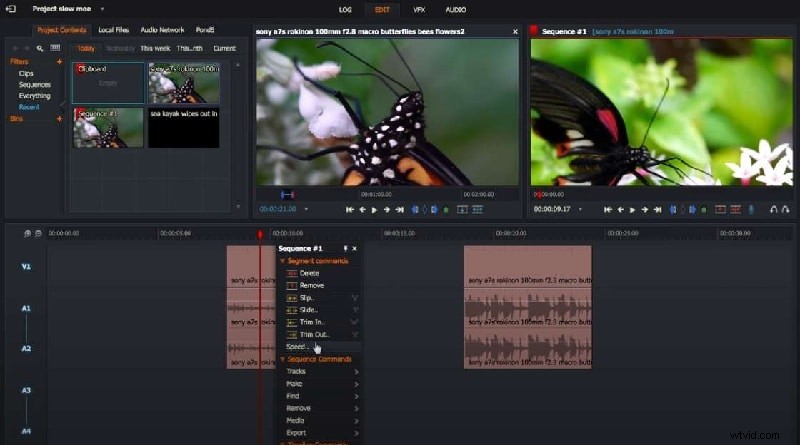
Table of Contents
- Part I. Speeding Up Video in Lightworks
- Part II. Slowing Down Video in Lightworks
- Part III. Advanced Speed‑Editing Tips in Lightworks
- Part IV. Alternative Software for Easier Speed Control
Part I. Speeding Up Video in Lightworks
Short‑form content often benefits from a faster pace. Lightworks makes this simple: select a clip, adjust the speed preset, and apply the change. Follow these steps:
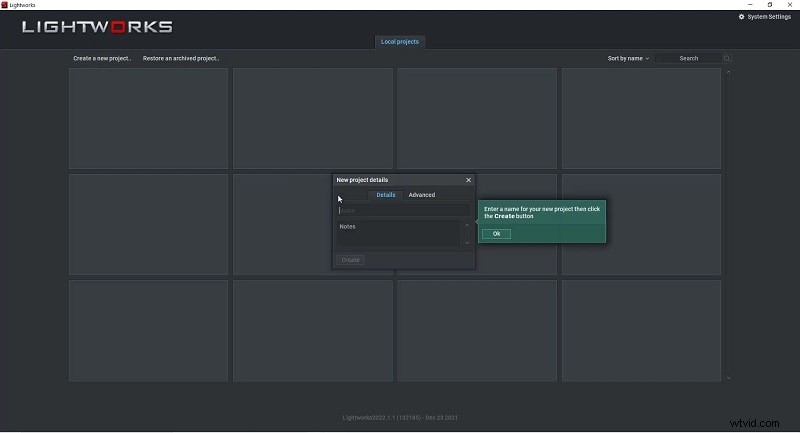
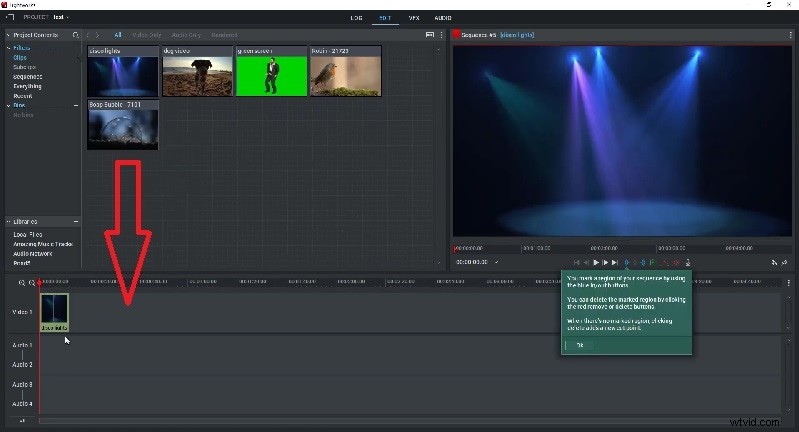
Step 1: Launch Lightworks and create a new project. Name it, then click Create.
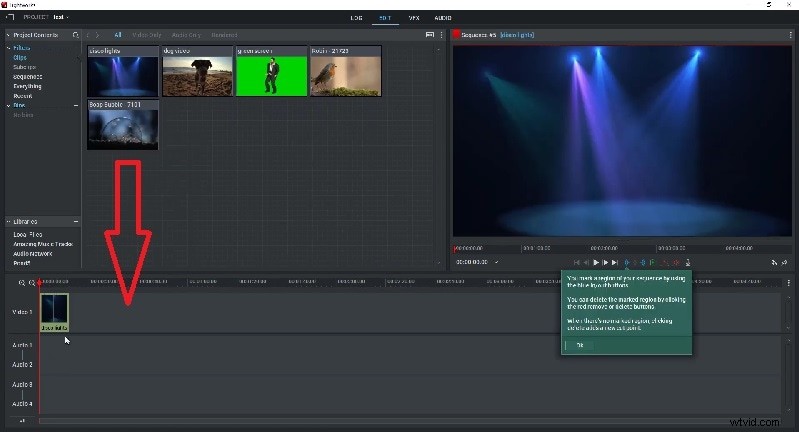
Step 2: Import your footage into the Edit workspace and drag the clip onto the timeline.
Step 3: Right‑click the clip on the timeline and choose Speed from the context menu.
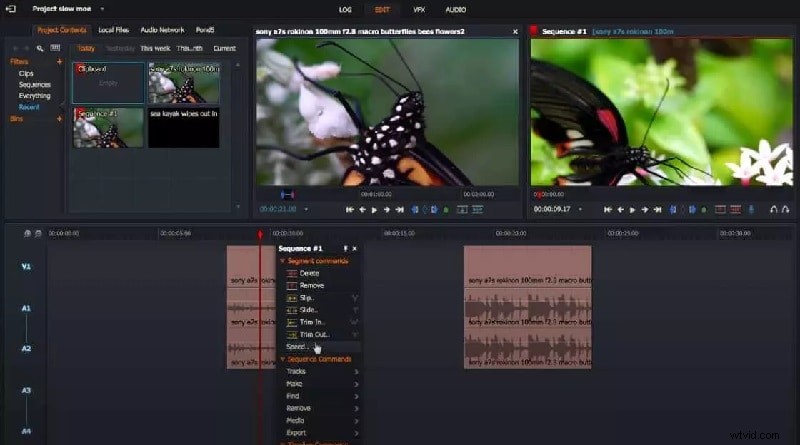
Step 4: In the Speed dialog, select a preset above 100% to increase playback speed. Click Do It to apply.

Part II. Slowing Down Video in Lightworks
Slow‑motion can bring dramatic focus to a moment. The procedure mirrors the speed‑up workflow, but you’ll choose a preset below 100%:
Step 1: With the clip on the timeline, right‑click it.
Step 2: Select Speed, then pick a preset under 100%.
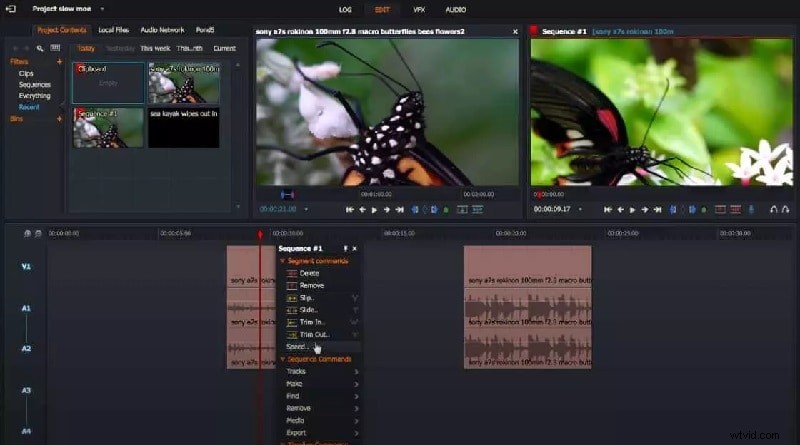
Step 3: Confirm by clicking Do It and preview the result.
Part III. Advanced Speed‑Editing Tips in Lightworks
Once you’re comfortable with global speed changes, you can refine the effect further:
Speed‑Up Specific Sections – Position the playhead at the desired start point, press the C key to split, then adjust speed on the isolated segment.
Audio‑Video Sync – Lightworks allows you to adjust audio speed concurrently. This keeps the soundtrack in rhythm with visual changes.
Frame‑Rate Planning – Shoot at a higher frame rate (e.g., 120fps) when planning slow‑motion; use a lower rate for fast‑motion shots. Lightworks will automatically normalize the final frame rate, delivering smoother playback.
Part IV. Alternative Software for Easier Speed Control
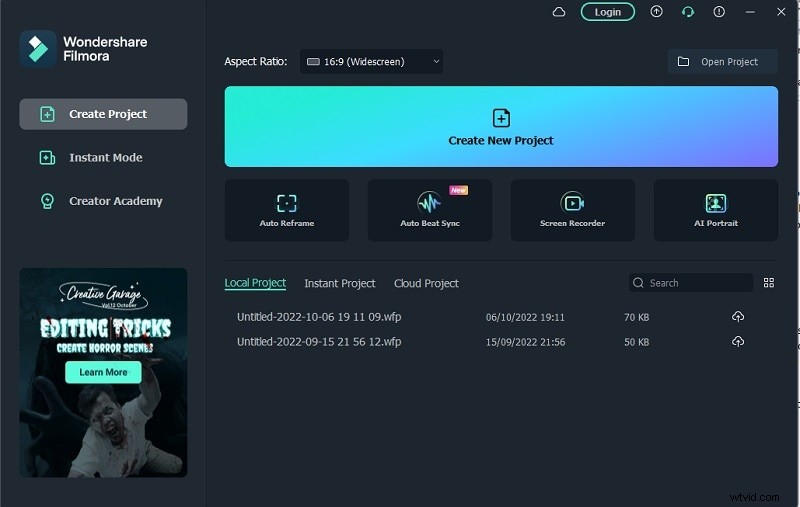
Lightworks’ professional interface can be intimidating for novices. Wondershare Filmora offers a more intuitive experience, complete with a richer set of presets, customizable speed, and speed‑ramping tools. Below are streamlined methods for adjusting speed in Filmora:
Method 1: Preset Speed
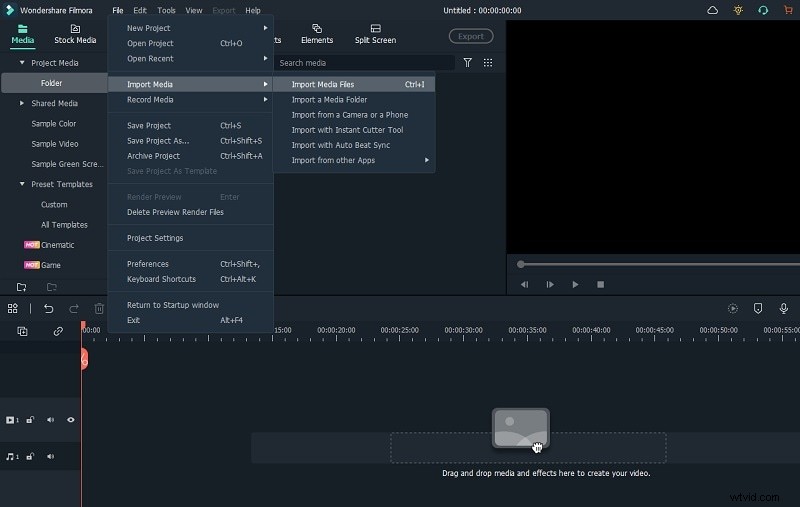
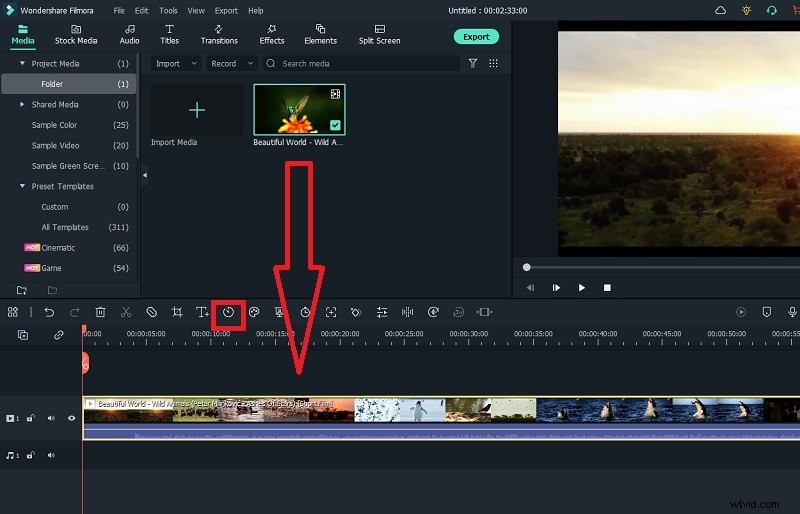
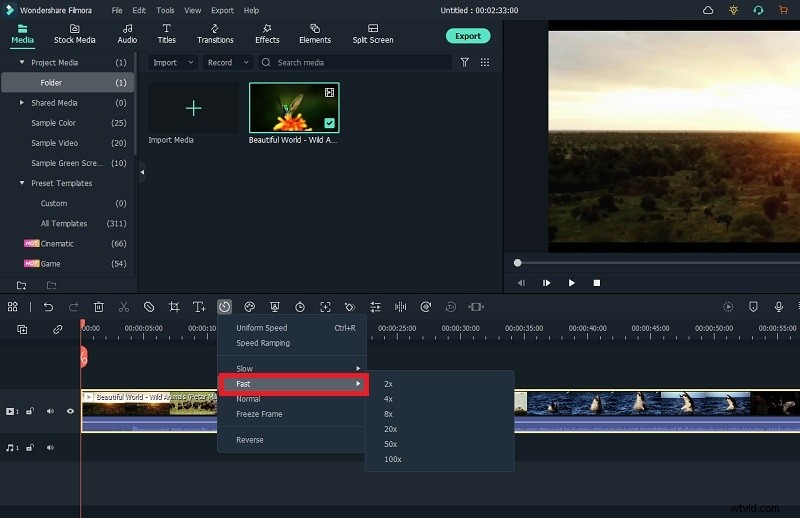
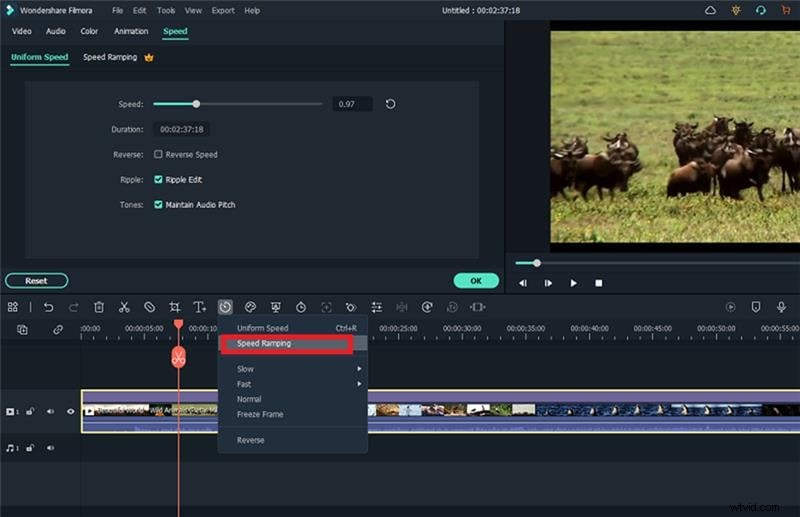
Filmora’s preset menu provides quick access to common speed adjustments. Import your clip, select it on the timeline, click the Speed icon, then choose a preset from the Fast or Slow submenu.
Method 2: Uniform Speed Customization
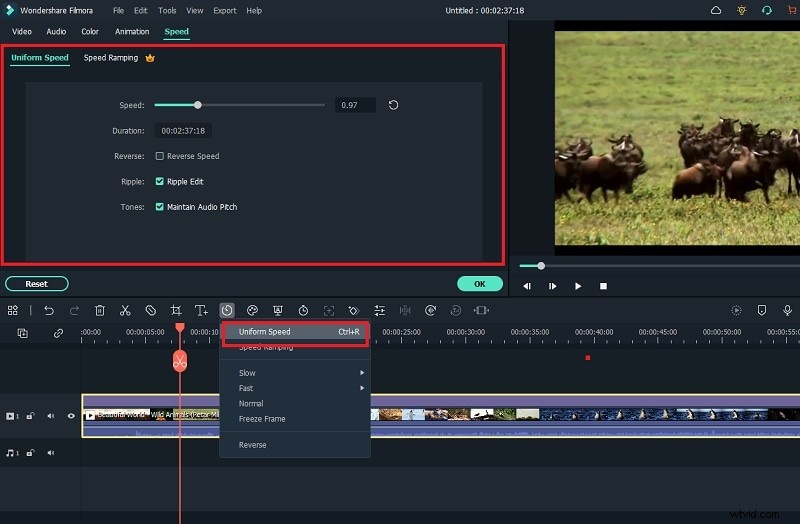
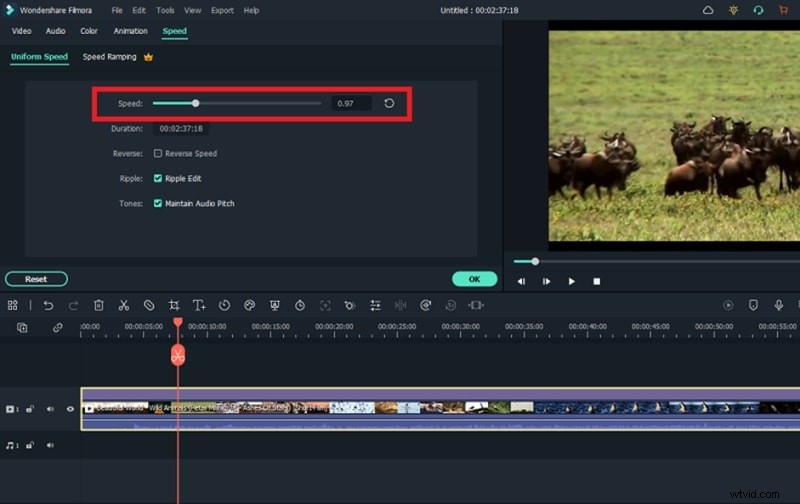
For precision, choose Uniform Speed to set any value from 0.01× to 100×. Adjust the slider, preview, then click OK and export.
Method 3: Speed Ramping
Advanced editors can craft dynamic speed curves. Select Speed Ramping, choose or edit a graph with nodes, and preview the varying speed across the timeline.
Conclusion
Lightworks delivers robust speed‑adjustment tools for professional workflows, but it offers limited customizability beyond preset values. If you need finer control or a gentler learning curve, Wondershare Filmora is a superior choice. Both editors empower creators to shape pacing, highlight moments, and keep audiences engaged.