
Recap videos distill the most memorable moments of an event into a concise, engaging story. Whether you’re a seasoned videographer or just starting out, a polished recap can extend the life of an event and reach a wider audience.
Below you’ll find four distinct workflows—each tailored to a different platform or level of expertise—followed by practical tips that guarantee a professional finish.

In this article
- Method 1. Build a Recap Video from Scratch with Filmora Desktop
- Method 2. Create an Event Recap Using Filmora Templates on Desktop
- Method 3. Produce an End‑of‑Year Recap on Filmora Mobile
- Method 4. Craft a Memories Recap on Instagram Reels
- Key Tips for Impactful Recap Videos
Method 1. Build a Recap Video from Scratch with Filmora Desktop
Starting from raw footage gives you full creative control. Filmora Desktop’s intuitive interface and extensive feature set make this approach accessible for all skill levels.
Follow these streamlined steps to transform your clips into a cohesive recap:
Step 1: Download the “New Year Memory Book Pack” from FilmStock.
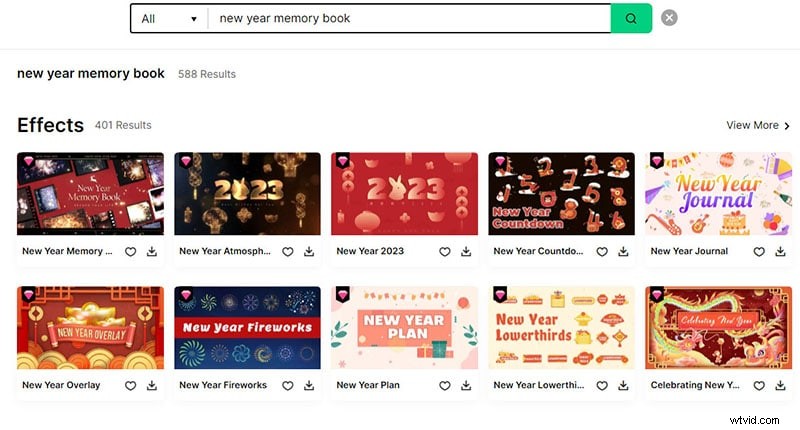
Step 2: Open Filmora, navigate to Effects > FilmStock > New Year Memory Book.
Step 3: Drag and drop your clips, overlays, and audio tracks onto the timeline.
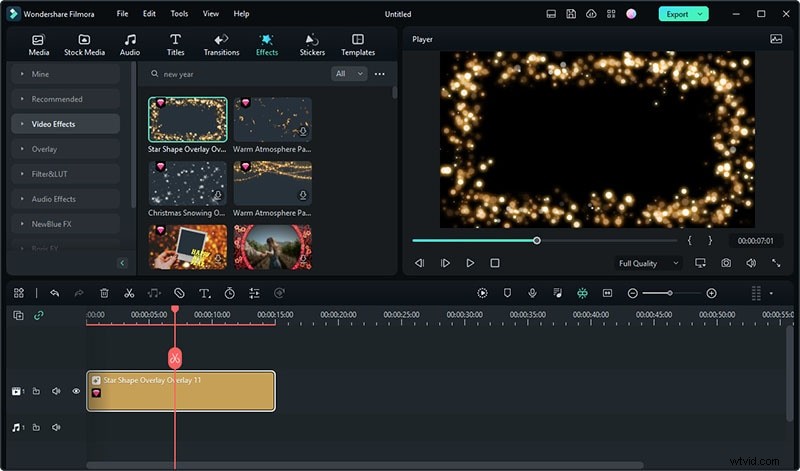
Step 4: Import additional photos and videos to enrich the narrative.
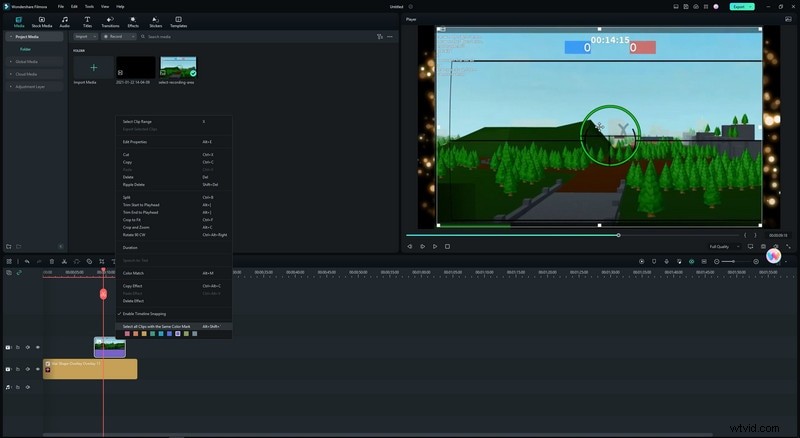
Step 5: Edit each clip—trim, adjust color, and add transitions.
Step 6: Enhance the timeline with effects and overlays.
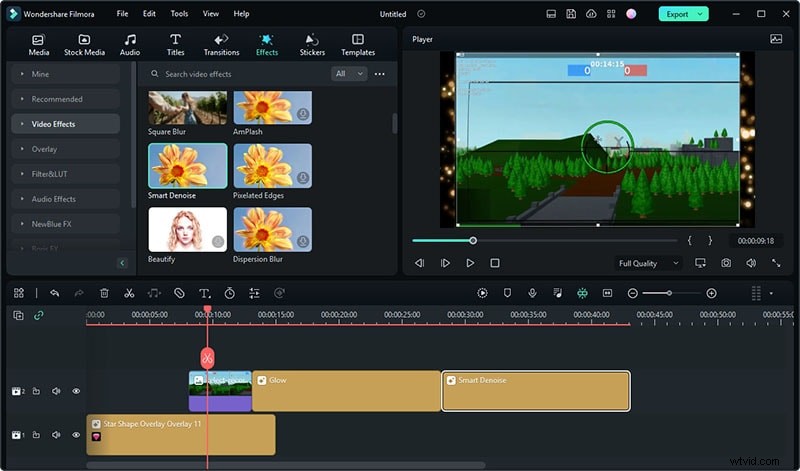
Step 7: Fine‑tune overlay durations to match your pacing.
Step 8: Apply final transitions, edit text overlays, and save the project.
For a visual walkthrough, watch the detailed tutorial linked below.
Method 2. Create an Event Recap Using Filmora Templates on Desktop
Templates eliminate the heavy lifting of manual editing while still offering high quality. Filmora’s library includes a range of event‑specific templates that can be customized in minutes.
Execute the process in five simple steps:
Step 1: Launch a new Filmora project and import your media.
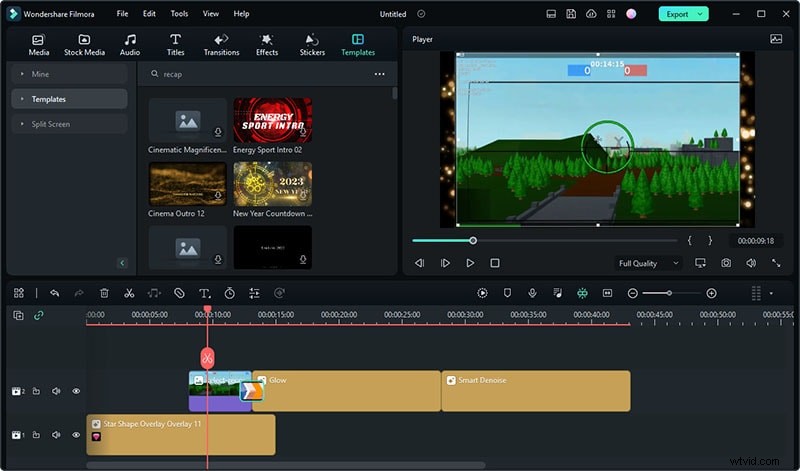
Step 2: Go to the Templates tab, search for “Retro” or “Recap,” and drag a chosen template to the timeline.
Step 3: Drag your footage over the placeholders; choose Replace to swap sample clips with yours.
Step 4: Edit on‑screen text to reflect your event’s details.
Step 5: Preview the result, then click Export and adjust output settings before rendering.
Method 3. Produce an End‑of‑Year Recap on Filmora Mobile
Filmora Mobile turns your smartphone into a portable editing suite, complete with filters, transitions, and text tools. Ideal for creators who prefer on‑the‑go production.
Follow these mobile‑friendly steps:
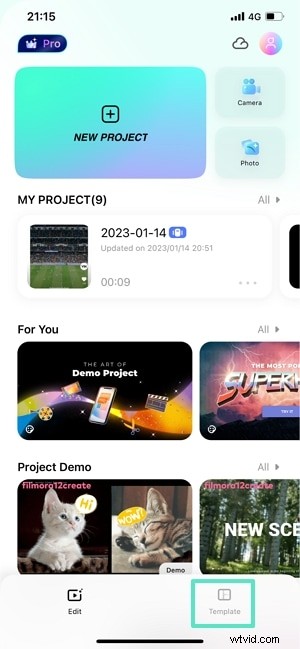
Step 1: Open the Filmora app and select Templates.
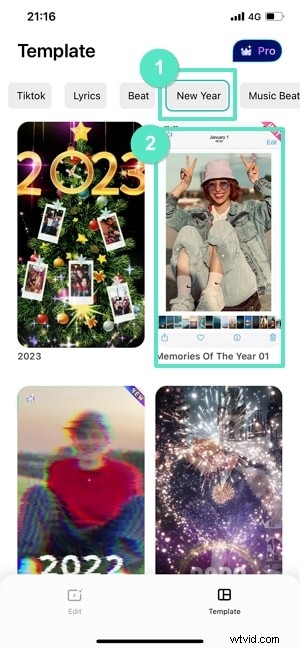
Step 2: Tap the New Year panel to choose an end‑of‑year recap template.
Step 3: Select the template and hit Make Video.
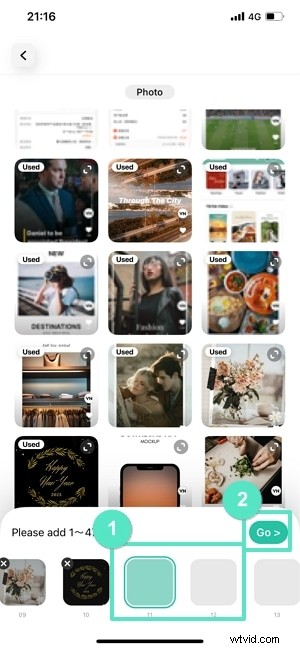
Step 4: Add your photos and clips, then tap Go.
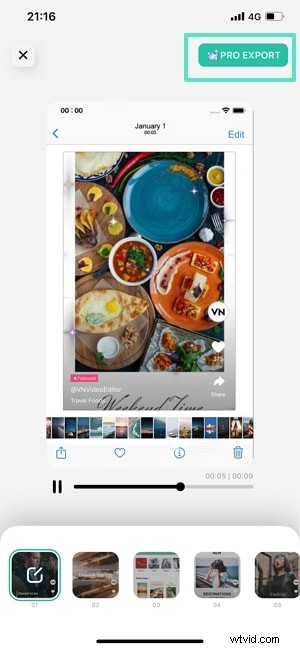
Step 5: Preview the edit, then tap Pro Export.
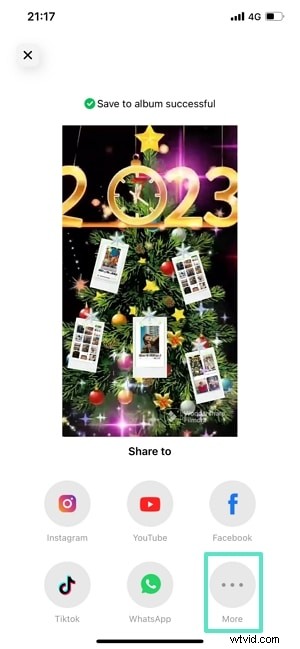
Step 6: Share directly to social media or download for later use.
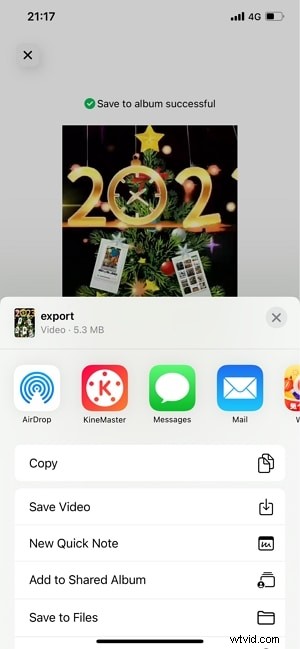
Step 7: Save the finished video to your device.
Method 4. Craft a Memories Recap on Instagram Reels
Instagram Reels offers a 60‑second canvas that blends video, music, text, and effects. It’s perfect for reaching a broad audience quickly.
Use these steps to create a Reel recap:
Step 1: Start a new Reel on Instagram.

Step 2: Choose a suitable template.
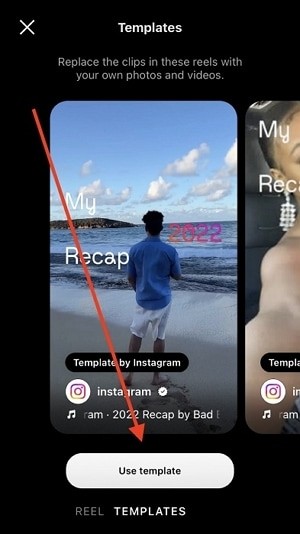
Step 3: Compile clips, add music, text, and visual effects.
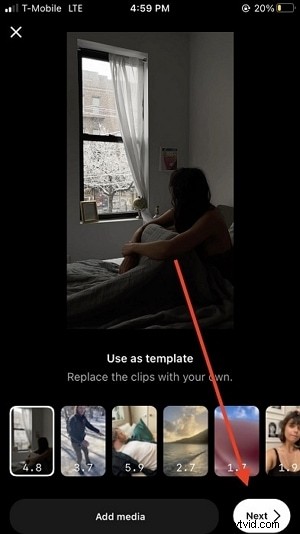
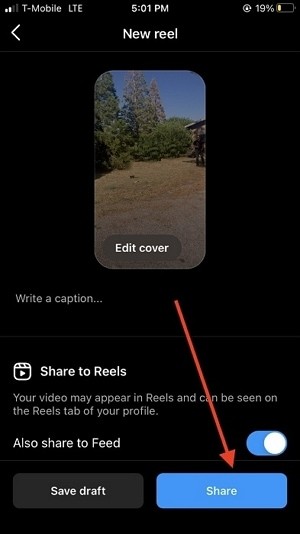
Step 4: Publish the Reel and share across platforms.
Key Tips for Impactful Recap Videos
- Know your audience: Tailor tone, length, and content to viewer preferences.
- Highlight the key moments: Focus on the most emotionally resonant scenes.
- Music and sound design: Choose tracks that set the right mood and reinforce pacing.
- Quality footage: Use varied shots—wide, medium, close‑up—to keep viewers engaged.
- Editing rhythm: Keep cuts brisk; use transitions and text overlays to unify segments.
- Plan meticulously: Script or storyboard before filming to avoid costly reshoots.
- Use appropriate tools: Select software that matches your workflow and skill level.
- Test before publishing: Review on multiple devices for color, sound, and flow.
- Post‑production polish: Color grade, balance audio, and add captions where needed.
- Share widely: Leverage social platforms, email newsletters, and event websites.
Conclusion
A well‑crafted recap video turns a fleeting event into a lasting narrative. By leveraging Filmora’s desktop and mobile suites—or the instant reach of Instagram Reels—you can produce a polished, engaging video regardless of experience level.
Experiment with these methods, refine your process, and share the moments that matter most.