
Combining video and audio can be a daunting task, but the right tools simplify the process dramatically. Below, we review the five best online solutions that let you merge media quickly, without watermarks, and with professional‑grade results.
1. Kapwing – Merge Audio & Video for Free
G2 Rating: 4.2 / 5
Pricing:
- Free – $0
- Pro – $16/month (or $192/year)
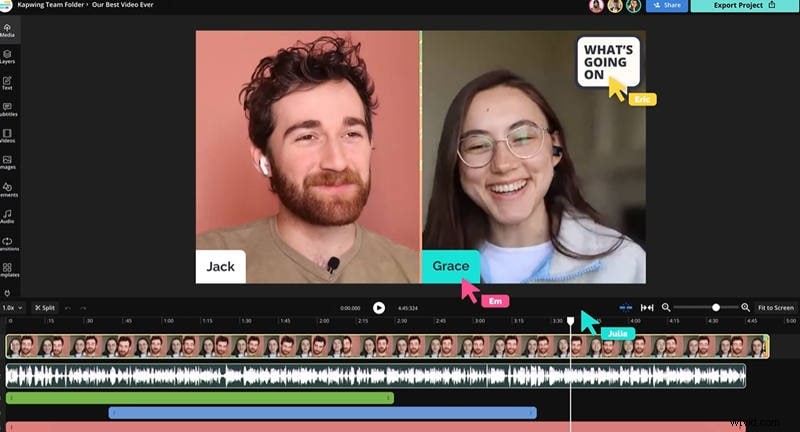
Kapwing offers a cloud‑based editor that supports a wide range of formats, drag‑and‑drop functionality, and no watermark on the free plan. Its suite of editing tools—including trimming, volume adjustment, subtitles, and effects—makes it ideal for creators who need speed without sacrificing quality.
- User‑friendly drag‑and‑drop interface
- Extensive file format support
- No watermarks on free output
- Advanced editing features (subtitles, effects)
- Limited export resolution on the free plan
- Some features gated behind Pro subscription
2. 123APPS – Free, Watermark‑Free Audio‑Video Merging

G2 Rating: No rating yet
Pricing: Free
123APPS delivers a straightforward interface that works across Mac, PC, and mobile. It accepts MP4, MOV, AVI, WMV for video and MP3, WAV, OGG for audio. The platform’s simplicity makes it a go‑to for quick edits.
- Completely free and intuitive
- Supports a broad set of media formats
- Basic functionality; lacks advanced editing
- Limited video trimming options
How to merge with 123APPS
1️⃣ Navigate to 123APPS → Video Tools → Add Audio to Video.
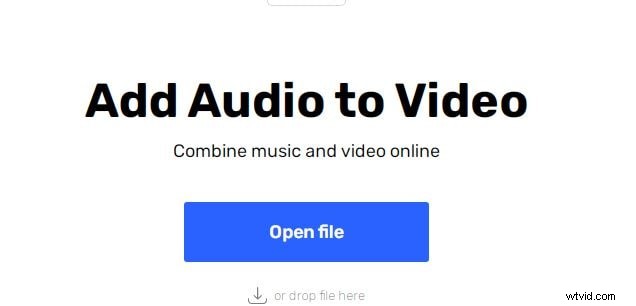
2️⃣ Upload your video and audio files.
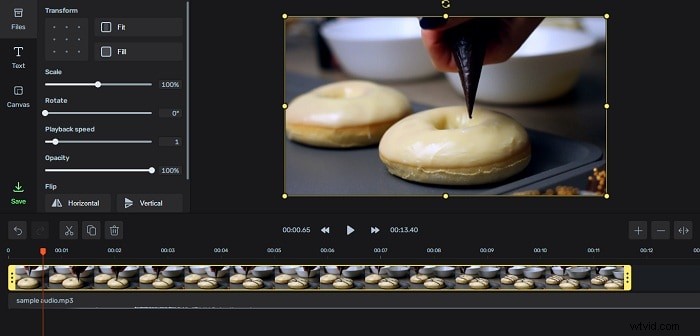
3️⃣ Use the Sound tab to crop and set audio volume.
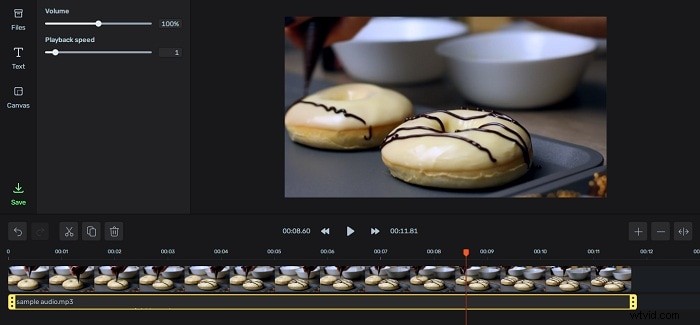
4️⃣ Choose output format and download the merged video.
3. Clideo – Free Browser‑Based Audio‑Video Mixer
G2 Rating: 4.8 / 5
Pricing:
- Free – $0 (watermarked)
- Monthly – $9.00
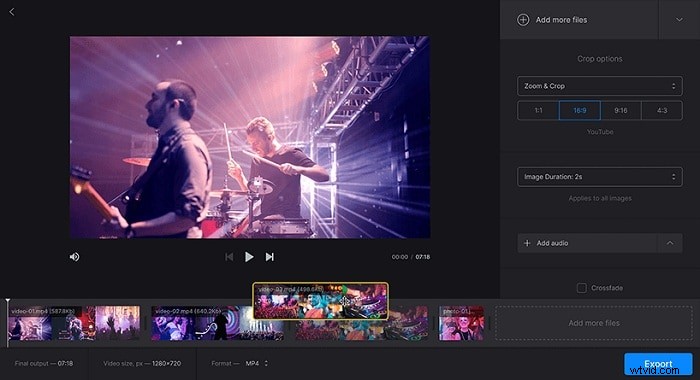
Clideo supports almost every video format, offers drag‑and‑drop arrangement, and provides optional borders, aspect ratio templates, transitions, and music insertion. It’s perfect for quick, visually appealing merges.
- Unlimited free usage (watermarked)
- Intuitive interface
- Broad format compatibility
- Limited design templates
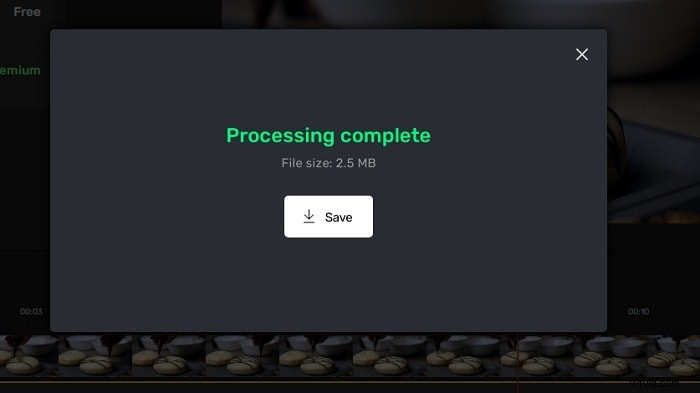
How to merge with Clideo
1️⃣ Visit the Clideo “Add Music to Video” page.
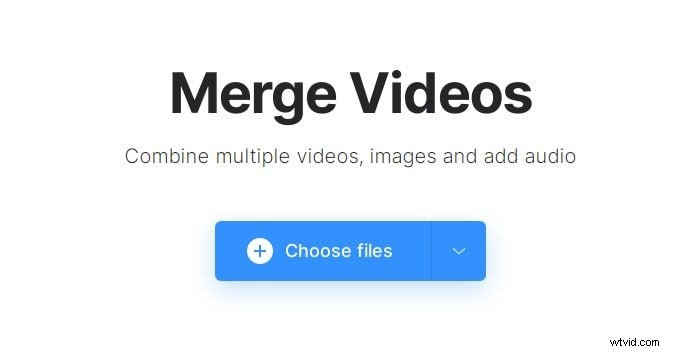
2️⃣ Drag your video file into the editor.
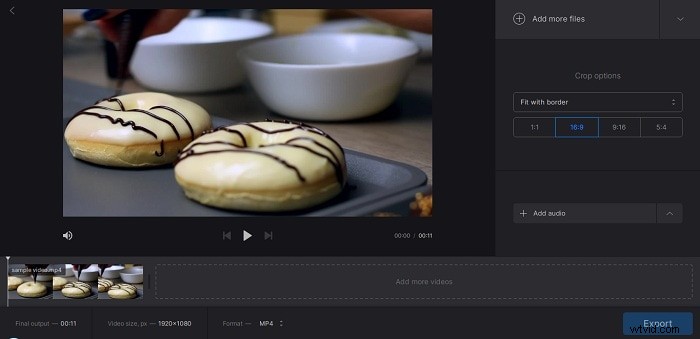
3️⃣ Upload the audio file and sync it.
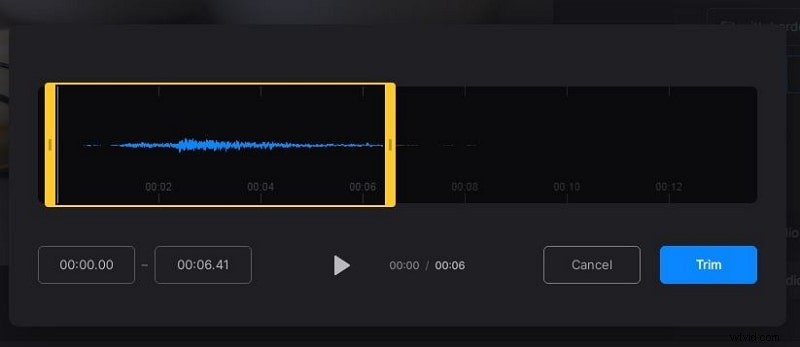
4️⃣ Export and download the finished video.

4. VEED – Versatile Online Video Editor
G2 Rating: 4.2 / 5
Pricing:
- Free – $0
- Monthly – $12.00
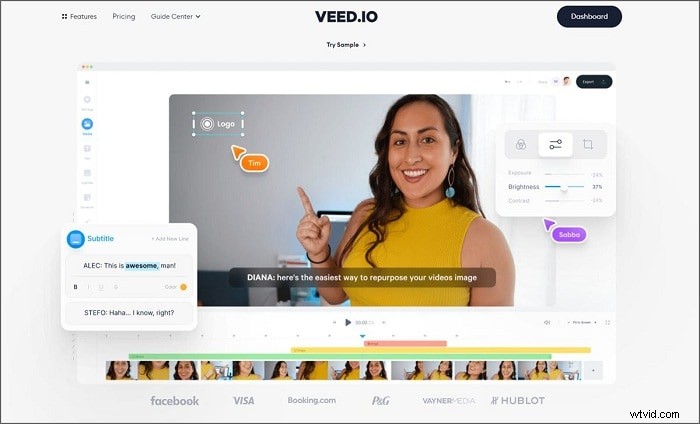
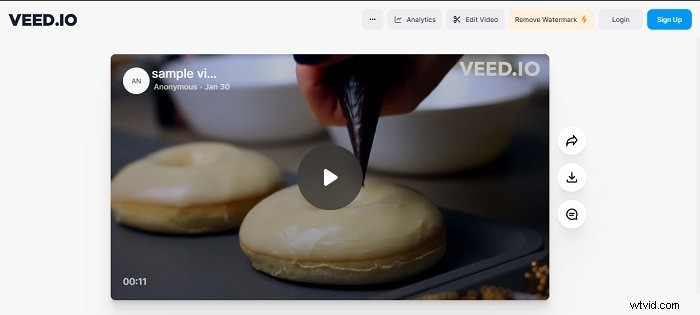
VEED lets you trim, cut, and arrange clips on a timeline, then overlay audio, images, and subtitles. It works across desktop browsers, mobile devices, and supports every common file format. Ideal for creating polished Instagram stories or YouTube ads.
- Clean, organized layout
- Cross‑platform support
- Easy to start using
- Precise cut timing not available
- Free version adds watermarks
- Video length capped at 10 minutes and 250 MB
How to merge with VEED
1️⃣ Upload your video and audio files.
2️⃣ Trim as needed using the cutter/splitter.

3️⃣ Export to merge into a single file.
5. FlexClip – Simple, Watermark‑Free Audio‑Video Combiner
G2 Rating: 4.0 / 5
Pricing:
- Free – $0
- Basic – $9.99/month
- Plus – $19.99/month
- Business – $29.99/month
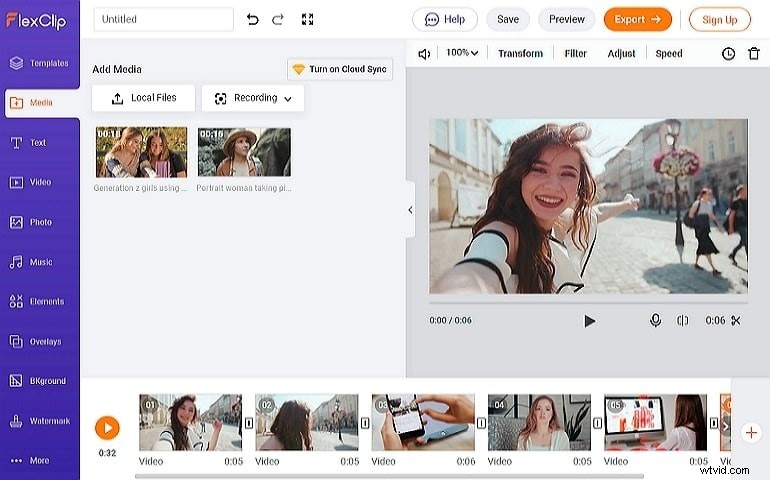
FlexClip’s editor is straightforward: drag your video into the media panel, add audio, then sync using a slider. No watermark is added, and the output quality remains intact. You can share directly to YouTube or download for local use.
- Royalty‑free stock library
- Intuitive interface
- Competitive pricing for professional tools
- Limited feature set compared to premium editors
- Output format options are somewhat restricted
How to merge with FlexClip
1️⃣ Drag your video into the media section and place it on the timeline.
2️⃣ Upload your audio file to the media section.

3️⃣ Adjust audio and video alignment with the slider.

4️⃣ Finalise edits and download the merged video.
Online vs. Offline Merging: Which Path Is Right for You?
Choosing between online and offline merging hinges on your workflow and output needs. Online tools eliminate installation steps, support rapid editing, and are typically free or low‑cost. However, they may offer limited export options and rely on internet speed.
Offline software, such as Filmora, delivers advanced editing capabilities, higher‑resolution outputs, and full control over every frame. The trade‑off is a steeper learning curve and the need for local storage.
Bonus: Offline Merging with Wondershare Filmora
Filmora is a robust desktop editor that enables precise audio‑video synchronization, trimming, and creative effects. It’s ideal for users who require professional polish without the constraints of a browser.
How to merge with Filmora
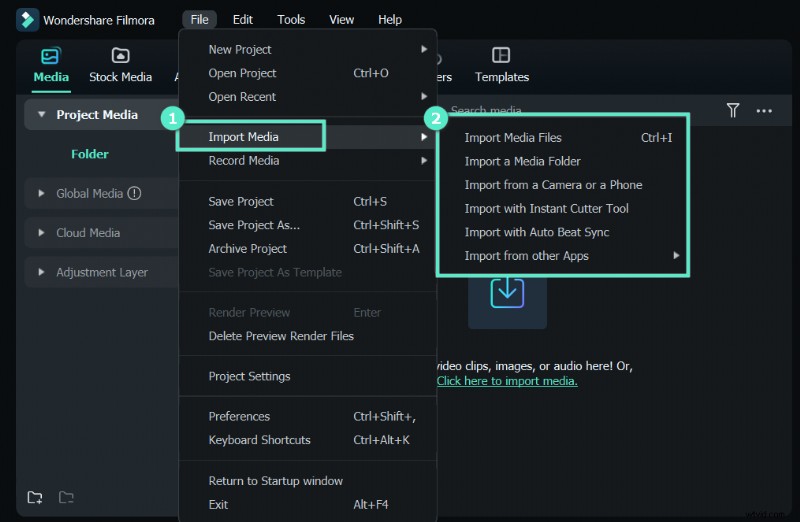
1️⃣ Import audio and video via drag‑and‑drop or the Import Media button.
2️⃣ Arrange clips on the timeline and sync audio.
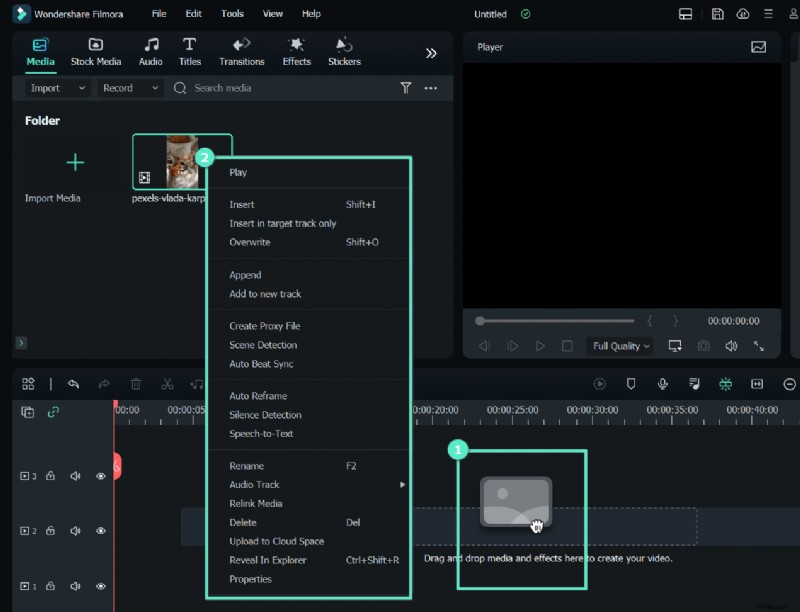
3️⃣ Detach original audio, delete it, and insert your new track.

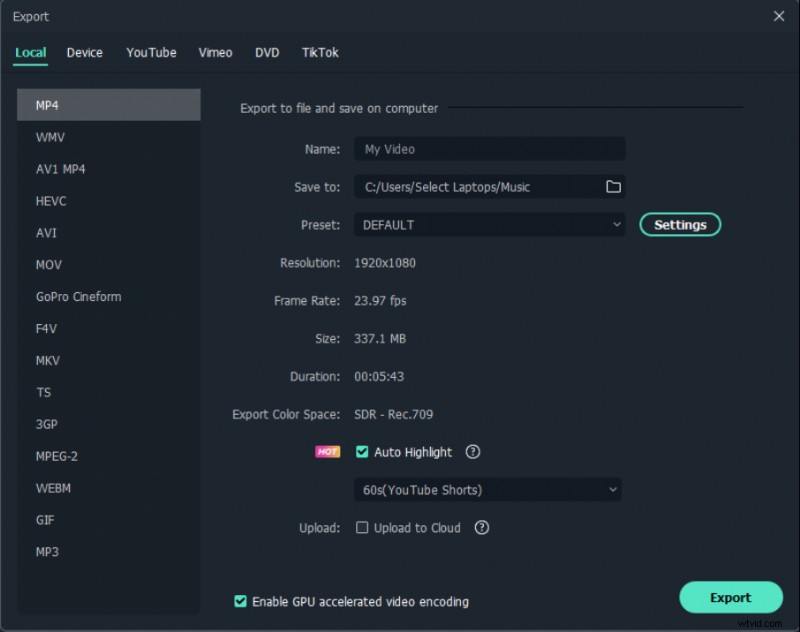
4️⃣ Choose export format and click Export to save the final video.
Conclusion
Whether you need a quick online merge or a feature‑rich offline workflow, the tools above cover every need. For fast, watermark‑free results, Kapwing, 123APPS, Clideo, VEED, or FlexClip are excellent choices. For advanced editing and higher‑quality outputs, consider installing Filmora or similar desktop software. Pick the approach that aligns with your project goals and technical comfort.