
Whether you’re crafting tutorials, slide decks, or cinematic shorts, stripping audio can sharpen visual storytelling, safeguard privacy, and eliminate copyright concerns. This guide explains why silent footage matters and shows you how to remove sound cleanly with Wondershare Filmora.
Table of Contents
Why Remove Audio?
Removing the audio track unlocks a video’s versatility. With the sound muted or deleted, you can:
- Focus on visuals – essential for instructional content and product demos.
- Eliminate background noise – ensuring a clean, distraction‑free viewing experience.
- Respect privacy – hide sensitive conversations while sharing the visual story.
- Comply with copyright – avoid using unlicensed music or dialogue.
- Create language‑neutral footage – audiences can add subtitles or narration in their own language.
- Enable custom soundtracks – viewers can overlay their own music or voice‑overs.
Improving Storytelling with Silence
Silence can be a powerful narrative tool. By removing audio, you:
- Direct attention to visual cues and pacing.
- Encourage viewers to interpret emotion through body language and facial expression.
- Use imagery as a symbolic language, replacing dialogue or music.
- Simplify complex stories, letting the audience fill gaps with imagination.
When you mute a clip, every frame becomes a character, and the absence of sound heightens engagement.
Using Filmora to Remove Audio
Filmora offers two intuitive methods to strip audio: the quick Mute button and the more granular Audio Detach feature. Follow the steps below to remove sound from one or multiple videos.
Method 1: Mute the Entire Track
- Import your video into Filmora’s media library.
- Drag the clip onto the timeline.
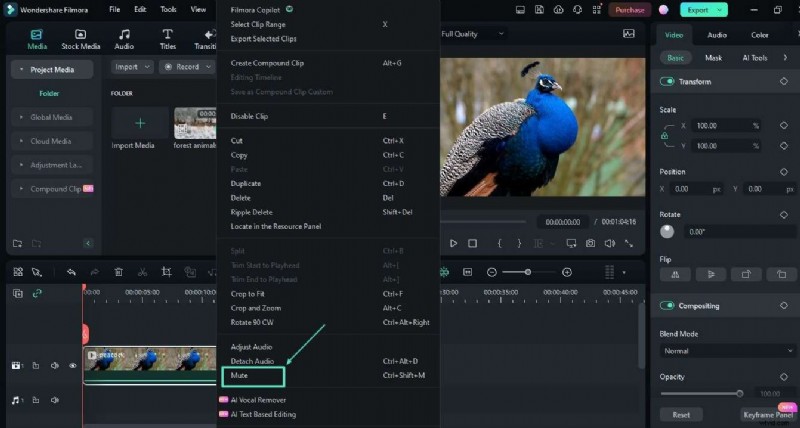
- Right‑click the clip and select Mute (or click the speaker icon on the clip’s toolbar).
- Preview to confirm the audio is silenced.
- Export the video in your preferred format.
Method 2: Detach and Delete the Audio Track
- Upload Your Video
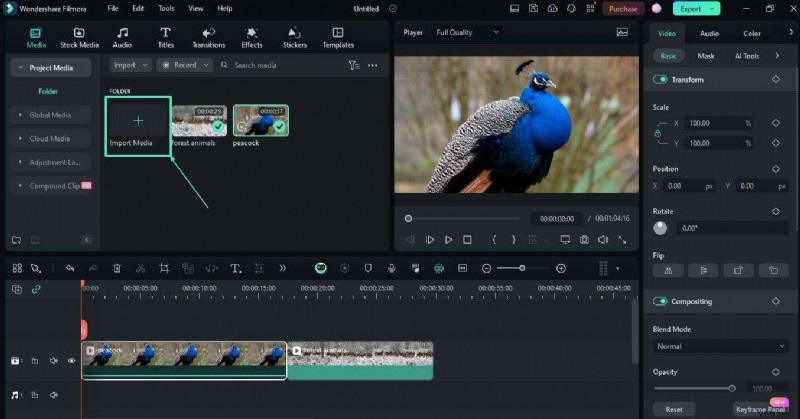
- Click Import and choose the file(s) from your drive.
- Use Ctrl to select multiple files if needed.
- Drag the selected clips into the timeline.
- Detach the Audio
- Right‑click the clip and choose Audio Detach.
- The audio will appear on a separate track below the video.
- Click the audio track and press Delete to remove it.
- Save or Export
- Navigate to File > Save As to create a new project if you plan to edit multiple files.
- When ready, click Export and select the output format.
Both methods are straightforward, requiring no advanced editing skills. Whether you need a quick mute or a precise audio removal, Filmora’s tools make the process efficient and reliable.
Conclusion
Mastering audio removal empowers you to craft cleaner, more adaptable videos. Whether you’re tailoring content for multilingual audiences, protecting sensitive dialogue, or simply improving visual focus, a silent clip can elevate storytelling and broaden your creative possibilities.
With Filmora’s intuitive features, removing audio is just a few clicks away—no expensive software or steep learning curve required.