
Animated GIFs remain a favorite for adding personality and emotion to digital conversations. When you want to isolate particular frames or create custom segments, a reliable GIF splitter is essential. In this guide we evaluate the best solutions across desktop, mobile, and web platforms, offering clear usage tips and expert recommendations.
In this article
- Best Software for Splitting GIFs and How to Use It
- Mobile Apps for Splitting GIFs
- Online Tools for Splitting GIFs
Part 1. Best Software for Splitting GIFs and How to Use It
Desktop applications deliver superior quality and granular control. They allow you to work offline, integrate with other media tools, and perform frame‑by‑frame editing—ideal for users who need professional results. Though they can be pricier and have a steeper learning curve, the payoff is worth it for serious editors. Below are the top desktop options:
Wondershare Filmora [Recommended]
Filmora combines a user‑friendly interface with powerful editing capabilities. It supports GIFs natively and lets you split animations into individual frames or segments with a simple click. Beyond splitting, you can adjust brightness, add text, or apply filters—all within the same timeline. This makes it the go‑to tool for both novices and advanced users.
Here’s a concise walkthrough to split a GIF in Filmora:
Step‑by‑Step Guide
Step 1: Add the GIF to the Timeline
Drag your GIF from the media library straight onto the timeline. This places the animation in a manipulable context, letting you preview each frame.
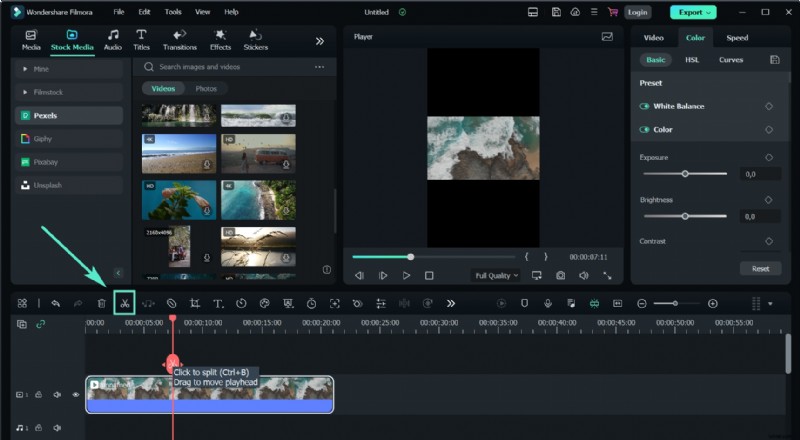
Step 2: Split the GIF into Frames
Move the playhead to the desired split point and click the Scissors icon—or right‑click and select Split. Repeat for each segment you wish to isolate.
Step 3: Edit the Frames (Optional)
Select a frame and use Filmora’s editing suite to tweak color, overlay text, or apply effects. Once satisfied, export the edited portion as a new GIF.
Filmora’s blend of ease and depth makes it a top recommendation for GIF splitting and customization.
GIMP
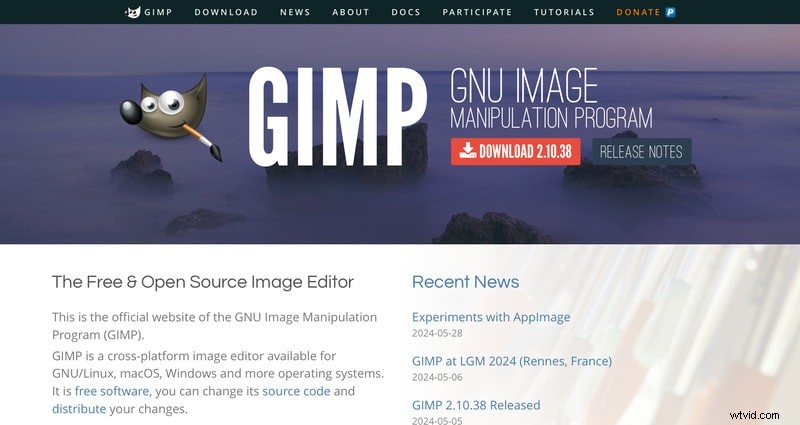
GIMP, the open‑source image editor, offers robust GIF support. Its layer‑based workflow treats each frame as a separate layer, enabling precise edits and splits without cost. Though the interface may seem dated, its flexibility and plugin ecosystem make it a powerful choice for advanced users.
Adobe Photoshop
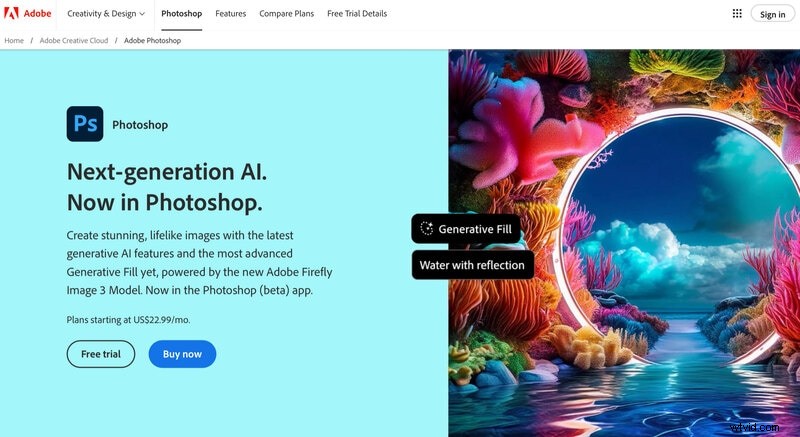
Photoshop’s Timeline panel provides granular control over GIF frames, allowing you to split, adjust timing, and apply complex effects. While it requires an Adobe subscription, its industry‑standard tools are indispensable for professionals seeking meticulous results.
Part 2. Mobile Apps for Splitting GIFs
For quick edits on the go, mobile apps deliver convenience, though they may lack some desktop features. Below are the three most reliable GIF splitters for iOS and Android:
Gif Me! Camera
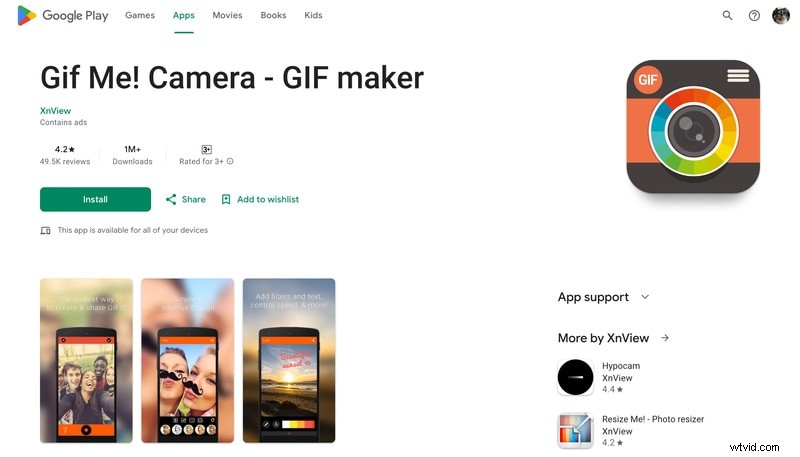
This app lets you capture or import videos, then convert them into GIFs. Its built‑in splitter allows you to isolate individual frames, making it perfect for on‑the‑fly adjustments.
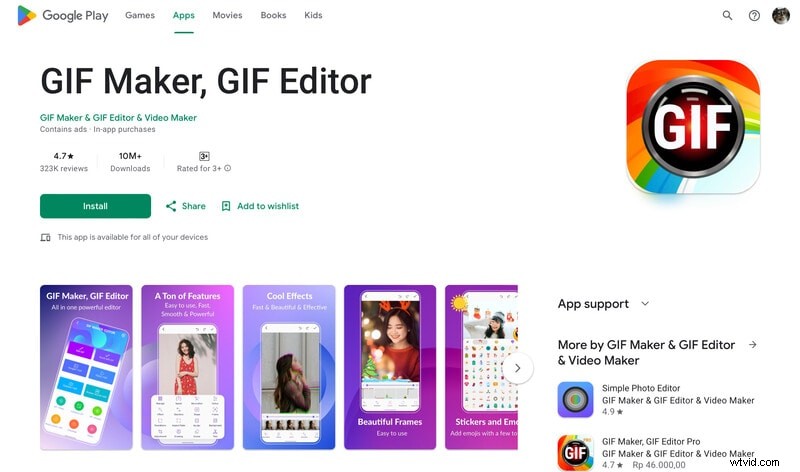
GIF Maker, GIF Editor
Offering a straightforward interface, this tool splits GIFs into frames, lets you edit each one, and supports export to common formats. Ideal for users who need basic yet reliable functionality.
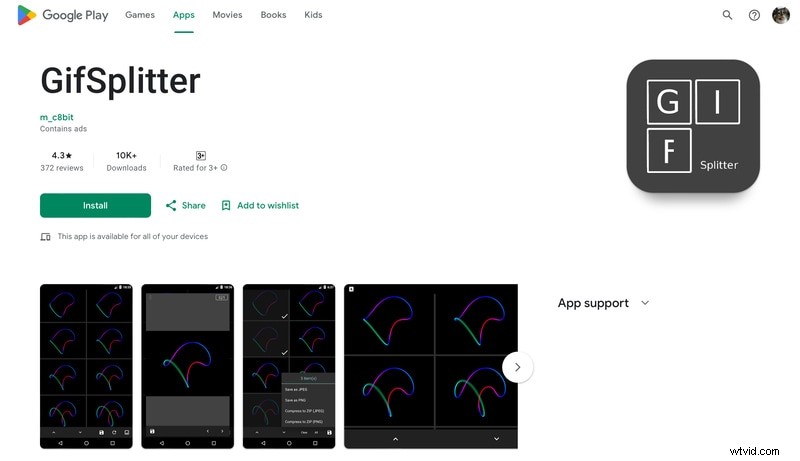
GifSplitter
Designed specifically for GIF manipulation, GifSplitter allows you to upload an animation, split it into frames, and download the segments individually. Its simplicity makes it ideal for beginners.
Part 3. Online Tools for Splitting GIFs
Web‑based editors eliminate the need to install software, offering fast and accessible solutions. Here are the most popular online GIF splitters:
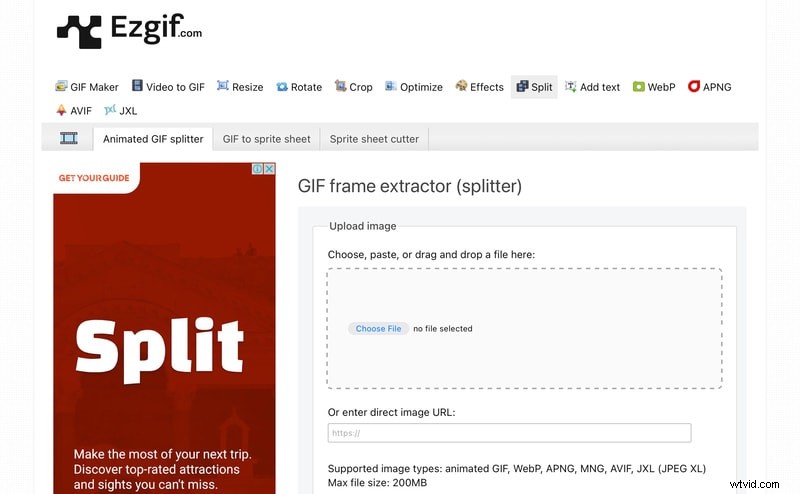
EZGIF
EZGIF is a versatile online suite that lets you edit, add text, stickers, and more. Its splitter feature breaks GIFs into individual frames that can then be customized before saving.
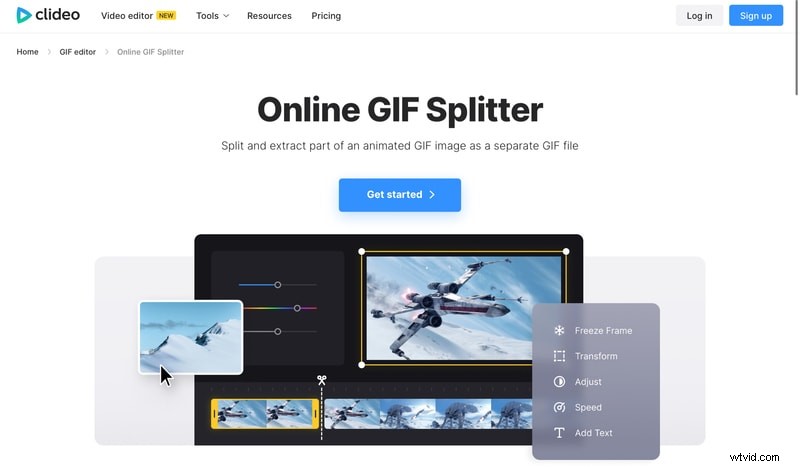
Clideo: Online GIF Splitter
Clideo provides a clean interface for cutting long GIFs into shorter segments. It also supports conversion to MP4 and merging with other media, all from the browser.
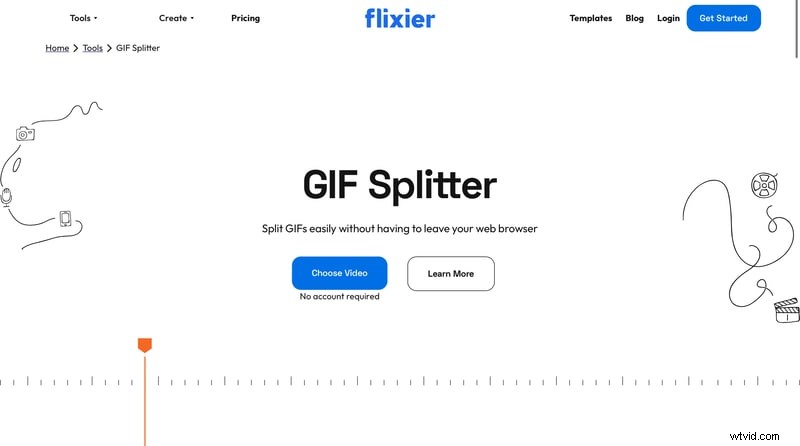
Flixier: GIF Splitter
Flixier offers a drag‑and‑drop workflow with a timeline for precise cuts. No account is required, and you can instantly save or convert the resulting segments.
Conclusion
Whether you’re editing on a desktop, on the go, or from a browser, there’s a GIF splitter that fits your workflow. For professionals, Wondershare Filmora stands out with its intuitive interface and robust editing tools. For free, high‑quality options, GIMP and Photoshop remain industry staples. Mobile users can rely on Gif Me! Camera, GIF Maker, or GifSplitter for quick edits, while EZGIF, Clideo, and Flixier provide powerful online alternatives.
Start splitting and customizing your GIFs today—choose the tool that best matches your needs and unlock new creative possibilities.

