
Are you eager to polish your editing skills and looking for an easy video trimmer but don't know how to get it? Well, you are not the only person who has the same issues. But you don't have to worry at all because you will get all the solutions right here.
Yes, this article will provide you with the top list of easy video trimmers. These tools will help you enhance your editing skills, offer your video a mesmerizing look, and make you feel satisfied. So, let's delve into it and explore the important facts!
In this article
- How should you pick the best easy video trimmer?
- Top Easy Video Trimmers for PC, Mac, and Mobile!
- A Step-by-Step Guide to Using Wondershare Filmora Video Trimmer!
Part 1: How should you pick the best easy video trimmer?
Getting the best easy video trimmer is important if you want your work to stand out. To do so, you must know what you are looking for in a tool according to your needs and preferences. Here are the key aspects mentioned below to consider:
User-Friendliness: If you are completely new to trimming videos, you must opt for a tool that is easy to use and has an intuitive interface.
Supported Formats: While selecting a video trimmer, you must remember that the tool should support the video format you need to trim. Sometimes, what happens is that many tools don't support various video formats. So, do check the features of the tools to finalize it.
Editing Features: A video trimmer must have basic features to trim or crop a video, mix audio, split and merge clips, and convert the video into other file types. However, many tools offer advanced features such as animations, filters, transitions, background music, voiceover, captioning or subtitles, and overlays that enhance your video and make it more engaging.
Platform Compatibility: It is worth opting for a tool that works on Android, iPhone, and desktops while supporting operating systems such as Windows, Mac, and Linux. However, some tools exclusively support one operating system, while others are web-based. You must consider whether you want a tool that works online across devices or a tool that can be downloaded for offline use.
Part 2: Top Easy Video Trimmers for PC, Mac, and Mobile!
What if you get a top list of the tools that offer you an easy way to trim video effortlessly? Feels amazing, right? Well, let's go and find out what these tools have to offer you.
Wondershare Filmora
As numerous tools are easily available to trim video in the digital market, it becomes difficult to decide which tool should be used or not. But it won't happen to you, because we bring the perfect tool to trim video: Wondershare Filmora. This tool has cross-platform compatibility, which means it is quite easy to trim video on devices including Android, iPhone, Windows, and Mac. Let's have a look at its features to know how easy it is to trim video.
Key Features:
- With its simple yet straightforward trimming feature, complete your task in no time with perfection and no quality loss for a concise video.
- Quick split mode converts large videos into smaller parts in a matter of minutes.
- Compound Clip Editing: combines multi separate videos, allowing users to edit them simultaneously.
- Easy-to-use interface.
- Comes with various video format export options such as AVI, MOV, MP4, GIF, MKV, MP3, WAV, and more.
- Customization preset assetssuch as transitions, effects, filters, and more get more creative of your video content.
- Provides limited features of editing in the free version as compared to the paid one.
iMovie

iMovie is a tool particularly designed for Mac users and can trim videos for free. With this tool, trimming a video will be a hassle-free job. Moreover, it provides you with a user-friendly interface that makes you familiar with the editing tools in no time, even if you are a beginner. Finding it amazing, then look at its amazing features to learn about it.
Key Features:
- Allows you to trim frames from the beginning and end of the video.
- Supports multiple video formats to trim the video, including AVI, MP4, MOV, and more.
- Offers to adjust the speed of the trimmed videos.
- Free to use for Mac users.
- Provides high-quality output files after trimming the videos.
- Easy to export video while choosing various resolutions, formats, and quality settings.
- Offers limited advanced features for editing videos.
- Compatible for Mac devices only.
Movavi

Here we recommend another tool to trim videos with ease. When it comes to its feature of managing output quality, it is an awesome software to work with. But you should go through its features to decide if it suits your preferences.
Key Features:
- Its user-friendly interface provides ease of use for beginners.
- Works well with Windows and Macs, iPhones, and Android.
- Effortless trimming of the videos with perfection.
- Provides support for multiple formats, such as AVI, MKV, and more.
- Free version is available to those who don't have enough money to buy such tools.
- Offers to select the output format, resolution, and frame rate options according to your needs.
- Create watermarks when using its free version to export video files.
- Limited editing features and customer support.
InVideo

Invideo is an online tool that is amazing for trimming videos. It is compatible with devices such as Windows, Mac, Linux, or phones, so concern about which device is suitable for using this tool no longer exists.
Key Features:
- Allows you to trim a video into many formats, such as MOV, AVI, MP4, and more.
- Easy to adjust the trim points by frames.
- Its simple and user-friendly interface allows you to use it with ease, even if you are a beginner.
- Offers high-quality output files after trimming the video with minimal loss of quality.
- You can convert your output file into different formats, such as GIF, PNG, and MP4, effortlessly.
- Comes with a free version with limited editing capabilities.
Part 3: A Step-by-Step Guide to Using Wondershare Filmora Video Trimmer!
Stabilize Videos with Wondershare Filmora
- Superb video stabilization with low distortion.
- Vast video/audio effects and creative assets.
- Powerful AI for effortless content creation.
- Intuitive, professional yet beginner-friendly.
- Works on Mac, Windows, iOS, and Android.



In this section, we are mentioning easy methods to trim video on windows, so that trimming videos will be a matter of minutes.
Though these methods are simple, you can opt for any of them as an easy way to trim a video. Let's move forward and follow its step-by-step guide to use this feature.
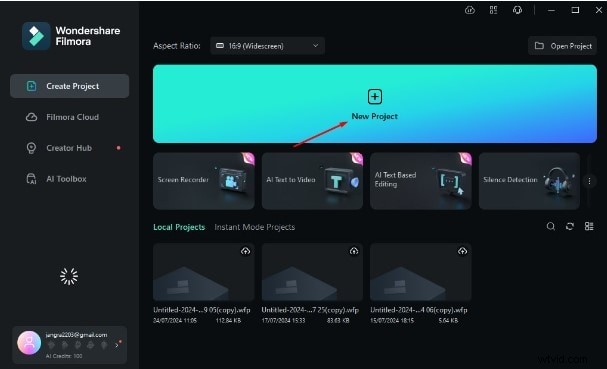
Step1Download and Launch Filmora
Download the latest version of Wondershare Filmora and then Install > Open > New Project.
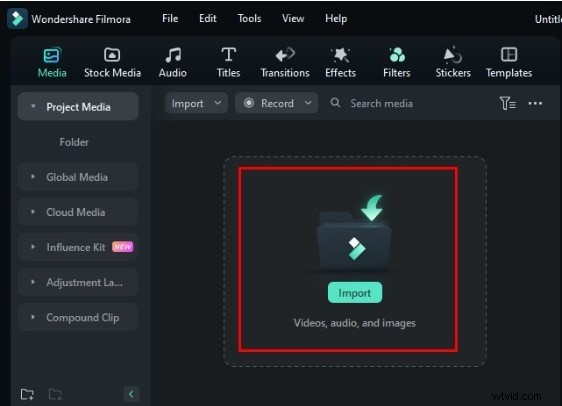
Step2Import the media file
Pressthe Import option to import the video you want to trim.
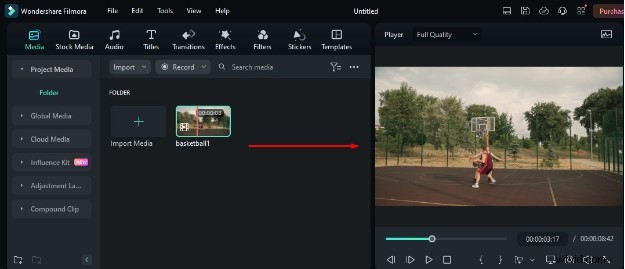
Step3Preview the imported file
Double-click the imported file in the media library, and it will show in the Preview section.
Step4Trim your video
Method 1: Mark In and Mart Out
Play the video and click on the Mark In Point option to trim the start of the video.
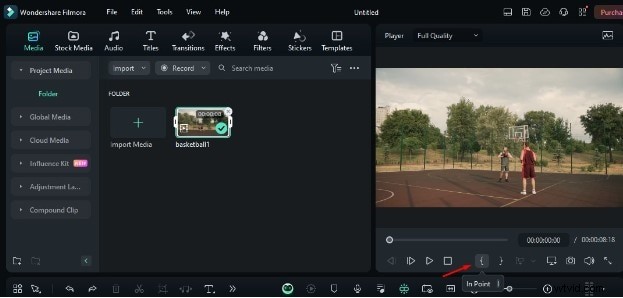
To trim the end of the video, click on the Mark End Point option.
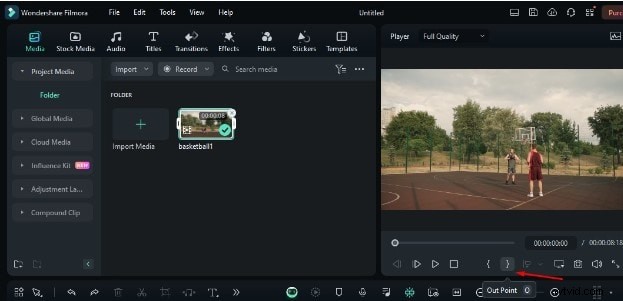
Note: You can change the position of the start point and end point of the video using In Point and End Point before editing it into the timeline.
Method 2: Trim Video in Timeline
Simply hover mouse over the right or left edge of the video unless the trim tool shows. To trim the video portion you want, click and drag the edge of your video backward and forward.
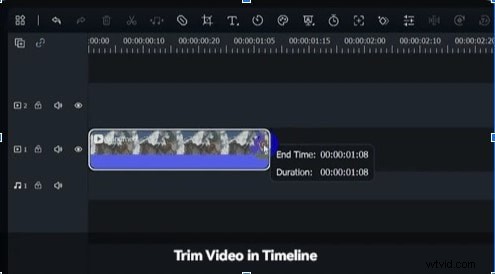
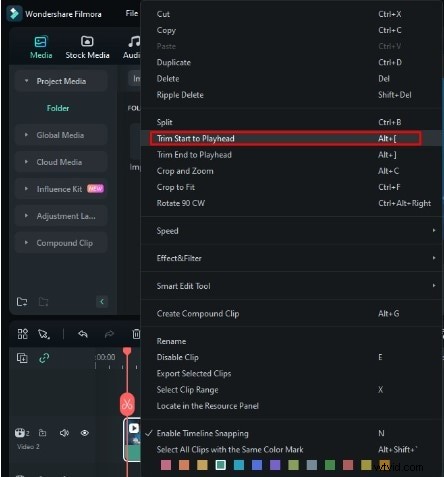
Method 3: Trim Start and End to Playhead
Place the playhead at the starting point of the video to trim and right-click. Then, select the option Trim Start to Playhead.
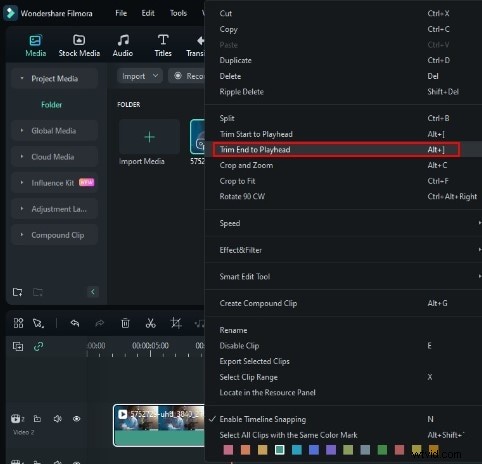
To trim the endpoint of the video, select Trim End to Playhead.
Step5Customize your video
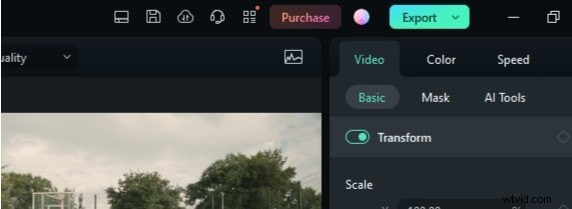
You can use templates and audio features to enhance the video quality, and once your editing is complete, click the Export button.
Step6Export the trimmed video
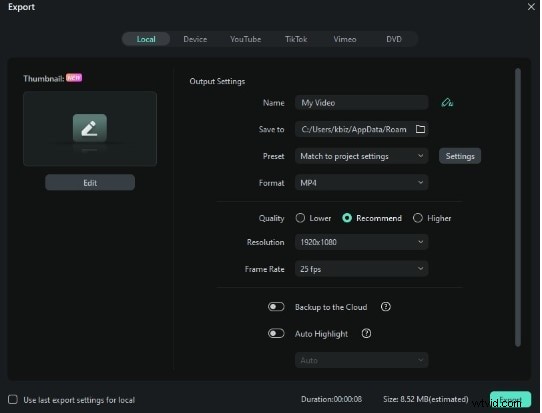
Select the format, quality, resolution, and frame rate according to your needs. You can click on the Backup to the Cloud option if you need to, and to finalize the changes, press the Export button.
Conclusion
Choosing the right tool can make your work flawless, which means you don't need to edit the video content again and again. In this article, we have described the meaning of a video trimmer and offer a list of easy video trimmer for your convenience. But opting for Wondershare Filmora makes your video trimming job interesting. It offers you effortless editing while providing professional yet engaging content. So, simply go for its trial version before switching to its subscription.