
Speeding up videos is a common task in video editing. As an Apple user who works in video editing, you often use iMovie to polish your videos. iMovie is a free video editing program available to Mac users. Even though it’s not the most advanced video editing software for Mac users, it can do a good job.
Furthermore, it’s free, and many intermediate users rely on it to perform various tasks, including speeding up videos. iMovie can effectively speed up and slow down videos, but in this post, we’ll focus on speeding up videos.
Whether you want to add special effects to specific parts of your video, create a time-lapse video, or create a more dynamic effect, you can use iMovie. Today, we'll share detailed step-by-step instructions on how to speed up clips in iMovie on different Apple devices.
In this article
-
- How to Speed up a Clip in iMovie 9 and 11
How to Speed up a Clip in iMovie on a Mac
Using iMovie on Mac to speed up clips gives you more flexibility. However, it’s important to mention that different versions of iMovie are used today. Many Apple users use iMovie 9, 10, or 11. What’s weird about them is that the steps are similar on iMovie 9 and iMovie 11, while the iMovie 10 has a different workflow for speeding up videos.
Regardless of which of these versions you have on your Mac, we’ll share all the steps you need to follow. One of the critical differences between iMovie 10 is the new library file system, which looks more like the one in Final Cut Pro X, but that’s information for another time.
The newer versions are also more intuitive and more user-friendly. Users can easily change the speed of a clip on different parts. Still, it’s the same software, and you’ll quickly find your way around all versions.
You can change the speed of your video in iMovie on Mac to speed up your clip. In addition, iMovie lets you adjust the frame rate using automated playback controls.
Here are the steps to speed up a clip in iMovie :
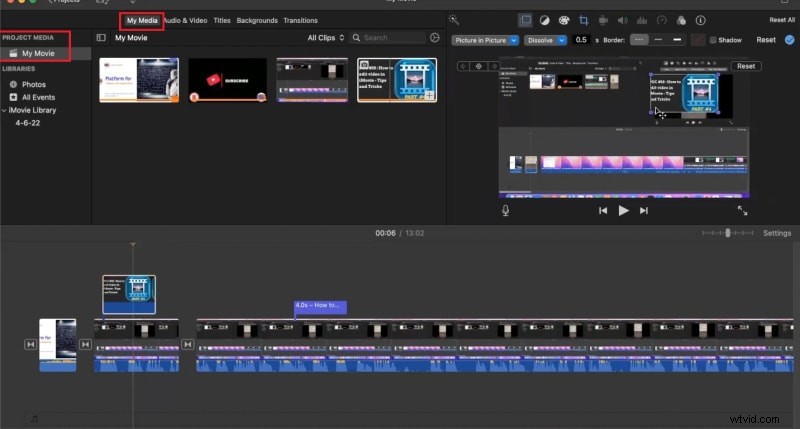
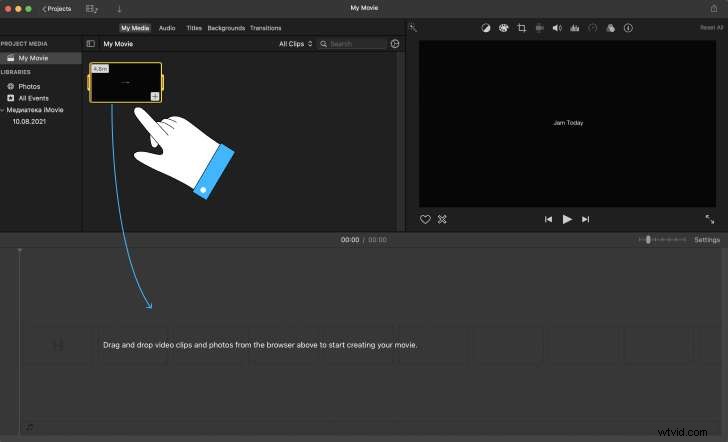
Step 1: Launch the iMovie app on your Mac and import the video clip;
Step 2: Drag the clip to the timeline;
Step 3: Click the Speed button (clock-like icon);

Step 4: Access the Speed control menu and change the playback speed setting to Fast;
Step 5: Set the desired speed using the available options (2x, 4x, 8x, or 20x normal speed);
Step 6: Click Preview to check your changes.

How to Speed up a Clip in iMovie 9 and 11
If you’re using a Mac with iMovie 9/11, follow the steps below to speed videos:
Step 1: Launch iMovie 9/11 on your Mac, navigate to File > Import to import your video, and drag it to the Project;
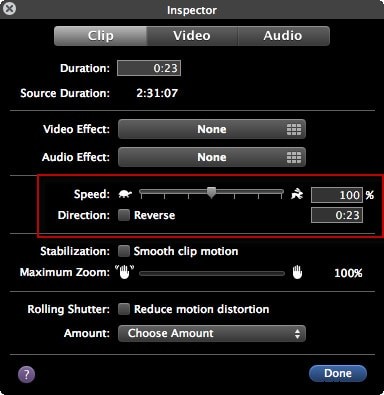
Step 2: Double-click the video to open the Inspector panel and select the Clip tab;
Step 3: Navigate the Inspector to the Speed section and drag the Speed slider to the right to make the video play faster. You can also set the preferred speed percentage to speed up your clip according to your requirements. If you wish to play your video backward, tick the Reverse box.
Step 4: Click Done to save your changes.
How to Speed up a Clip in iMovie on an iPhone/iPad
iPad and iPhone share a similar interface to iMovie. We’ll use the steps to speed up a clip in iMovie on iPhone.
Here’s how:
Step 1: Tap the iMovie app on your iPhone device and select Projects;
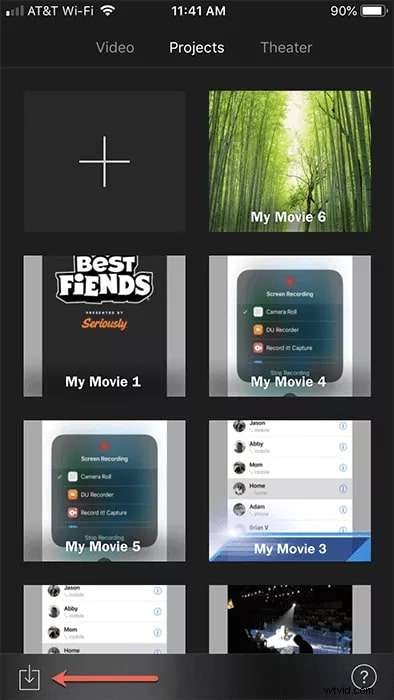
Step 2: Select Create Project and tap Movie in the New Project window;
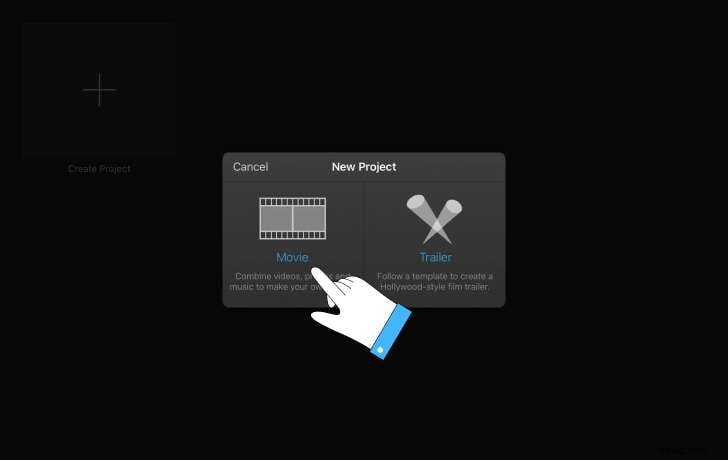
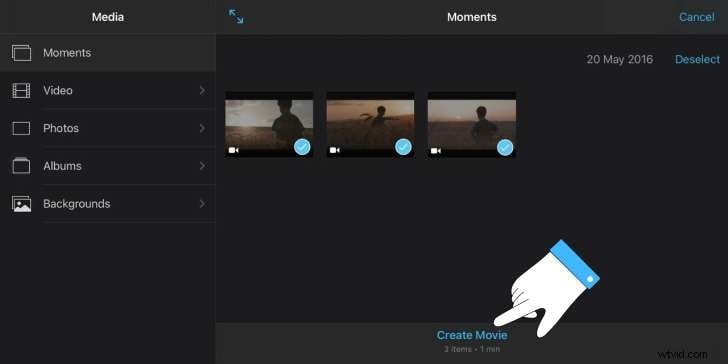
Step 3: Select the clip you wish to speed up and tap Create Movie;
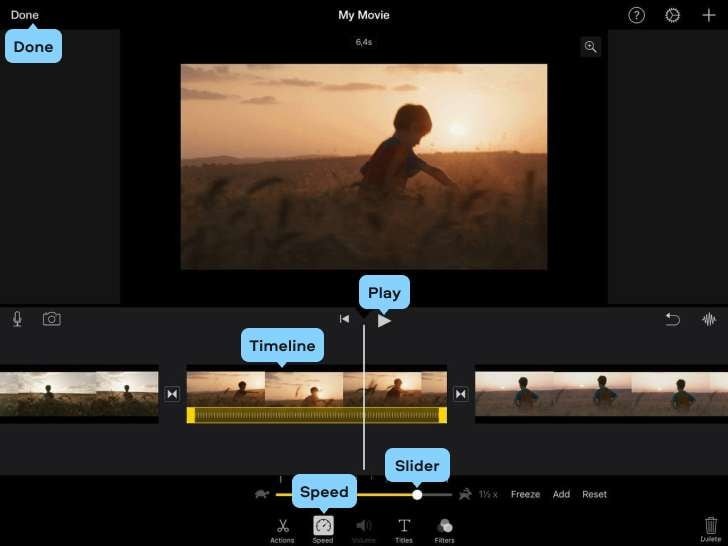
Step 4: Tap the video in the timeline and select the Speed icon;
Step 5: Drag the Speed slider to the right to speed up your clip, then tap Done to save your changes;
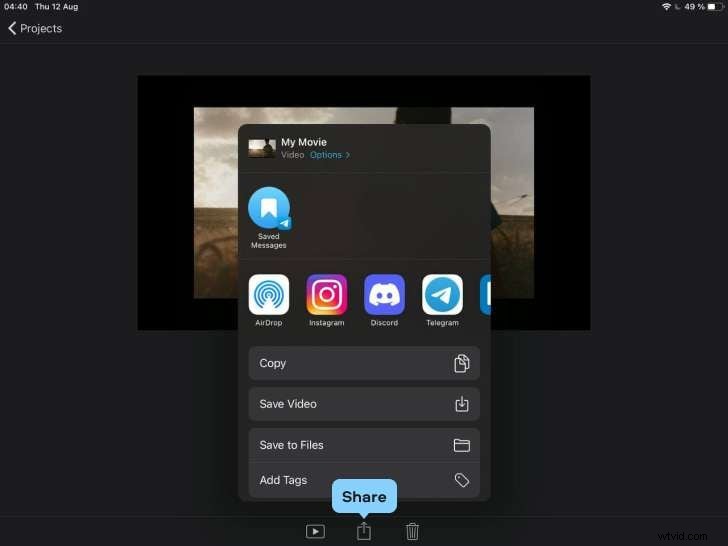
Step 6: Tap Share > Save Video to save the sped-up clip on your phone or share it online.
A Better Alternative: How to Speed up a Clip in Filmora
If you need a more intuitive, streamlined, and powerful video editor for Mac, Wondershare Filmora should be on your radar. Filmora can do everything that iMovie does, only better and faster. Filmora lets you speed up your Mac video using a simple slider, allowing you to track how fast the playback of your clip will be.
You can adjust the video playback speed, freeze specific frames to create a stop-motion effect, reverse speed to play your clip backward, use AI Optical Flow and Frame Interpolation to create Hollywood-style super motion effects, upscale video resolution, increase the frame rate, and much more. Filmora lets you change the playback speed without altering the original audio pitch.
In addition, Filmora gives you access to six professional-grade speed ramping presets and templates to help you custom-tailor the playback speed according to your specific needs.
Here are the steps to help you speed up your video in Filmora:
Step 1: Download, install, and launch Filmora on your Mac;
Step 2: Navigate the main menu to Create Project > New Project;
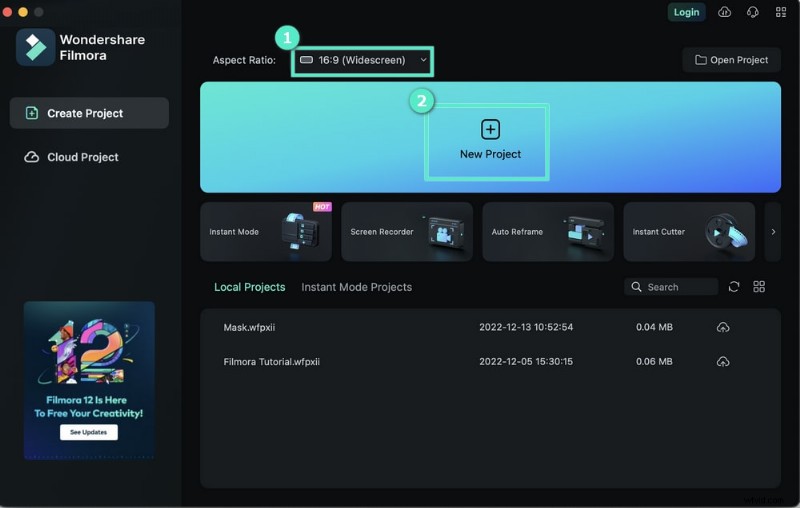
Step 3: Navigate to File < Import Media and select Import Media Files;
Step 4: Drag your video to the timeline;
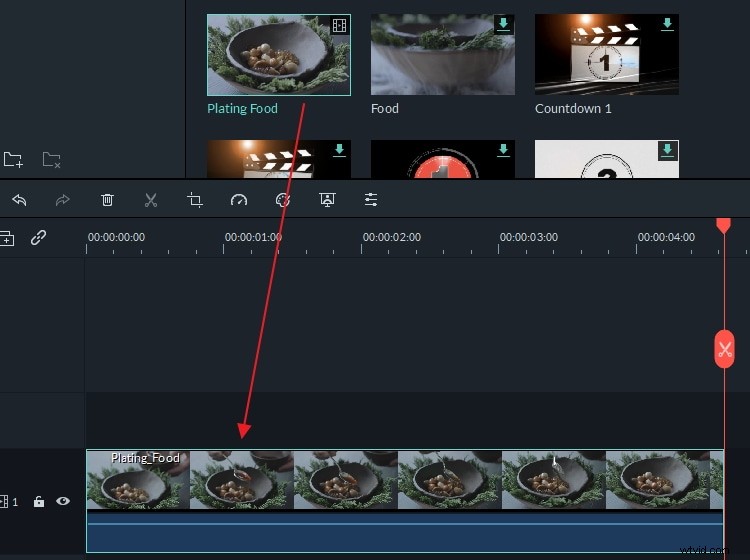
Step 5: Click the clip in the timeline and select the Speed button (clock-like icon);
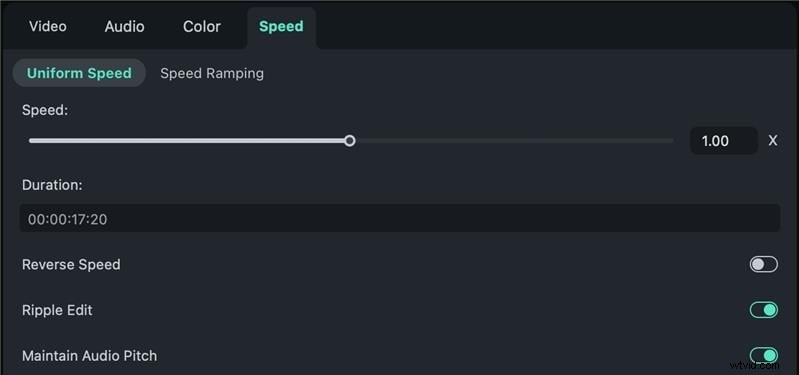
Step 6: Select Uniform Speed from the menu;
Step 7: Navigate to Speed > Uniform Speed and drag the Speed slider to the right to speed up your clip. You can also select the numeric value to change the playback speed or enter the preferred value in the Duration section to get the desired output. Enable Reverse Speed if you wish to play the video backward.
Tips for Speeding up Videos
Here are some practical tips to help you speed up your videos like a pro:
- Select the best moments in your footage – avoid making random playback speed alterations. Instead, select the key highlights and enhance them with speed effects to increase engagement.
- Find the perfect pace that enhances your clip’s playback – speeding up a clip can distract your viewers. So, aim for a matching playback speed that can complement your content and storytelling.
- Break longer clips by creating sped-up ranges to speed up specific parts of your video – speed ranges allow you to speed up particular parts of your video footage to help your viewers keep up with the narrative.
- Avoid changing the audio pitch – don’t change the audio pitch unless you absolutely have to.
- Select the right background music for your video – find the right soundtrack to set the desired mood and enhance the viewer experience. The matching audio can complete the playback speed alteration.
- Pick the matching video background – selecting the matching background for the faster parts of your video allows your audience to focus on the action and the storytelling.
Conclusion
This article showed you the best methods to speed up a video clip in iMovie on Mac, iPhone, and iPad. The iMovie video editing app offers multiple options for changing the playback speed. You can speed up and slow down your video footage without changing the original audio pitch to create engaging time-lapse videos, fast-motion effects, and much more.
If you prefer mobile devices, the iMovie app for iPhone and iPad can help you create playback speed alterations on the go. In addition, we shared the best alternative to the iMovie video editor for Mac.
Wondershare Filmora lets you speed up your clips on Mac using three different playback speed alteration modes, allowing you to create professional-grade, easily shareable content.
FAQ
-
How to slow down a video in iMovie?
Follow these steps to slow down a video in iMovie:
Step 1: Launch iMovie on your Mac and open the video you wish to slow down;
Step 2: Click the Speed button to open the playback speed menu;
Step 3: Select Slow to slow down your video in the Speed section.
-
How do you speed up a clip in iMovie?
Here are the steps:
Step 1: Open the video you wish to speed up in iMovie;
Step 2: Click the Speed icon;
Step 3: Select Fast from the Speed menu.
-
What is the best third-party software for editing video speed on Mac/Windows?
Wondershare Filmora is the best video editing software tool for making playback speed adjustments on Mac and Windows.