

YouTube is a treasury of video content you can access to learn more about the subject you’re interested in. However, you may discover that the speed of the YouTube video doesn’t fit your preferences, which is why we’re here to help.
Today’s guide will focus on providing detailed steps on how to speed up a YouTube video. We’ll cover all devices to provide the ultimate guide and help you navigate the experience effortlessly. Without further ado, let’s jump into the steps.
In this article
How to Speed Up a YouTube Video Before Uploading
If you want to change the speed of your YouTube video before you present it to the world, the best method is to use a designated video editing software solution. For instance, Wondershare Filmora provides all the tools you need to speed up your video in seconds and get the desired results.
Wondershare Filmora has an intuitive user interface, so you can navigate the journey even with no previous experience in the field. Aside from this, it provides numerous advanced and AI-powered solutions that can help you enhance the quality of your YouTube content and increase your online visibility. Here are some of the speed features you can enjoy in your experience:
- Freeze frame — You can pause a specific frame in your video with just a few clicks.
- Reverse speed — Play the video backward and adjust its speed.
- Optical flow — This AI-powered feature allows you to create exceptional and smooth slow motions.
- Speed ramping — Customize the speed experience using curves to get the best results.
Head to the official Wondershare Filmora website, download the tool to your desktop device, and follow these steps to learn how to speed up your YouTube video before posting it to your channel:
Step 1: Open Wondershare Filmora and click on the New Project option from the main menu.
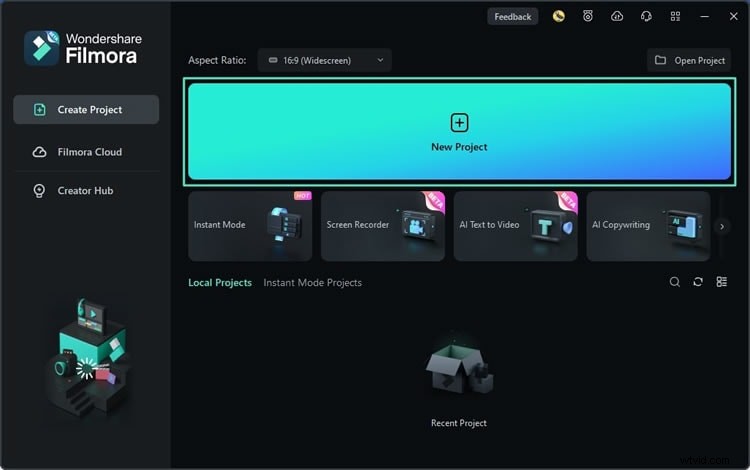
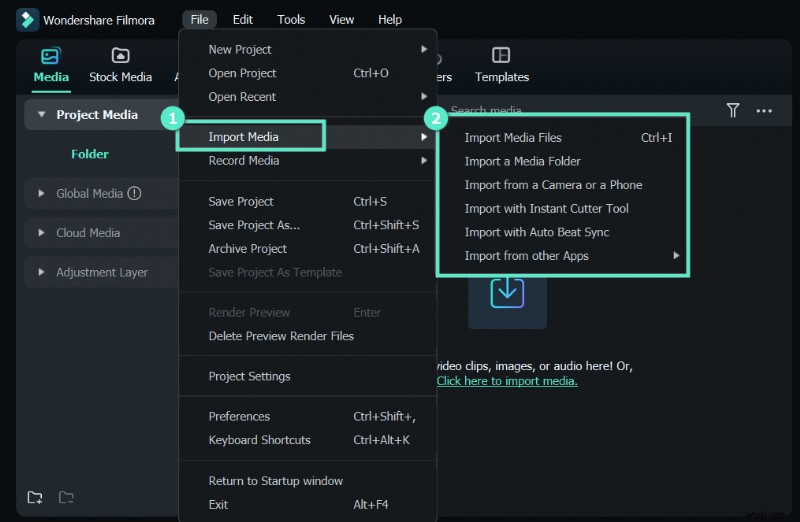
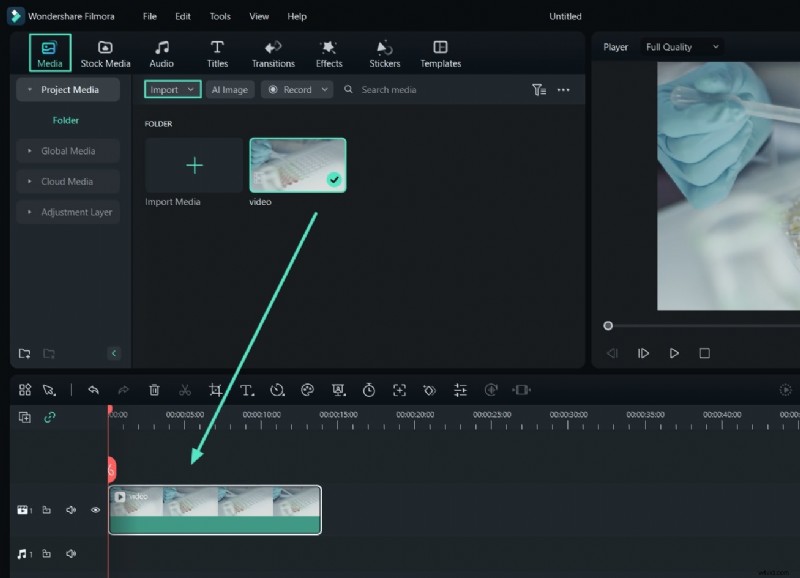
Step 2: Next, import your video by dragging and dropping it to the platform.
Step 3: Drag the video to the timeline.
Step 4: Tap the Speed icon and select Uniform Speed from the drop-down menu.
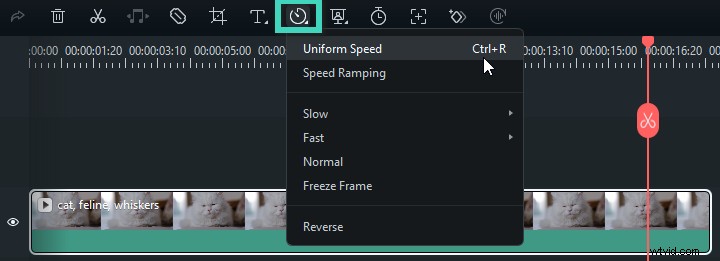
Step 5: Adjust the speed according to your preferences.

Step 6: Preview the changes.

And just like that, you’ll get the desired video speed results and prepare your YouTube content for further use.
If you’re watching a YouTube video and want to speed it up, here’s how you can do it on your computer:
Step 1: Open your desired YouTube video on your desktop.
Step 2: Click on the Settings icon, as presented in the image below.

Step 3: Head to Playback Speed.
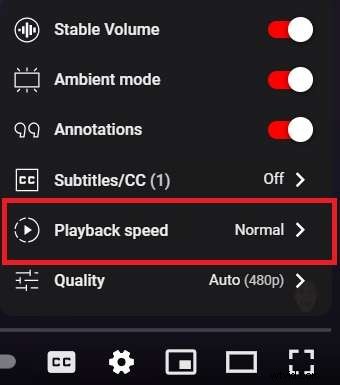
Step 4: Select the desired speed.
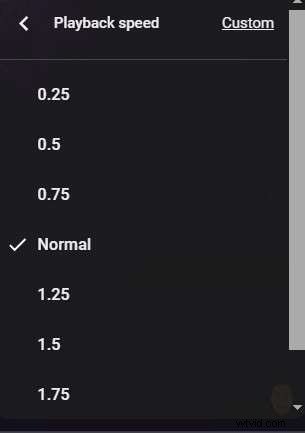
Once you complete these steps, the speed of the video will automatically change.
How to Speed up a YouTube Video on Mobile
Speeding up a YouTube video on your mobile device is similar to the abovementioned steps. You can follow this guide to learn how to do it:
Step 1: Open the desired YouTube video on your mobile device.
Step 2: Tap on the Settings icon.

Step 3: Open Playback Speed settings from the menu.
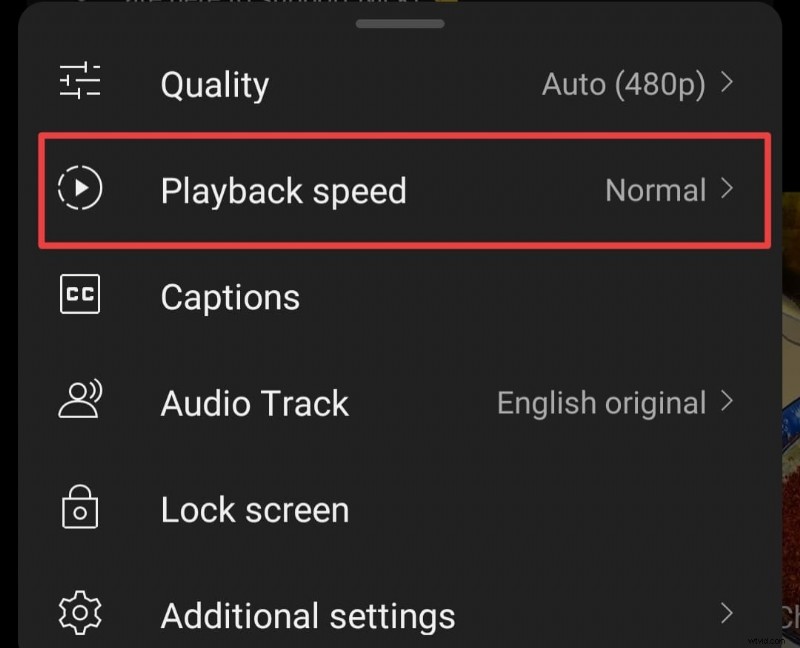
Step 4: Select the desired speed.

After you finish these steps, the video will automatically speed up.
How to Speed up a YouTube Video Using Chrome Developer Tools
Since YouTube allows you to speed up a video up to 2x, you may wonder whether there’s an option to speed it up even more. Luckily, you can use built-in Chrome developer tools to get the desired results. We’ll teach you how to speed up your YouTube video using this method below.
Step 1: Open your YouTube video in Chrome.
Step 2: Click on the three dots from the top bar and head to More Tools > Developer Tools.
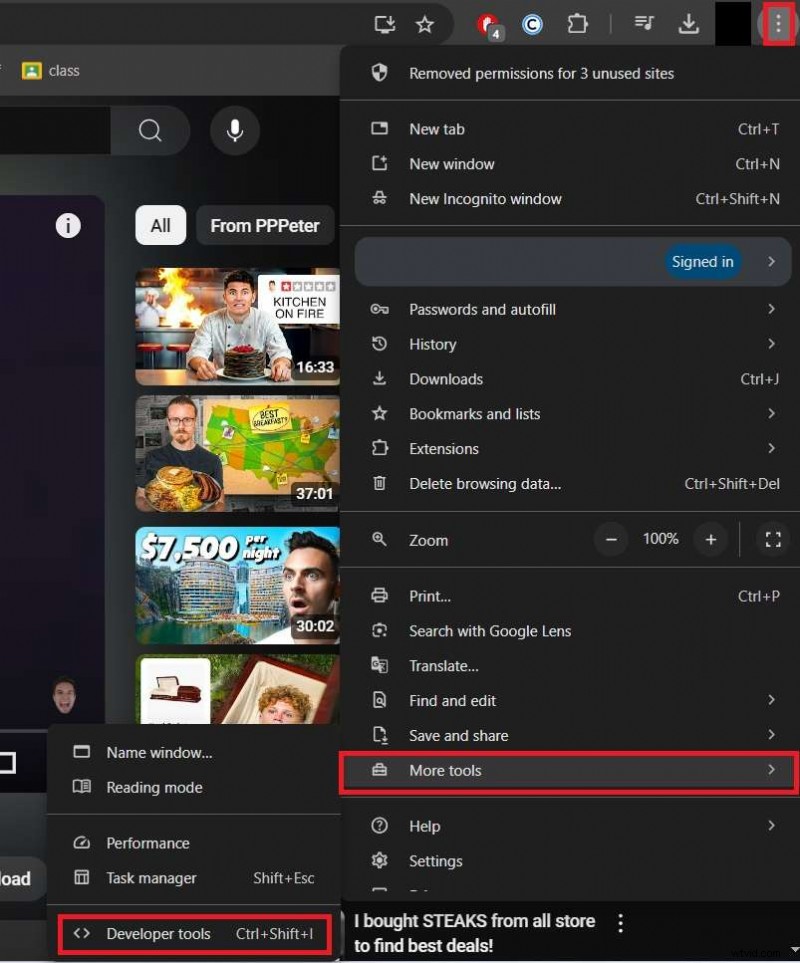
Step 3: Head to the Console tab and type this command: $('video').playbackRate=x. Replace x with the speed you want. Press Enter.
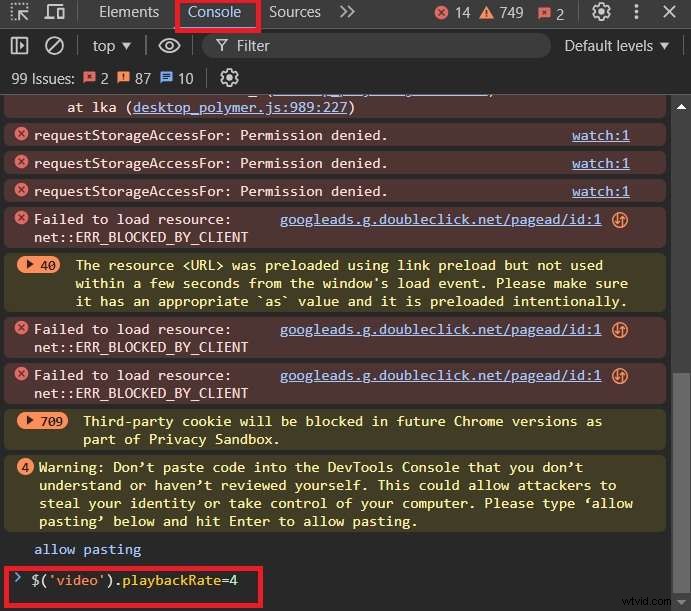
Now, close the developer tools and play your YouTube video.
Conclusion
Sometimes, a YouTube video you play is slow, or you may not have the time to watch the video at normal speed. Luckily, there are several methods you can use to speed up YouTube videos and get the desired results. We’ve discussed desktop and mobile solutions, as well as a universal Chrome solution that allows you to customize the experience.
If, on the other hand, you want to speed up a video you want to post on YouTube, the best solution you can try is Wondershare Filmora. This all-in-one editor will help you meet your needs and increase engagement.
FAQ
-
How much can I speed up/slow down videos on YouTube?
The built-in solution allows you to speed up a video up to 2x. However, if you’re seeking more, you can use Chrome developer tools. It lets you speed up the video up to 16x and completely customize the experience.
-
Can I change the speed on YouTube in real time?
Absolutely! All you have to do is click on the gear icon, head to Playback Speed, and select the desired speed for your YouTube video. It’ll automatically apply the changes, and you can enjoy the rest of your watching experience.
-
How can I edit YouTube video speed offline?
The easiest way to do so is to download a reliable editing solution like Wondershare Filmora. It allows you to manipulate the speed of your YouTube video offline, making it ideal for all experiences. It’s the most universal and inclusive method out there.