
Combining video clips directly on your iPhone is an essential skill for anyone looking to create polished highlights, travel reels, or family montages. By learning how to merge videos on an iPhone, you can turn a collection of separate clips into a single, seamless story.
With the right tools, anyone can do it. Below you’ll find a step‑by‑step walkthrough of the most popular methods—from the built‑in Photos app and iMovie to the powerful third‑party app Filmora Mobile.
In this article
- Using Filmora Mobile to combine videos
- Creating simple compilations with the Photos app
- Turning Live Photos into a single video
- Using iMovie for more control and customization
- Best practices and advanced features for a professional finish
Part 1: How to Combine Videos on iPhone with Filmora Mobile
Filmora Mobile offers a comprehensive set of editing tools that go beyond the basic features found in Apple’s native apps. Whether you’re a novice or a seasoned editor, Filmora makes merging videos on an iPhone straightforward while giving you access to high‑quality export options, creative effects, and AI‑powered enhancements.
Why Choose Filmora Mobile?
- Picture‑in‑Picture (PIP) to overlay multiple clips or images.
- Speed control for slow‑motion or time‑lapse segments.
- AI Smart Cutout to remove objects or swap backgrounds.
- AI Audio Generator for custom background music.
- Export to 4K and share directly to YouTube, TikTok, and more.


Step‑by‑Step: Merging Videos with Filmora
- Open Filmora Mobile and start a new project. Install the app from the App Store, then tap “New Project.”
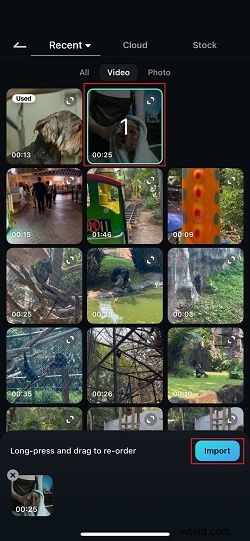
- Import your first clip. Tap “Video,” select the clip, and press “Import.” It will appear on the timeline.
- Add subsequent clips. Move the playhead to the end of the current clip, tap the “+” icon, choose the next video, and hit “Import.” Repeat as needed.
- Enhance your sequence. Trim, rearrange, add text, music, or use PIP and AI Smart Cutout for a polished look.
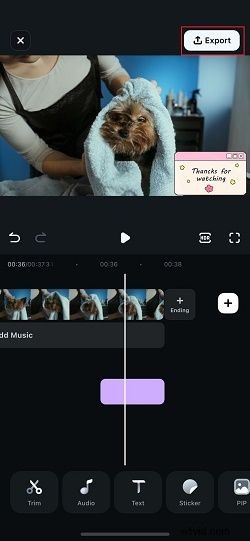
- Export. Tap “Export,” choose your resolution (up to 4K), then confirm. Your video is ready to share.

Part 2: Combining Videos with Built‑In iPhone Apps
If you prefer a lightweight solution, Apple’s Photos app and iMovie provide quick ways to merge clips without installing extra software.
2.1 Using the Photos App for Simple Compilations
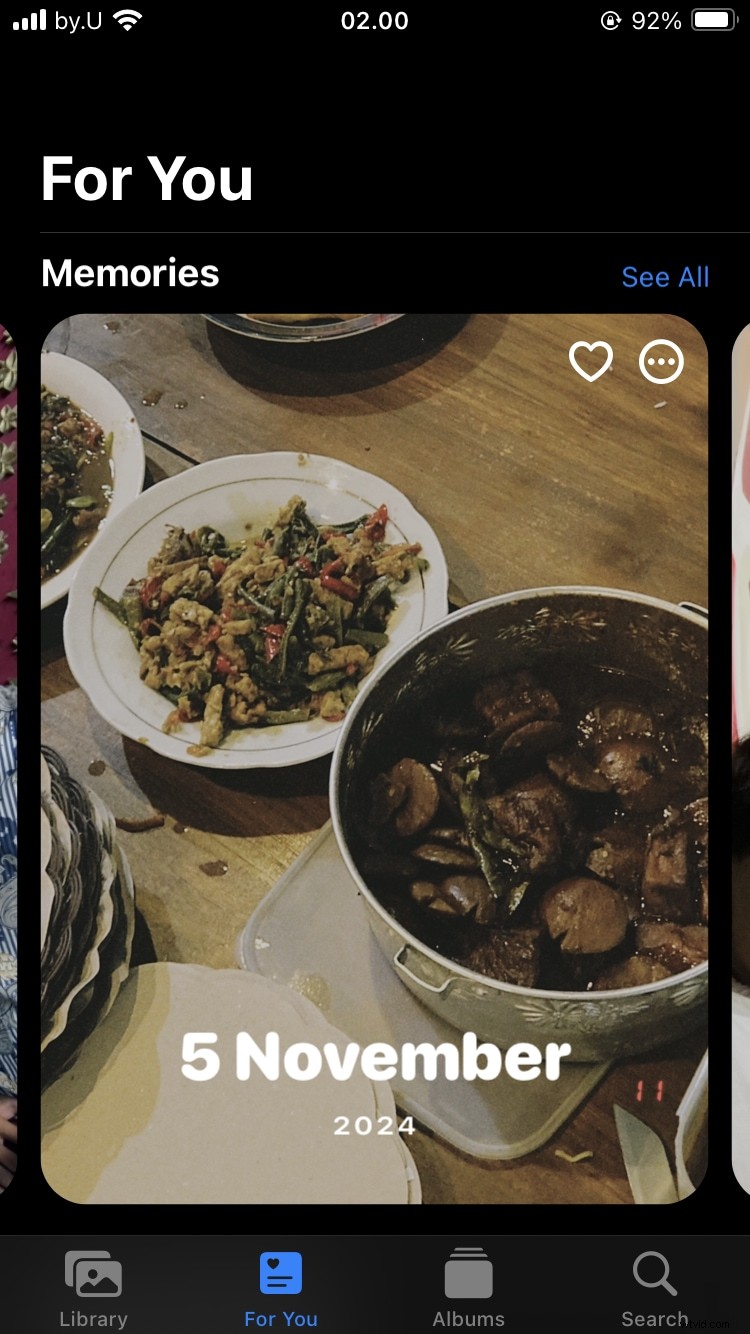
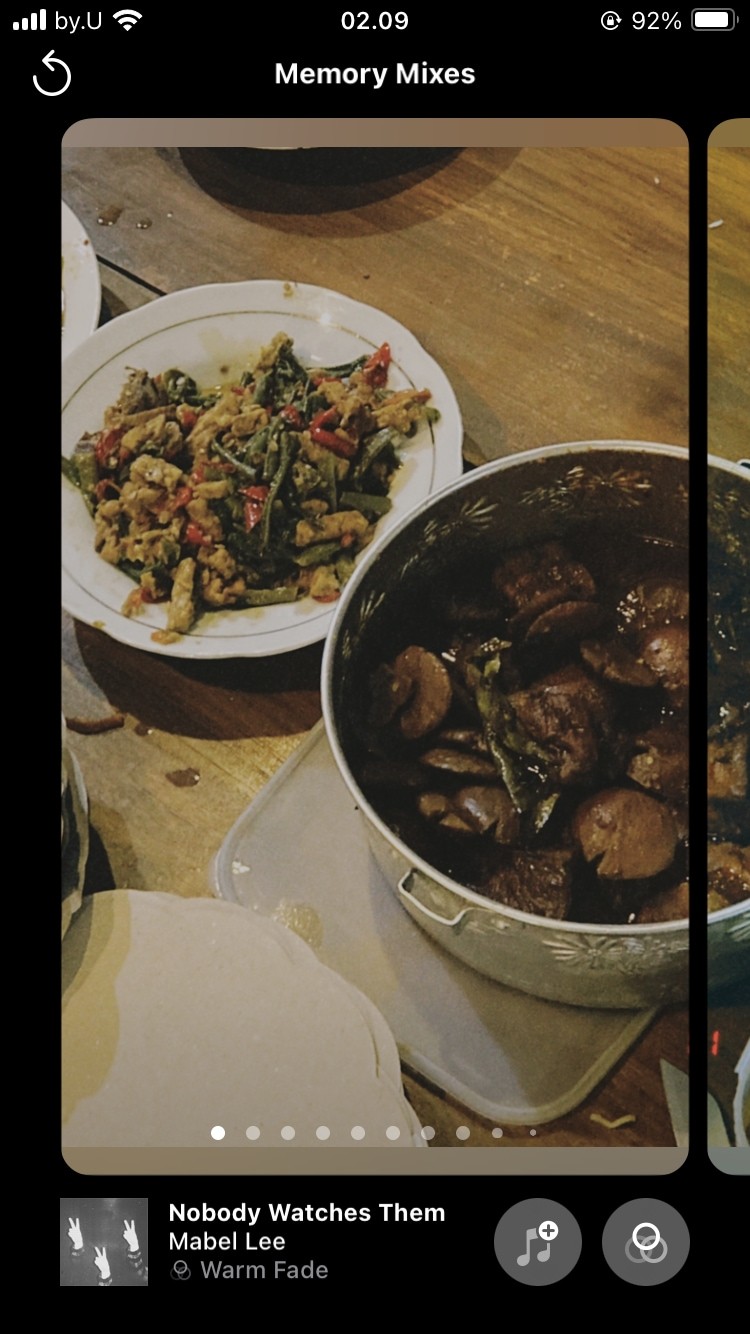
With Photos, you can automatically generate a slideshow from selected videos and photos. While the app selects the order for you, you can change the background track.
- Open Photos and navigate to Albums.
- Scroll to Memories and choose a generated compilation.
- Tap Options to change the music track.
2.2 Turning Live Photos into a Video
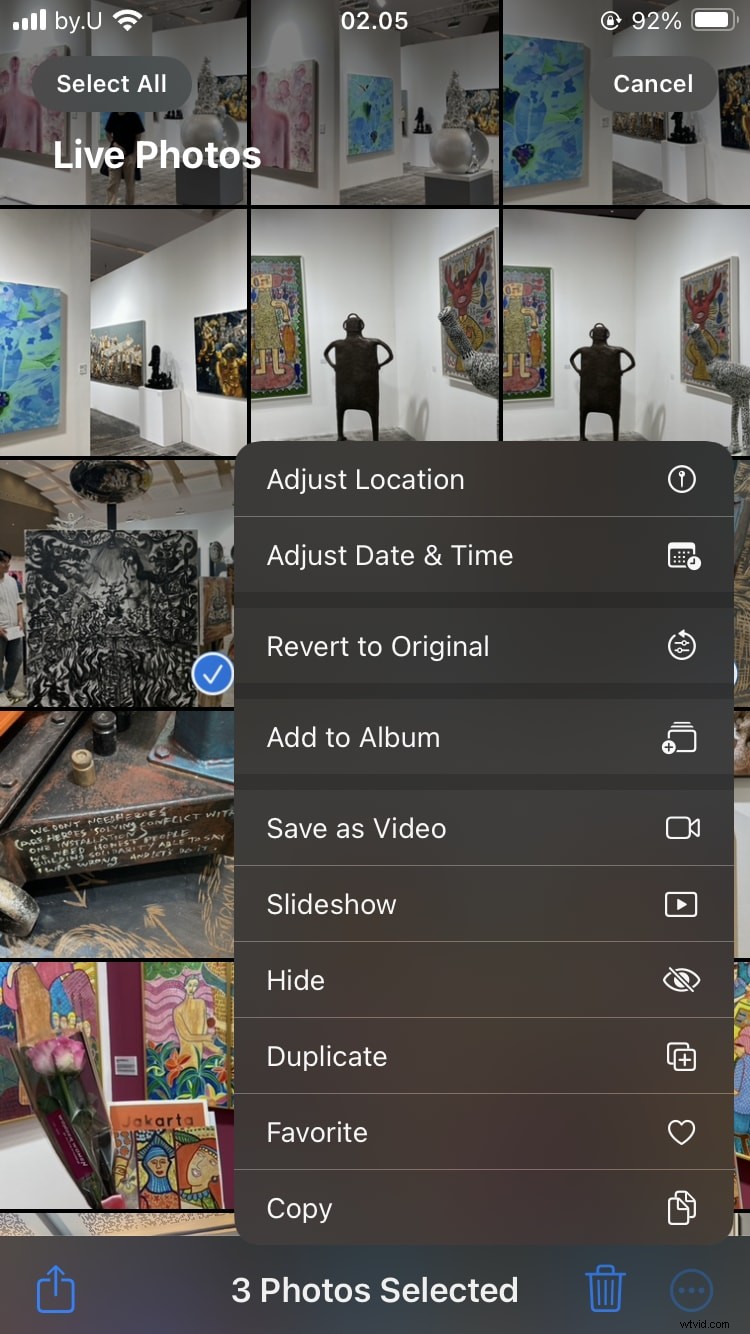
Live Photos can be combined into a single video clip for easy sharing.
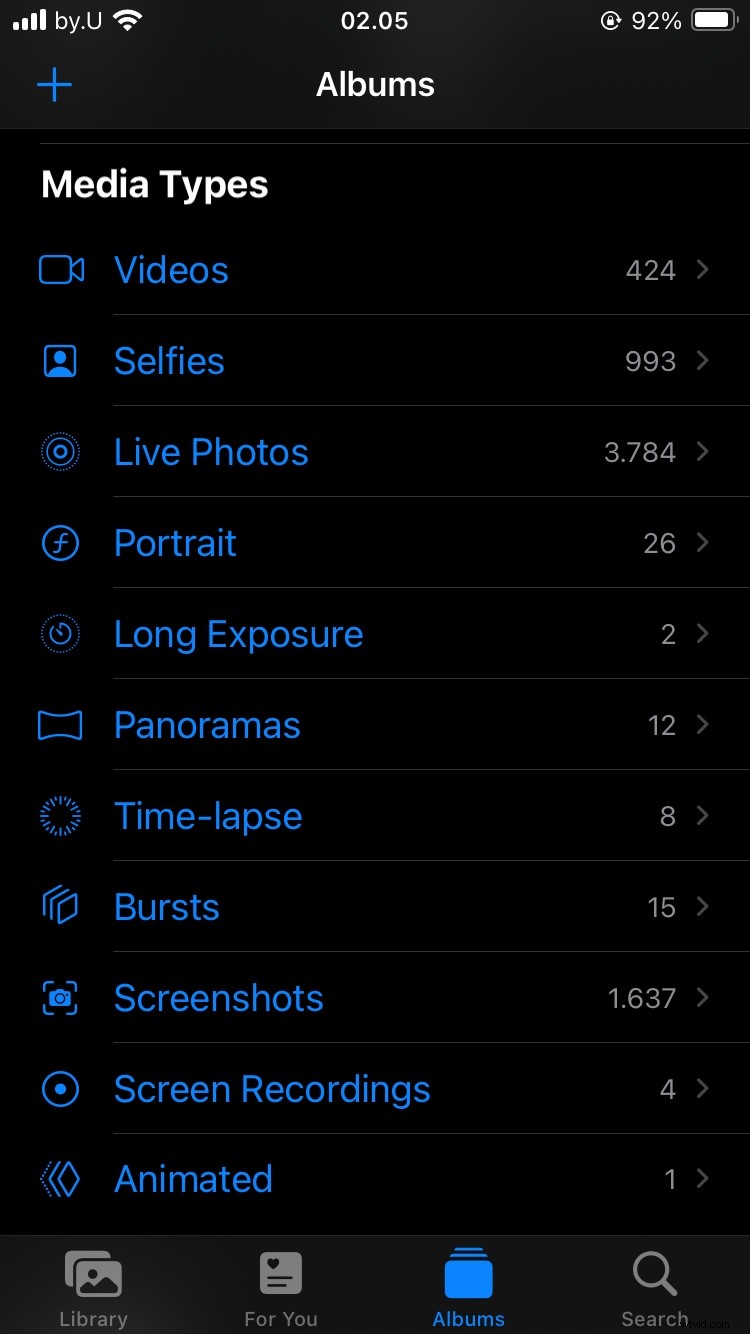
- Open Photos, go to Albums, and select Live Photos.
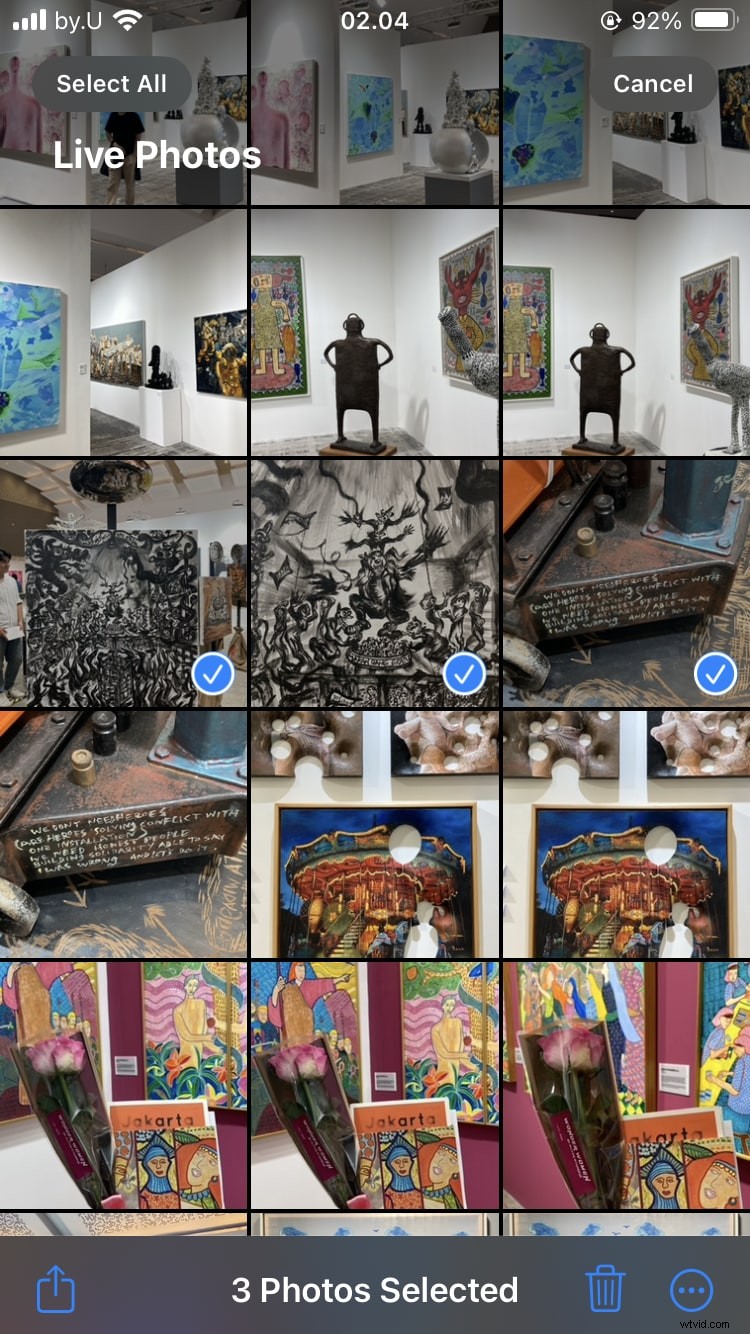
- Choose multiple Live Photos.
- Tap the More button and select Save as Video.
2.3 Using iMovie for Advanced Editing
iMovie offers more control, including transitions, text overlays, and higher‑quality exports.
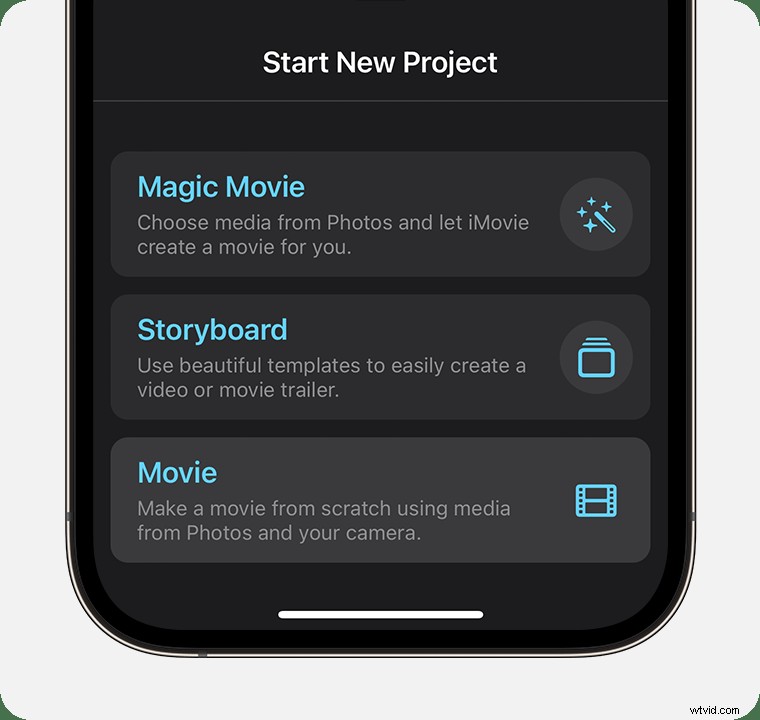
- Launch iMovie and tap Movie to start a new project.
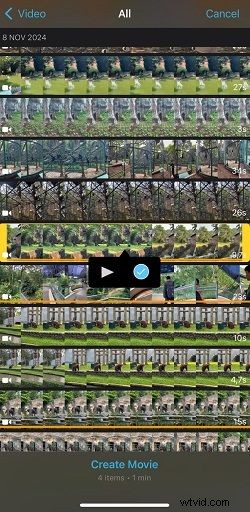
- Navigate to Video in the Media section and select your clips.
- Check each clip and tap Create Movie to add them to the timeline.
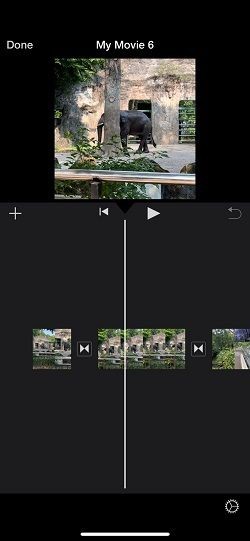
- Drag to rearrange, preview, and fine‑tune your sequence.
- When satisfied, tap Done, then Share → Save Video to add the final clip to Photos.

Bonus: Polishing Your Merge with Filmora Templates
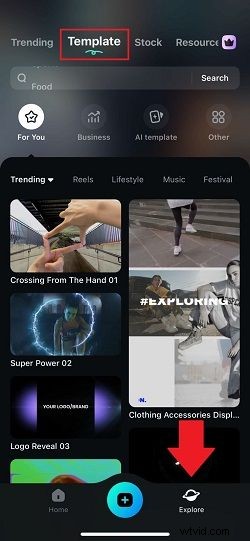
For a finished look that feels cohesive, Filmora’s template library offers pre‑designed sequences, transitions, and text overlays that can be customized to match your style.
- Select a suitable template. Browse by theme—travel, lifestyle, business, vlogs—and choose one that fits your mood.
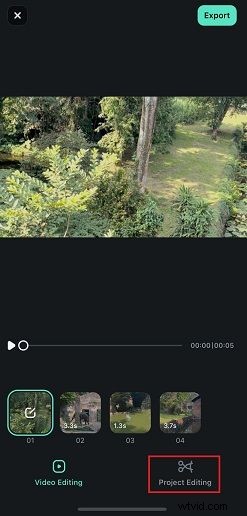
- Customize the template. Adjust text, colors, music, and transitions to make it uniquely yours.
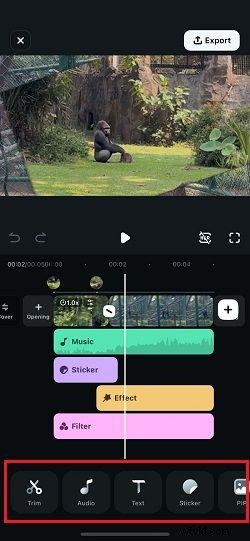
- Add stickers and effects. Filmora’s extensive library lets you enhance storytelling and highlight key moments.
Conclusion
Whether you’re using the quick options in Photos and iMovie or the feature‑rich Filmora Mobile, merging videos on your iPhone has never been easier. These tools give you the flexibility to create everything from casual family reels to polished social‑media content. Armed with this guide, you can now confidently combine clips and share memorable videos directly from your device.