
Have you ever shot some small video clips and want to join them together into one video footage? Well, in this article, we will introduce how to join/merge your clips in iMovie and its alternative. If you have any better solution for video cutting and joining, just leave a comment below.
- Part 1: How to Join Several Separate Clips in iMovie on Mac
- Part 2: How to Join Split Clips into One in iMovie on Mac
- Part 3: An Easier Alternative Way to Join Clips on Mac
Part 1: How to Join Several Separate Clips in iMovie on Mac
To join several clips in iMovie, you can follow these steps.
Step 1. Build a new project
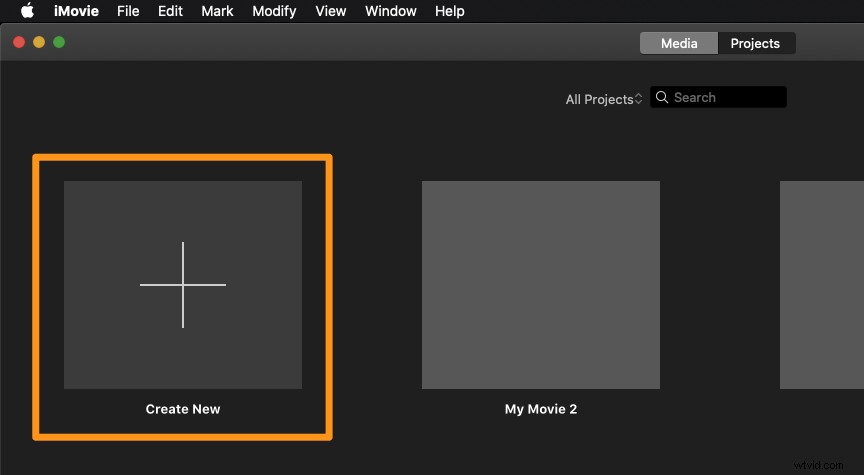
First, open up iMovie video editor and click "File" at the main menu, select "New Project" to start a new iMovie project. Then name the project and set the project settings for things like the aspect ratio according to the specifics of the files you want to join using iMovie.
Step 2. Import video clips to iMovie
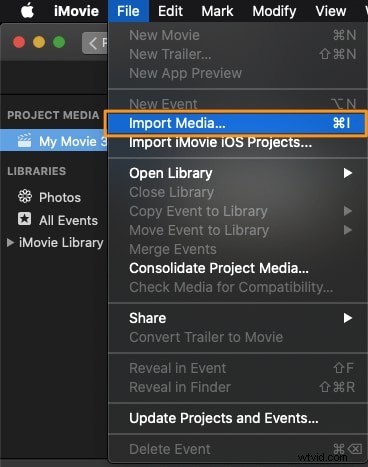
Go to "File > Import > Movies". Then a browser will pop up which allows you to select the files you want to bring in. After choosing the target files, click "Import" and all the clips will appear in the Event window, where they may be in several frames depending on how long the clips themselves are.
Step 3. Join the clips
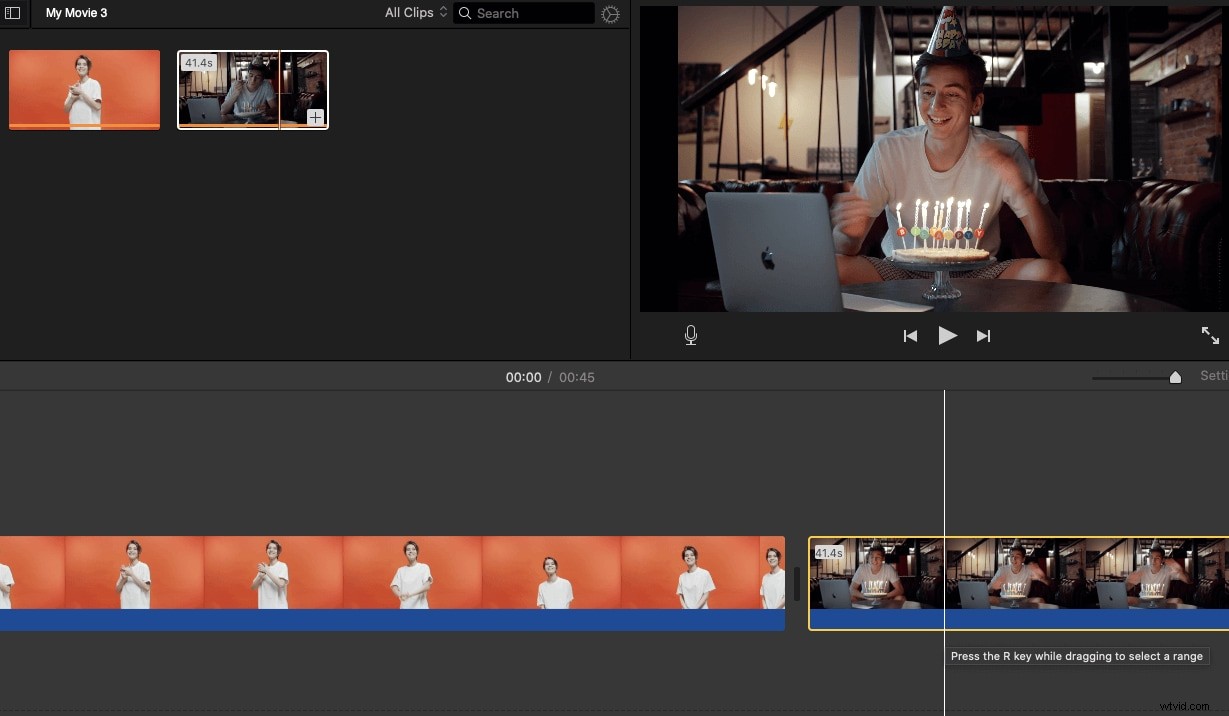
iMovie allows you to select what section of the clip you want, if not the whole thing. Now you can choose the clips you want to join, drop them into the Project window, and arrange the order of them according to your needs. Then, when you play through the Project window, you will find that all the clips are joined together.
Related: How to Add Video Effects in iMovie
Step 4. Export the new file
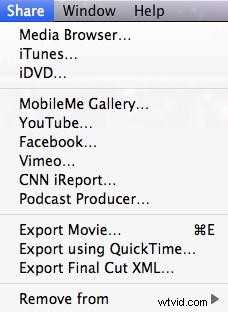
Now that all the clips in the Project window are played though as one, you can export it so that it will stand as a single clip. To do this, go to "Share" and there are a variety of different options. The common export option is "File" since it's the most basic way to create a new clip. If you want to send to file to iTunes, select the "iTunes" option. After clicking the File, set up the resolution, format, quality in the pop-up dialogue.
You May Also Be Interested in:
- How to Use Picture in Picture Effect in iMovie
- How to make a split-screen (side by side) in iMovie
Part 2: How to Join Split Clips into One in iMovie on Mac
You can also choose to join split clips into one with the Join Clips feature in iMovie only allows you to re-join a clip that has been split. If you want to combine several separate clips into one video, you need to follow the steps we mentioned above.
Here's how to use the Join Clips feature.
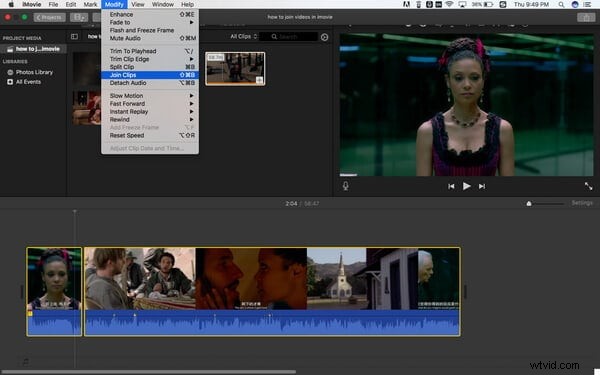
After splitting the clips, holding down Shift and select the clips that need to join together to highlight them. Go to Modify and then select Join Clips, and then you will see the clips are merged as one.
Many people are complaining that joining clips in iMovie is not so easy for beginners and the features of iMovie are limited. If you are looking for a more powerful video editing software, you can try Wondershare Filmora for Mac.
You may also like: How to combine clips in Windows Movie Maker
Part 3: An Easier Way to Join Clips on Mac with Wondershare Filmora
Wondershare Filmora can act as such a reliable video joiner.
- It enables you to join different types of video clips into a new file seamlessly.
- You can edit videos with Filmora to make complex videos easily.
- Filmora also allows you to directly upload the complete video to YouTube for sharing, or burn it to DVD as well as transferring to virtually any mobile device.
Watch the video below to see what Filmora can do for you, and download it now to have a try.
Below is the step-by-step tutorial about how to join movies with Filmora for Mac.
Step 1. Import your media files
Import all the video clips you want to join together. To do this, just choose the "File" > "Import Media" option to import your local video files to the User's album. Or, you can drag and drop the target files from the computer to this app's album.
Step 2. Join videos together
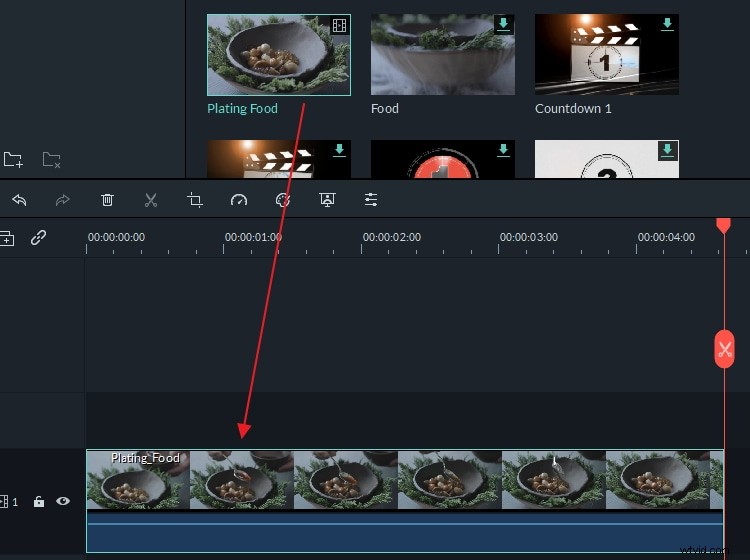
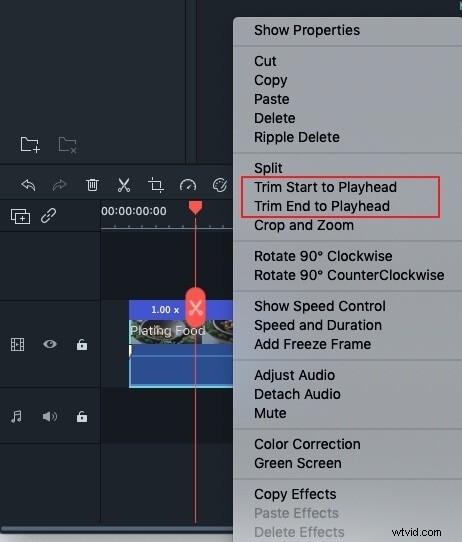
Drag and drop these video files from your video album to the timeline one by one. Now you can arrange them on the timeline according to the play order. The slider bar is offered to help you arrange the video files without overlapping them. After that, you can click the Play button to view the effect in real-time.
Step 3. Save the joined video
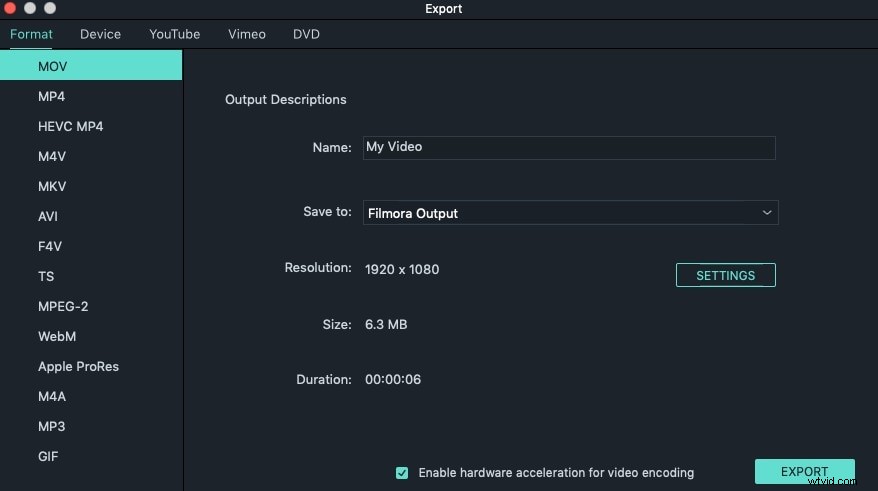
Click the "Export" button to select one of the export methods. You can go to the "Format" tab to choose your desired format. If you want to upload the video creation to YouTube or Vimeo for sharing, just click the "YouTube" or "Vimeo" tab to fill in your account and password to publish it. Alternatively, you can save it on your mobile devices.
That's all about it. Have you got how to join clips in iMovie and Filmora now? If you have any questions, feel free to let us know.