
Creating stunning slow-motion videos in iMovie can transform ordinary moments into extraordinary ones, captivating your audience with dramatic effects. If you’ve ever wondered how to achieve this, you’re in the right place. This guide will show you how to master iMovie slow motion, turning your clips into captivating slow-motion sequences.
This article will show you the details of the process in iMovie and introduce you to Wondershare Filmora, a powerful alternative with even more features. By the end of this article, you’ll be equipped to create mesmerizing slow-motion videos with ease. Let’s dive in!
iMovie is a user-friendly video editing tool developed by Apple, perfect for both beginners and experienced editors. It’s available on Mac computers and iOS devices, making it accessible for creating and editing videos on the go.

Filmora - Best Alternative of iMovie
The best video editing software for professional video editorsView detail
Filmora is one of the best video editing software for working video editors, YouTubers and creative pros. The industry-standard tool works on both PC and Mac, and a seven-day free trial is available.
Step-by-Step Guide to Creating Slow Motion in iMovie
Follow these easy steps on how to slow down videos in iMovie:
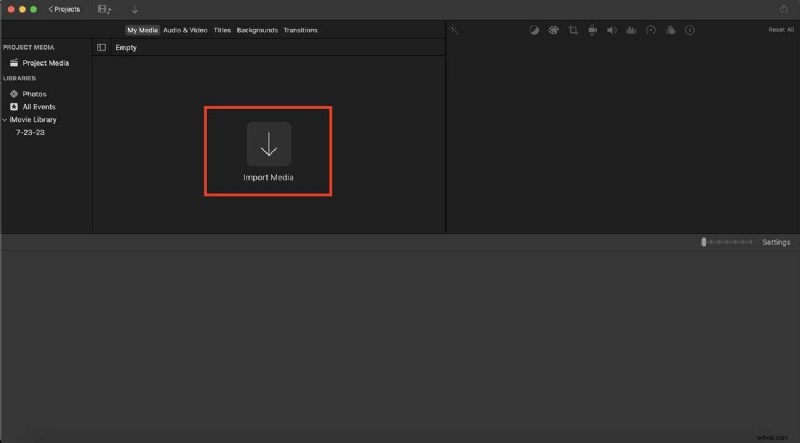
Step 1: Launch iMovie on your device, then upload a video to edit by clicking the Import Media button.

Note: You may also simply drag and drop your video to iMovie.
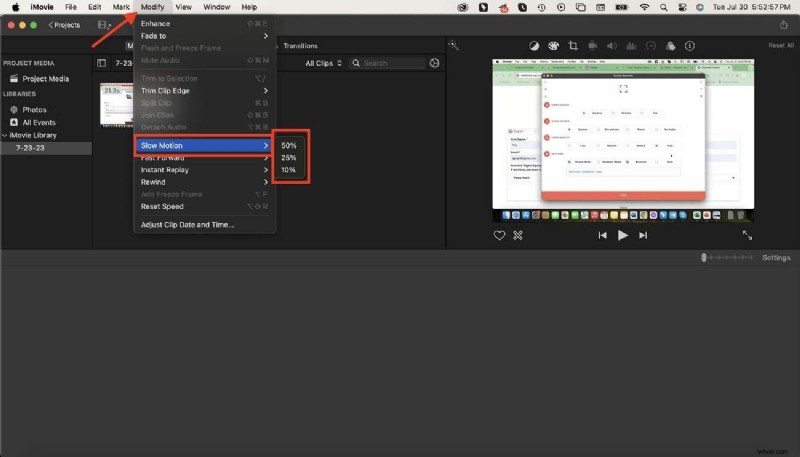
Step 2: Navigate to the toolbar in your screen’s upper left corner. Select Modify > Slow Motion. Choose the desired speed (50%, 25%, 10%) in the dropdown menu.
Step 3: Play the video to preview the slow-motion effect. If needed, adjust the speed until you achieve the desired effect.
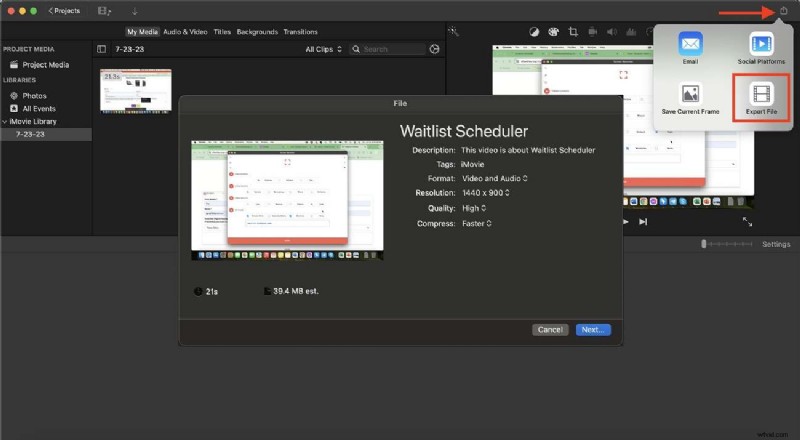
Step 4: Once satisfied with the slow-motion effect, click the Share button in the top-right corner. Choose Export File, set up your desired settings, and save it to your device.
With this guide, you can easily create captivating iMovie slow-motion videos like these stunning examples on YouTube. Experiment with different speeds and effects to find the perfect look for your content.
Part 2. A Powerful Slow-Motion Tool Alternative of iMovie
When it comes to versatile and powerful video editing software, Wondershare Filmora stands out as a top choice. Whether you’re a beginner or an experienced video editor, Filmora offers a wide number of advanced editing options that make creating attractive videos easy. One of its standout features is the ability to create slow-motion effects easily.
Wondershare Filmora supports most of video formats and offers numerous features to optimize your videos, from basic editing tools to advanced effects and transitions.
 Security Verified. 3,591,664 people have downloaded it.
Key Features
Here are a few of the awesome features you can take advantage of if you use Filmora:
- Speed ramping. Customize the video clips' speed using the speed ramping feature, and adjust video speed to fast or slow motion using the uniform speed function.
- Keyframing. Create smooth transitions and animations by adjusting speed and other parameters over time.
- Flexible speed adjustment. Offers both preset speeds and manual speed adjustments for precise control over your slow-motion effect.
- Stabilization. Reduce camera shake in your slow-motion videos for a smooth and professional look.
- Audio ducking. Automatically lower background music when dialogue or other audio is present, enhancing the viewing experience.
- Color matching. Ensure consistent color tones across different clips for a professional look.
- Frame-by-frame preview. Allows you to preview each frame to ensure your slow-motion effect is perfect.
- Instant preview. See your edits in real-time without rendering, speeding up the editing process.
- Advanced editing options. Offers many advanced features, including keyframing, audio ducking, color matching, and more.
- Built-in effects library. Access to a vast library of effects, templates, transitions, and filters to enhance your videos.
- Cross-platform compatibility. Available on multiple devices, including Windows, Mac, and iPhone, allowing you to edit videos wherever you are.
Step-by-Step Guide
Here’s a detailed guide on how to slow down videos in Filmora:
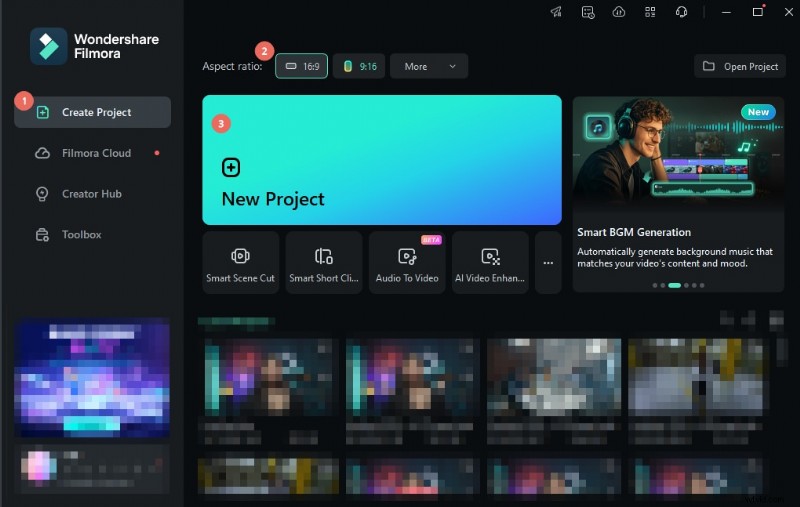
Step 1: Download Filmora from the below official button. Install and launch the software on your device. Click on New Project to start editing your video.
Security Verified. 3,591,664 people have downloaded it.
Step 2: Click the Import button and select your video file from your device. Alternatively, you can drag and drop the video directly into the media library.
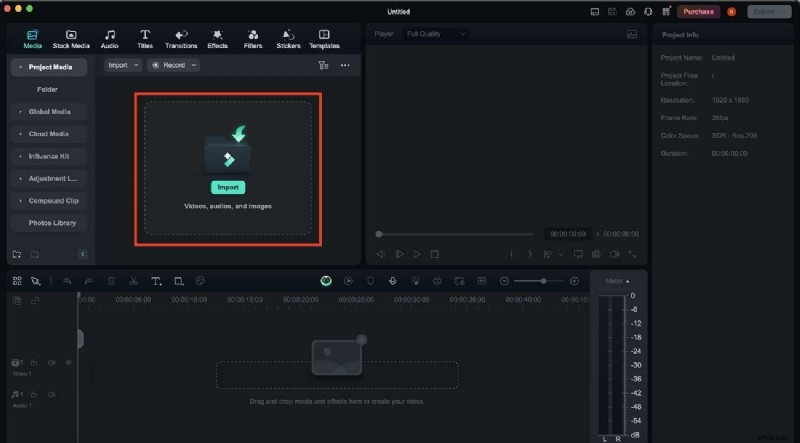
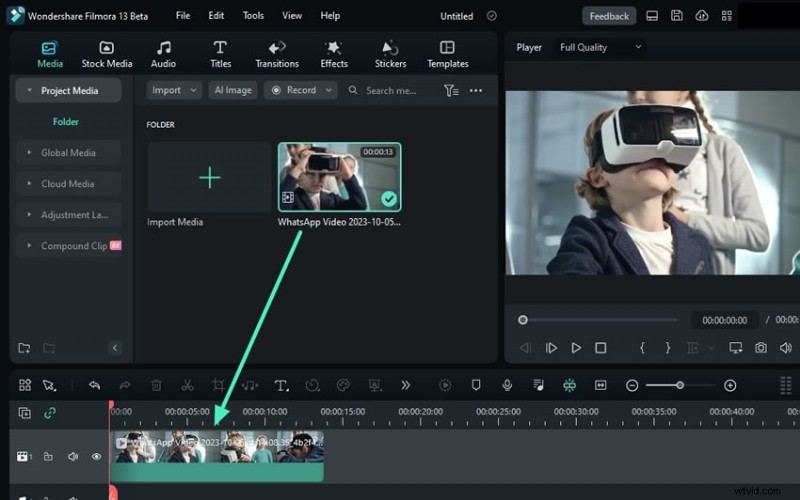
Step 3: Drag your imported video clip from the Media library to the timeline at the bottom of the Filmora’s interface.
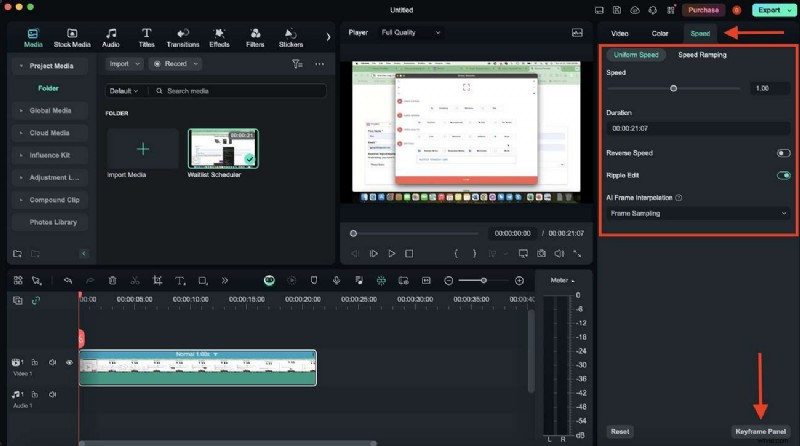
Step 4: Click the video clip in the timeline. On the right panel, click Speed, then drag the speed slider to the left to slow down the clip.
Note: For a more precise effect, you can use Keyframe Panel to change the speed of the clip over time gradually.
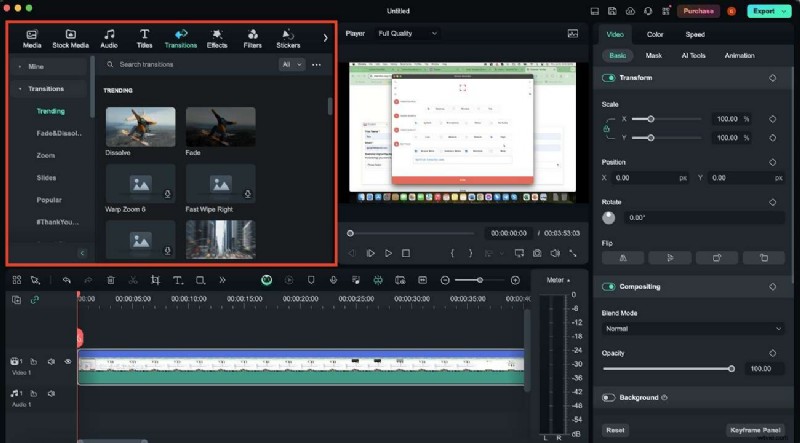
Step 6: Enhance your slow-motion video by adding effects, filters, or transitions from Filmora’s built-in library. Drag and drop the desired effect to add it to the timeline.
Step 7: Click the “play” icon to preview your slow-motion video. Make any necessary adjustments. Once you’re satisfied with the result, click the Export button. Choose the desired export settings and save your video to your device.
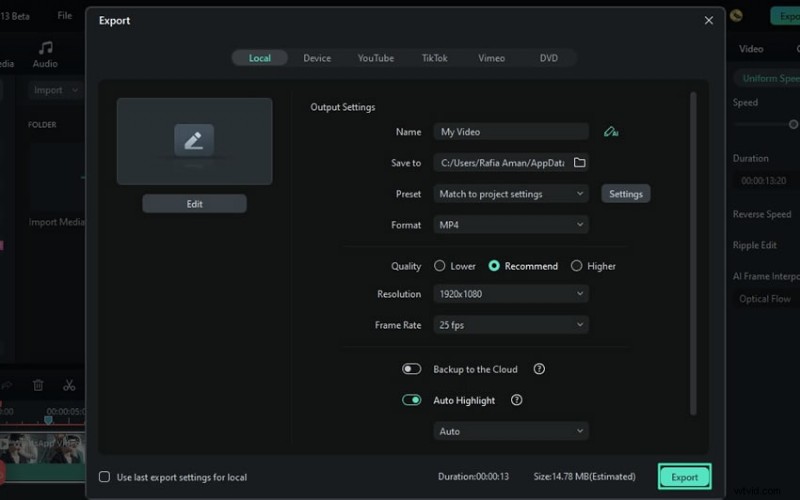
Wondershare Filmora makes it easy to create impressive slow-motion videos with its powerful features and intuitive design. Whether you’re highlighting a dramatic moment or simply adding a creative touch, Filmora has the tools you need to bring your vision to life.
Bonus: Additional Tips for Using Slow Motion in iMovie
Creating slow-motion videos in iMovie can be a rewarding experience, enhancing the appeal of your footage. Check out these additional techniques and troubleshooting tips to help you on your next iMovie slow-motion project!
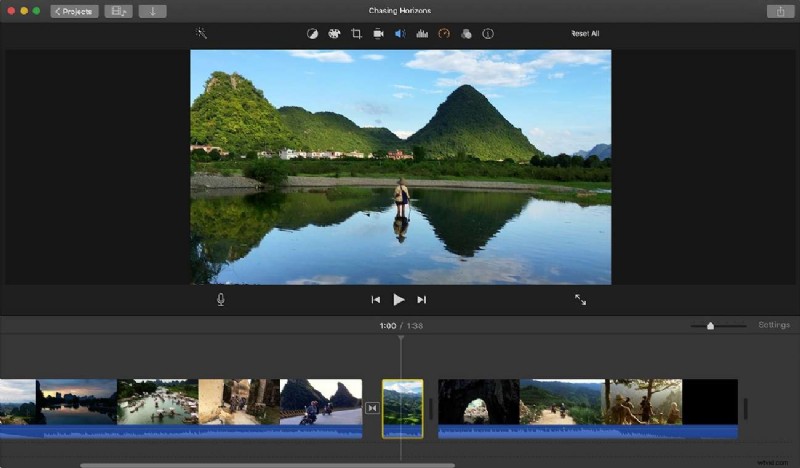
Tips for Effective Slow-Motion Editing in iMovie
Here are some additional tips and tricks to help you get the most out of your slow-motion edits:
- Use High-Frame-Rate Footage. For the best slow-motion results, start with footage shot at a high frame rate (e.g., 60fps or 120fps). This ensures smooth and clear slow-motion playback.
- Trim Unnecessary Parts. Before applying slow motion, trim any unwanted sections of your clip. This makes your final video more focused and engaging.
- Experiment with Speed Settings. Don’t hesitate to try different speed settings (50%, 25%, 10%) to see which looks best for your particular clip. Sometimes, a subtle slow-down is more effective than a dramatic one.
- Combine with Other Effects. Enhance your slow-motion clips by adding transitions, filters, or music. This can create a more immersive viewing experience.
- Use the Precision Editor. iMovie’s Precision Editor allows you to fine-tune your edits, ensuring that the slow-motion effect starts and ends exactly where you want it.
Troubleshooting Common Issues
Here are some common troubleshooting issues you might encounter when you use iMovie’s slow-motion feature:
- Choppy Playback. If your slow-motion video appears choppy, ensure that your original footage was shot at a high frame rate. Low frame-rate videos can look jerky when slowed down.
- Audio Issues. Slow motion can distort audio. To fix this, you can mute the original audio and add a new soundtrack or voiceover that matches the slow-motion pace.
- Export Problems. If you’re having trouble exporting your slow-motion video, check your project settings and make sure they match the original video format. This can prevent compatibility issues.
- Unintended Speed Changes. If your clip doesn’t slow down as expected, double-check that you’ve selected the correct clip and applied the slow-motion effect properly. Reapplying the effect can sometimes resolve this issue.
After getting to know about these tips and addressing common issues, you can create stunning iMovie slow-motion videos that captivate your audience and highlight the most important moments of your footage. Happy editing!
Conclusion
In this article, you have explored how to create stunning iMovie slow-motion videos. It also introduced a powerful video editing software as an alternative – Wondershare Filmora. This guide covered the benefits of slow motion, detailed step-by-step guides for both tools and additional tips for effective editing.
Now, it’s your turn to bring your videos to life. Try Wondershare Filmora for its advanced features and user-friendly interface, which are perfect for all your video editing needs. Download Wondershare Filmora today and start creating amazing slow-motion videos with ease!