
In the age of digital storytelling, color grading has become a pivotal element in crafting visual narratives. One of the most celebrated tools in this arena is the LUT (Look‑Up Table) created by cinematographer Danny Gevirtz, whose work has graced award‑winning films and high‑profile commercials. This guide walks you through the best Gevirtz LUTs, offers expert tips for selecting the right one, and provides a step‑by‑step walkthrough of how to import and apply them using Wondershare Filmora.
Table of Contents
- Key Features of Filmora
- How to Import and Apply Gevirtz LUTs
- Top Gevirtz LUTs to Try
- Choosing the Right LUT for Your Project
- Conclusion
Key Features of Wondershare Filmora
- LUT Support – Import any LUT file (including Gevirtz’s) and apply it to your footage.
- Intuitive UI – Drag‑and‑drop editing, timeline-based workflow, and real‑time preview.
- Creative Asset Library – Stock footage, images, audio, effects, and pre‑made templates.
- AI‑Powered Tools – Voice enhancement, smart cut‑out, text‑based editing, and more.
- Flexible Export Options – Supports MP4, MOV, AVI, MKV, WEBM, GIF, and others.
How to Import and Apply Danny Gevirtz LUTs Using Filmora
Step‑by‑Step Guide
- Download & Install – Get the latest version of Filmora from the official website and install it on your computer.
- Start a New Project – Launch Filmora, click New Project, and import your media files via the Import button.
- Place Clips on the Timeline – Drag your video clips into the editing timeline.
- Select a Clip – Click on a clip to open the right‑hand panel.
- Open the Color Tab – In the panel, click Color and enable the LUT toggle.
- Import Gevirtz LUT – Click Add, navigate to the downloaded Gevirtz LUT file, and select it.
- Adjust Intensity – Use the Strength slider to fine‑tune the effect, ensuring skin tones remain natural.
- Preview & Export – Review the result in the preview window. When satisfied, click Export to render your video.
Note: Many Gevirtz LUTs are available for free download from reputable online repositories.
Top Danny Gevirtz LUTs to Try
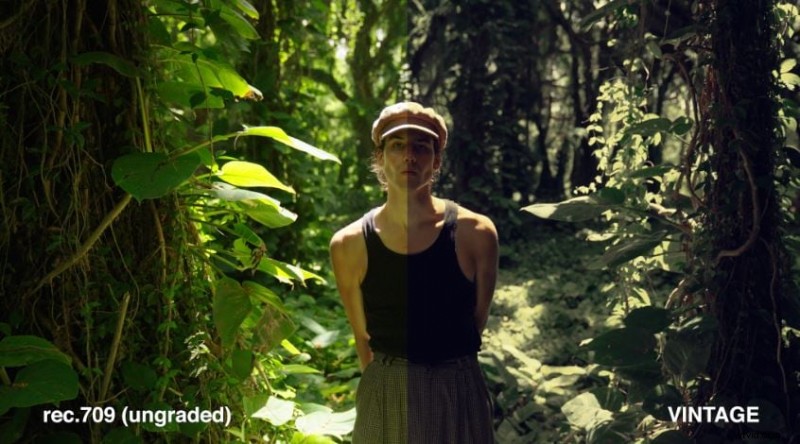
Vintage
This LUT emulates a classic sepia tone, ideal for historical or atmospheric scenes.
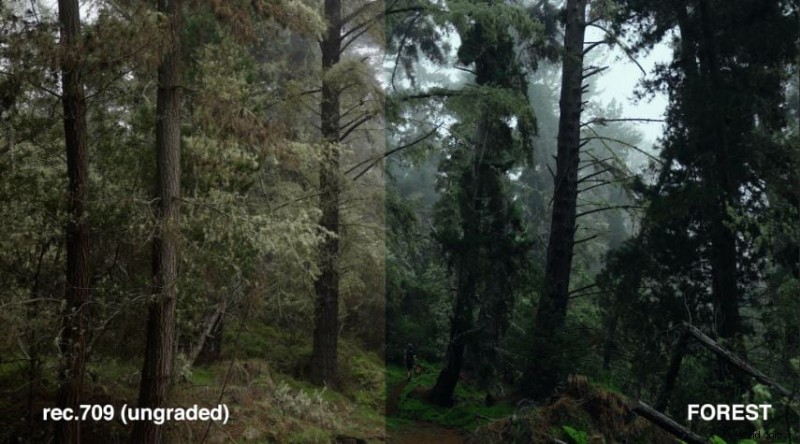
Forest
Designed for natural outdoor footage, this filter adds a cool, smoky ambience.
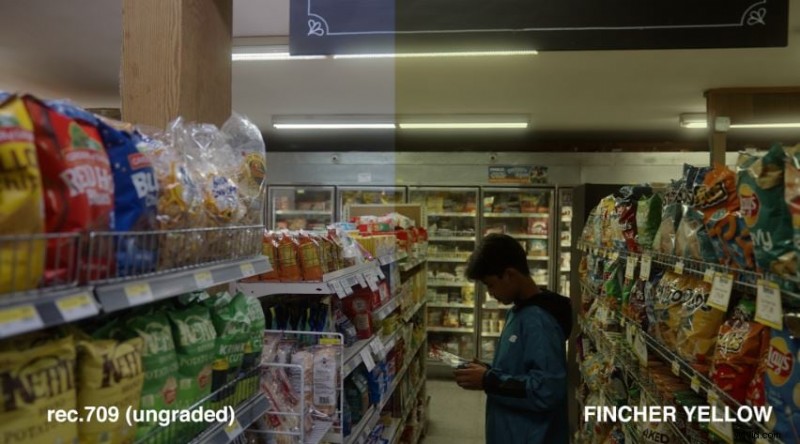
Fincher Yellow
Inspired by the signature tones of David Fincher’s films, this LUT blends yellow and green hues under low light for a dramatic effect.
Warm Nostalgia
A warm, lush color grade that evokes longing without feeling dated.

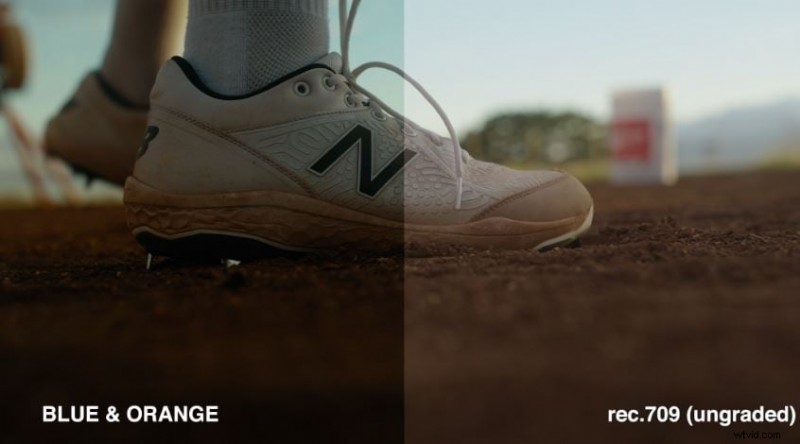
Blue & Orange
A modern, cinematic palette that balances cool blues with warm oranges, suitable for most genres.
Choosing the Right Gevirtz LUT for Your Project
- Explore All Options – Browse the full library before committing to one.
- Match Technical Specs – Ensure the LUT aligns with your footage’s resolution, frame rate, and aspect ratio.
- Correct Base Color – Apply primary color correction first; LUTs should enhance, not fix fundamental issues.
- Leverage Customization – Adjust strength, hue, and saturation to match your creative vision.
Conclusion
Color grading is a craft that balances technical skill with artistic intuition. Danny Gevirtz LUTs offer a reliable shortcut to professional‑looking palettes, while Filmora provides an accessible platform to apply them. Download the LUTs, experiment with the settings, and let your videos reflect the tone you envision.