
Ever wanted to create a cool backward effect in your videos? You can use DaVinci Resolve to reverse a clip and add dramatic effects to your videos. This powerful editor offers three methods to reverse footage, making it a great tool for video editing.
In this guide, you'll learn how to reverse a clip in DaVinci Resolve using three different methods. However, while it makes reversing clips easy, some users may prefer an alternative with additional flexibility. Wondershare Filmora provides a more intuitive way to reverse clips with easier controls over speed and effects.
Let's dive in and find the video editor for reversing a clip that suits your needs!
In this article
- How to Reverse a Clip in DaVinci Resolve
- Alternative Video Editing Software for Reversing Clips – Wondershare Filmora
Part 1. How to Reverse a Clip in DaVinci Resolve
Reversing a video clip is a popular technique in filmmaking, storytelling, and social media. You can use DaVinci Resolve to reverse a clip with ease. With this technique, you can add a dramatic effect, emphasize a moment, or create a smooth transition.
Below, we'll walk you through three methods of how to reverse a clip in DaVinci Resolve.
Method 1: Using the Change Clip Speed
The Change Clip Speed option is the simplest way to reverse a clip in DaVinci Resolve. Here are the steps:
- Step 1. Import your video into DaVinci Resolve and drag it to the timeline.
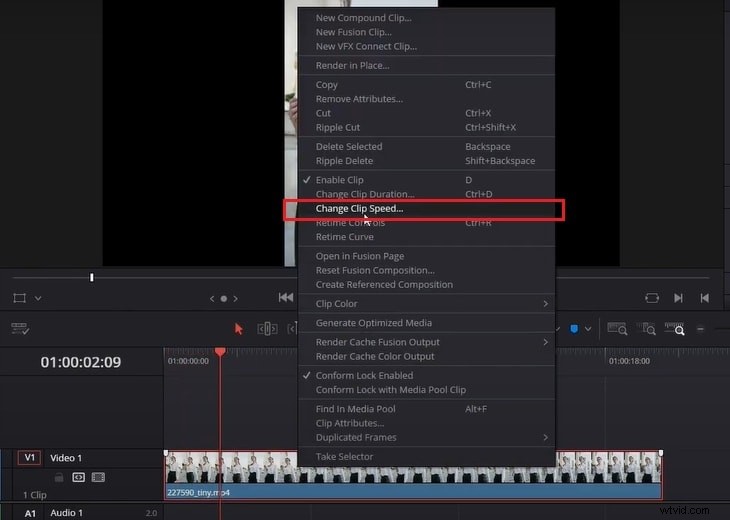
- Step 2. Right-click on the clip in the timeline and select Change Clip Speed from the menu.
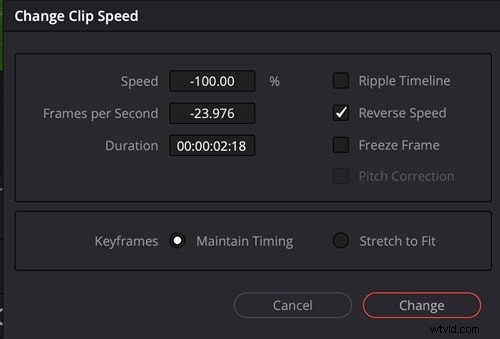
- Step 3. In the pop-up window, check the Reverse Speed option. Here, you can also change the playback speed and frame rate.
- Step 4. Then, click Change, and your clip will now play in reverse and apply the other settings.
Method 2: Using Retime Controls
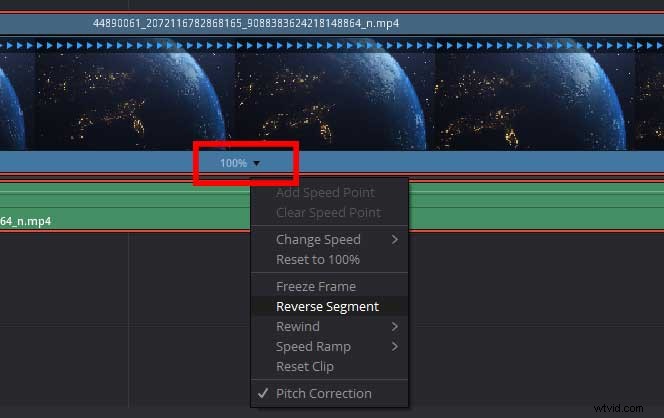
Another way in Davinci Resolve to reverse a clip is by using the Retime Controls feature. It allows you to adjust speed variations, reverse specific sections, and create smooth slow-motion effects. Follow the step below:
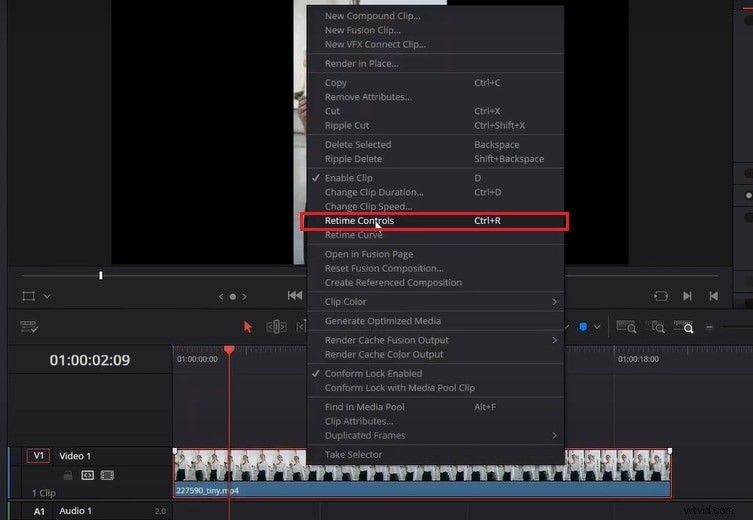
- Step 1. Right-click on the clip in the timeline and select Retime Controls from the menu.
- Step 2. A speed adjustment bar will appear above the clip. Click the Dropdown Arrow on the clip's edge and select Reverse Segment.
Method 3: Using Inspector Tool
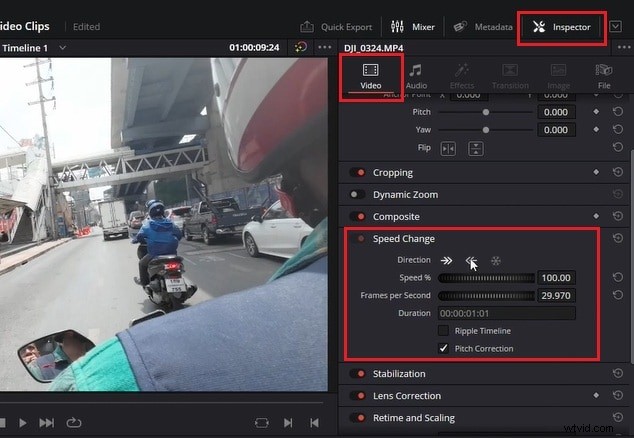
You can also reverse a clip in DaVinci Resolve from the Inspector Tool. Follow the steps below:
- Step 1. First, click on the clip you want to reverse in the timeline.
- Step 2. Navigate to the top-right side of your screen and select Inspector panel > Video > Speed Change.
- Step 3. In the Direction option, select the Left Arrow button to reserve the clip.
Now that you know the three methods of how to add a rewind effect in DaVinci Resolve, let's check out an alternative video editor. In the next section, we'll walk you through how to reverse a clip using Wondershare Filmora and why it might be a great alternative.
Part 2. Alternative Video Editing Software for Reversing Clips – Wondershare Filmora
While DaVinci Resolve offers many methods to reverse a clip, some beginner users may feel that this editor is too complex. If you're looking for an alternative video editor other than DaVinci Resolve to reserve a clip, try Wondershare Filmora. Filmora is a user-friendly video editing software that simplifies the editing process like reversing clips.
Here is the step-by-step guide on how to reverse a clip in Wondershare Filmora:
01of 07Launch Filmora and Import Footage
First, open Filmora and start a new project. Then, add the clip to Filmora by going to Media > Project Media > Import to upload your video clip. Once imported, drag and drop it onto the timeline to start editing your video.

02of 07Access the Reverse Tool
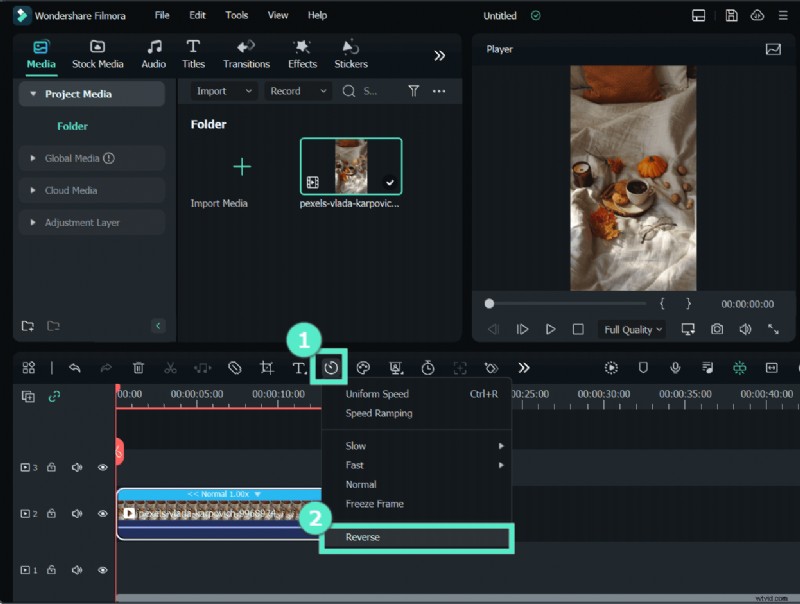
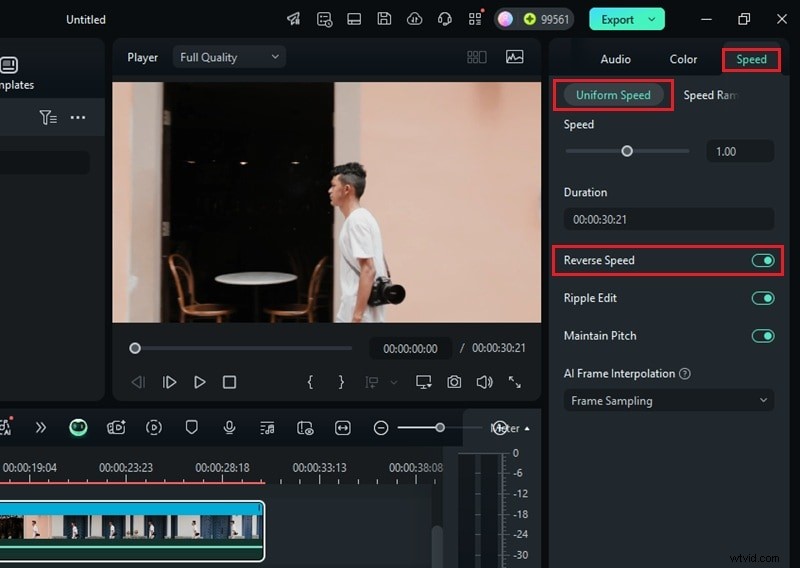
There are two ways to access the Reverse tool in Filmora:
- From the Speed Icon in the toolbar: Select the video in the timeline and navigate to the toolbar above the timeline. Then, select the Speed icon > Reverse.
- From the Editing panel: Click on the clip in the timeline to open the editing panel on the right side of your screen. Open the Speed tab > Uniform Speed, and enable the Reverse Speed option.
03of 07Adjust the Speed of the Reversed Clip
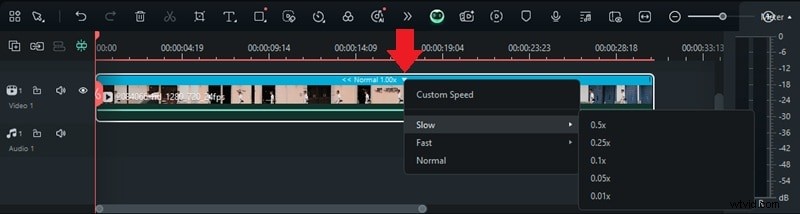
After reversing the clip, a blue bar labeled “ Normal 1.00x” will appear above it in the timeline. This bar indicates that the clip is now playing in reverse at its original speed. Select the Dropdown arrow next to the label to change the playback speed of the reversed clip.
04of 07Add Transitions to Smooth the Reversed Clip
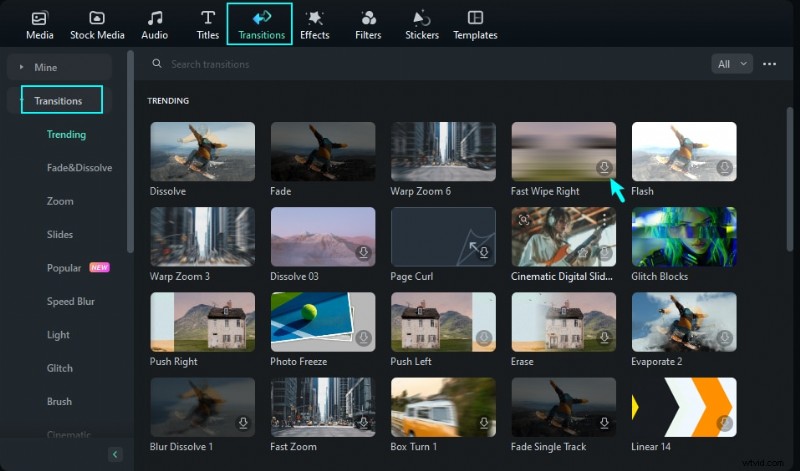
Once your clip is reversed, adding transitions helps make the effect look smoother. Especially if you have more clips within the timeline.
To add a transition between clips, click on the Transitions tab at the top of the screen. Then, browse the transition effects and select one that fits your video. Then, drag it between your reversed clip and the next clip in the timeline. Play the video to preview how the transition looks.
05of 07Apply Filters and Overlays
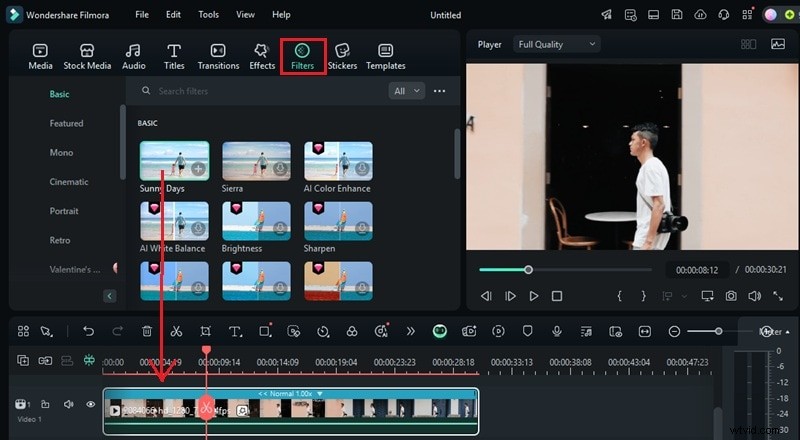
Filters and overlays can make your reversed video more visually appealing by adding cinematic color tones or effects. Click on the Effects tab from the top menu and browse the filter or overlay that complements your reversed clip. Then, drag and drop the effect onto the clip in the timeline.
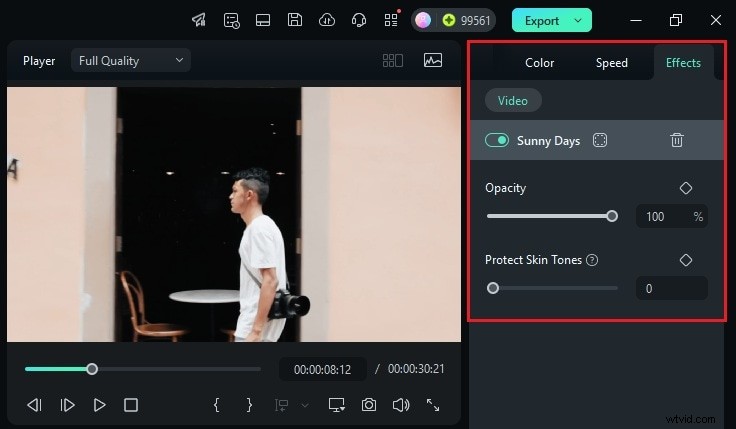
Go to the editing panel and click Effects > Video. Then, move the opacity slider to adjust the opacity of the effect. You can also apply the Protect Skin Tones feature here.
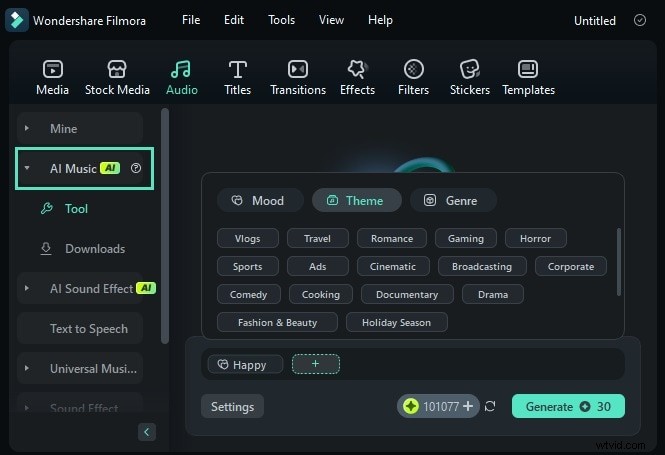
06of 07Add Background Music with AI Music Generator Tool
You can add background music using Filmora's AI Music Generator to enhance your reversed clip. This feature allows you to create custom music that matches the mood and style of your video.
To access this feature, navigate to the top menu and click on Audio > AI Music.Then, click the Plus (+) button to open the settings. Choose a Mood, Theme, and Genre that fits your reversed clip. Click Settings to adjust the Tempo and Music Duration if needed. Click Generate to create the music and drag the generated track onto the timeline.
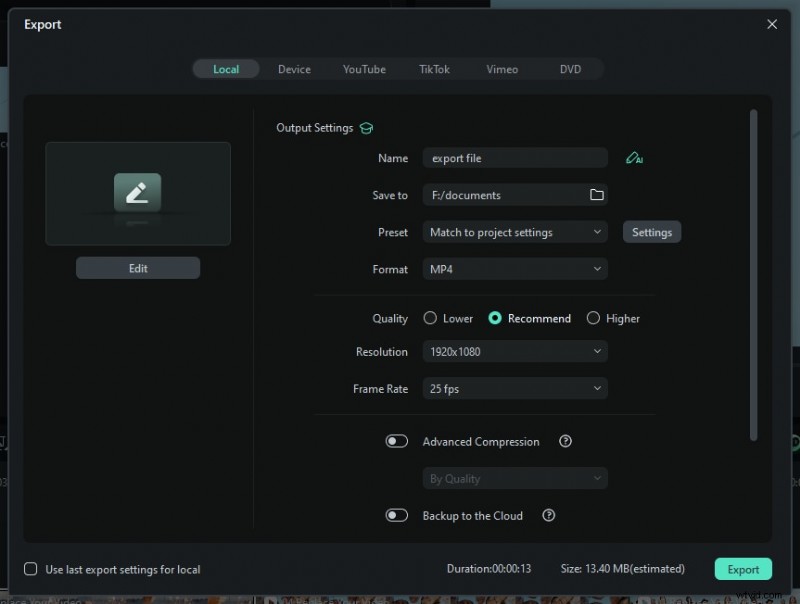
07of 07Finalize and Export Your Reversed Video
Before exporting, carefully review your video to ensure smooth playback and seamless transitions. Check for any errors, such as misaligned clips, abrupt cuts, or incorrect audio timing. Once you're happy with the final edit, click on the Export button at the top-right corner of the screen.
In the export window, select the Local tab. Here, choose your preferred file format, resolution, and other export settings. Click Export to save the video to your computer. Now, your reversed clip is ready to share or upload to your preferred platform!
Why Choose Filmora for Reversing Clips?
- Easy to Use for Beginners: Filmora's intuitive design makes it accessible for users of all skill levels. It reduces the learning curve associated with more complex software.
- Fast & Smooth Editing Performance: For basic video editing on most computers, Filmora is generally faster and smoother than DaVinci Resolve due to its lower system requirements. DaVinci Resolve, while powerful, requires a robust computer to outperform Filmora.
- Great for All Skill Levels: Filmora gives you easy tools while still offering advanced features for those who want more control. Thus, it's suitable for a beginner or an experienced editor.
- Built-in Effects & Smart AI Tools:Filmora comes with ready-to-use effects, transitions, and filters to improve your reversed video. It also has AI-powered features that help make editing easier,
- AI Smart Cutout– Remove backgrounds from videos without using a green screen.
- AI Portrait– Automatically separate people from the background for a cleaner look.
- AI Auto Reframe– Resize videos to fit different social media platforms without needing to crop manually.
Conclusion
Reversing a video can create engaging effects, whether for storytelling, filmmaking, or social media. Using the DaVinci Resolve reverse clip feature, you can easily play footage backward with three simple methods. While DaVinci Resolve provides professional tools, some users may prefer a more straightforward solution for reversing videos.
If you're looking for a beginner-friendly option, Wondershare Filmora is a great alternative. It allows you to reverse a clip while offering additional effects, AI tools, and smooth editing performance. Try Filmora today and start creating reversed videos effortlessly!