
Videos can make your Canva designs more engaging. They add movement and make presentations, social media posts, and marketing materials stand out. Canva lets you insert a YouTube video into the presentation, embed clips from its library, or upload your files. The process is simple, but editing options are limited.
This guide will walk you through each method so you’ll know how to embed a video in Canva without hassle. You’ll also learn how to enhance your videos before adding them. Ready to make your designs stand out? Keep reading!
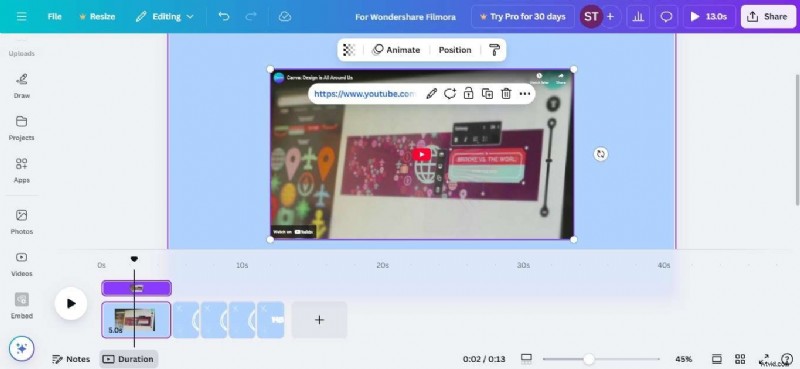
In this article
-
- On Desktop
- On Mobile
-
- On Desktop
- On Mobile
-
- On Desktop
- On Mobile
-
- On Mobile
- On Desktop
Part 1: How To Embed a Video in Canva Design Using Link?
You can embed videos directly in Canva from different sources. Read on to see how to do it on both desktop and mobile.
On Desktop
Here’s how you can embed a YouTube video into your presentation in Canva on a desktop:
Step 1: Create or open your Canva design.
Step 2: Select Apps on the left panel of the editor.
Step 3: You can embed a YouTube video on Canva in two ways:
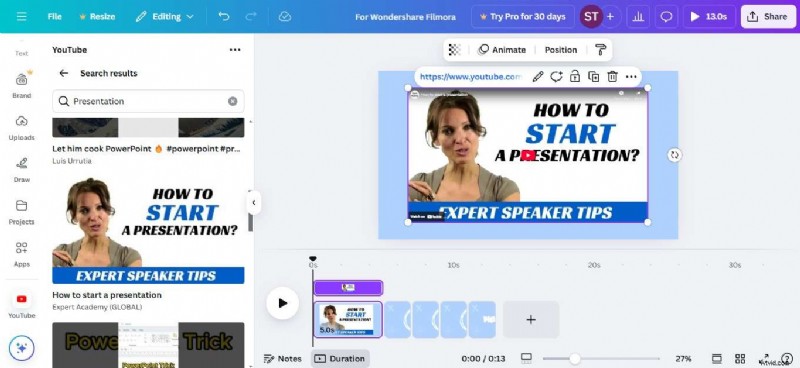
- The first option is to search for YouTube and select it.
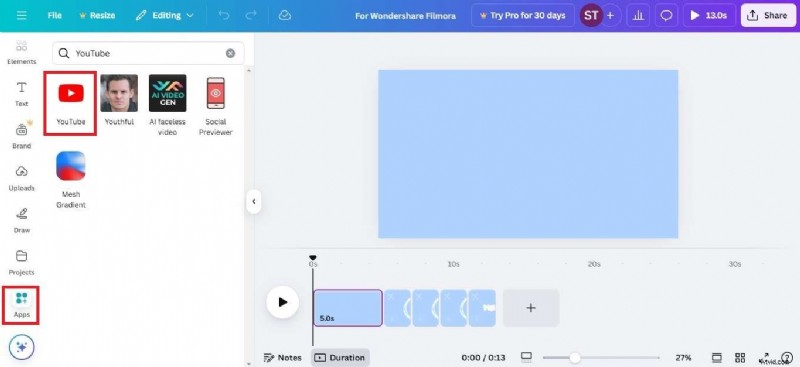
Then, enter a keyword in the search bar and browse the results for a video.
- Another option is to search for Embed and select it. Then, Drag and drop the video from the left panel to the Canva slides.
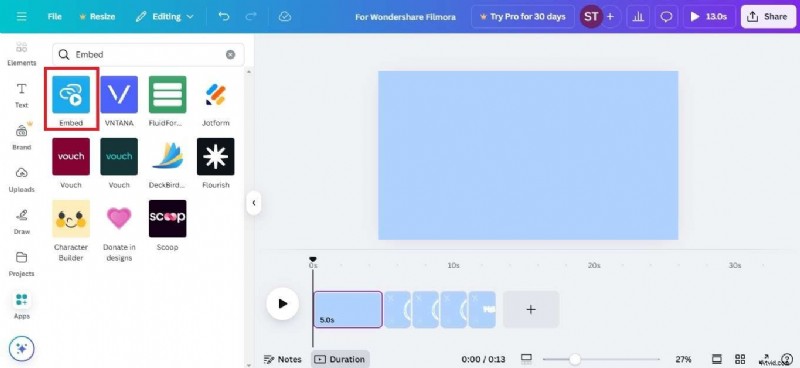
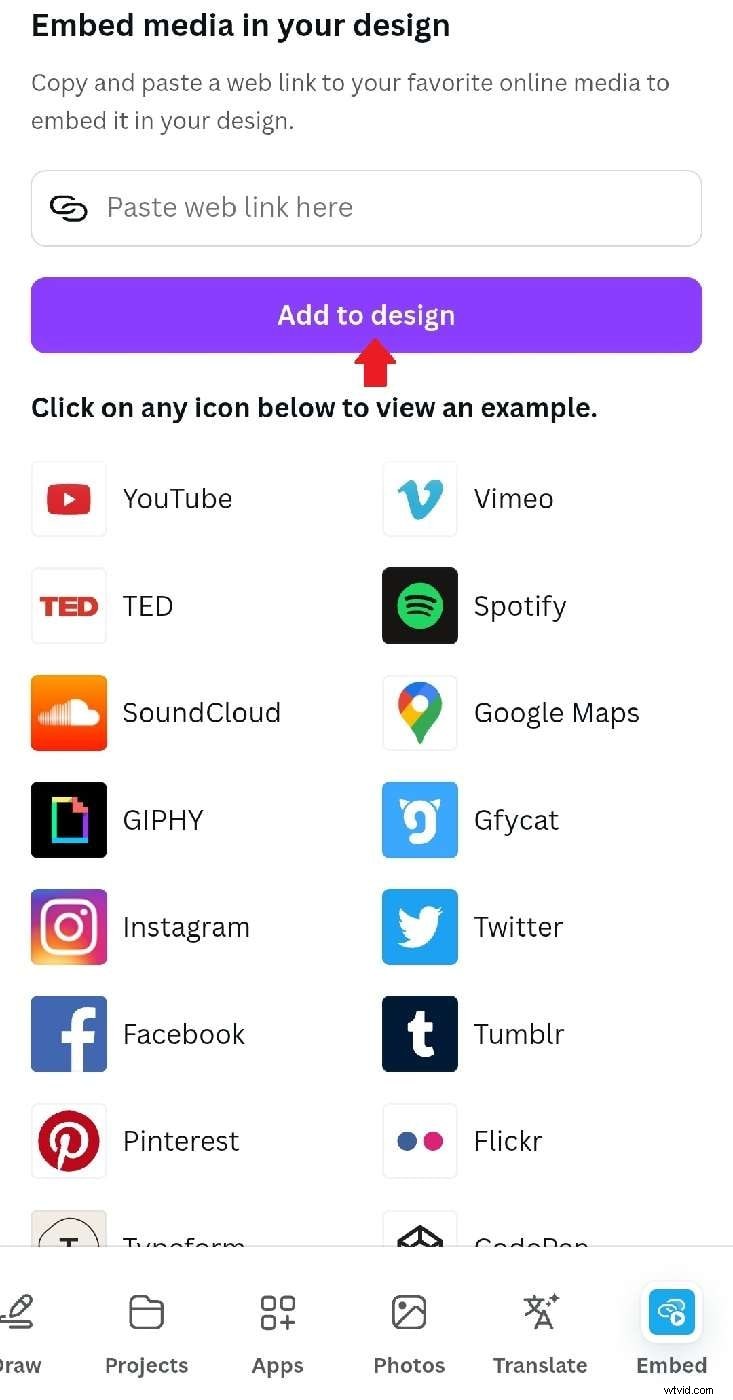
Paste the video link (YouTube, Vimeo, Facebook, etc.). Next, click Add to design to insert the video into the Canva presentation.

On Mobile
Here’s how to embed a video in Canva for mobile:
Step 1: Create or open your Canva design in the mobile app.
Step 2: Swipe through the options on the bottom toolbar and tap Apps.
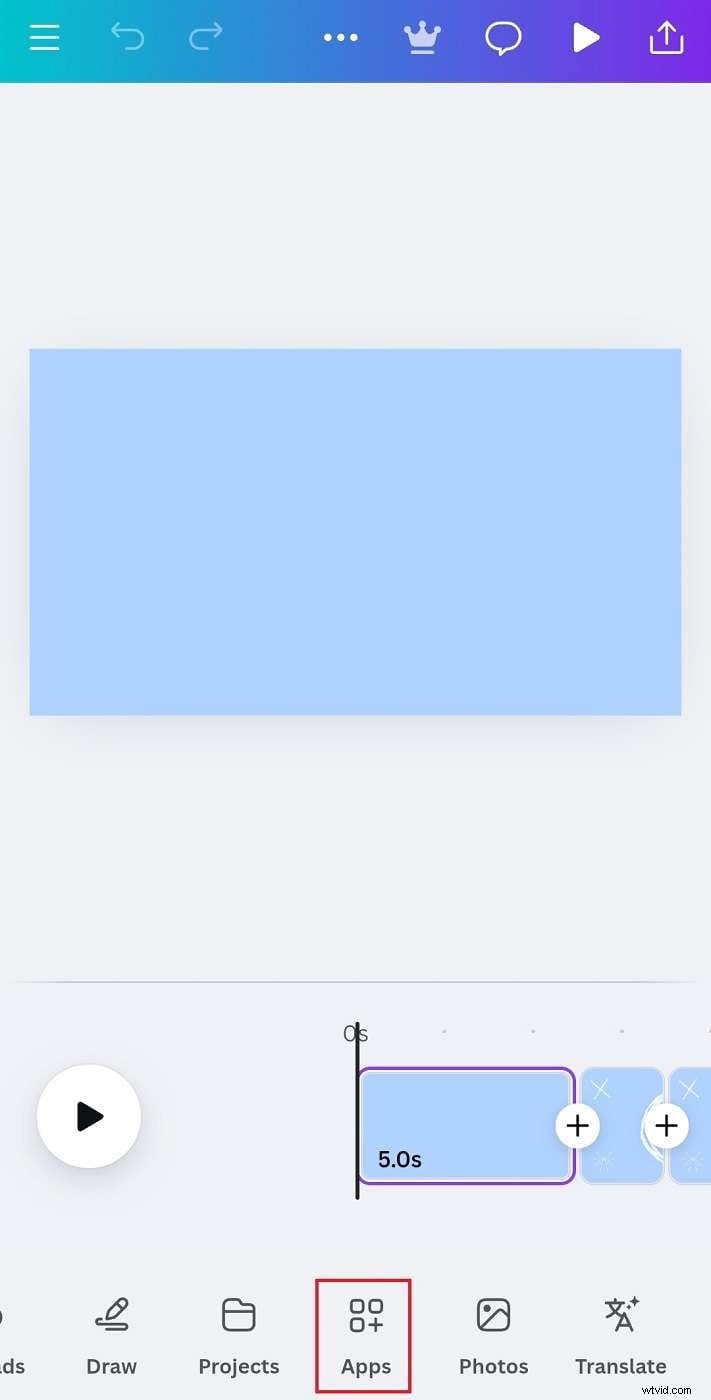
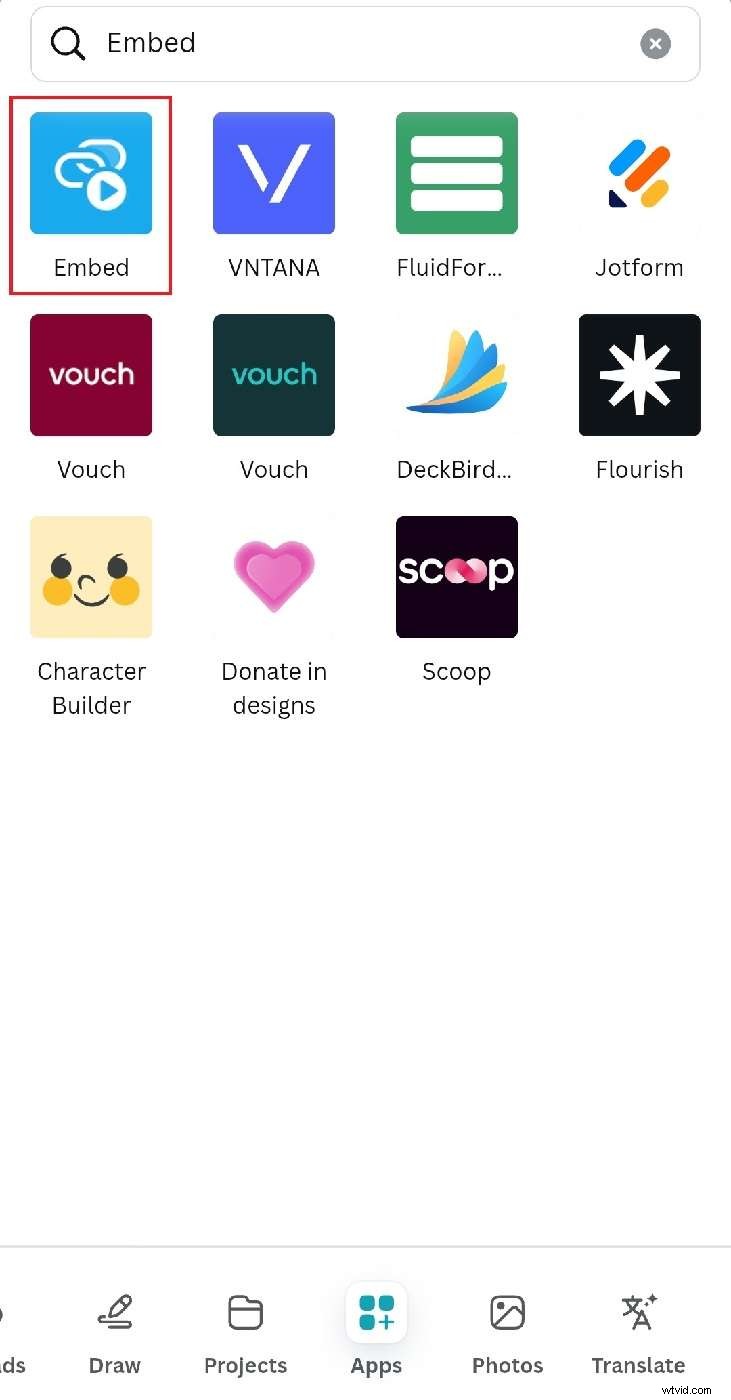
Step 3: Search for Embed and tap it.
Step 4: Paste the video link and tap Add to design. Resize or move the video as needed.
Your video is now embedded on Canva slides and ready to play inside your design!
Part 2: How To Embed Videos in Canva Design From Library?
Canva offers a library of stock videos you can add to your designs. Free users get limited access, while Canva Pro, Canva Teams, Canva for Education, and Canva for Nonprofits members can use the full collection.
On Desktop
Follow these steps to embed a video from Canva's library into your design on your desktop:
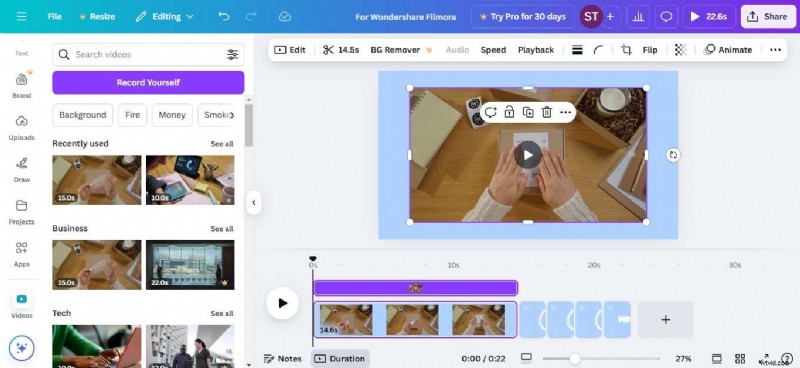
Step 1: Open your Canva design, then navigate to the left pane and select Videos. If unavailable, select Apps.
Step 2: Scroll down and choose Videos under the More from Canva section.
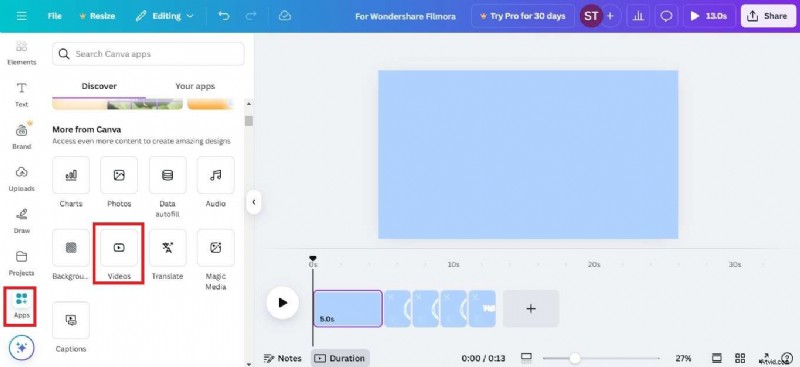
Step 3: Browse video categories or use the search bar to find a specific clip. You will see that free videos have a Free label, while premium videos show a Pro tag.
Step 4: Click a video to embed it into your Canva presentation.
On Mobile
Here’s a quick tutorial on how to embed a stock video on Canva for mobile:
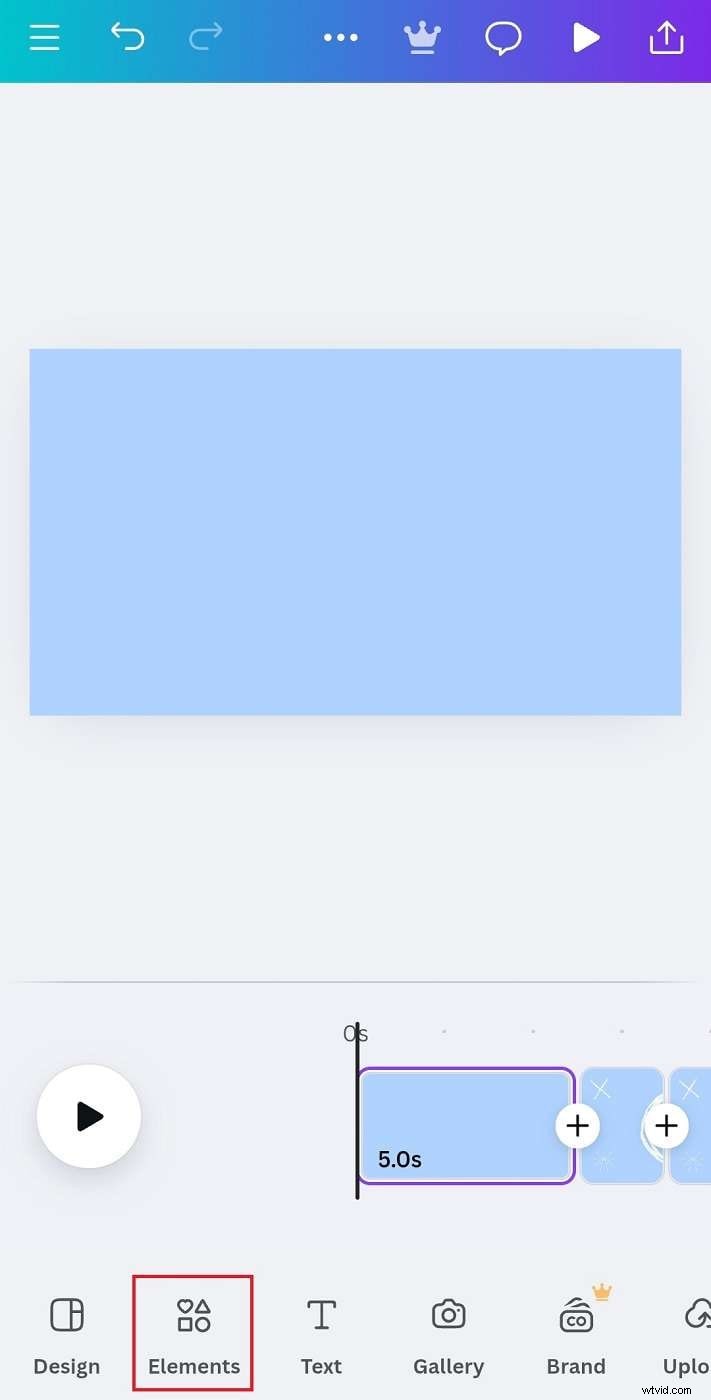
Step 1: Open your design in the Canva mobile app, then tap Elements from the bottom navigation menu.
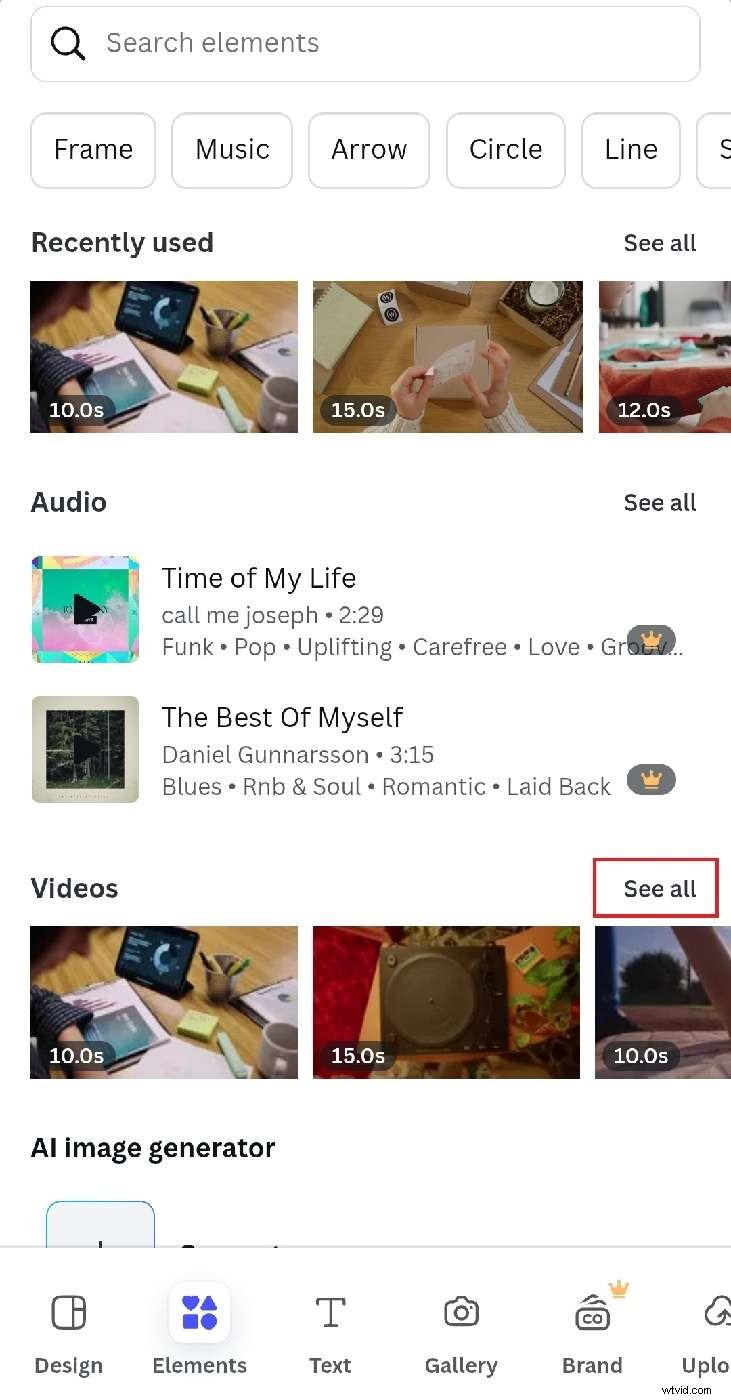
Step 2: Tap See all in the Videos section to explore more stock videos. You can also search by keyword for more options.
Step 3: Browse and tap a video to embed the video in the Canva slide. Adjust the size and trim as needed.
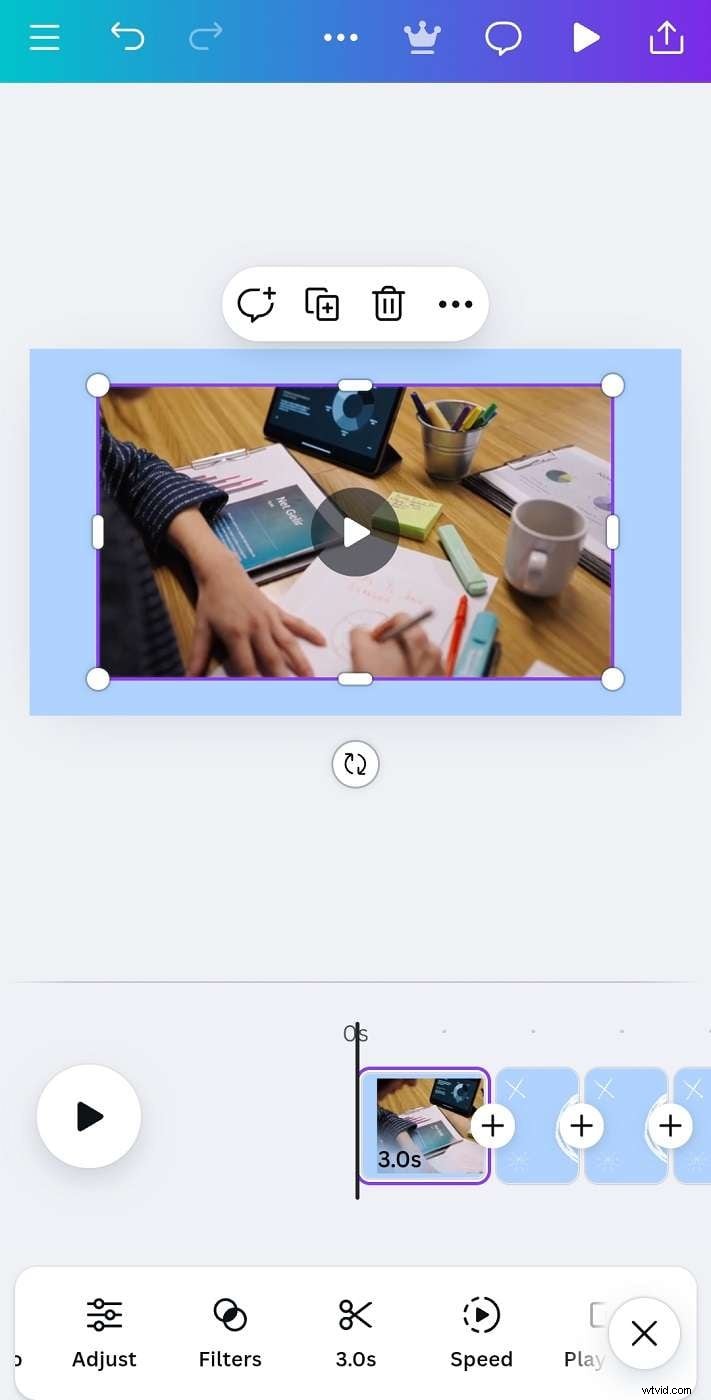
Canva videos autoplay when exported as MP4 or GIF. For interactive presentations, they play when clicked.
Part 3: How To Embed a Video on Canva From Your Files?
Want to use your videos in Canva? You can upload clips directly from your device and add them to your design or presentation. It is helpful for personal content, branded videos, or any clip unavailable in Canva’s library or online.
On Desktop
Follow these steps to embed a video from your files into Canva on your desktop:
Step 1: Click Uploads on the left panel, then select Upload files. To upload from local storage, Dropbox, Google Photos, or Google Drive, click the More icon next to it.
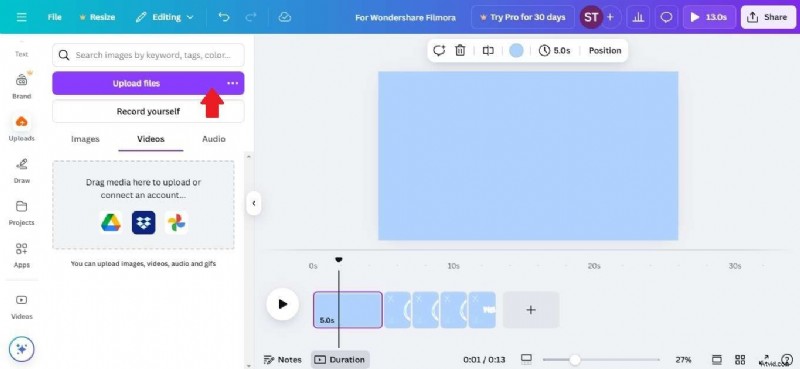
Step 2: Choose a video from your device and wait for the upload to finish.
Step 3: Click the video on the left panel to insert it into your Canva presentation.
On Mobile
Here’s how to upload and insert a video in a Canva presentation using the mobile app:
Step 1: Swipe left on the bottom navigation menu and select Uploads.
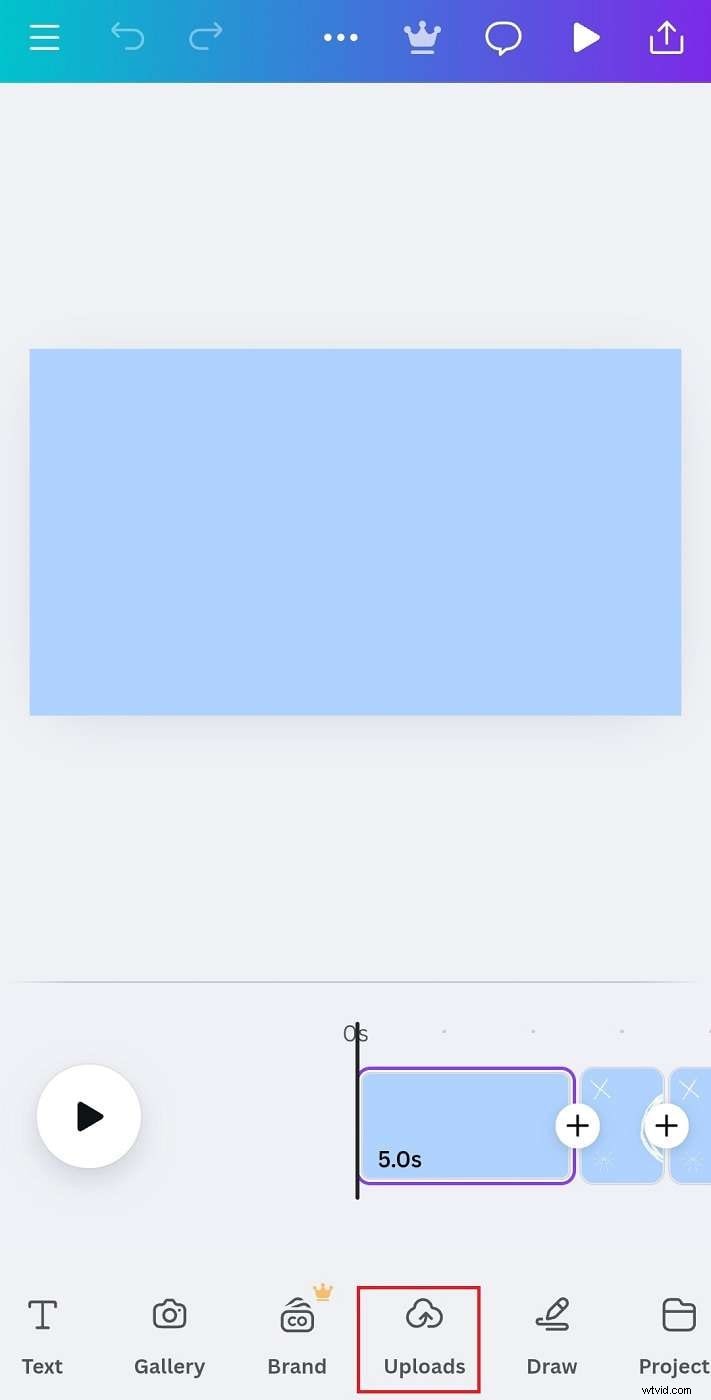
Step 2: Tap Upload files and select a video from your phone. You can also upload from Google Drive, Dropbox, or Google Photos by tapping their icons under the Videos tab.
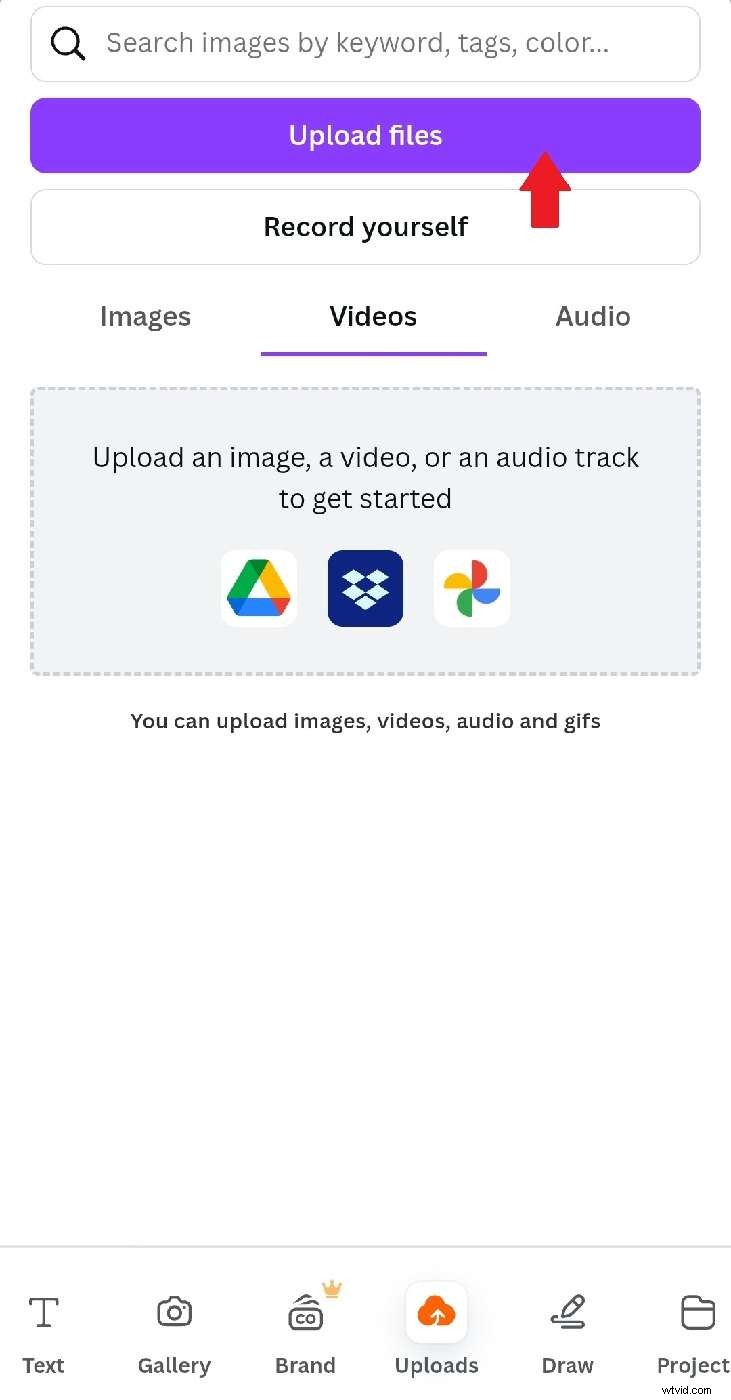
Step 3: Wait for the video to upload, then tap to insert it on your Canva design. Uploaded videos stay in your Uploads folder, so you can embed them in other designs without re-uploading.
While Canva lets you embed videos, it only allows basic adjustments like resizing, repositioning, and rotating. You can’t make advanced edits directly. If you need more control, like adding effects, text, or transitions, you can edit the video in Filmora before embedding it into your Canva design.
Part 4: Enhance Videos With Filmora Before Embedding in Canva
Wondershare Filmora is a video editing software that helps improve your clips before adding them to Canva. It offers unique transitions, filters, text effects, and motion elements to make videos more dynamic. You can download it on a desktop or mobile, just like Canva, so you can edit it on the same device. Once your video is ready, you can upload it to Canva and embed it in your design.
On Mobile
If you’re using Canva on your phone, you can also edit your videos with Filmora’s mobile app. Here’s how:
Step 1: Download and open Filmora on your mobile device. Next, tap New Project, then import the video you want to enhance.
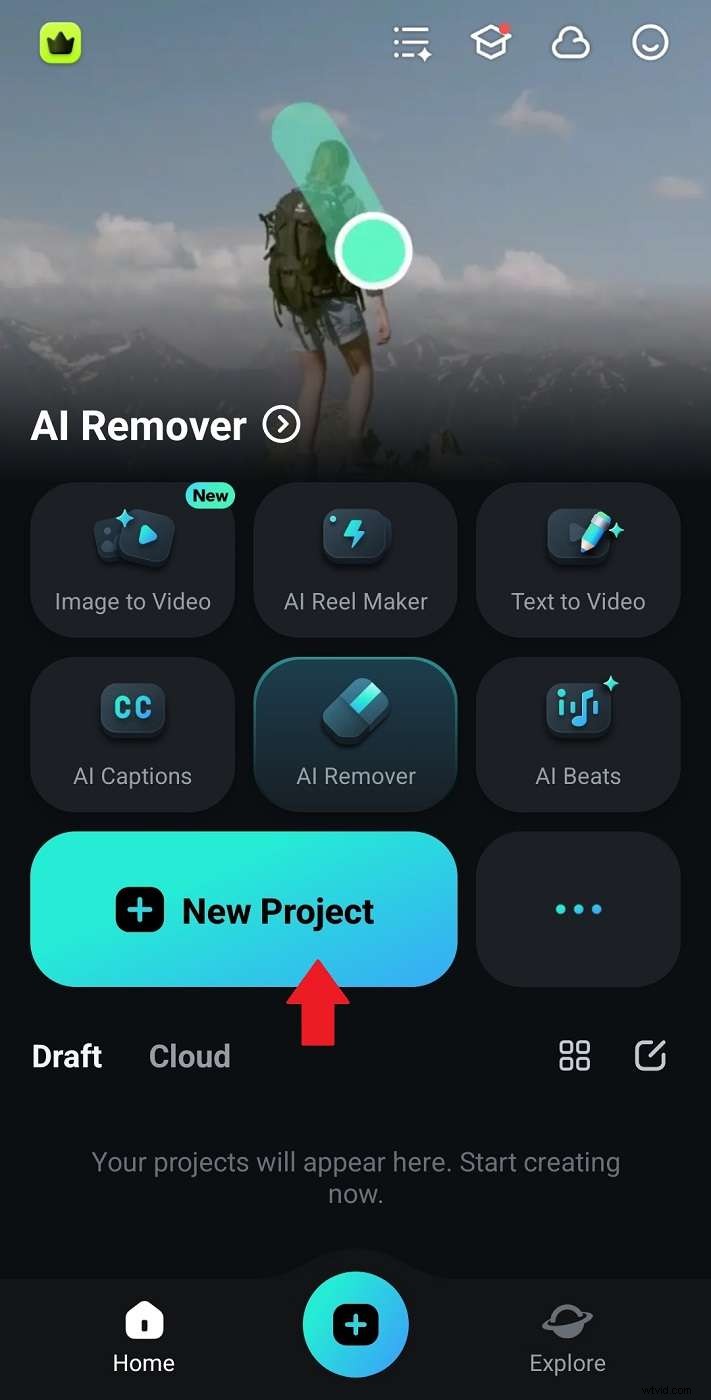
Step 2: Use the bottom navigation menu to enhance your video:
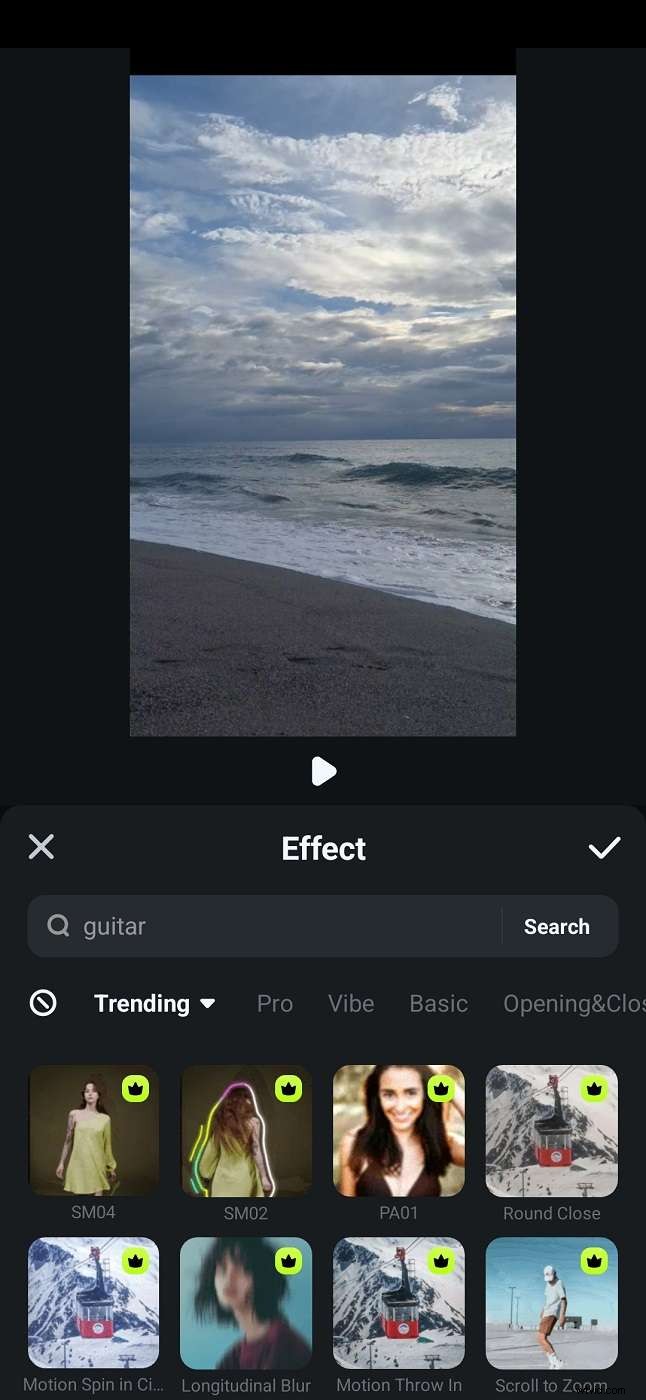
- Swipe and tap Effect to add audio effects, body effects, motion effects, and more.
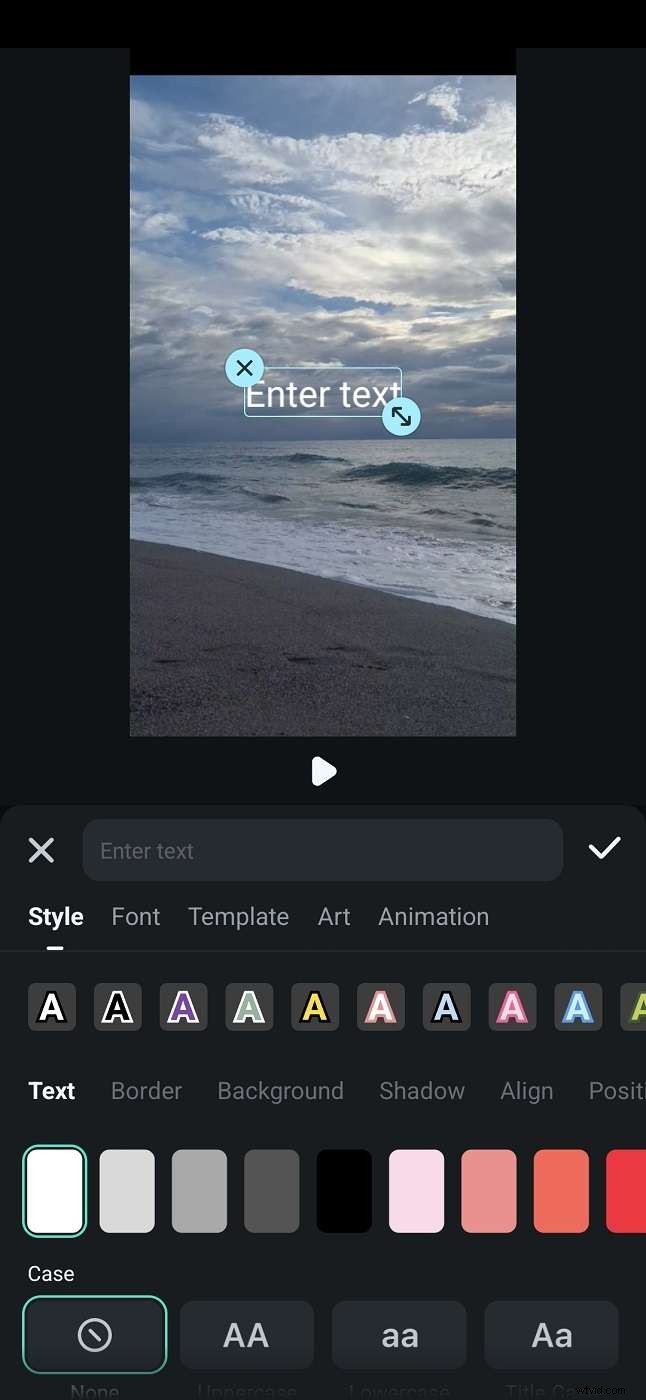
- Tap Text, select Add, and insert titles or captions. Customize fonts, colors, and animations.
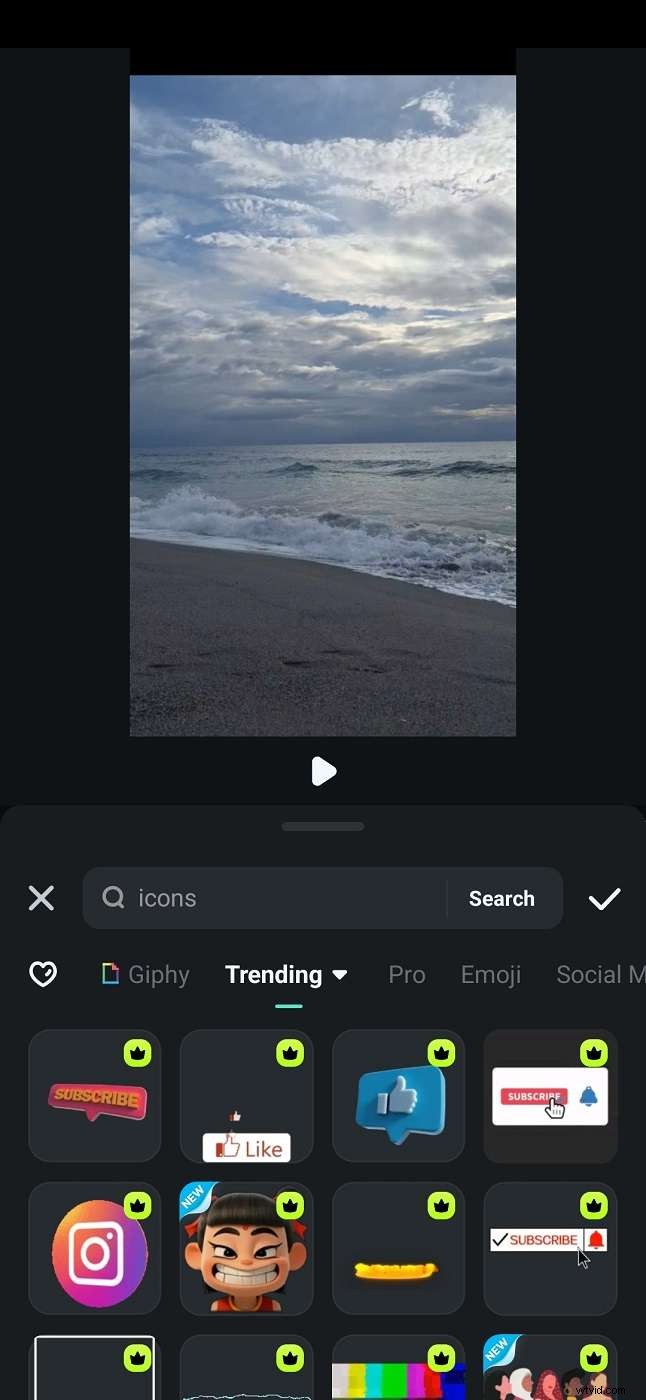
- Tap Sticker and browse categories like social media, cinematic, and reactions.
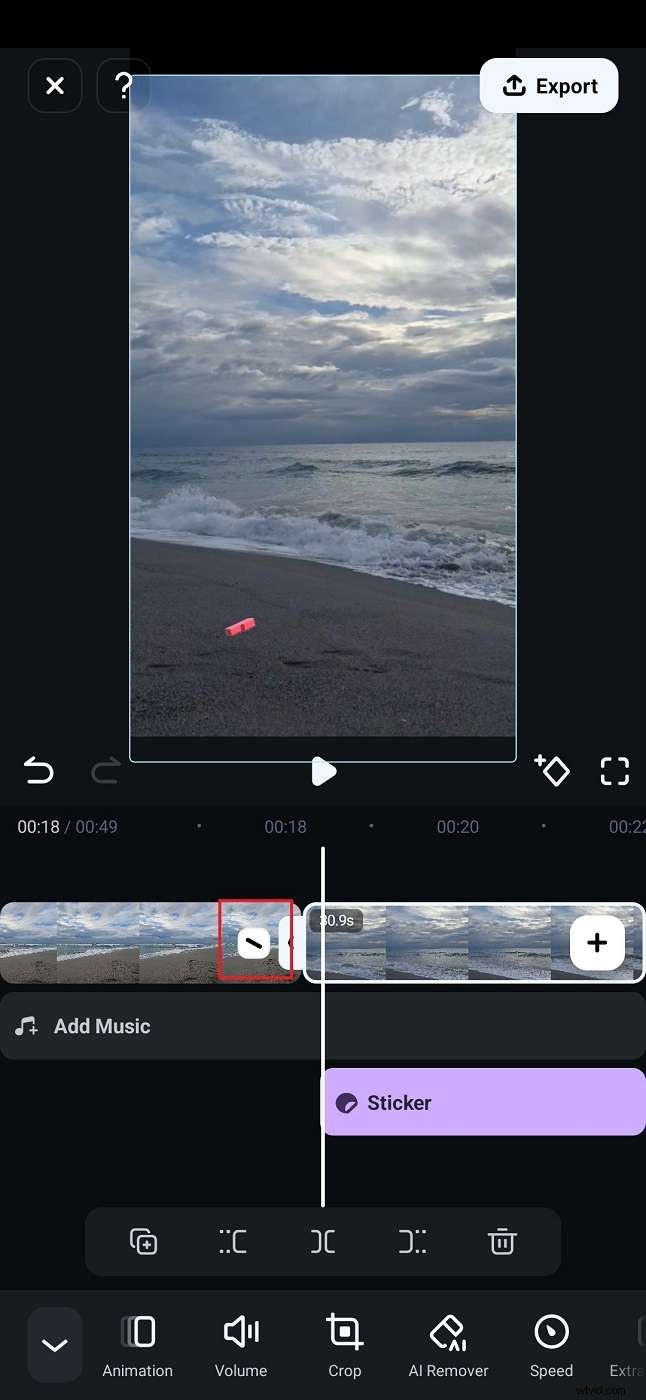
- If you have multiple clips to combine into one video before embedding it in Canva, select them in the editing timeline. Then, tap the Transition icon between clips and choose an effect for smoother scene changes.
Step 3: Tap Export on the top right corner to download the edited video to your phone. Once done, you can embed the final video in your Canva presentation.
On Desktop
If you’re using Canva on a computer, Filmora’s desktop version provides even more editing options. Here’s how to edit and customize your video in Filmora before embedding it in Canva:
Step 1: Download and open Filmora on your desktop.
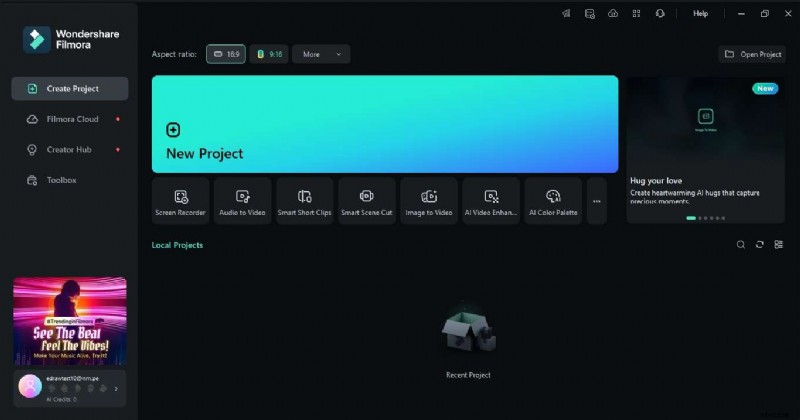
Step 2: Sign in and click New Project from the start screen.
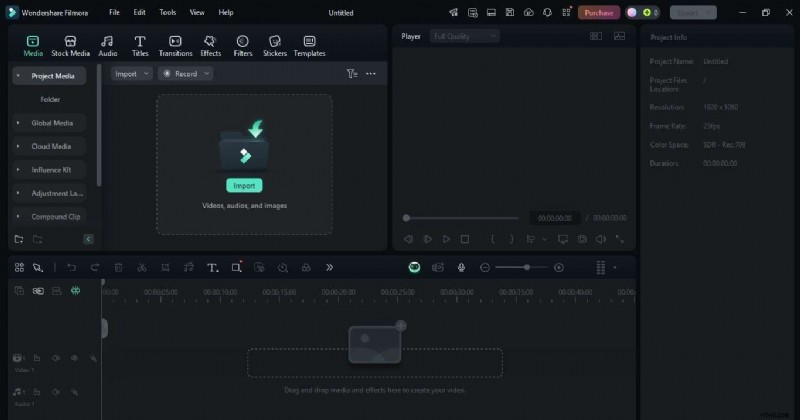
Step 3: Click Import in the Project Media section on the left panel or drag and drop files. You can also browse Stock Media or explore Templates from the upper navigation menu.
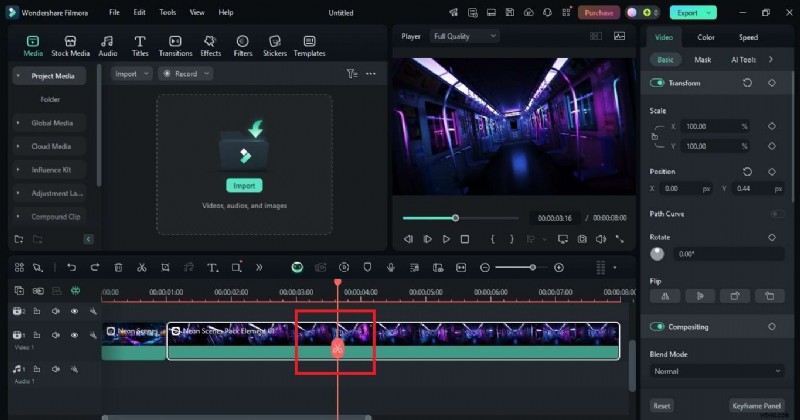
Step 4: There are plenty of ways to edit and customize your video. Here are some things you can do in Filmora:
- Split clips: Click the video in the timeline, move the play head to where you want to cut, and click the Scissors icon.
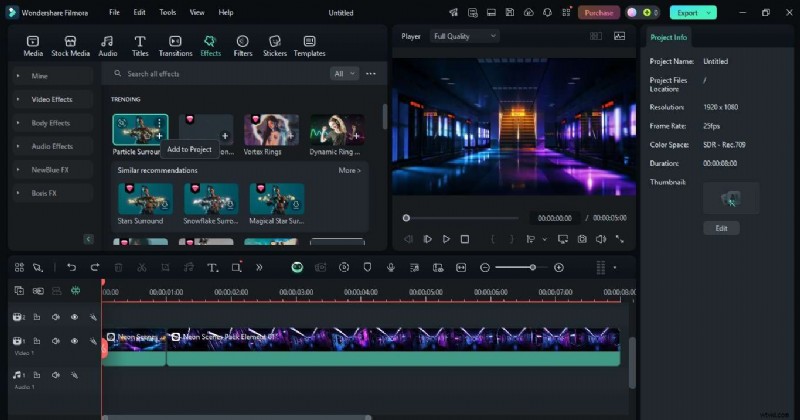
- Add effects: Go to Effects in the top menu and add the chosen effect to the video in the editing timeline.
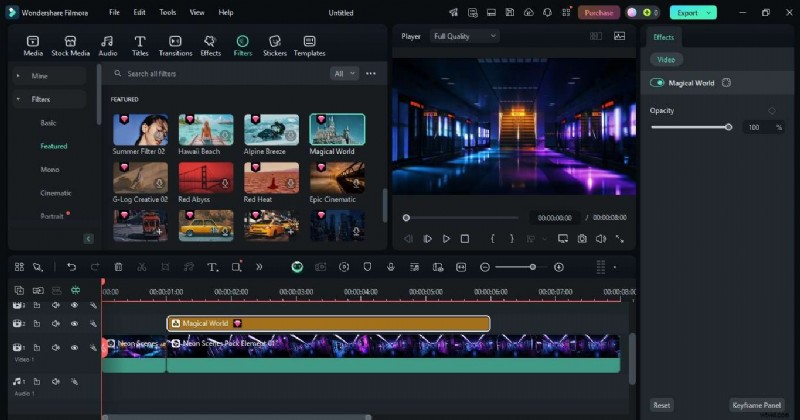
- Apply filters: Go to Filters, browse categories, and select a style like action movie, metro creative, or magical world. Drag it onto your video or the editing timeline to apply.
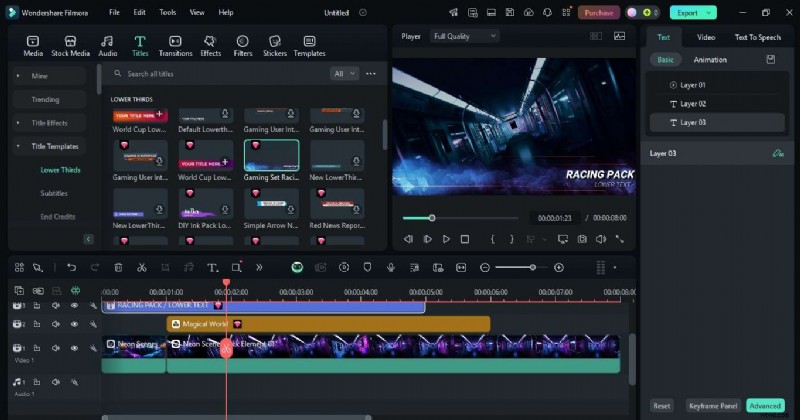
- Add text and titles: Go to Titles, choose from pre-designed title templates, and drag one onto the timeline.
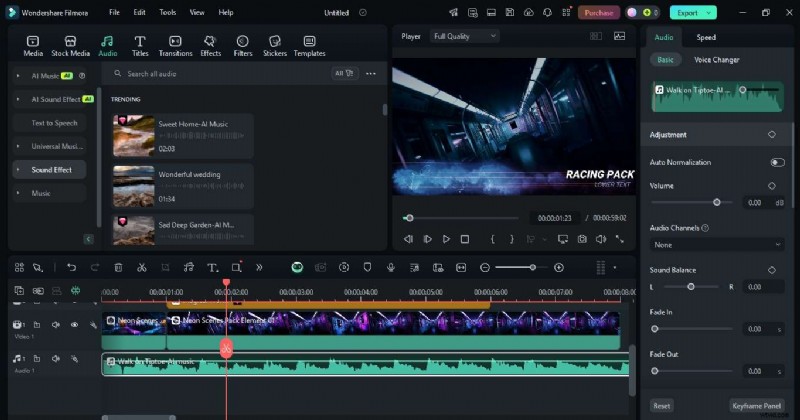
- Improve audio: Click the audio track, adjust the volume, or apply fade-in/out effects on the right panel. You can also add sound effects from the Audio section in the top menu.
Step 5: When finished, click Export in the top right corner, choose a format and resolution, then save the video.
Conclusion
Great visuals make an impact, and videos help tell your story even better. You can embed videos in Canva from links, stock libraries, or your files. But sometimes, a little extra editing helps them fit your design.
Filmora works alongside Canva to give you more control. It lets you refine videos, add effects, and customize titles so everything looks right.
Now that you know how to embed a video in Canva, give it a try. And when you need more editing options, Filmora has you covered.