
Nano Banana—the industry name for Google’s Gemini 2.5 Flash Image generation—lets you create, edit, and blend stunning visuals directly from text prompts. With advanced tools for image editing, consistent character generation, and seamless image blending, Nano Banana is a versatile solution for artists, marketers, and AI enthusiasts.
This comprehensive guide covers everything from account setup to advanced prompting techniques, subscription details, and integration with popular video editors like Filmora. Whether you’re a seasoned designer or a newcomer, you’ll find clear, step‑by‑step instructions to unlock Nano Banana’s full potential.
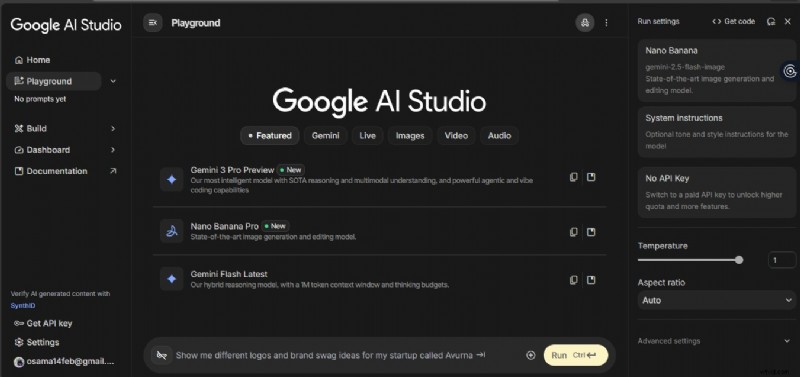
Table of Contents
- Getting Started with Nano Banana on Google AI Studio
- Crafting Your First Prompt
- Mastering Prompt Techniques
- Key Features of Gemini 2.5 Flash (Nano Banana)
- Using Image‑to‑Image
- Common Beginner Mistakes & Fixes
- Saving, Exporting & Using Your Images
- Integrating Nano Banana with Filmora
- Conclusion
Part 1: Getting Started with Nano Banana on Google AI Studio
Follow these steps to set up your account and navigate the platform:
- Create or Log In – Visit Google AI Studio and sign in with your Google account. The web interface works on both desktop and mobile.
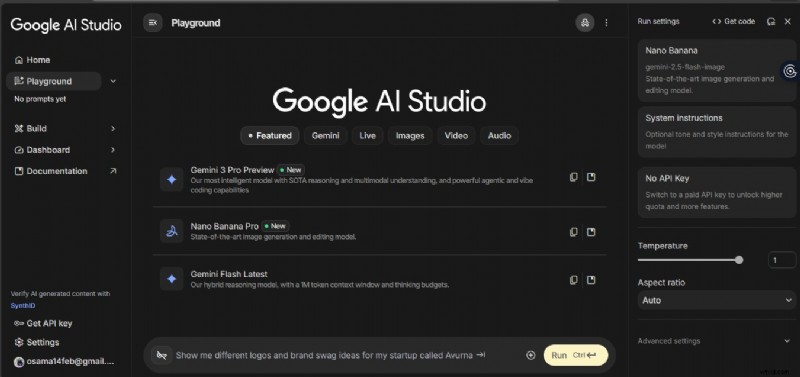
- Explore the Dashboard – The left‑hand menu gives quick access to Home, Playground, Build, Dashboard, and Documentation.
- Playground Overview – Select Nano Banana or Nano Banana Pro from the model selector. In the prompt box, enter your text, adjust Temperature for creativity, Aspect Ratio for size, and optionally use Advanced settings.
- Key Dashboard Features – Switch models, set system instructions, generate an API key for premium access, and review your prompt history for easy iteration.
Subscription Models
Nano Banana uses a credit‑based system. Choose the tier that matches your workflow:
- Free – $0/month, 100 credits/month. Ideal for casual testing.
- Pro – $19.99/month (free for college students for one year). 1,000 credits/month, access to Nano Banana Pro, Flow, Whisk, and Gemini app integration.
- Ultra – $249.99/month (or $124.99 for a 3‑month commitment). 25,000 credits/month, full access to Veo 3.15, Gemini Agent, Deep Think, and priority usage across Flow, Whisk, and NotebookLM.
Part 2: Crafting Your First Prompt
Follow a clear structure to maximize consistency:
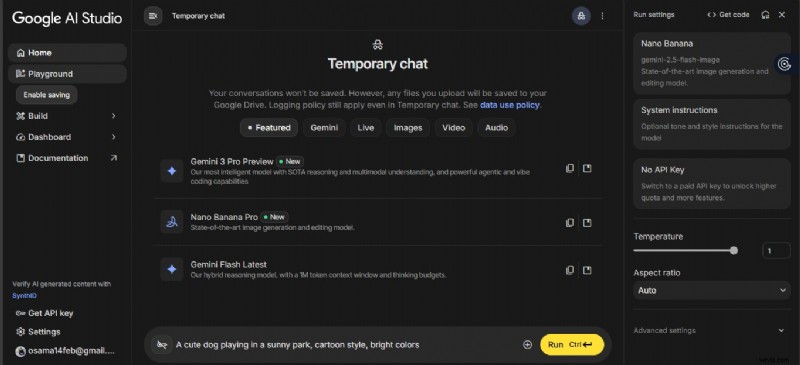
- Prompt Formula – [Subject] + [Action] + [Setting] + [Style]. This format gives the AI precise guidance.
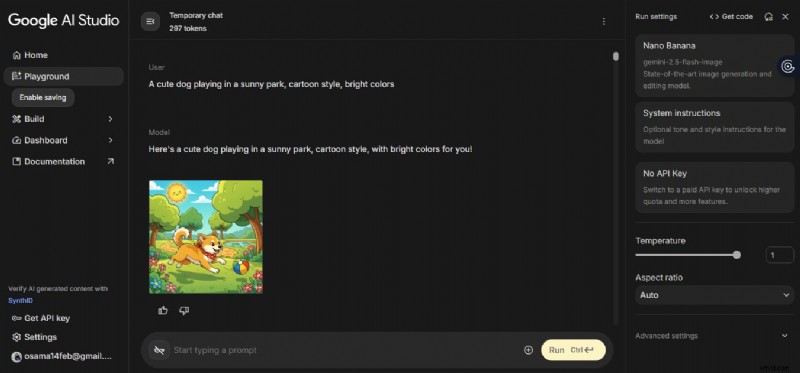
- Example Prompt – "A cute dog playing in a sunny park, cartoon style, bright colors."
- Generate – Click Run and your image will appear within seconds. Download or refine as needed.
Part 3: Mastering Prompt Techniques
Elevate your outputs with advanced strategies:
Basic Structure
Start with the subject, add the action, describe the environment, then specify the style. This hierarchy reduces ambiguity and improves result quality.
Essential Elements
- Detailed Descriptions – Highlight unique features and dynamic actions.
- Rich Environment – Specify lighting, background, and context.
- Style or Artistic Reference – Mention art movements, camera angles, or visual aesthetics.
Advanced Techniques
- Weighting – Use parentheses to emphasize key components.
- Negation – Add
--noto exclude unwanted elements. - Style Fusion – Combine multiple styles (e.g., "watercolor + cyberpunk").
- Reference Images – Provide visual cues to guide the AI.
Part 4: Key Features of Gemini 2.5 Flash (Nano Banana)
- Consistent Subject Identity – Maintain the same character across scenes.
- Prompt‑Based Editing – Remove objects, adjust poses, or transform elements using text commands.
- Advanced Visual Reasoning – Solve handwritten equations, create infographics, and follow complex editing instructions.
- Full Lighting & Camera Control – Manipulate lighting, focus, angles, and depth of field.
- Instant Style Transfer – Apply the texture or palette of a reference image quickly.
- Seamless Photo Combining – Blend multiple images naturally.
- Advanced Text Rendering – Insert clear, multilingual text that integrates seamlessly.
- Platform‑Ready Resizing – Adjust image dimensions for social media, presentations, or print.
- Enhanced World Knowledge – Generate context‑aware, accurate visuals for educational or informational content.
- Built‑In Trust & Safety – Invisible SynthID watermark ensures authenticity and responsible use.
Part 5: Using Image‑to‑Image
Transform existing photos into AI‑enhanced visuals in seconds. Upload an image, type a descriptive prompt, and let Nano Banana adjust background, style, or subject details.
Part 6: Common Beginner Mistakes & Fixes
- Vague Prompts – Replace generic language with specific subject, action, setting, and style.
- Over‑Complicated Prompts – Limit conflicting elements to keep the AI focused.
- Style Confusion – Use complementary styles or weightings when blending multiple aesthetics.
- Character Inconsistency – Provide detailed attributes and reference images for repeated characters.
- Output Quality Issues – Adjust resolution, refine the prompt, or use Advanced settings for higher fidelity.
Part 7: Saving, Exporting & Using Your Images
Images are temporary; export them as PNG or other common formats from the dashboard. Once saved, they can be shared across social media, marketing materials, or design projects.
Part 8: Integrating Nano Banana with Filmora
Filmora’s AI features complement Nano Banana’s image generation. Drag‑and‑drop AI images into Filmora’s timeline, apply transitions, overlays, and text, and produce polished videos.
- Easy Media Handling – Direct import of Nano Banana images.
- Flexible Editing – Blend AI images with footage, text, and music.
- Built‑In Templates & Effects – Enhance videos without advanced skills.
- AI Image Generation – Generate images within Filmora using Nano Banana.
- Versatile Output – Create reels, promos, tutorials, or personal projects.


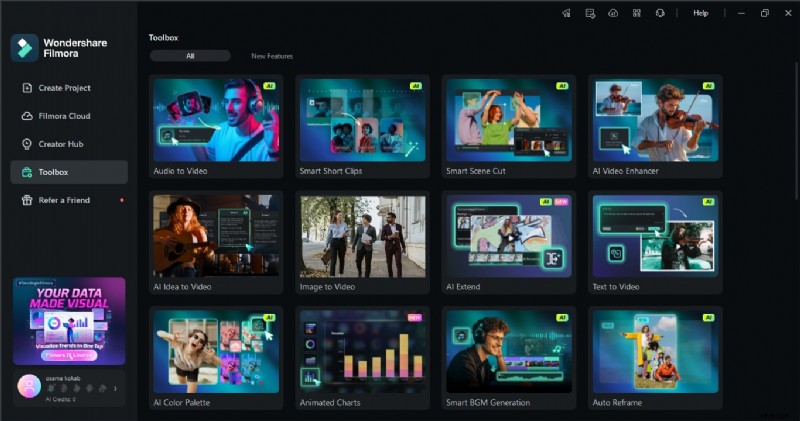
Using AI Image in Filmora
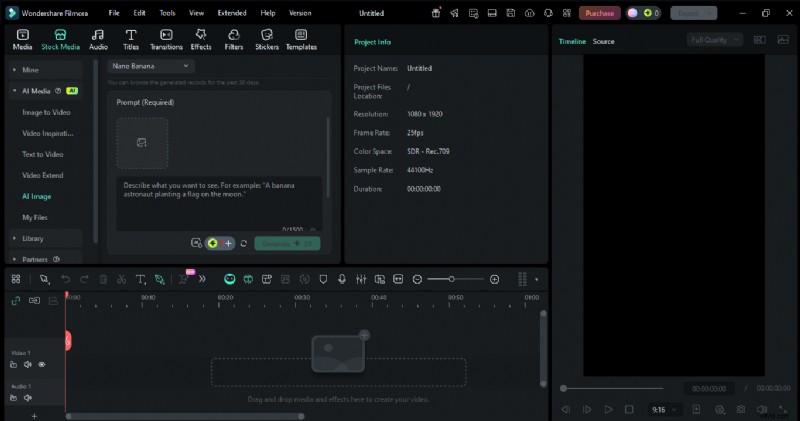
- Open Filmora and navigate to the AI Image feature.
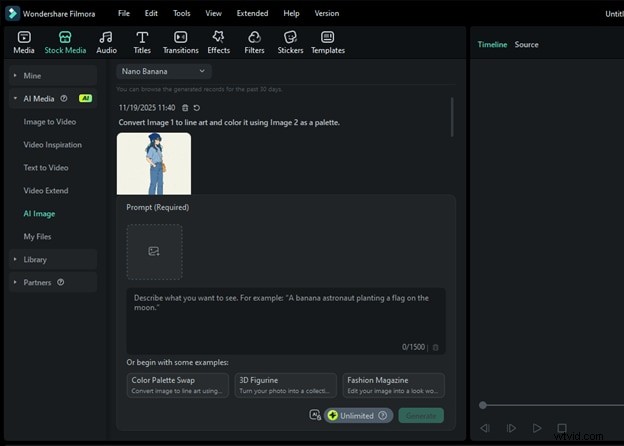
- Select the Nano Banana model and enter a concise prompt.
- Click Generate; the image appears in the preview.
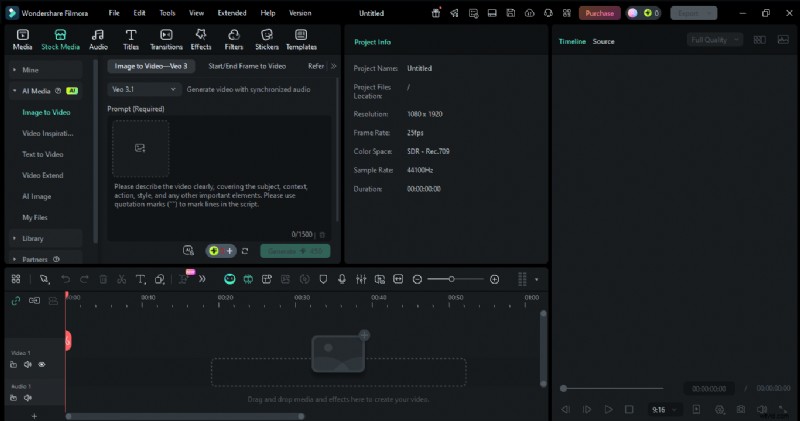
AI Image to Video in Filmora
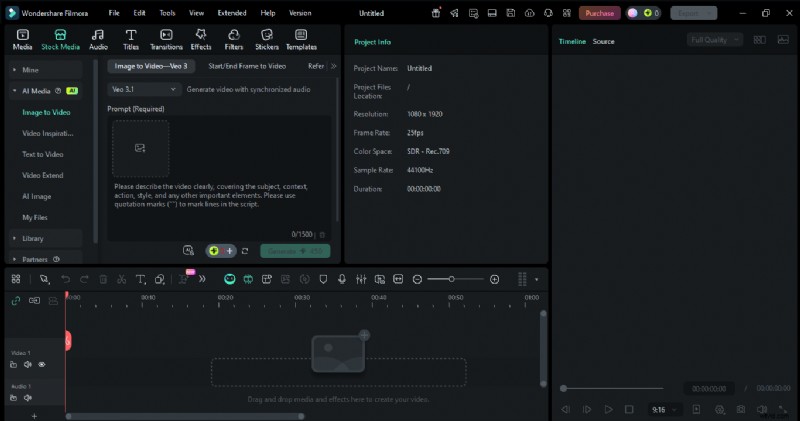
- Import Nano Banana photos into the AI Image to Video workflow.
- Select an AI model (Sora, Veo 3, or standard) and click Generate.
- Preview the animation and export in your preferred resolution.
Conclusion
Nano Banana provides a powerful, beginner‑friendly platform for AI image creation and editing. By mastering prompt techniques and leveraging Filmora’s video tools, you can transform concepts into professional‑grade visuals quickly and efficiently. Start experimenting today to unlock the full creative potential of AI.