
Memes have become the internet’s lingua franca, popping up on every platform from Instagram to group chats. If you want a unique, personal meme that nobody else has shared, your iPhone is all you need. With just a dash of creativity and humor, you can produce high‑quality memes directly from your device.
Below are three straightforward methods that cover everything from simple text overlays to animated videos and dedicated meme‑maker apps.
In this article
- Using the built‑in Photos app
- Creating animated memes with Filmora
- Top third‑party meme‑maker apps for iPhone
- Inspirational meme examples
Part 1 – Add Captions with the Photos App
Many popular memes already exist as templates. Simply download a template, edit it, and add your own punchline—no extra app required.
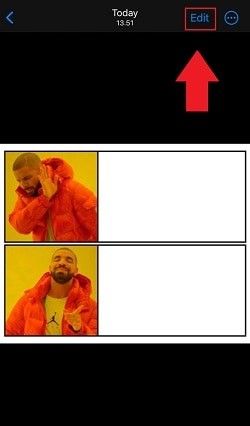
- Find a template: Search X (formerly Twitter), Instagram, or Google for a meme you like. For example, the Drake “Hotline Bling” meme is widely used. Save the image to your Photos library.
- Open the image: In Photos, tap the image, then tap Edit to access editing tools.
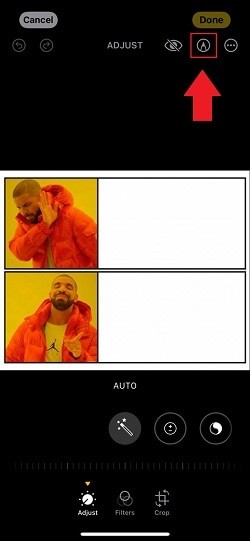
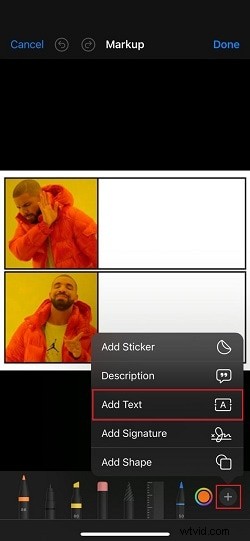
- Mark up the text: Tap the marker icon to bring up the markup toolbar. Press + and choose Add Text.
- Customize: Type your caption, drag it to the desired location, and adjust font or color if needed. When satisfied, tap Done to save.

Part 2 – Create Animated Memes with Filmora
Video and GIF memes are perfect for capturing quick moments or movie scenes. Filmora Mobile lets you trim clips, add captions, stickers, and music—all within a single app.
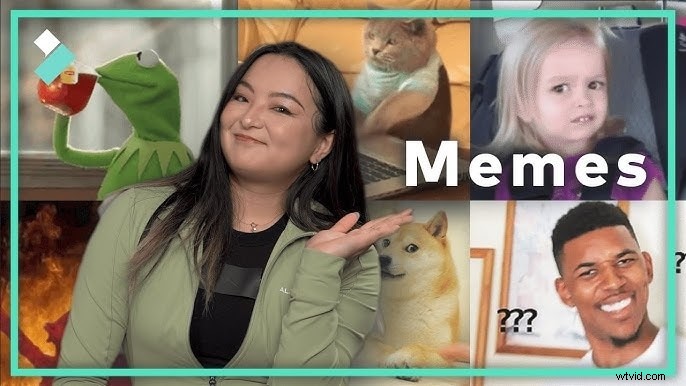
Filmora’s built‑in music library, sound effects, and AI audio generator provide the extra comedic punch. Export the finished product as a video or convert it to a GIF for easy sharing.

Download Filmora for free on Windows 7+ (64‑bit) or macOS 10.14+.
Step‑by‑Step with Filmora
- Start a new project: Import the video or image you wish to turn into a meme.
- Trim & split: Tap the video track to access trimming tools and cut the clip to the desired length.
- Add text: Tap anywhere on the timeline, then select the Text button. Use T+ to add captions, or enable AI Captions for auto‑generated subtitles.
- Enhance: Adjust timing, apply borders, or change font styles. Consider freezing a frame if you plan to overlay stickers.
- Stickers & overlays: From the main menu, choose Sticker, browse the library, and add your chosen sticker. Resize and time it as needed.
- Music & sound effects: Go to the Audio menu. Select Music to browse Filmora’s library, or use Sound FX for comedic beats. The AI Audio feature lets you generate custom tracks that match your meme’s mood.
- Export & share: Tap Export to save your meme. You can also share directly to YouTube, TikTok, or other social platforms.
Part 3 – Best Meme‑Maker Apps for iPhone
When you want more advanced features or a broader selection of templates, dedicated apps are ideal. Below are three top choices available on the App Store.
1. Mematic
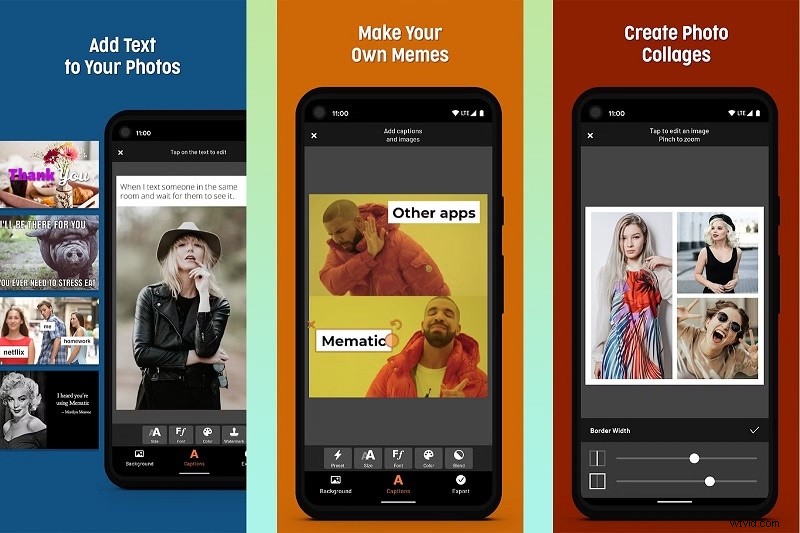
Mematic allows you to add captions to photos and videos, create collages, and access a library of free premium images and GIFs. Key features include:
- Multi‑image collages
- Custom text, stickers, and filters
- Quick‑style templates for classic or modern memes
- Instant sharing to WhatsApp, Telegram, Instagram, Facebook, and more
2. Meme Maker Pro
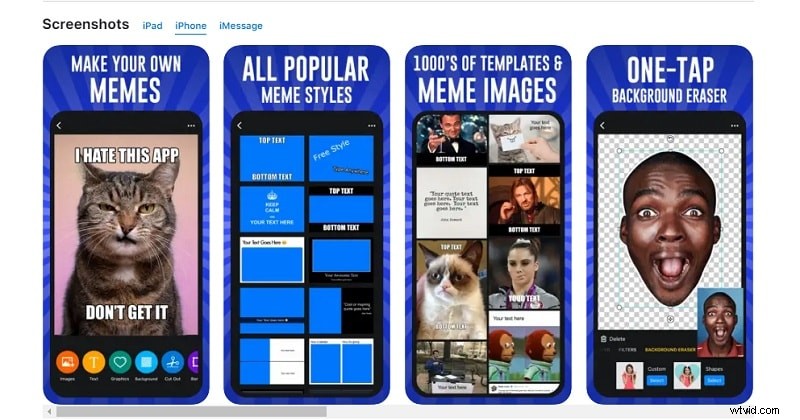
This app supports both static and video memes, GIFs, posters, and more, all without any design experience.
- Thousands of stickers, emojis, and design elements
- One‑tap background removal for seamless edits
- Customizable layouts with drag‑and‑drop text and images
- Share to Instagram, Facebook, Twitter, TikTok, and beyond
3. Memes: Make a Meme Generator
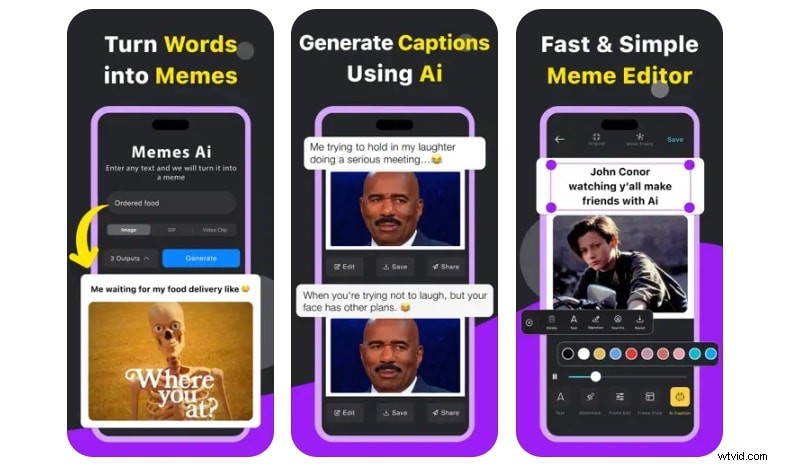
With over 100,000 video clip templates and Giphy integration, this app offers a modern interface and powerful customization options.
- Extensive template library
- GIF to meme conversion via Giphy
- Text backdrop, font styles, and alignment tools
All three apps follow a similar workflow: download, open, select a template, add your text, and share. They’re ideal for users who want a quick, polished result without a steep learning curve.
Part 4 – Meme Examples for Inspiration
Seeing how others craft memes can spark your own creativity. Below are some popular templates you might remix:
- "This Is Fine" – classic dog in a burning room

- Homer Simpson slowly backing into a bush

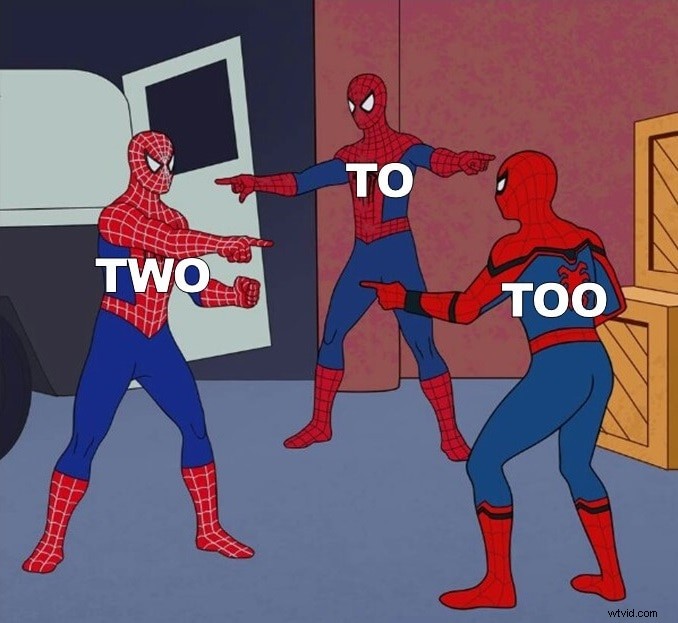
- Spider‑Man pointing meme
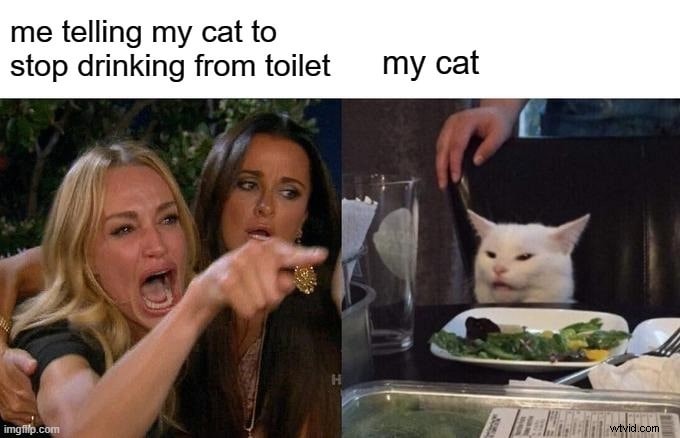
- Woman yelling at cat
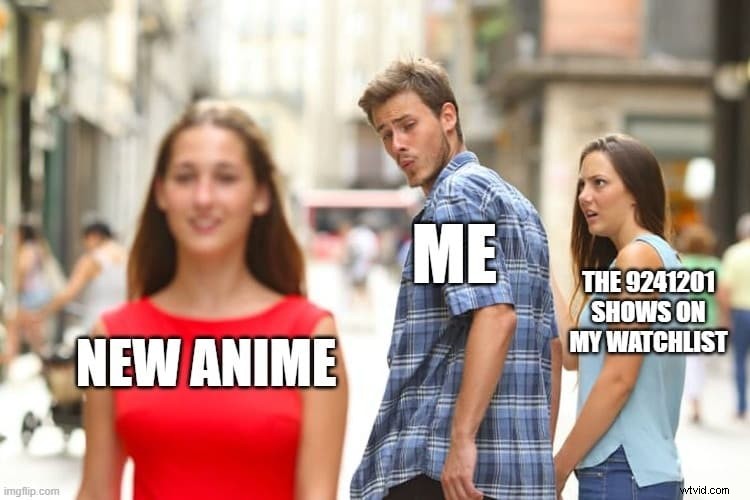
- Distracted boyfriend
Conclusion
Ready to start crafting your own memes on iPhone? Whether you prefer the simplicity of Photos, the versatility of Filmora, or the template richness of dedicated apps, you now have all the tools you need. Create, share, and enjoy the viral fun that only a great meme can bring.
Download the recommended apps and begin your meme‑making journey today.
Download Filmora for free on Windows 7+ (64‑bit) or macOS 10.14+.