
PixVerse AI makes it easy to generate videos from text. The tool is changing the way we create videos. It turns simple text prompts into fully generated visual scenes. However, those raw clips can often look rough or incomplete without human editing.
With Wondershare Filmora, you can quickly clean up PixVerse outputs. The platform ensures you get smooth transitions, pacing, and polish. PixVerse AI video generator and Filmora can prepare your AI content ready for any platform. Explore the article below to make content like a pro!
In this article
- Best 12 Sports Streaming Sites
- Key Filmora Features That Boost PixVerse AI Videos
- Use Cases: Social Media, Marketing, & More
Part 1. From AI Generation to Polished Video: Step-by-Step Guide
Creating with PixVerse AI is easy. Simply type a prompt and get a complete video in minutes. The quality of your draft depends heavily on how you structure your text. But for your content to truly shine, the next step is just as important. Importing it into Filmora and refining it with clean edits will improve pacing and provide better visuals. Follow the steps below:
Step 1: Create a Draft With PixVerse AI
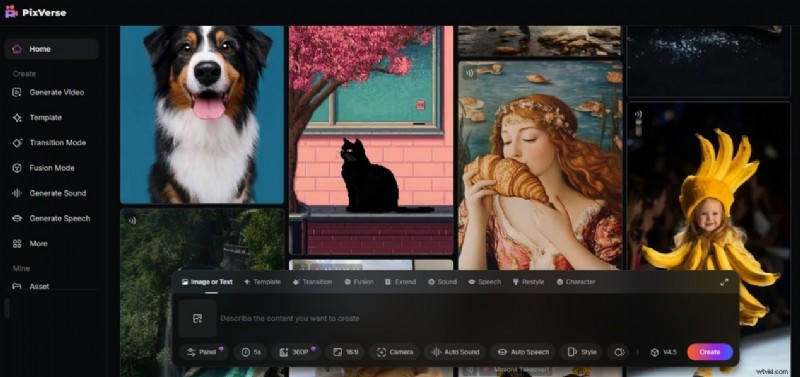
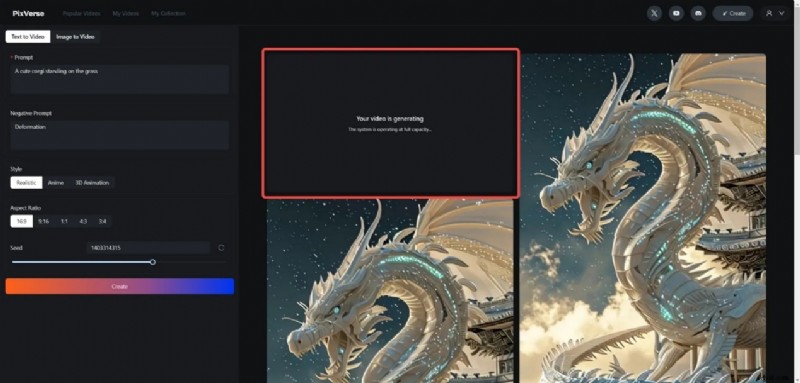
Go to PixVerse.AI and log in or register for an account. Next, choose the Text to Video tab.
Focus on one scene or idea per prompt. This keeps your visuals clear and prevents the AI from generating cluttered or confusing scenes. Use phrases like “realistic lighting”, “animated style”, or “cinematic angle” to maintain consistency across clips.
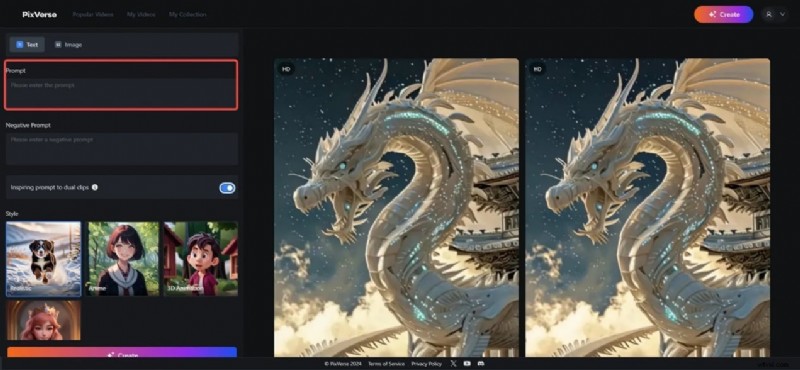
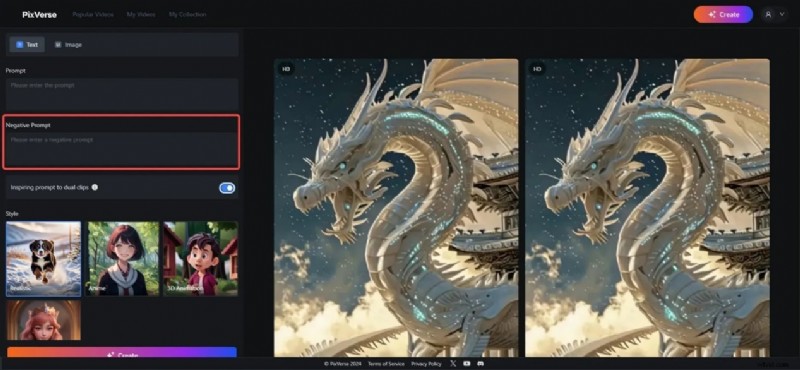
Prompts like “slow pan across skyline” or “fade into the nighttime city” help the AI plan smoother transitions. If you don't want something to appear in your video, write them down in the Negative Prompt section.
Choose your desired Style from the available options and the Aspect Ratio. Then, specify the Seed if you want to repeat a certain video.
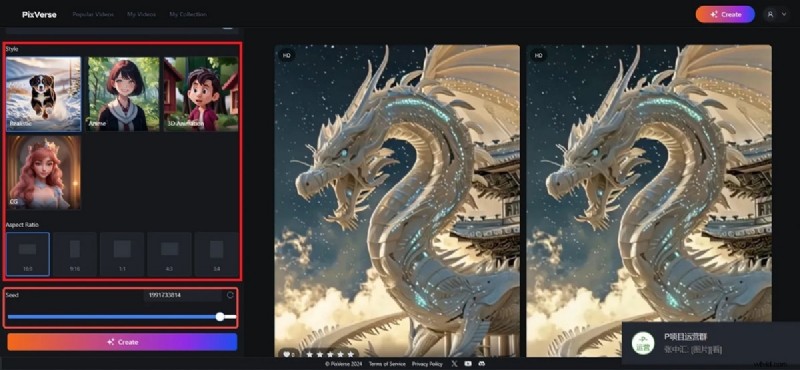
Click the Create button. Wait for the video generation to complete. After generating your scenes, download the video files and prepare them for editing in Filmora.
Step 2: Import and Refine in Filmora
Polish your AI draft using tools that match your skill level. Open your PixVerse AI footage in Filmora. You'll find all the tools you need in Filmora to make it look professional. Here are some of the features you can take advantage of whether you're a beginner or an advanced editor:
For Beginners: Quick Fixes With Powerful Results
Even if you're new to video editing, Filmora makes refining PixVerse AI videos simple and intuitive. These features help you clean up and enhance content in minutes.
Trim out awkward or repeated frames
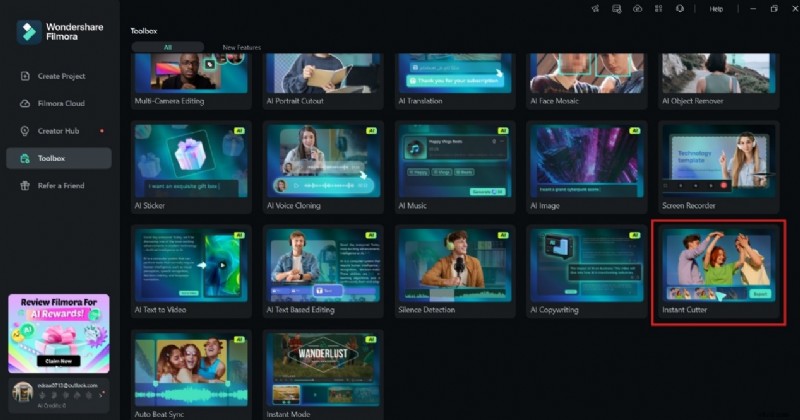
Use the Basic Cut Tool and Instant Cutter Tool in Filmora to easily trim clips, remove duplicate AI scenes, or shorten long transitions. You can scrub through the timeline and snip out low-quality sections without affecting the rest of your video.
Sync audio with visuals
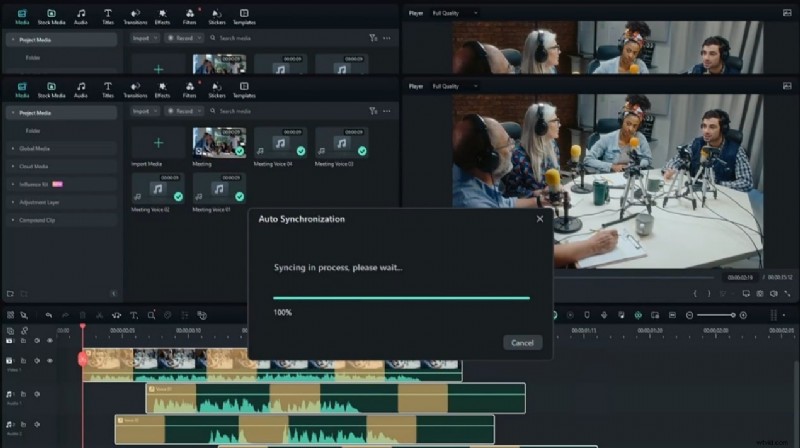
Filmora's Auto Audio Sync automatically aligns voiceovers or background music with the on-screen actions. This is great for PixVerse AI clips where the generated voice doesn't match the visual timing.
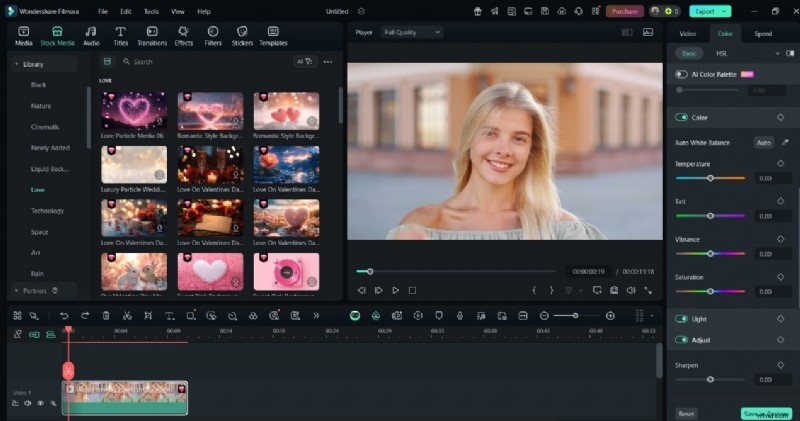
Apply ready-made filters and LUTs
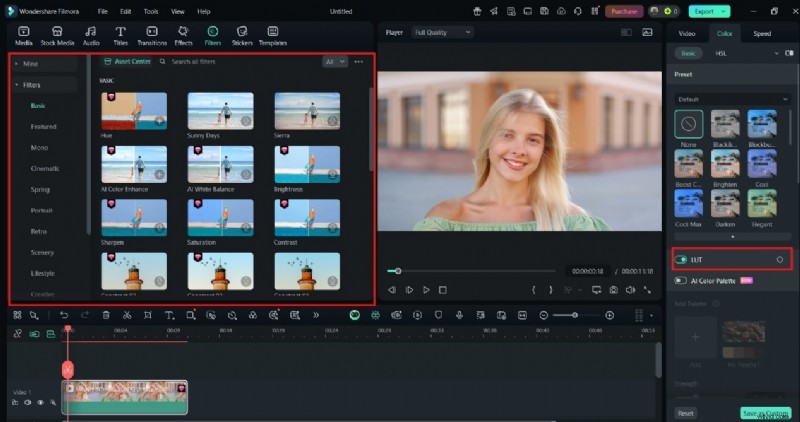
Choose from hundreds of Preset Filters and LUTs (Look-Up Tables) to instantly enhance lighting, mood, or tone. For example, you can apply a cinematic LUT to give your AI scenes a Hollywood feel or use a bright filter to lighten up dark AI footage.
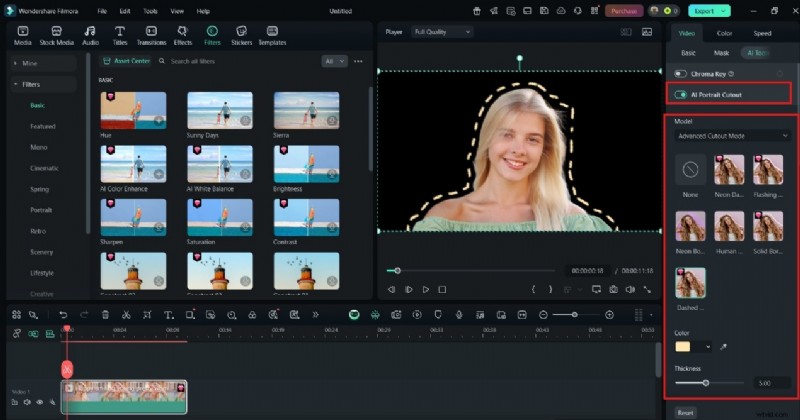
Use AI Portrait for background blur or isolation
If your PixVerse clip features a character, the AI Portrait tool can remove or blur the background without a green screen, creating a more focused and professional look.
For Advanced Users: Total Creative Freedom
If you're comfortable with deeper editing tools, Filmora offers complete control over every element of your PixVerse AI video. These features let you rework pacing, effects, and story layers for pro-level results.
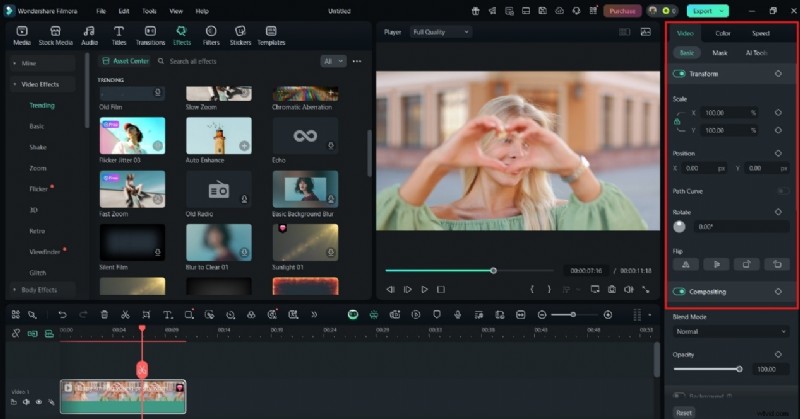
Use keyframes to fine-tune motion and effects
Filmora's Advanced Keyframing lets you animate movement, opacity, scaling, and rotation of visual elements. This is perfect for correcting robotic AI camera motion or adding subtle animation to otherwise static shots.
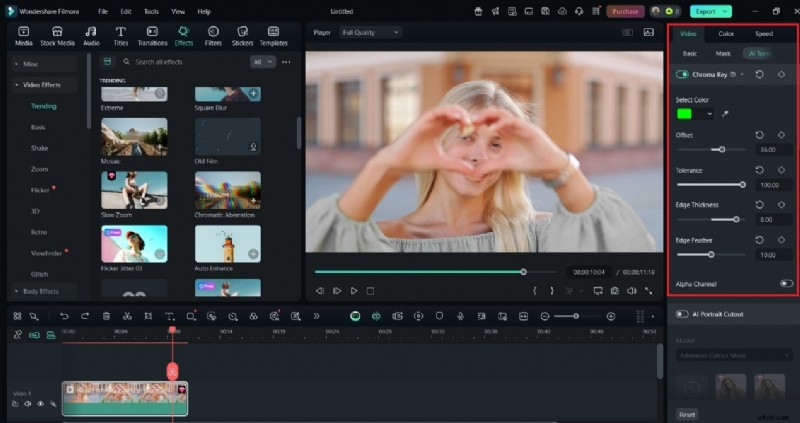
Apply green screen effects to replace backgrounds
Use Chroma Key to replace PixVerse-generated green screens or flat-color backgrounds with your own images or stock videos. This is ideal for creating custom environments or branding overlays.
Edit with multiple layers and tracks
Filmora allows up to 100 video and audio tracks, so you can layer AI clips with more footage, sound effects, transitions, and titles. This multi-track flexibility is essential for building complex scenes or merging AI video with real-world content.
Step 3: Export and Optimize for Platforms
Make your video look its best no matter where you publish. Once your edits are complete, exporting your video ensures it looks professional across all platforms. Follow these tips:
Export in 4K using AI upscaling
If the PixVerse output is low-resolution, Filmora's upscaling tool can sharpen details and improve clarity.
Add automatic captions
Use Filmora's captioning feature to create subtitles from AI narrations. This improves accessibility and keeps viewers engaged.
Resize for different formats
Easily adjust aspect ratios for YouTube (16:9), Instagram (1:1), or TikTok (9:16) without losing quality.
This step turns your AI-powered draft into a fully polished video, ready for any platform.
Part 2. Key Filmora Features That Boost PixVerse AI Videos
Filmora adds the finishing touches that make AI-generated content stand out. While PixVerse AI provides the base material, Filmora gives you the control to make it better. Learn about Filmora's key features that help fix common problems in AI videos:
AI Audio Enhancements
Clean up audio tracks and make your voiceovers sound professional.
- Reduce background noise from AI-generated audio using smart filters.
- Improve clarity and volume balance with one-click audio enhancement.
Speed Controls
Fix awkward pacing in your video to match your story.
- Speed up slow segments or slow down fast transitions for better rhythm.
- Align scene timing with background music or narration for a smoother experience.
Motion Tracking
Let your effects follow movement for a dynamic feel.
- Attach text, stickers, or graphics to objects in PixVerse clips that move across the screen.
- Ideal for pointing out features, creating tutorials, or making engaging social content.
Split Screen and Picture-in-Picture Tools
Tell more in less space using multi-scene layouts.
- Show different clips side by side or overlay commentary videos on top of your main footage.
- Perfect for reactions, comparisons, or multi-angle presentations.
Color Grading and Filters
Bring visual consistency to AI-generated scenes.
- Match the tone across all clips using Filmora's advanced color grading panel.
- Apply cinematic filters to set a specific mood or theme for your project.
Part 3. Use Cases: Social Media, Marketing, & More
The PixVerse AI + Filmora workflow fits perfectly into today's fast-paced content landscape.Both tools speed up production without sacrificing quality. Below are the most popular ways to apply it:
Short-Form Content (Tiktok, Reels, Shorts)
Create eye-catching, high-impact videos for mobile-first platforms.
Use PixVerse to generate quick, eye-catching scenes from viral prompts or trending topics.
In Filmora, add sharp transitions, upbeat music, and text animations using tools like Speed Ramping and Text Presets.
Export in vertical format and apply Auto Captions for silent viewers.
Product Demos and Explainers
Turn concepts into polished marketing videos.
Create visual drafts in PixVerse showcasing use cases, UI animations, or customer scenarios.
Overlay branding elements using Filmora's Logo Tool, Callouts, and Title Templates.
Add clear narration or synced music, enhanced with AI Audio Cleanup.
Gaming and AI Animations
Refine stylized or fantasy content with pro-level editing.
Use PixVerse for stylized or fantasy animation clips.
Refine with Filmora's Motion Tracking, Visual Effects, and Color Grading.
Mix in real gameplay using Multi-Track Editing or Picture-in-Picture.
No matter your niche or skill level, combining PixVerse AI with Filmora gives you the flexibility to create faster and edit smarter. It's a powerful toolkit for turning AI-generated ideas into polished, platform-ready content.
Conclusion
AI video tools like PixVerse AI are changing the way influencers make content. But without editing, the results can fall short of pro standards. That's where Filmora comes in. It's an essential tool to help you refine raw clips into high-quality videos.
Together, PixVerse AI video and Filmora offer a seamless, powerful workflow. It's a fast AI generation tool combined with hands-on human creativity. This combo will help you stay ahead in the age of AI-powered video production. Try both tools today if you're a content creator, marketer, or beginner.

Filmora
⭐⭐⭐⭐⭐
The Best AI-powered Video Editing Software and App