
Have you ever shot an event in a church, theater or auditorium and recorded tinny, hollow audio? Ever wished you could tap into the house sound system?
Chances are the sound engineer would be happy to help you out, but probably wouldn’t have the equipment you need to get the signal from the soundboard to your camcorder. To get a feed, you’ll need to have the right cables, connectors and adapters, and you’ll need to know where on the mixer you should plug in.
Most mixers in such situations deliver stereo sound, and the person running the board makes the most of this by sonically placing voices, instruments, etc. across a stereo "sound stage." The sound engineer may even occasionally "pan" a sound, i.e. move it from one side of the sound stage to another. While it is possible to hook up to a mixer for monaural sound, doing so eliminates the sense of depth and breadth that comes with well-mixed stereo sound. Since many camcorders have stereo microphone jacks starving for both channels, this is especially tragic.
We even have seen videographers use only one of the two stereo outputs from a mixer. This results in not even a true monaural mix, but in the loss of fully half the sound. If the engineer has a singer placed discreetly in the left channel, and you use only the right channel output, the singer will not be in your recording.
Let us show you, instead, how to get the most from the soundboard: glorious stereo sound. The following photo diagrams show you all the pieces you need to tap a soundboard and hook up to get great stereo sound. These steps assume your camcorder has a stereo mike jack. If yours is monaural, be sure to plug into a true monaural mix jack on the soundboard. You will need monaural plugs at either end of the chain, but no "Y" cable. You will need the same adapters and attenuator, but only one each, instead of two.
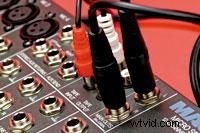
We start by plugging a 1/4-inch phone plug into each of the mixer’s left and right line level, balanced outputs. Some mixers may offer XLR jacks instead. You would use cables with male XLR connectors here instead of the phone plugs.
In order to use the line attenuator shown in the third photo, we must first transform the phone plugs at the other end of our cables to male XLR connectors, by way of adapters made for the purpose.
We plug the phone-XLR adapters into switchable line attenuators. This step is crucial for good sound and the safety of your camcorder’s mike circuit. It reduces the mixer’s line level output to the mike level your camcorder needs.
We now plug our two line attenuators into the left and right branches of a special “Y” cable. This cable takes in the balanced monaural mike-level signals from each of the channels and delivers them to an unbalanced stereo mini-plug.
The stereo mini-plug now carries the full glory of the stereo mix to your camcorder, in a form it can record safely and with good fidelity.
The Whole Chain
Parts List
- A mixer with 1/4-inch L & R line-level-balanced output jacks
- Two male 1/4-inch monaural plug to male 1/4-inch monaural plug cables
- Two female 1/4-inch monaural jack to male XLR adapters
- Two switchable line attenuators
- One "Y" cable with two female XLR connectors leading to one stereo mini-plug
- A camcorder with a stereo mike jack
Cables and Connectors
An assortment of connectors, cables and adapters should be plentiful in every well-armed camera kit. A wide variety of pre-made cables can be purchased from mail order and Internet companies, if the local electronic store does carry what you need.
24-hour Electronics
Your local electronics store should carry all the cabling and adapters you will need for any contingency. For the online shopper, we have listed a few online suppliers that have all this and more.
- www.markertek.com
- www.radioshack.com
- www.dynadirect.com
- www.consumerreview.com
- www.national-tech.com