
Motion titles are a powerful addition to any video or slideshow. Viewers are visual creatures, and without eye catching and dynamic text styles, they’re less intrigued by your video and, as a result, your business, product and message. Forget about boring, repetitive text styles – add your own personal touch to your next video campaign. In this blog post, we'll teach you all you need to know about motion titles including:
What is a motion title?
Why are motion titles important?
How to add motion titles to videos and slideshows
What is a motion title?
A motion title is a preloaded template that has customisable animated graphics, stylised text, and background effects. With endless possibilities and an easy to use format, motion titles are a great way for creators to add something unique to their projects.
Why are motion titles important?
Video text with animation has many different benefits to give your video. Apart from being eye catching, text graphics establish a theme and tone for your video. Video titles make sure important information is not only heard, but seen by viewers as well.
Platforms like Facebook and Instagram usually play videos automatically (and silently) when users scroll past them. Video with text overlay helps businesses get their message across even without audio.

How to add motion titles to videos and slideshows
Step 1. Get started by creating an account
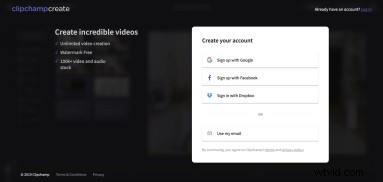
Log into your Clipchamp Create account, or sign up for free to start editing.
Step 2. Create a new project
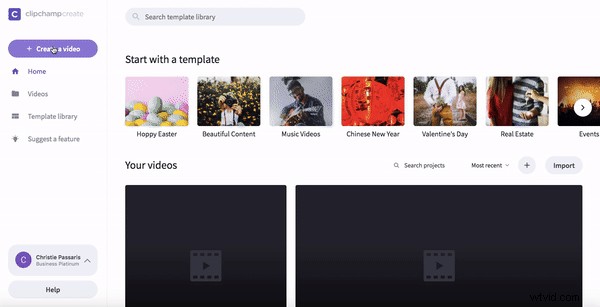
Select the Create a video button on the left side bar. Choose between the five different video formats and select the one best suited to your project. We recommend using square 1:1 if you are wanting to upload to Instagram.
Step 3. Add video footage or images
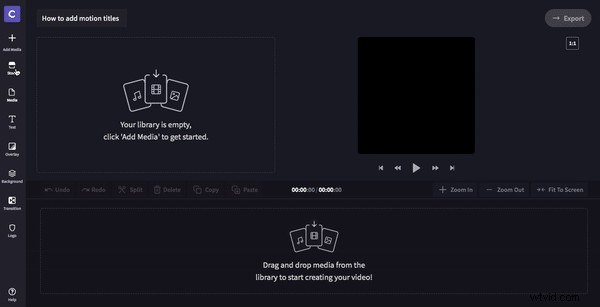
Select the Stock button in the left toolbar and scroll through the options of stock footage. Add footage to your library by clicking the + Add button in the top right corner of the video. Selected clips will automatically download into your media library. Alternatively, add your own personal footage by clicking the Add Media button in the left toolbar, then import video files from your computer.
Step 4. Add and edit footage or images
Once footage has been placed on the timeline you can optimise it for your aspect ratio. You can either Crop to fill your video by doing the following: under the Resizing tab, click the Crop To Fill option. This will zoom the video footage in and erase the black border.
Alternatively, you can apply our Blur Fill filter to your video by selecting the clip in the editing timeline, clicking on the Filters tab and scrolling down to apply the Blur Fill filter. This will fill the black space on a video’s edges with a dimmed and blurred version of your footage.
Finally, crop the video length by dragging in the right green side bar on the video.
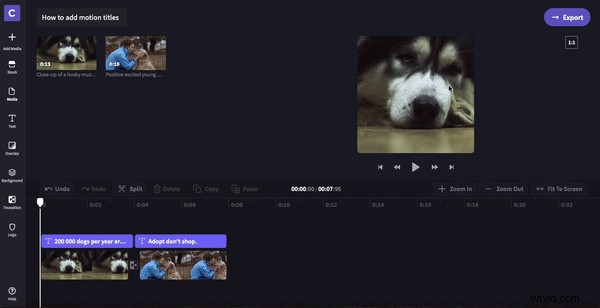
Step 5. Add a motion title
Click the Text button in the left toolbar. Select a motion title of your choice, then drag and drop it above a clip on the editing timeline. Next, select the motion title on the timeline. Customisation options will appear above where you can add the copy and adjust the font, colour, speed, size and location of the motion text.
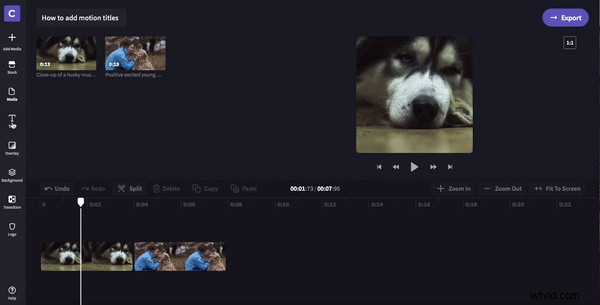
Step 6. Export your project
Click the Export button in the top right corner of the editor. Here, you can select the resolution settings you would like to download your project in. For social media uploading, we recommend 480p or 720p. Lastly, click the Continue button and wait for your video to export. From here, you can save the video to your computer or share it directly on social media.
Step 7. Review the video
Now it’s time to see the final results! View our finished example video below.