
Learn how to create seamless background loops in Adobe After Effects. Tutorial includes free project files!
In this After Effects tutorial, we’re going to explore how to create a custom looping background animation. It’s actually simpler to pull off than most people think, and using a few key effects makes the process even easier. This lesson is great for beginners, or anyone hungry for more After Effects knowledge.
Ready to create some loops? Well, let’s get started!
DOWNLOAD PROJECT FILES
Creating a Background Tile
First, we need to create a background, then we can animate other objects and shapes on the loop later. I recommend starting with a background tile composition that’s 200×200 pixels. Then, add some texture to it with shapes, sprinkles, or even a grid pattern.
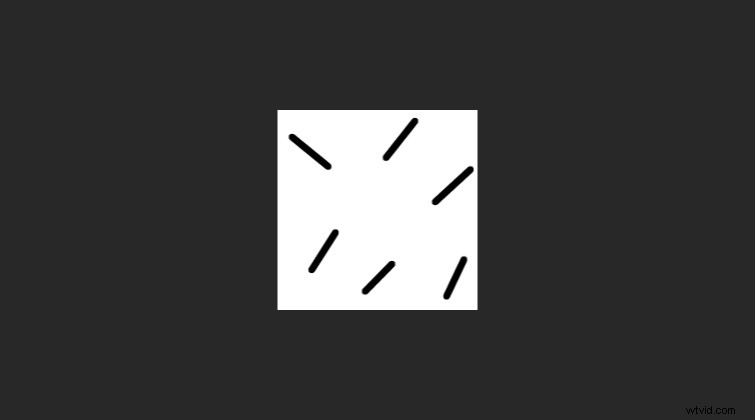
When you’re finished with that, create a new composition that’s 1920×1080 pixels. This will serve as our main composition that we’ll add everything to. For this example, our loop will be four seconds long at 24 frames per second.
CC RepeTile
Go ahead and add the background tile composition to the main composition. Now, apply the effect CC RepeTile to the background tile layer. Under the CC RepeTile effect settings, set the Right, Left, Up, and Down values to 2,000.
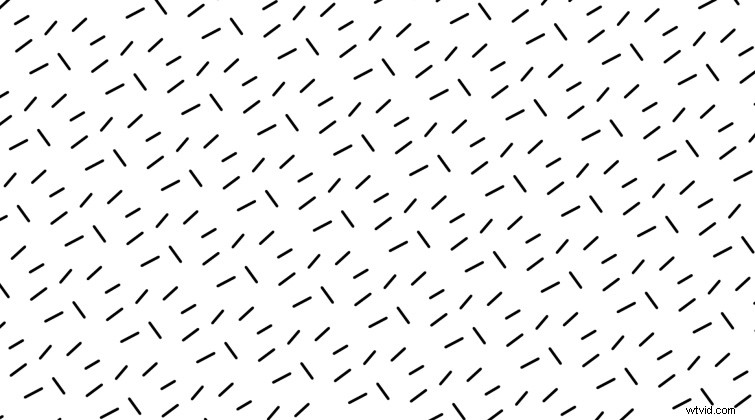
You should now see the background tile pattern repeated all across your main composition.
Offset
We can set the background in motion by applying the Offset effect to the background tile layer, as well. Once applied, keyframe the Shift Center To setting. You can adjust the value on the X and Y axis.
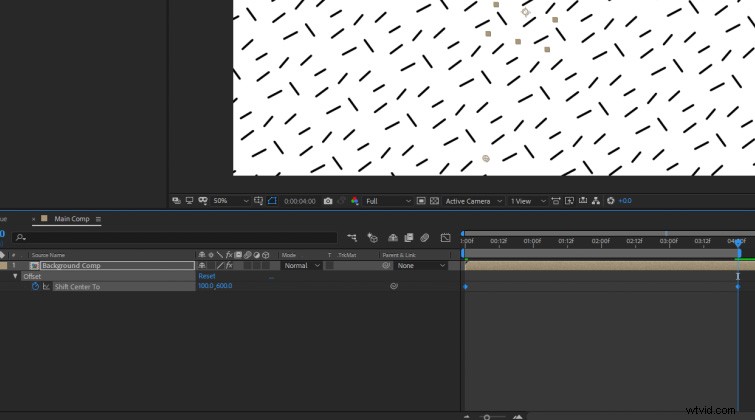
I recommend having the starting Shift Center To keyframe value be 0,0. Then, set another Shift Center To keyframe at the end of your loop. When you adjust the Shift Center To value, be sure the number you pick is evenly divisible by 200 (because our original background tile is 200×200 pixels in size). For example, set the final keyframe value at 0, 600.
Creating Group Tiles
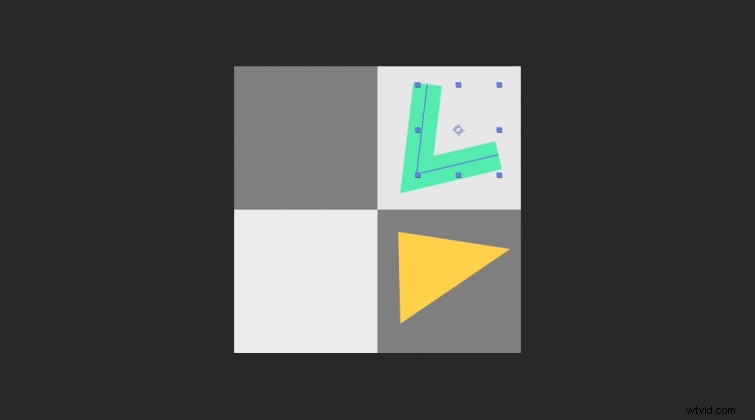
Adding and layering other animating shapes is a similar process to what we did for the background tile. Create a new composition named Group 1, and set the composition size to 400×400 pixels. Then, add two shapes on the left side of that composition. (I recommend creating some 200×200 pixel guide layers for each shape.) You can also animate them subtly if you prefer, just make sure they end in the same position they started in for the length of the four-second loop.
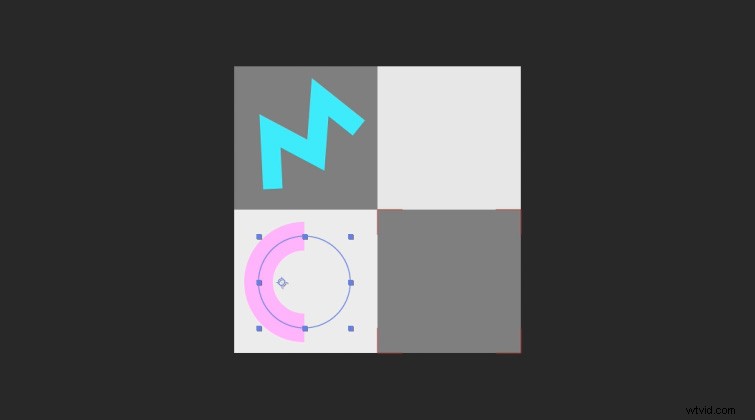
Next, duplicate the Group 1 composition and name it Group 2. Delete the existing shapes in the new Group 2 composition and add two new shapes on the right side.
Finalizing the Loop
To finalize your loop, go back to your main composition and add in the two new Group compositions. Apply CC RepeTile to both and expand them in all directions to 2,000 pixels. Then, apply Offset to both, and keyframe the Shift Center To setting to create your loop. (Again, make sure the end value you keyframe them by is divisible evenly by 400, because the Group compositions were 400×400 pixels.)
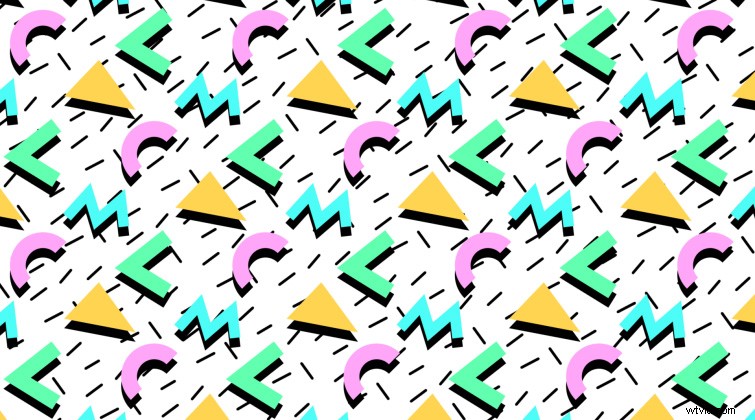
I added a Drop Shadow effect to both Group compositions for more of a 90s look. You can also rotate the Group compositions by 45 degrees, if you prefer.
Extra Effects
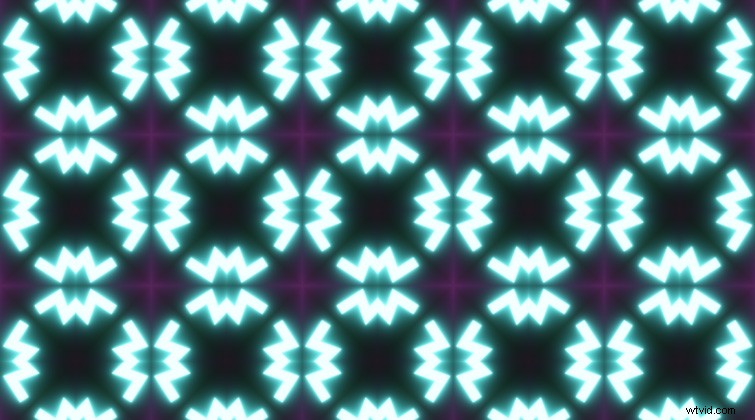
You can create all kinds of different looks by adding other effects to your finalized background loop. Add an adjustment layer above everything in your main composition and apply the effect CC Kaleida. Now, you’ll have more of an abstract, kaleidoscope loop. You can also apply glow effects to your Group compositions for a unique look.
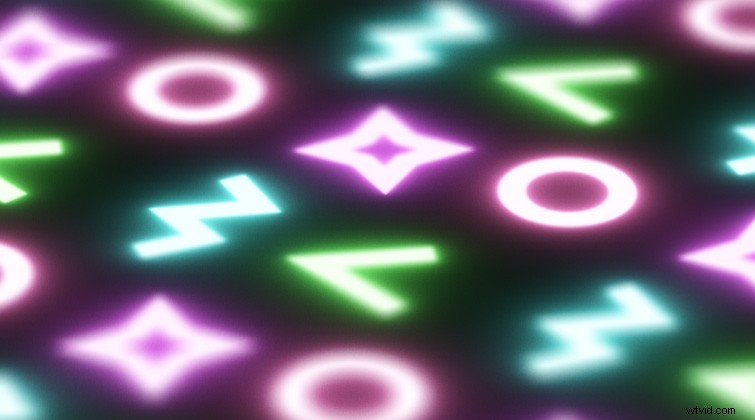
Finally, you can make your main composition a 3D layer, and use a 3D camera to create a “macro-looking” background loop. Just set the Focus Distance to the center of your 3D layered loop, turn on the Depth of Field for the camera, and adjust the Aperture and Blur Level values.
Interested in the royalty-free tracks we used to make this video? Give them another listen:
- “UX Paradise” by Tiny Music
- “Ocean Tranquility” by Cymatix
- “Summer Leaves” by Mattijs Muller
- “Ambient” by Sugar Beats
Like After Effects content? So do we. Check it out:
- Free Design Elements for Motion Graphics Artists
- How to Create Data-Driven Animations in Adobe After Effects
- How to Create a Retro Sci-Fi Disintegration Effect in After Effects
- Top 10 Paid and Free Scripts and Plugins for After Effects