
The latest update to Adobe Premiere Pro left some video editors unhappy. Here’s how fix it.
Cover Image via Adobe.
Recently, I noticed that several of the tool icons in Premiere Pro were missing. Since I’m not a stranger to accidentally closing and undocking panels, I thought it was some mistake I’d made. However, after searching the settings for several minutes to no avail, and seeing posts in forums filled with the same problem, it became clear that the tool panel had changed.
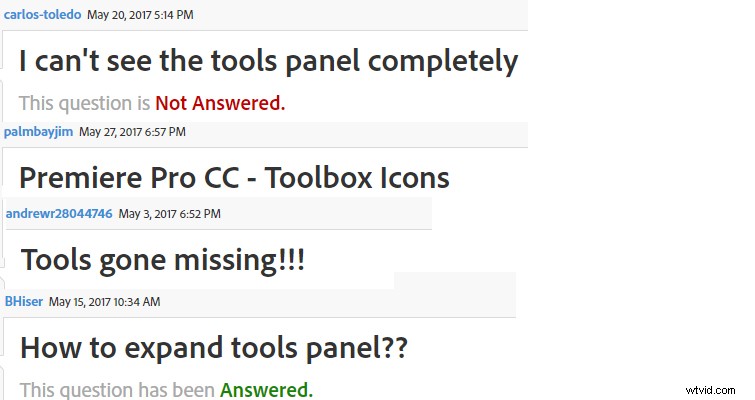
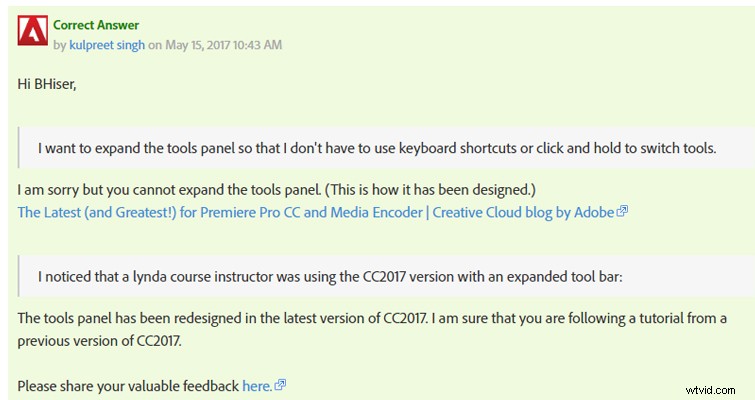
An Adobe representative replied to one of the frustrated users and clarified that the icons are now grouped with no way to ungroup them.
As part of the April 17 update the trim tools are now tucked away behind one another — among several other new features — to create a minimalistic work area.
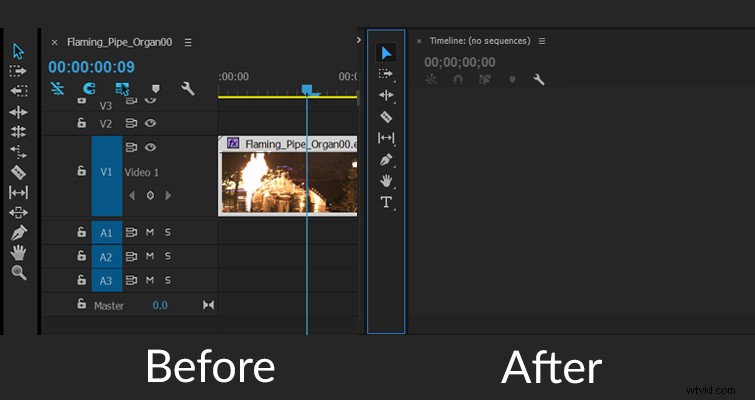
While I know all the shortcuts like the back of my hand, I have sometimes found myself quickly switching tools with the mouse when casually editing. Since you could extend or decrease the tool panel size, I never found the tool panel to be an issue in regards to space, so it does seem like quite an odd design update.
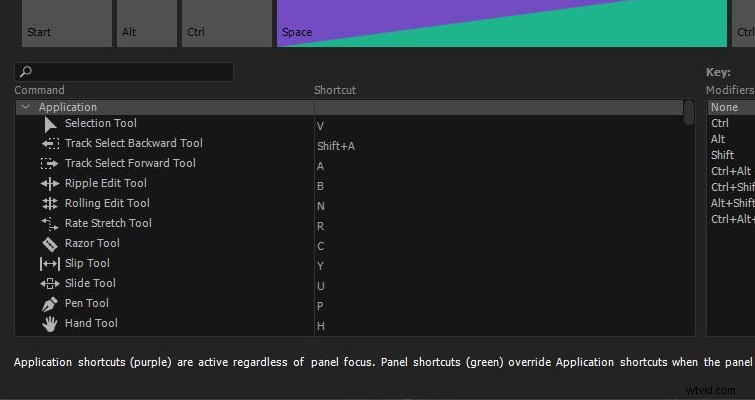
There are now two ways you can get to the trim tools. You can, of course, use the keyboard shortcuts. No change there. However, if you have been a point-and-click user, now is the time to step up to the next level and learn the following shortcuts.
Alternatively, if you are a new editor and still want to use the mouse to switch tools, you can simply go to the tool panel, then click and hold on a tool to reveal grouped tools. It’s now very similar to the stacked tools you would find in Photoshop.
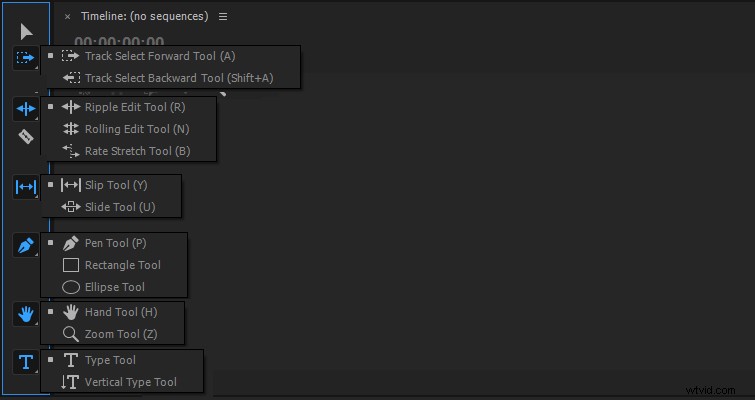
Realistically, a proficient editor will rarely touch the mouse — in favor keyboard shortcuts. However, since some editors still rely on a mouse, the despair of these Premiere users on the internet (and the fact that the icons didn’t take up much room in the first place) reveals that not everyone understands the idea behind grouping the icons like this. Perhaps we’ll see an update in the future that will offer users options to display all icons or to group them.
Do you have tips for working with the Premiere update? Let us know in the comments.