
Blackmagic Design has just released Resolve 15.2, and in grand Blackmagic fashion, the update is jam-packed with new features, improvements, and fixes.
From a timeline that now animates forward when you insert a new clip onto the timeline to the useful addition of being able to open two docked media pool panels, the update has something for everyone. You can find the full list of new features from the press release here, but there are a few highlighted features that, as a Resolve editor and trainer, make me happy — some that we wished for, and some that we didn’t know we needed.
Highlighted Panels
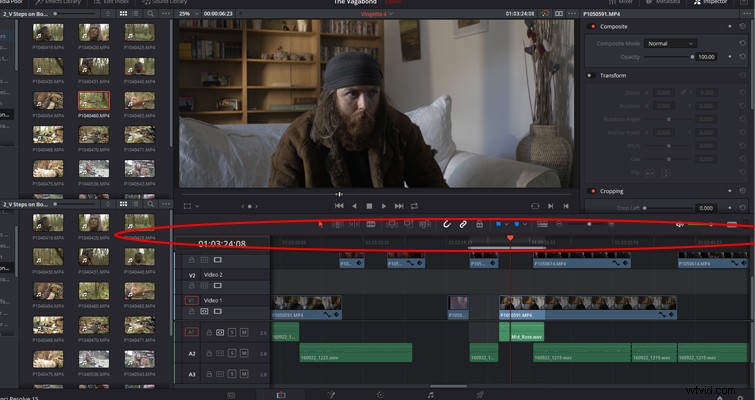
In Premiere Pro and After Effects, you will see a faint outline bordering the panel you’re currently working in. If you’re working in the After Effects effects library, you’ll see a blue border indicating as much. Of course, it doesn’t take a genius to realize what panel you’re working in; after all, it only takes one click to make sure you’re where you need to be. However, if you’re a keyboard shortcut editor, then I’m sure, like myself, you may have accidentally performed a task outside of the desired panel that resulted in an unwanted action.
For example, in the Resolve timeline above, hitting Ctrl+X would cut the media from video track 1 and audio track 1. But if I were accidentally in the media pool, I would remove a selected media clip from the project. Now, in 15.2, the panel that you’re working in will have a slight red border along the top, gently reminding you not to press Ctrl+X just yet.
Responsive Media Pool Icons
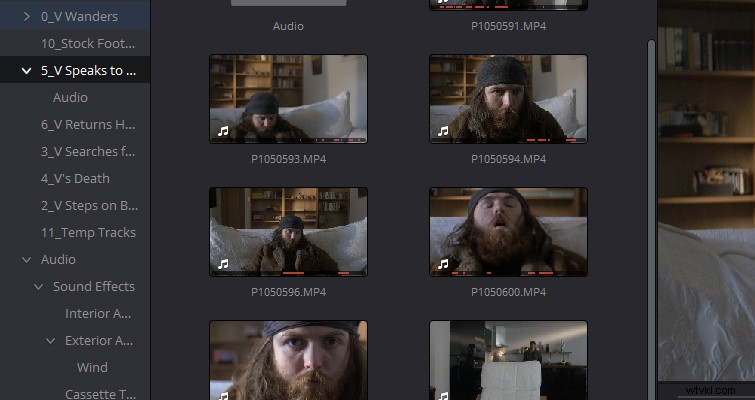
When working with a lot of media clips, unless you preemptively tag the clip before adding it to the timeline, sometimes it can get messy when you’re trying to find which clips you’ve added to the timeline. This is especially true if you’re working with shots that weren’t slated. Now, in 15.2, you will not only be able to identify which clips are currently on the open timeline, but a red bar at the bottom of the clip will also tell you what portion of the clip you’re currently using.
Further, if your project has multiple timelines, and you open a different timeline, the icons will change according to the newly opened timeline. No clips in this one bin on the secondary timeline? Then all of the red markings will vanish.
Keyboard Mapping
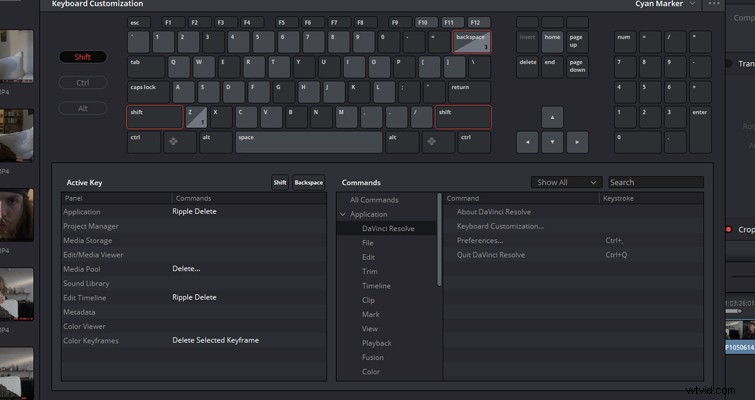
The keyboard customization interface has also undergone a complete overhaul. Initially, the keyboard mapping was a panel in the user menu of the preferences; now it has a pop-up menu with an interactive interface. I tend not to customize keyboard shortcuts too much, but when I do, I find that most keys have already been mapped to an action. In the new interface, you can select the keys on screen, which will tell you what they are linked to.
Not only is it a quicker way of seeing what keys are available to map, it’s also a more valuable learning tool for those new to Resolve trying to see what functions the keys have. The interface will also tell you how the keyboard shortcut will operate in different panels and pages.
Clean up Timeline
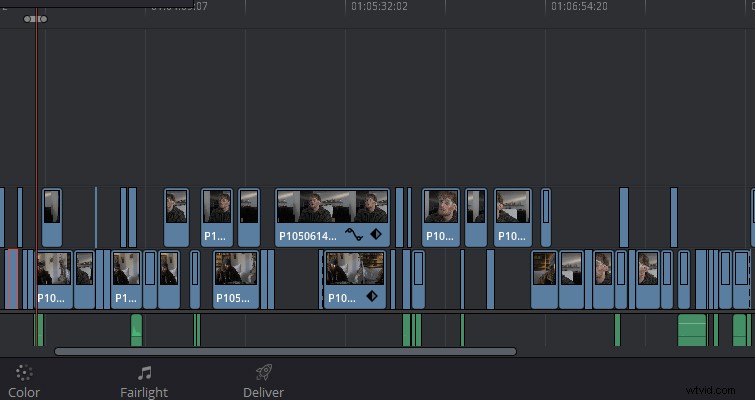
Perhaps my favorite new feature of this season’s update is the ability to clean up your timeline. By selecting Timeline and then scrolling down to Clean Up Video Tracks, you see three options: “Flatten Unused Clips,” “Disable Unused Clips,” “Change Unused Clip Color.”
The first and third option will give you a visual indication of the clips that are not useful on the timeline — an unused clip is defined by not being visible in the edit. However, my favorite option is to flatten the unused clips. This will remove all clips that are not in use and will bring the media clips down from the tracks above if space underneath is available.
Before:
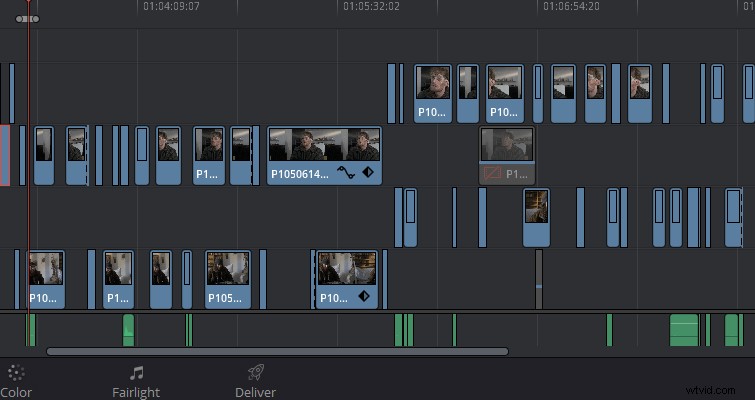
After:
As I already mentioned, the update is packed with new features, and these are just a handful that you can find on the edit page. For the full list of new features, see the release notes, or check out Blackmagic’s video below to see some of the features above in action — and some of the new additions to the audio and color pages.
Lewis McGregor is a certified DaVinci Resolve trainer.