
Learning and development teams often launch a simple training video only to see the budget and timeline balloon. Delays, fragmented feedback, and inevitable updates can turn a quick asset into a costly endeavor.
Lowering costs doesn’t mean compromising on quality. By adopting the right tools and streamlined workflows, you can protect your budget while delivering polished, professional content.
Training videos accelerate onboarding, improve software adoption, and boost time‑to‑value for new hires. Instead of trimming visual content, focus on eliminating workflow inefficiencies to keep production costs in check.
Key Takeaways
- Screen recording paired with AI‑generated voices or avatars shortens production time and cuts costs, producing clear, step‑by‑step training that employees can follow.
- Reusing existing slides, footage, screenshots, and branded templates speeds up production, saves money, and ensures a consistent look across your library.
- AI tools can automate transcription, captioning, and audio cleanup, slashing post‑production effort without demanding advanced editing skills.
- Centralizing feedback in a single review link eliminates expensive revision cycles caused by scattered comments in emails, chats, and documents.
- Building captions and other accessibility features into your workflow expands reach and avoids extra work later.
Why Training Videos Often Overrun Budgets
Most overruns stem not from a fancy font or pricey soundtrack but from hidden costs in traditional production workflows.
Before you can trim spend, you need to map where money is going. In a typical corporate setting, software demos, compliance modules, and onboarding content accumulate across footage capture, talent, post‑production, and revisions.
If your library relies solely on high‑production live video, keeping it current becomes a long‑term expense. Interfaces evolve, policies shift, and processes change—making maintenance a recurring cost. Choosing update‑friendly formats from day one is one of the most effective ways to lower total training expenses over time.
Footage Capture, Talent, and Reshoots
Live‑action video can be pricey. Renting gear, setting up professional lighting, securing a quiet location, and coordinating on‑camera talent require significant time and money. Screen recording offers a leaner alternative: re‑recording a segment takes minutes, not days.
Training teams are increasingly prioritizing cost‑efficiency. In fact, 26% of organizations that cut training budgets did so by adopting more efficient practices.
Live video is also inflexible. A change in a process or a missed cue forces you to book a room, set up cameras, and reschedule talent—pushing up the capture budget before editing even begins.
Post‑Production Hours and Revision Cycles
Post‑production often becomes the bottleneck. Manual timeline editing, audio mixing, motion graphics, and frame‑by‑frame polishing demand specialized skills and time, making them far less efficient than template‑based or AI‑assisted workflows. When you rely on external agencies or heavyweight editing platforms, every minor tweak translates into billable hours.
One of the biggest cost drivers is the feedback loop. Drafts typically return scattered across email, chat, and documents. Conflicting comments force creators to juggle multiple revision rounds.
Five Practical Ways to Reduce Training Video Expenses Today
You don’t need a department overhaul to cut costs. Start with these five tactics that leverage assets and tools you likely already have.
1. Record Screens Instead of Live Sessions
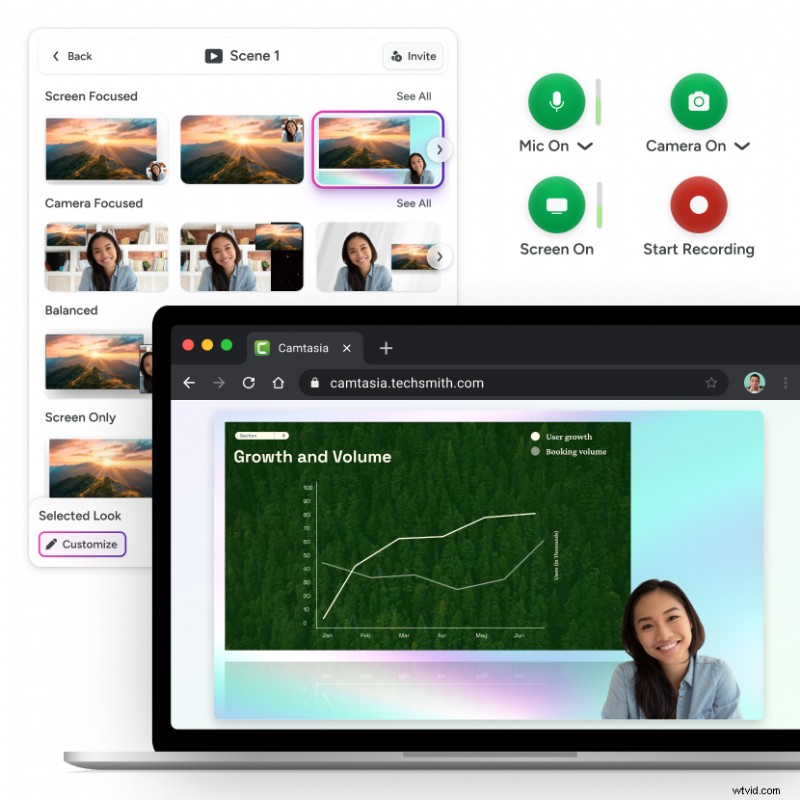
When teaching how to navigate a CRM or file an expense report, employees need to see the software, not a presenter. Screen recording captures exactly what the user sees, eliminating camera, lighting, studio, and talent expenses.
Recording at a desk also maximizes subject‑matter experts’ time. Instead of repeating a live demo multiple times a month, they can record once and resume their core responsibilities.
Choose a tool that keeps recorded elements on separate tracks. For example, Camtasia Editor records screen, camera, microphone, and system sounds independently, enabling later adjustments without re‑recording.
Need to Show Your Screen?
Skip downloads—use Camtasia Online to record screen, camera, and microphone right in your browser for free.
Start Recording
2. Reuse Existing Slides and Footage
Before scripting or filming, audit your current library: slides, past recordings, stock assets, and internal demos. Your organization has already invested in a rich content repository—extract more value from it.
Look for:
- PowerPoint decks
- Process screenshots and documentation
- Previous meeting recordings or product demos
- Legacy training videos with accurate segments
Importing slides directly into the video saves hours of recreating visual aids.
Pro tip: Build a centralized B‑roll library on your shared drive. Store approved brand assets, transition clips, demos, and interface screenshots. Ready access to these assets saves hours of searching and editing on future projects.
3. Apply Branded Templates for Consistency
Starting from scratch forces you to make countless design choices—fonts, colors, callouts—every new project. Customizable templates within Camtasia Editor let you set standard intros, lower thirds, callouts, and outros. Reusing templates cuts design time and keeps content aligned with brand standards.
4. Automate Captions and Media Cleanup
Manual transcription and captioning can take longer than the video itself. Yet captions are essential for accessibility and for employees who watch on mute or in noisy environments.
AI transcription tools generate accurate, time‑synced captions in seconds, leaving you to review corporate acronyms and product names. For audio polishing, Camtasia Audiate offers automated normalization and noise removal, making the process accessible to non‑editors.
5. Centralize Feedback in One Review Link
Revision cycles often inflate costs when feedback is scattered across Slack, email, and documents. Publish your draft to a single review platform like Screencast. Stakeholders can leave timestamped comments directly on the timeline, resolve conflicts in real time, and keep revisions to a minimum.
Record Once. Deploy Globally.
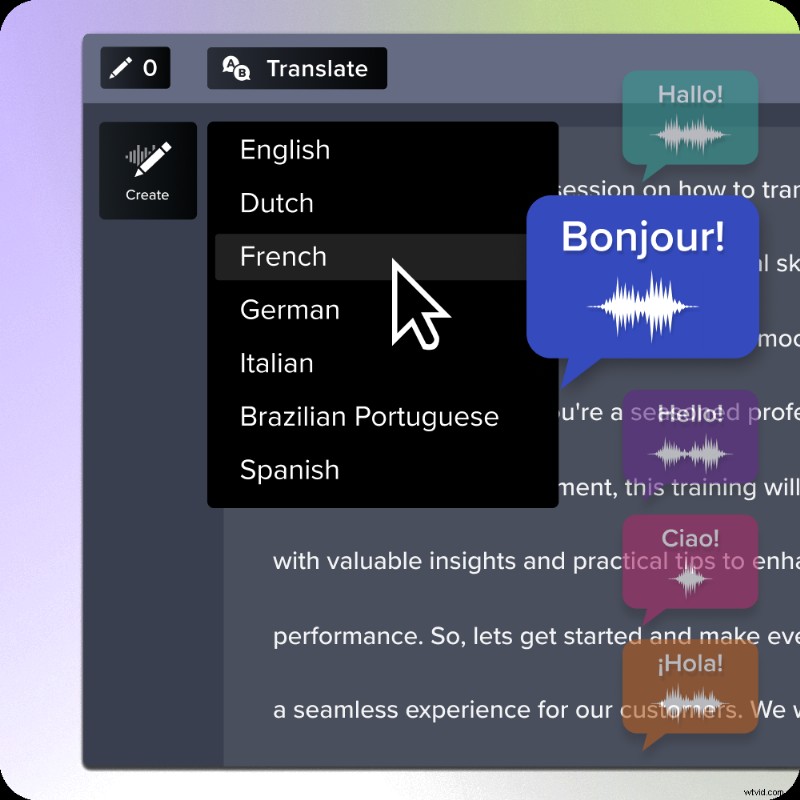
Create your training video in English, then use Audiate to translate the script and generate new audio tracks in Spanish, German, French, and more.
Free Download
How Generative AI and Screen Recording Cut Production Costs
Generative AI isn’t about replacing trainers—it’s about streamlining the production process. Combined with screen recording, AI can accelerate script writing, narration, and editing.
Automated Transcription and Text‑Based Editing
Traditional audio/video editing involves scrubbing timelines and manually slicing clips—a tedious task for non‑technical users. AI simplifies this with text‑based editing: import your recording into Audiate, generate an interactive transcript, and edit the text. Deleting filler words or mistakes updates the underlying timeline automatically.
AI also helps generate and refine scripts, reducing the time spent drafting narration from scratch.
Smart Emphasis and Quick Narration Options
Large‑monitor software demos can be hard to follow. AI features like Smart Focus and automated cursor effects in Camtasia Editor automatically zoom and highlight the mouse, guiding viewer attention without manual keyframing.
AI‑assisted narration and digital avatars let you update voiceovers quickly. Text‑to‑speech tools can replace a single line of narration without re‑recording the entire session, cutting reliance on voice talent and speeding timelines.
Create Cost‑Effective Training Videos with Camtasia
The key to low‑cost, high‑quality corporate training is an efficient, repeatable workflow. By combining screen recording, reusable assets, templates, AI‑assisted editing, and centralized review, teams can produce time‑saving videos without sacrificing quality.
The Camtasia Product Suite offers an end‑to‑end workflow: capture desktop footage and camera feeds with Camtasia Editor, streamline audio with Audiate, and gather timestamped feedback through Screencast.
Explore Camtasia’s tools to start creating professional training videos with less production overhead.
FAQs
How often should I update a training video?
Review videos quarterly and update whenever software, processes, or policies change. Screen‑recorded content is typically easy to patch with new segments instead of full reshoots.
Which file format balances quality and small size?
MP4 with H.264 encoding offers the best trade‑off between quality and file size for training distribution. Most editors, including Camtasia, export to this format by default.
Can I start producing videos without prior editing experience?
Yes. Tools like Camtasia Editor are built for non‑editors, featuring drag‑and‑drop workflows, templates, and AI‑assisted features that reduce technical complexity. Focus on the training content, not advanced editing mechanics.