
On this page
- 1. Generate a video outline
- 2. Prompt a full video script
- 3. Refine YouTube intro and outro scripts
- 4. Integrate SEO keywords into scripts
- 5. Boost engagement with interactive elements
- 6. Convert blog posts into video scripts
- 7. Draft a polished voice‑over script
- 8. Create concise short‑form scripts
- 9. Write an explainer video script
- 10. Craft a top‑10 list video script
- 11. Turn an internal email into a company video script
- 12. Produce customer testimonial scripts
- 13. Design FAQ video scripts
- 14. Generate product launch teaser scripts
- 15. Write software training and how‑to scripts
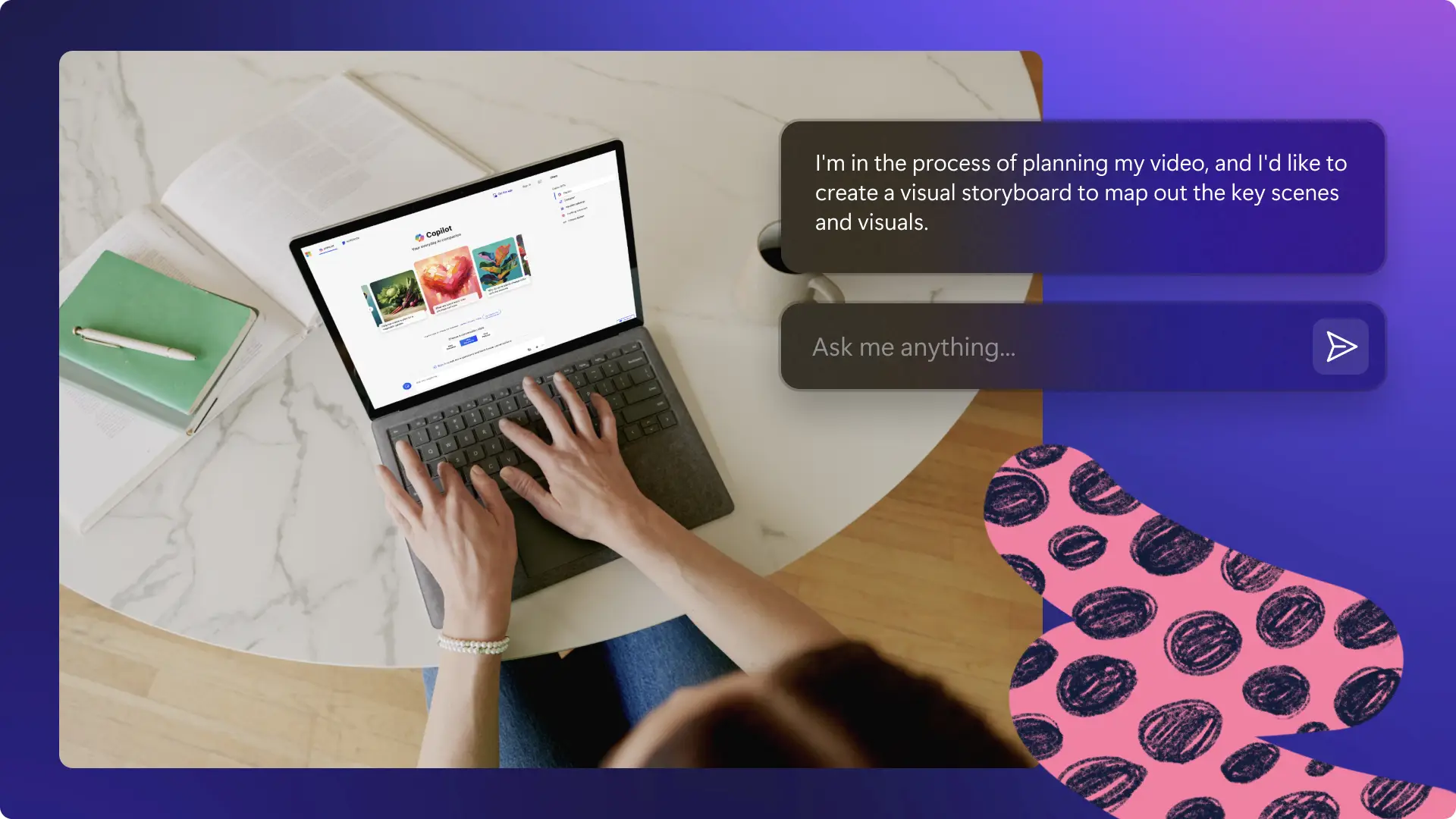
Storytelling is the engine behind every compelling video, and a well‑crafted script is the blueprint for success. If you’re battling writer’s block or simply want to streamline production, generative AI tools—such as Microsoft Copilot—can help you organize ideas and generate polished scripts in minutes.
Below you’ll find 15 ready‑to‑copy prompts that you can paste into Copilot’s chat. Customize them as needed, then feed the output into Clipchamp to turn words into finished videos.
1. Generate a Video Outline
Brainstorming can feel endless, especially when the topic demands research. A structured outline saves time and ensures you cover every angle. Try this prompt:
Act as a video‑creation expert. I’m developing a video on [niche topic] for [target audience]. The goal is to [briefly describe purpose]. Help me research the niche and produce a comprehensive outline that aligns with the platform, time constraints, and my objectives. Consider [subtopics or key details] as needed.
Iterate until the outline feels complete, then either draft a voice‑over or let Copilot expand it into a full script.
2. Prompt a Full Video Script
Ready to transform bullet points into engaging dialogue? Use this template:
I have an outline and would like a full script. The video targets [audience] and aims to [purpose]. Please write in clear, concise language that flows naturally for [platform].
Copilot will segment the script into scenes. Refine the tone, add personality, or request a new version until it matches your vision.
3. Refine YouTube Intro and Outro Scripts
Hooks and CTAs are critical for retention and subscriber growth. Ask Copilot for fresh alternatives:
Finalizing a script on [topic]. I want a compelling intro and call‑to‑action that encourages [action] (e.g., subscribe, visit a website, download). Provide several polished options.
Deliver the script in a natural tone, then pair it with a Clipchamp intro or outro template that matches your style.
4. Integrate SEO Keywords into Scripts
Keyword placement can boost discoverability without sounding forced. Guide Copilot with this prompt:
Think like a video SEO specialist. I’ve identified keywords for my video on [topic]. Here’s a paragraph of my script and the target keywords: [keywords]. Suggest optimal placements that preserve flow.
5. Boost Engagement with Interactive Elements
Keep viewers active by embedding questions, quizzes, or visual prompts. For example:
I’m finalizing a script on [topic] and want to maintain engagement throughout. Suggest creative questions, visual ideas, and call‑to‑action prompts that encourage comments, shares, and community interaction.
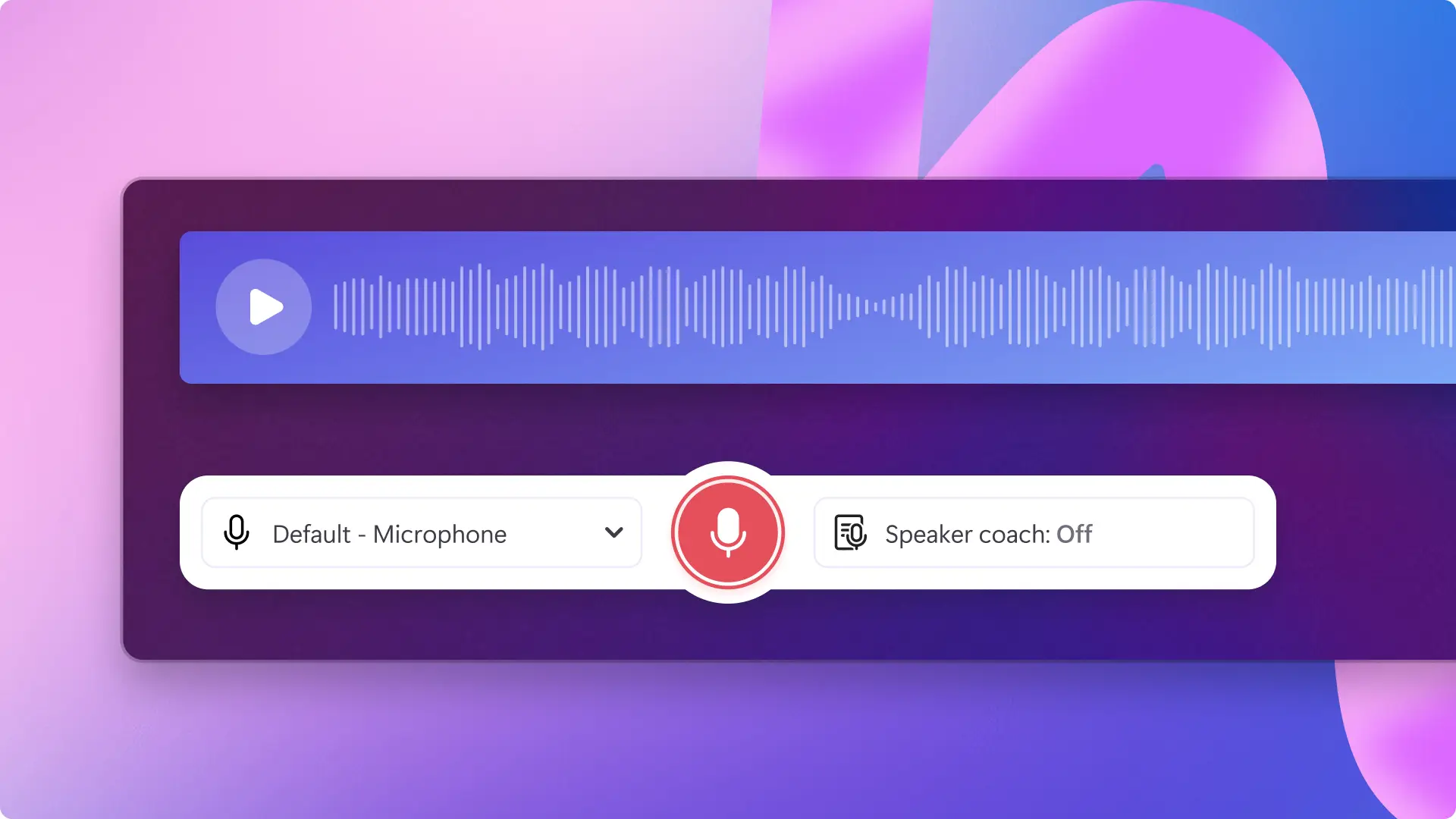
Incorporate the suggestions and record the voice‑over or use AI text‑to‑speech in Clipchamp.
6. Convert Blog Posts into Video Scripts
Repurposing blog content extends reach across channels. Use this prompt:
Read this blog post and transform it into a video script. Include an engaging hook, concise key points, logical flow, and a strong conclusion. Add visual suggestions—graphics, titles, or background footage—to enhance storytelling for [target audience].
Compare performance of the original text versus the video version to refine future content strategy.
7. Draft a Polished Voice‑Over Script
Kickstart any tutorial or narrative video with a clear voice‑over. Prompt Copilot like this:
I have bullet points for a voice‑over aimed at [audience]. The goal is [purpose]. Write a clear, smooth script for [platform] with the tone [tone] and length [desired length]. Include pacing notes.
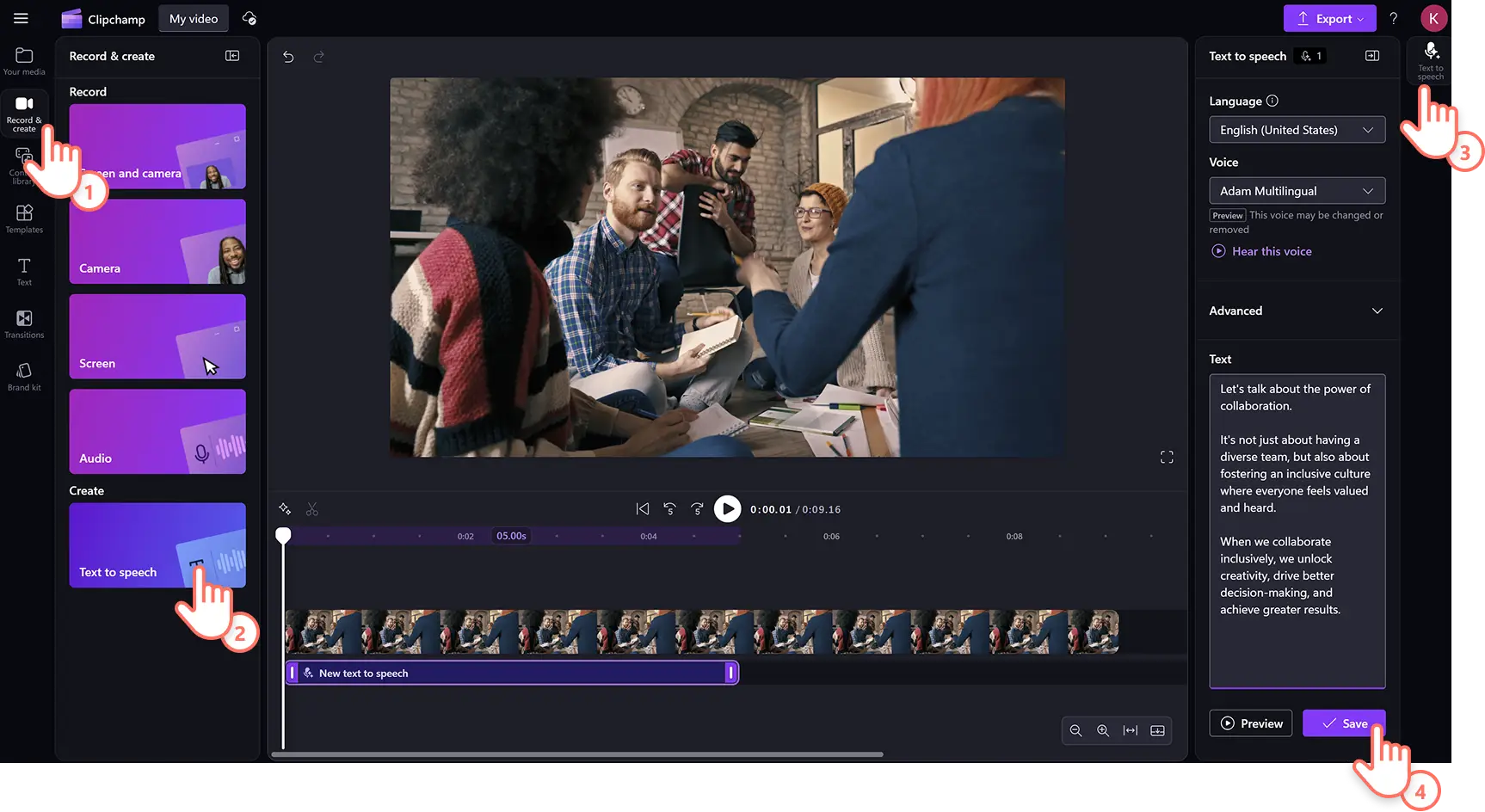
Once approved, generate an AI voice‑over or record live using Clipchamp’s built‑in tools.
8. Create Concise Short‑Form Scripts
Transform long scripts into bite‑size reels or Shorts. Use this prompt:
I have a long video script and need short scripts (~2 min) for [platform]. Each should focus on a single key point, start with a hook, and retain the core message.
After drafting, use Clipchamp’s resizer to adjust aspect ratios for mobile viewing.
9. Write an Explainer Video Script
Explainers clarify complex products or services. Prompt Copilot as follows:
Create a script that highlights the main features and benefits of [product/service]. Start with a hook, explain clearly, and finish with a strong call‑to‑action. Keep the script under [time limit] minutes for [audience].
Fine‑tune any product details before filming a branded demo in Clipchamp.
10. Craft a Top‑10 List Video Script
List videos perform well on social media. Use this outline:
Generate a top‑10 script on [topic]. Rank items by significance or entertainment value, include a hook for each segment, and close with a summary that invites action.
Edit the final product into a dynamic slideshow with Clipchamp’s transitions and background music.
11. Turn an Internal Email into a Company Video Script
Convert corporate updates into engaging video content. Prompt:
Rewrite this email as a video script. Keep it professional, concise, and suitable for recording. Include a logical sequence and a clear closing message.
Use the script to record a leadership video, add subtitles, and share company news.
12. Produce Customer Testimonial Scripts
Turn client wins into persuasive videos. Prompt Copilot:
Transform this testimonial into a video script with an intro, problem‑resolution flow, and a CTA for [platform]. Emphasize trust and authenticity.
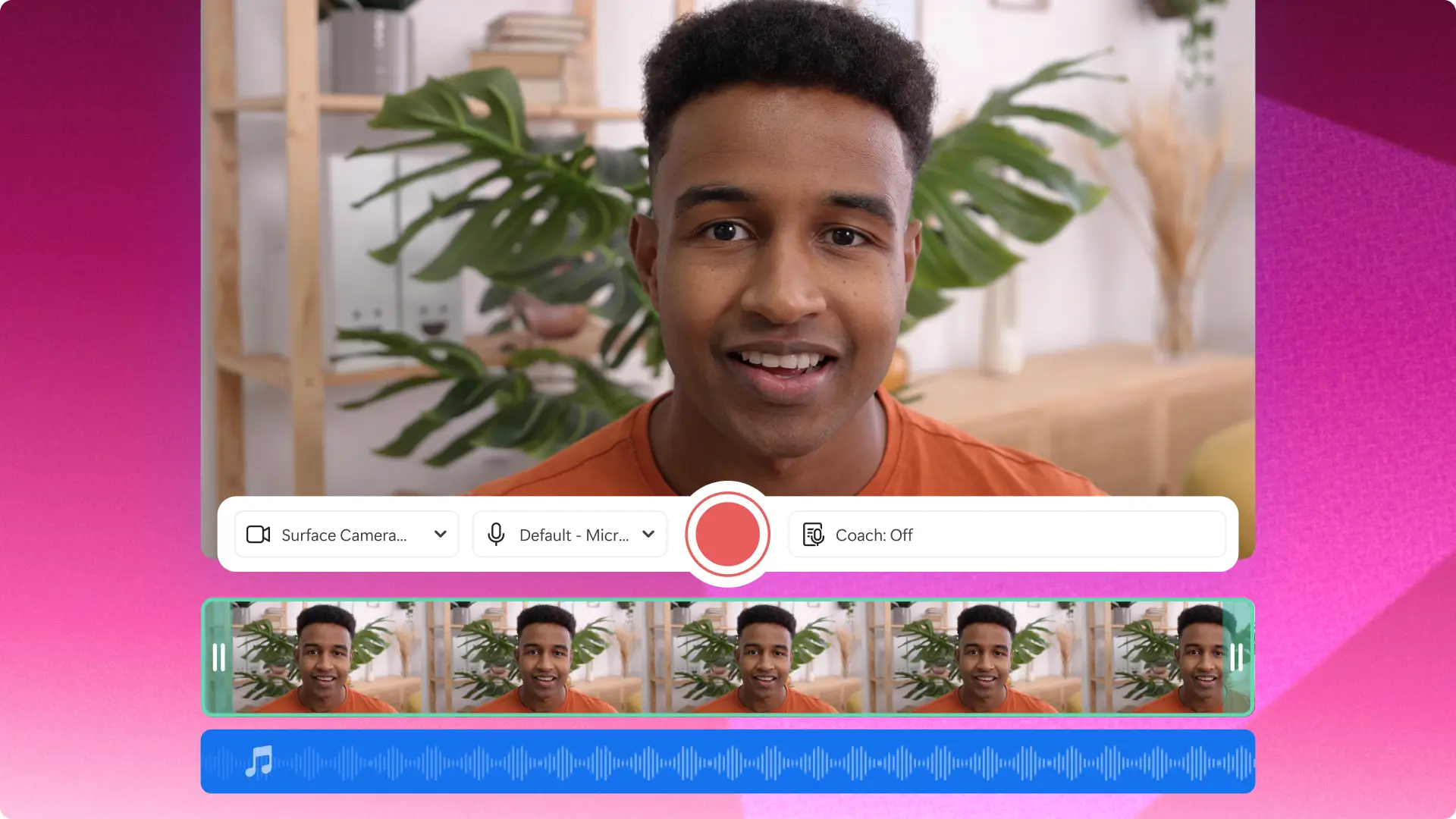
Record and edit with Clipchamp for use on landing pages, decks, and social media.
13. Design FAQ Video Scripts
Answer common questions in a conversational format. Use this prompt:
Create an FAQ video script covering these questions about [product/service]. Target [audience], tone friendly and informative, and include visuals or screen recordings where relevant.
Film with the screen recorder or webcam, then add subtitles for accessibility.
14. Generate Product Launch Teaser Scripts
Build anticipation with a short, punchy teaser. Prompt:
Write a teaser script for a new [product/service] launching on [date]. Include a hook, a hint of features, and a call‑to‑action. Keep the tone [emotional/exciting] and the length [timeframe].
Pair the script with stock footage and animated text in Clipchamp to create a polished pre‑launch video.
15. Write Software Training and How‑to Scripts
Training videos need clear, step‑by‑step guidance. Prompt Copilot:
Develop a training script for [product/website] focusing on [feature]. Hook with a relatable pain point, then explain the steps logically. End with a subtle CTA such as “learn more”.
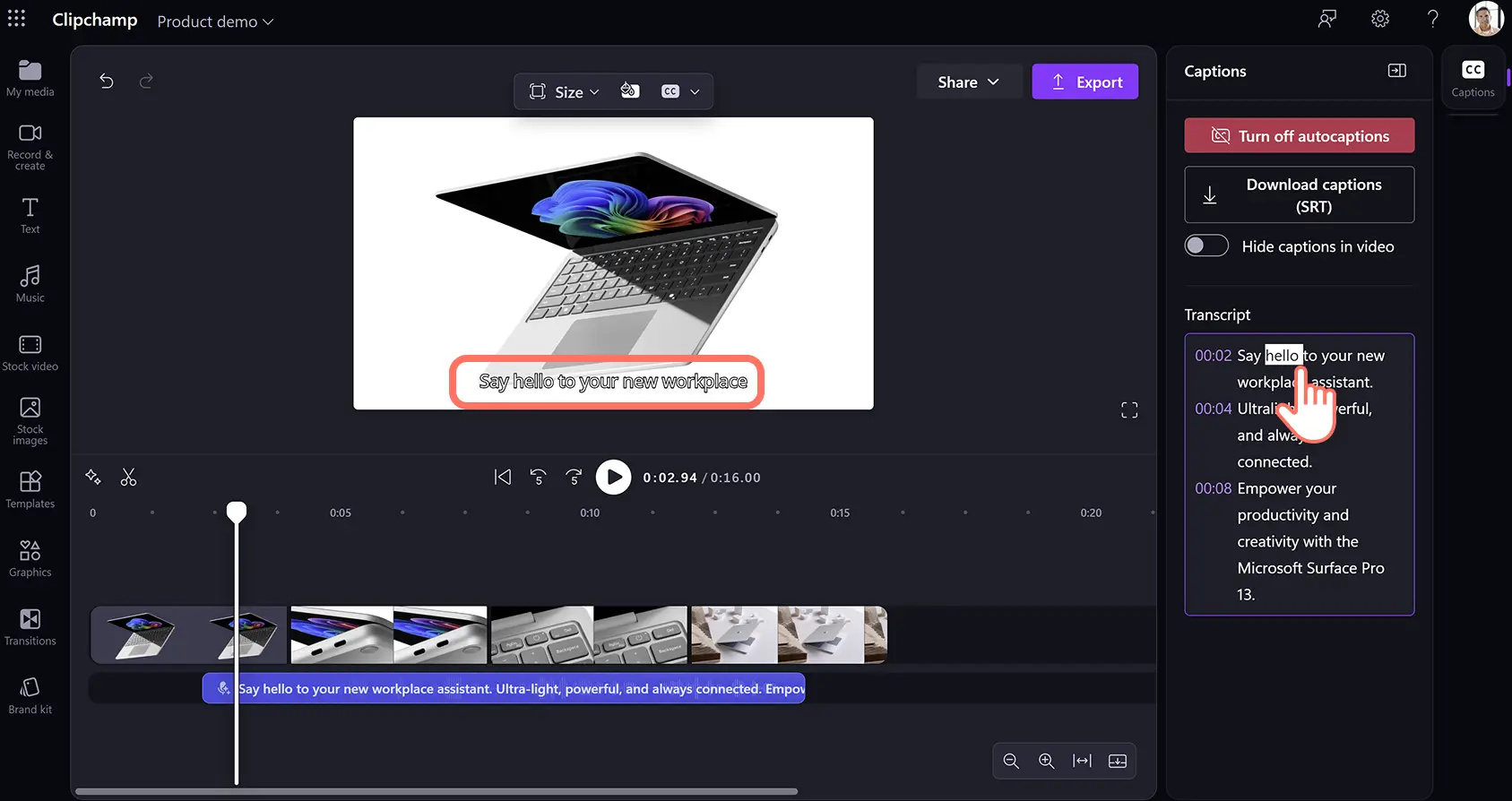
Record the walkthrough with the screen recorder, add AI subtitles, and use text‑to‑speech if you prefer a voice‑over.
For a comprehensive editing experience, Clipchamp offers a library of stock media, filters, royalty‑free music, and AI‑powered tools to bring your scripts to life.
Start editing today with Clipchamp or download the Windows app.
Frequently Asked Questions
What common mistakes should I avoid when crafting AI prompts?
Clarity matters. Provide context, specify goals, and iterate until the output aligns with expectations.
Do I need to disclose that a script was AI‑generated?
Check platform policies—e.g., YouTube’s generative‑AI guidelines—and decide based on your brand transparency strategy.
Can AI tools write scripts for business videos?
Yes. Copilot excels at corporate explainer, training, and testimonial videos when you give it audience, tone, and objective details.
How do I turn an AI script into a finished video?
Record with Clipchamp’s webcam or screen recorder, add an AI voice‑over or subtitles, and enrich the footage with royalty‑free music and visuals from the library.