
Owned by Sony Pictures Entertainment Company, Sony Crackle is a free streaming service to watch your favorite movies, TV shows, and original series from Sony. The service is available in three languages (English, Portuguese, and Spanish), and users can access their favorite content on connected devices, including smartphones, tablets, smart TVs, Mac, Windows, and gaming consoles.
Crackle primarily runs on ads and provides no native option for downloading videos. So if you want to save your favorite movies, the only option is to record Crackle videos. To do this, you simply need the free video recording software at your disposal. This article will reveal a smart screen recorder and the simple steps it takes to record Crackle videos for offline watching.
Why Record Crackle?
Streaming your favorite movies on Crackle is not always convenient, especially when you're traveling, speeding past areas with poor internet connectivity. Here are four reasons why recording is your best option.
#1. No access to download
Crackle encryption technology prevents users from downloading videos. Thus, if you wanted to save a movie for offline watching you'd require a third-party application.
#2. Avoid the Ads
Crackle relies on advertising to generate revenue for Sony. That's why those bothersome 30-second clips pop up on your screen now and then. But you won't have to go through such agony if you record your favorite content off of Crackle.
#3. Internet connection
You need reliable hardware and good internet upload speeds to have a great live stream. But such favorable conditions are not always available, so the content you're streaming may not come off with the right quality. Recording, however, guarantees consistent quality and flow throughout your movies.
#4. Filter out random choices
On streaming platforms like Crackle, it's tempting to try seeing too many movies simultaneously because they're all over the place. And this dullens the overall experience. But when you save them off the platform, it removes the background noise so you can easily concentrate on a single series until you're done with it.
How to Record Crackle Movies on Windows/Mac
EaseUS RecExperts is a simple screen recorder that captures video, audio, webcam, and image for any occasion. With this software, you can easily record your Crackle movies with no watermarks or time limit.
Another thing to love about this software is that it supports schedule recording. So if you need to record your crackle video on your PC while you attend to something else, you can simply initiate the start and the stop of the recording at once.
EaseUS RecExperts
- Record any part of your screen by dragging a box flexibly
- Record any audio including the internal sound or microphone
- Edit the length and volume of your recordings with a simple drag
- Auto-stop allows you to limit your recording to a set time or file size
Here is how to record Crackle video using EaseUS RecExperts:
Step 1. Open Your Video
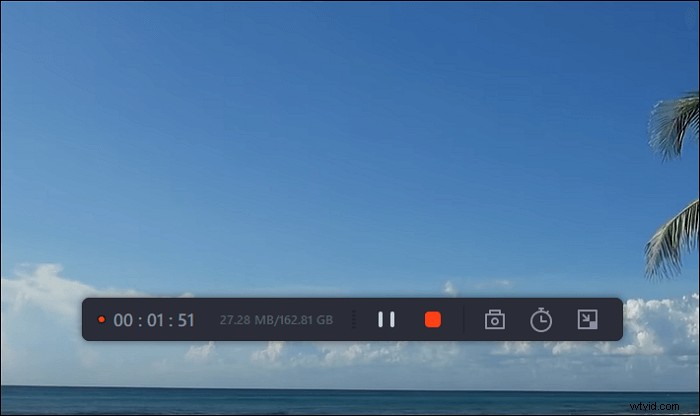
To record video content, you are going to need to visit the site in your browser. Launch a web browser of your choice, head to the site, and open the video that you want to record.
Step 2. Configure the Software to Record Video
Launch EaseUS screen recorder on your computer and click on "Region" to choose the area so that your entire video is covered. Then, click the Speaker icon on the lower left to select an audio source for your recording.
Step 3. Start and Stop Recording
Now that everything is configured as per your preferences, click the large "REC" button to start recording your video. When your video has ended, click the red stop button to stop the recording. The software will save the recorded video on your computer.
Step 4. View All Your Periscope Recordings
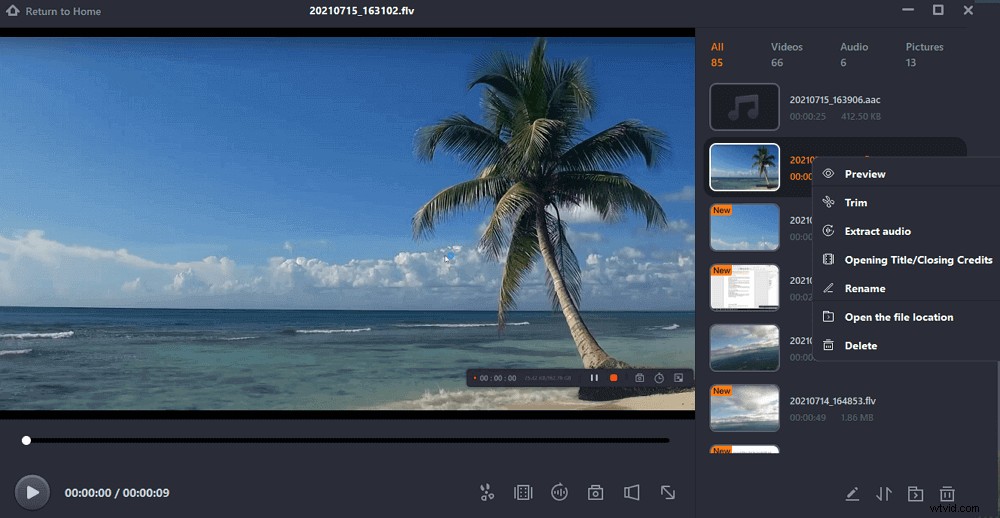
Finding all your recordings, including video recordings, is easier with this tool. Simply open the tool, click on "Recordings", and all your video recordings will be in front of you. You can then play around with them however you like.
Record Crackle FAQs
#1. How do you download movies from Crackle?
The Crackle app provides no options for downloading movies. If you want to save your favorite shows for offline watching, you'd need third-party software like EaseUS RecExperts.
#2. How do I download Sony Crackle?
You can download Sony Crackle for Windows from Microsoft Store (https://www.microsoft.com/en-us/p/Crackle/9n2w64xf1rbr#activetab=pivot:overviewtab). It's 100% safe and virus-free.
#3. How many movies does Crackle have?
Crackle's vast movie library contains approximately 1100 movies and over 70 TV shows.
#4. Does Crackle still work?
Yes, Crackle still provides streaming services to users in the United States. Only people in these regions can access the service because of US content distribution policies.
Conclusion
Now you've learned how to record Crackle videos for offline watching, you can watch your next movie without the inconvenience of endlessly popping ads. EaseUS RecExperts is still suitable for capturing all types of files across multiple platforms besides Sony Crackle.