
Control your lights remotely by connecting your Aputure lights to the Sidus Link app for phones and tablets.
In this walkthrough tutorial, you’ll learn how to connect Aputure lights that have built-in Bluetooth (like the Aputure 300D II, MC, Nova, and Accent B7C) to the Sidus Link app.
(If you have legacy models like the 120D II, 300D, or Tri-8, you can still connect them to the app with the Sidus Link Bridge adapter.)
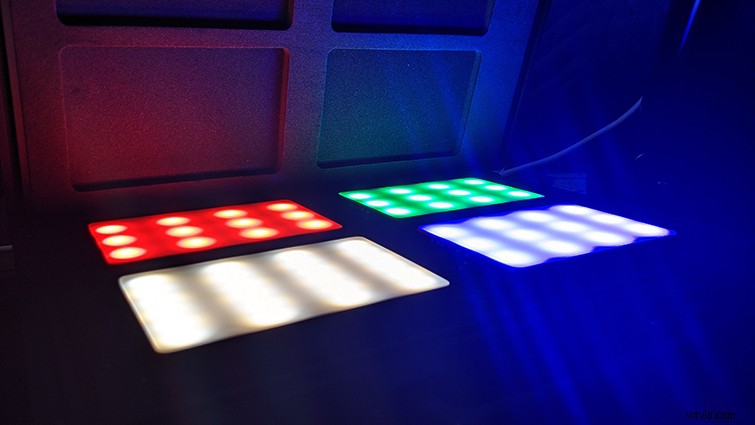
I recently purchased an Aputure MC kit and fumbled my way through the startup and connecting the lights to my phone. So, here are the steps you need to know so you can get up and running quickly.
1. Download Sidus Link App

First, you’ll need to download the Sidus Link app to your phone or tablet from the App Store, Google Play, Huawei AppGallery, or Mi GetApps. Then, go ahead and register your account details or login.
2. Open Lighting Control System
Click the pancake menu icon to reveal the full menu.
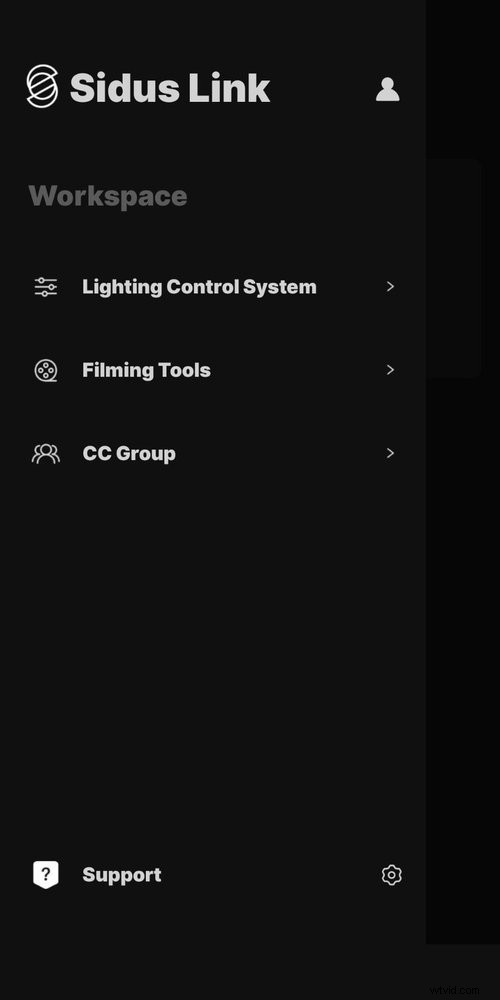
Click on Lighting Control System.
3. Create a Scene
Next, you’ll want to create a new scene. Click on the plus (+) icon to make a new scene.

You can click on the three dot icon to rename your scene, as well as share it with other devices and users, or delete it.
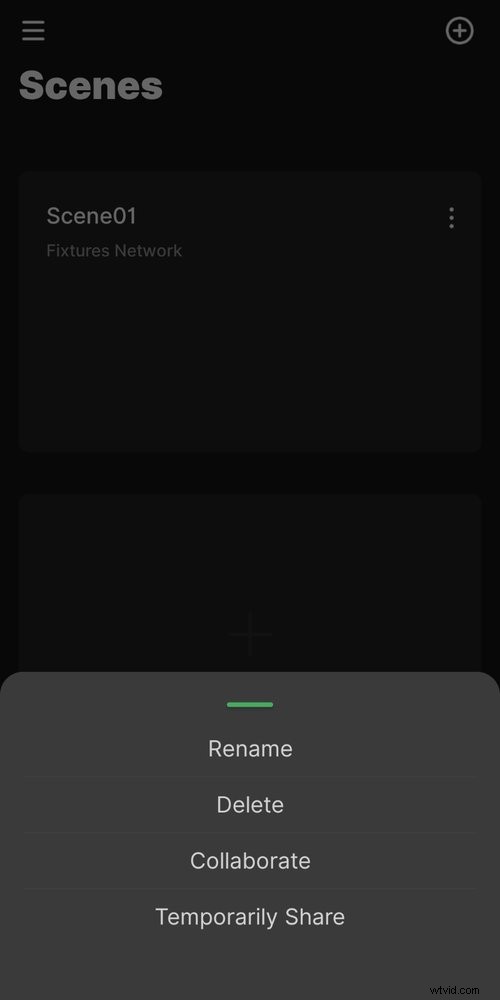
Scenes will be saved so you can use them again in the future.

Tap on the Scene to open it.
4. Add Light Fixtures
To connect a light, tap on the green plus (+) icon.

5. Reset Bluetooth on Your Aputure Light
Now, power on your Aputure light fixture. In this example, I’ll be using the Aputure MC.
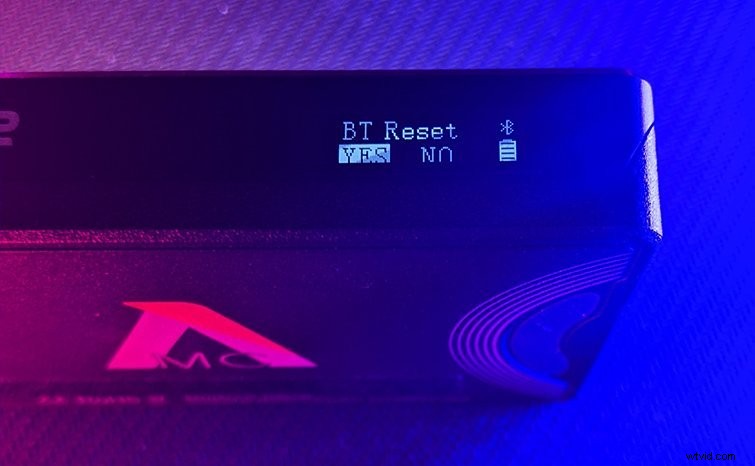
Press and hold the scroll wheel until the menu appears. Scroll to BT, then push down on the scroll wheel to select.
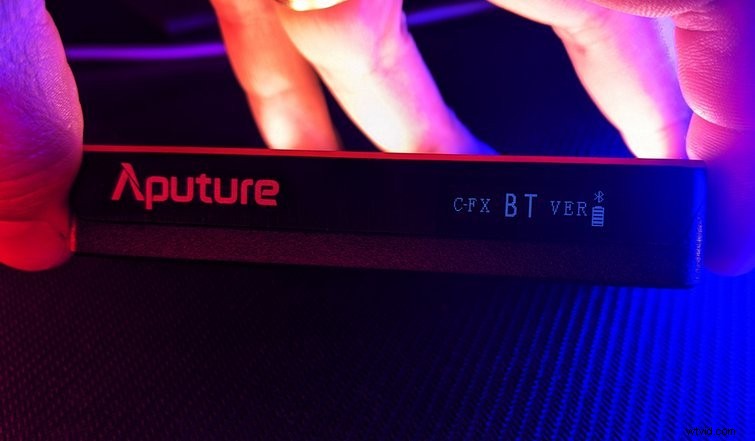
Under BT Reset, select Yes, and then click down on the scroll wheel.
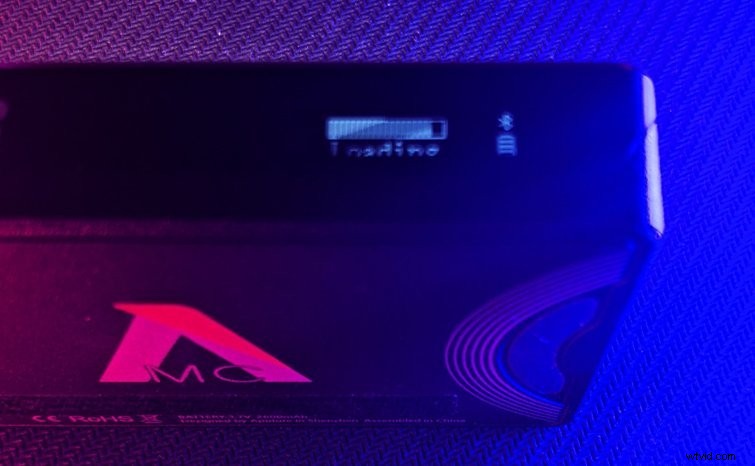
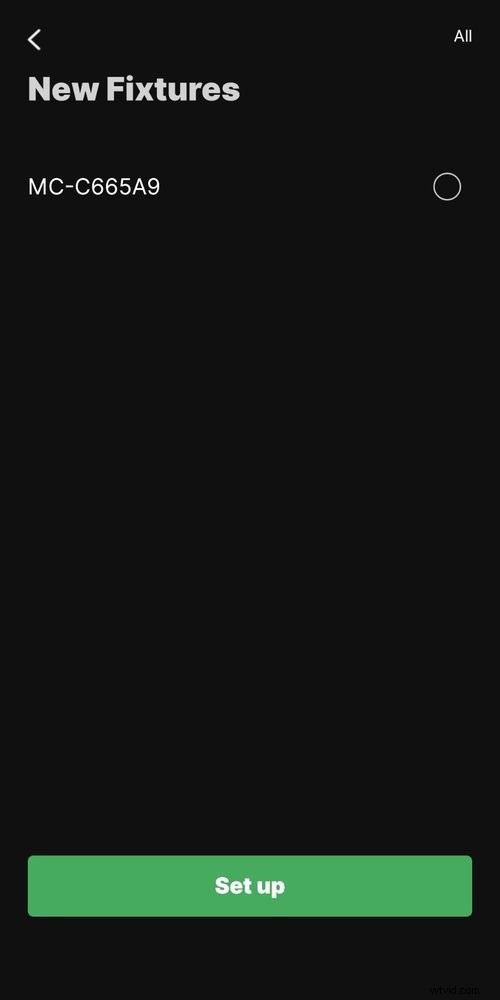
A loading screen will appear. Once complete, your device should now show in your Sidus Link app.
If this failed, make sure the Bluetooth is set to On on your phone or tablet.
Select the light from the New Fixture list, then tap Set up.
The Sidus Link app will run diagnostics and connect, then tap OK.
6. Repeat to Add More Light Fixtures
Now that you have your first device connected, repeat the process on your other Aputure lights by resetting their Bluetooth connections and adding them to your Scene.
7. Control Your Aputure Lights
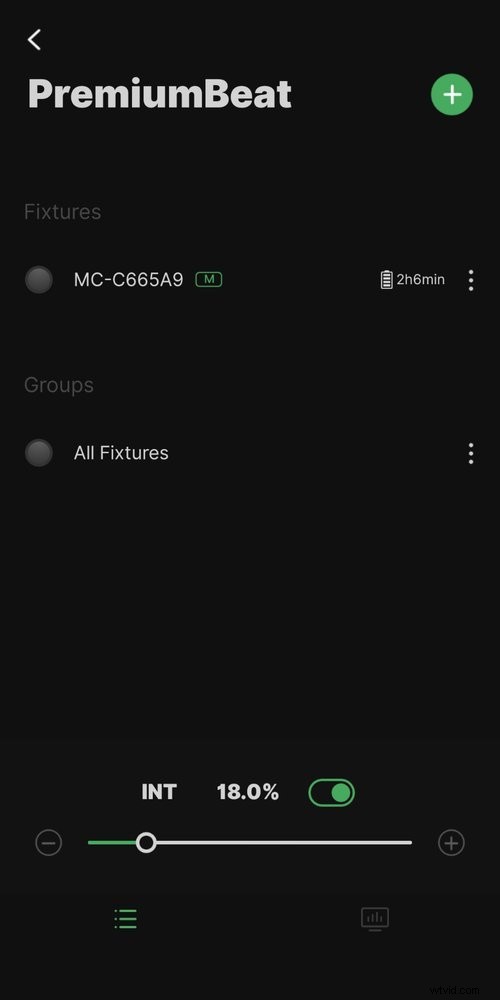
You now have the ability to control your Aputure lights. You can tap an individual fixture to control that one light or, if you have multiple lights, you can select All Fixtures to control all of them at once.
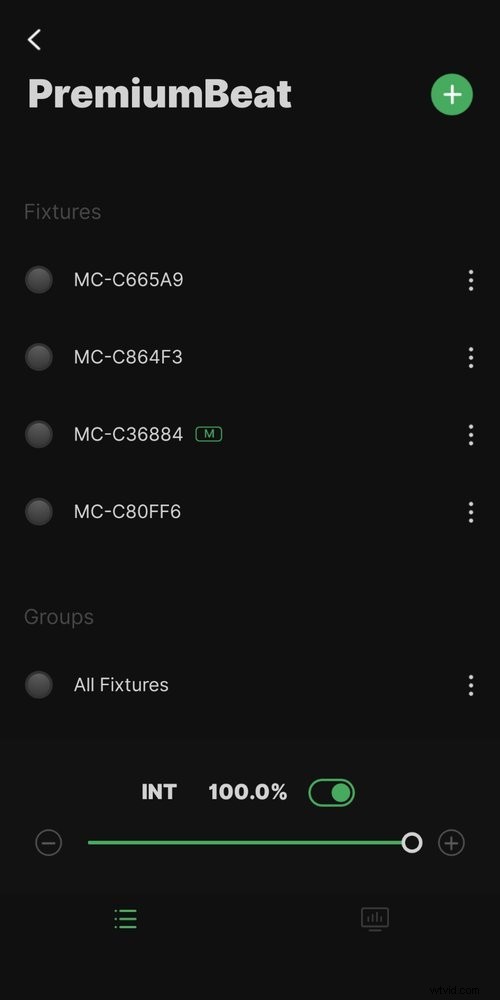
Depending on the type of Aputure light, you’ll see controls for power, intensity, white balance, gels, colors, and/or effects.
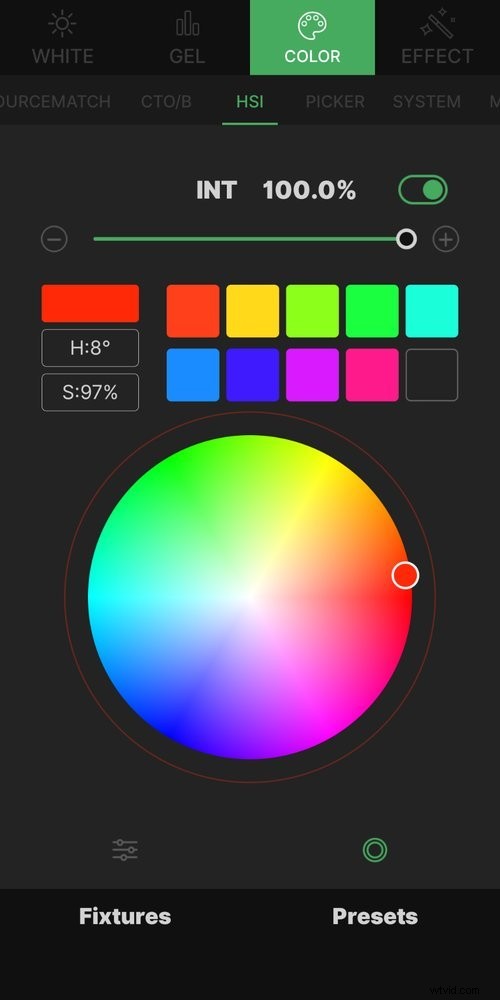
Certain Aputure lights (like the MC) also feature tools like Color Picker, which uses your phone or tablet’s camera to match colors, or Sourcematch to match with other lights on set.
- Lighting Modifiers: Aputure Light Dome Vs. Aputure Lantern
- Lighting a Scene Without Breaking the 180-Degree Rule
- Tips for Lighting Different Skin Tones in the Same Shot
- Aputure Announces Two New Light Fixtures: The 600d and NOVA 300C5
- Small, Budget-Friendly Lights for Any Camera Setup