
When you open an image in Photoshop, you see a grid of pixels composed of various colors. Together, these represent the color palette which can be decomposed into color channels. The channels are separate layers of color information representing the color mode used on the image.
Sounds confusing? Well, it is in fact very confusing, but it gets a lot simpler if you understand the science behind it.
In this article, we will break channels in Photoshop all down for you.

Understanding Light and Color
To understand how a color channel works, it is important to understand the relationship between light, color and the way our eyes see it.
The visible spectrum for humans is between ultraviolet light and red light, in a wavelength between 400 and 700 nanometers.
It is estimated that we are able to distinguish up to 10 million colors.
Two different types of cells inside our eyes are responsible for this process: rods and cones.
Darker environments stimulate rods. Brighter environments stimulate cones. Cones contain color detecting molecules with red, green and blue photopigments.
The light reflected by a yellow object in daylight conditions stimulates the red and green cones. These send a signal to the brain. After processing the number of activated cones and the strength of the signal, this allows the viewer to see color. This process is named “Trichrome”. It is a result of thousands of years of human evolution and adaptation to the environment.
Color modes
There are a few color modes that can be used in Photoshop like the Grayscale, Index, Lab or Multichannel. The RGB and CMYK color modes are the most used ones.
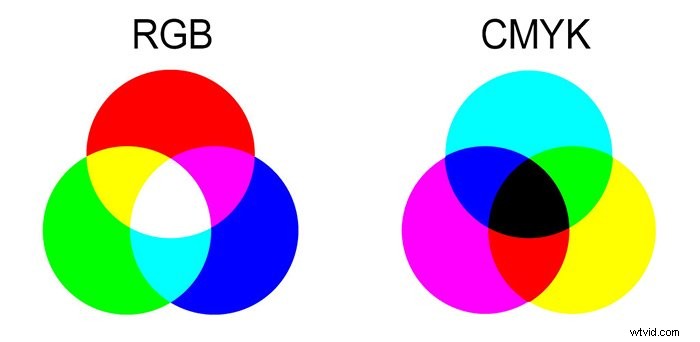
The RGB color mode is the additive process. It is obtained by combining the colors red, green and blue in different amounts represented by values from 0 to 255. This mode is associated with digital displays such as monitors, digital cameras and scanners.
The CMYK color mode is a subtractive process. It is obtained by combining the colors Cyan, Magenta, Yellow and Key (Black) in different amounts. It is represented by percentage values and is associated with printer inks.
Color Channels
The color channels palette window in Photoshop can be found in Window> Channels
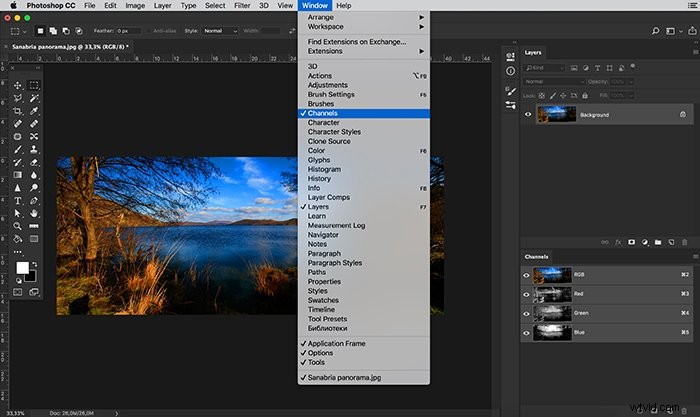
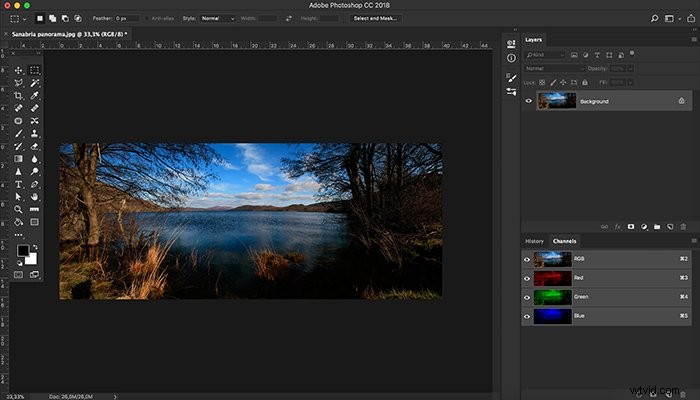
Each color in the color mode is now represented by a color channel represented by a grayscale image.
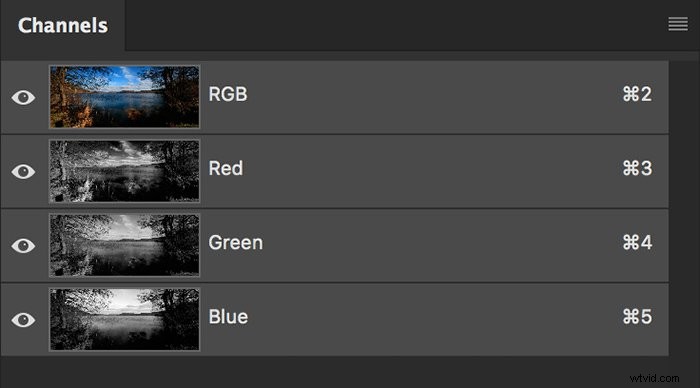
The brighter areas of the color channel represent areas that contain more color and the darker areas represent less color.
For instance, in this particular image, the Blue channel is lighter than that Green or the Red channels. This is because the image is composed mostly of this fantastic blue sky reflected on the water.
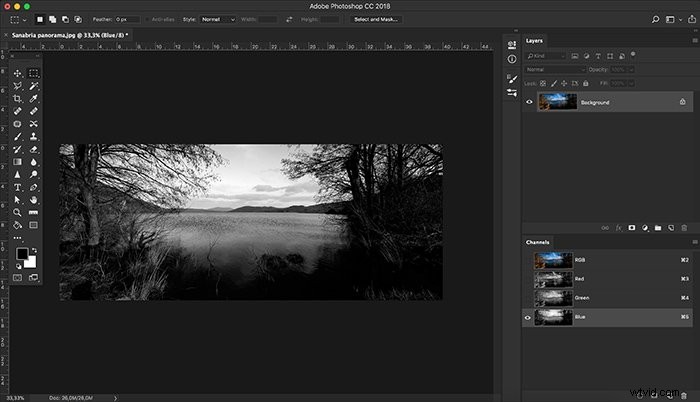
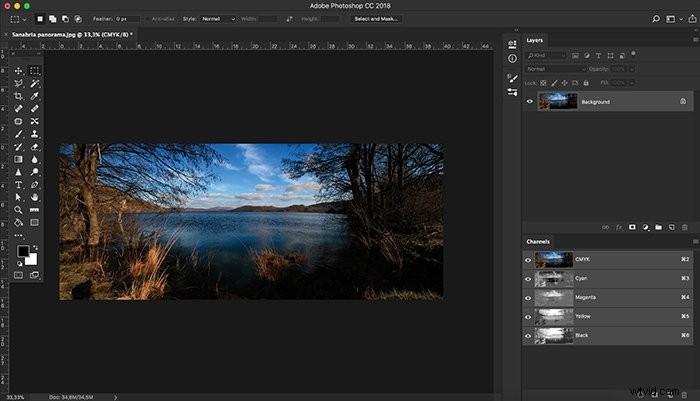
If we convert our image to a CMYK color mode, our channels palette is now represented by four channels instead of three like the RGB color mode.
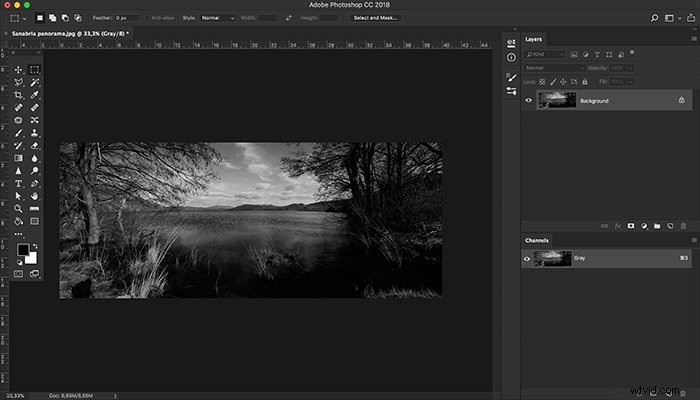
An image in grayscale color mode would then only have one channel.
Channels can be Select and edited following these procedures:
- To select a channel, click the channel name. Shift-click to select (or deselect) more channels.
- To edit a channel, select it and then use a painting or editing tool to paint in the image.
You can paint on only one channel at a time. Paint with white to add the selected channel’s color at 100% intensity. Paint with a value of grey to add the channel’s color at a lower intensity. Paint with black to remove the channel’s color.
Grayscale images are the standard representation of channels. There is also an option that allows channels to be represented in color if you prefer.
You can follow this procedure:
- In Windows, choose Edit > Preferences > Interface. In Mac OS, choose Photoshop > Preferences > Interface.
- Select Show Channels In Color, and click OK.
Alpha Channels
Besides color channels, Photoshop can also store alpha channels information on the same palette.
Alpha channels are a type of mask that is able to select levels of grey instead of an outline. This process is very useful in the creation of complicated selections.
A good example would be, for instance, to select the sky in this particular image. This would represent a challenge with standard selection tools but is simple with an alpha channel. It only needs 2 steps.
1 – Create a selection of the color channel you need (in this case, the Blue one) by clicking the dotted circle icon on the bottom of the channels palette.
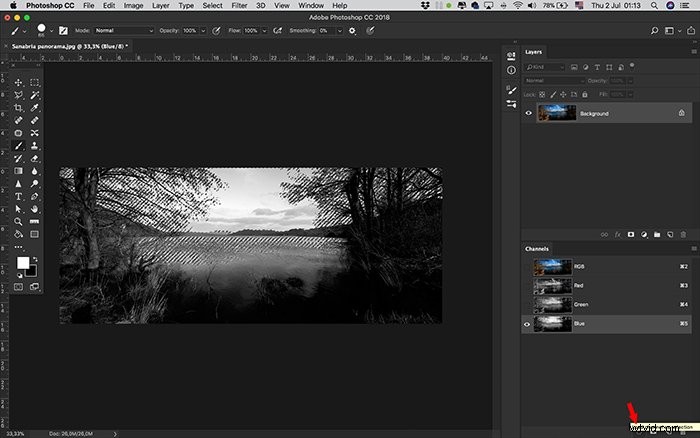
2 – Create an alpha channel of that selection by clicking the mask icon on the bottom of the channels palette.
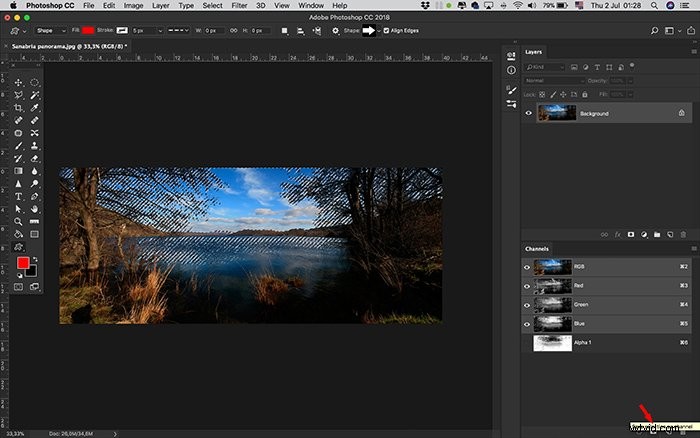
This alpha channel is now stored. You can use it as a layer mask and paint it to add or remove selection areas as well as converting to a selection anytime. This makes it possible to control the transparency for specific colors or selections.
You can also drag alpha channels between documents, as long as both documents have the exact same pixel dimensions. If that is not the case, you can adjust those dimensions with the image size function or with the crop tool.
An image can have up to 56 channels.
How to Use a Stored Alpha Channel Mask
The process of using a stored mask is the following:
- Select the alpha channel, click the Load Selection button at the bottom of the panel, and then click the composite color channel near the top of the panel;
- Drag the channel containing the selection you want to load onto the Load Selection button;
- Ctrl-click (Windows) or Command-click (Mac OS) the channel containing the selection you want to load;
- To add the mask to an existing selection, press Ctrl+Shift (Windows) or Command+Shift (Mac OS), and click the channel;
- To subtract the mask from an existing selection, press Ctrl+Alt (Windows) or Command+Option (Mac OS), and click the channel;
- To load the intersection of the saved selection and an existing selection, press Ctrl+Alt+Shift (Windows) or Command+Option+Shift (Mac OS), and select the channel.
You can drag a selection from one open Photoshop image into another. You can also create a new channel that Photoshop will fill with black color by default.
Conclusion
Photoshop channels are a fun and powerful editing process with amazing results. Exploring these options will have a significant impact on your images.
To become an editing pro, check out our Effortless Editing With Lightroom course!